How to Turn Off Repost on Instagram: Control Sharing and Privacy
A complete guide on how to turn off reposting and sharing options on Instagram in 2026, manage Remixes, and protect your content.
Short answer
Turn off reposting and resharing on Instagram by disabling the 'Allow sharing to Stories' toggle in your Sharing and Remixes settings. This blocks other users from adding your posts, Reels, or guides to their personal Story feeds.
Key takeaways
- Disabling Story sharing stops other users from embedding your feed posts in their Stories.
- You can turn off Remix permissions globally or on individual Reels and photos.
- Disabling template reuse prevents creators from copying your Reels layout and audio.
- Switching to a private profile restricts resharing permissions to approved followers only.
- Changes to sharing controls apply instantly and do not affect old reshares.
How do you turn off reposting and sharing on Instagram?
You can turn off reposting and sharing on Instagram by adjusting the Sharing and Remixes menu inside your Privacy settings. This prevents other profiles from putting your posts in their Stories.
To change these options, go to your profile, tap the three-line menu, and select Settings and activity. Scroll down to the Sharing and remixes section and toggle off the switch labeled Allow sharing to stories. This prevents the share paper-airplane icon on your posts from showing the Add to story option to other users. To understand how sharing frequency influences account reach, you can consult the Instagram algorithm guide.
Disabling these controls gives you complete authority over your creative work. If you are learning how to repost on Instagram natively, managing these toggles shows you what limitations other accounts experience. These restrictions prevent automated scraper bots from harvesting your media.
How do you disable Remixes and templates on your posts?
To disable Remixes and templates, open the Sharing and Remixes settings, scroll to the Remix section, and toggle off permissions for Reels, feed videos, and photos. This stops others from combining their media with yours.
When you leave Remix enabled, anyone can download your video and record a side-by-side response. If you want to disable this for existing posts, you must open each Reel, tap the three dots, and select Turn off remixing. Disabling templates works similarly: under the Templates header, toggle off Allow others to use your posts as templates. This prevents your layout from being copied.
Managing templates is important for protecting your brand aesthetic. If you want to keep your network details private while disabling sharing, you can learn to hide following list to limit visibility. These options give you detailed security over your intellectual property.
Which sharing control should you choose?
Choose the sharing control that matches your desired level of privacy. The table below details the options available in Content Preferences and settings.
| Setting option | What it blocks | Target audience | Reversible? |
|---|---|---|---|
| Allow sharing to stories | Blocks embedding your posts in Stories | All users | Yes, globally |
| Allow remixing | Blocks side-by-side video reactions | Reels and photos | Yes, per post |
| Allow template reuse | Blocks copying of your Reels transitions | Creators | Yes, instantly |
| Allow downloads | Blocks direct downloads of your Reels | App visitors | Yes, globally |
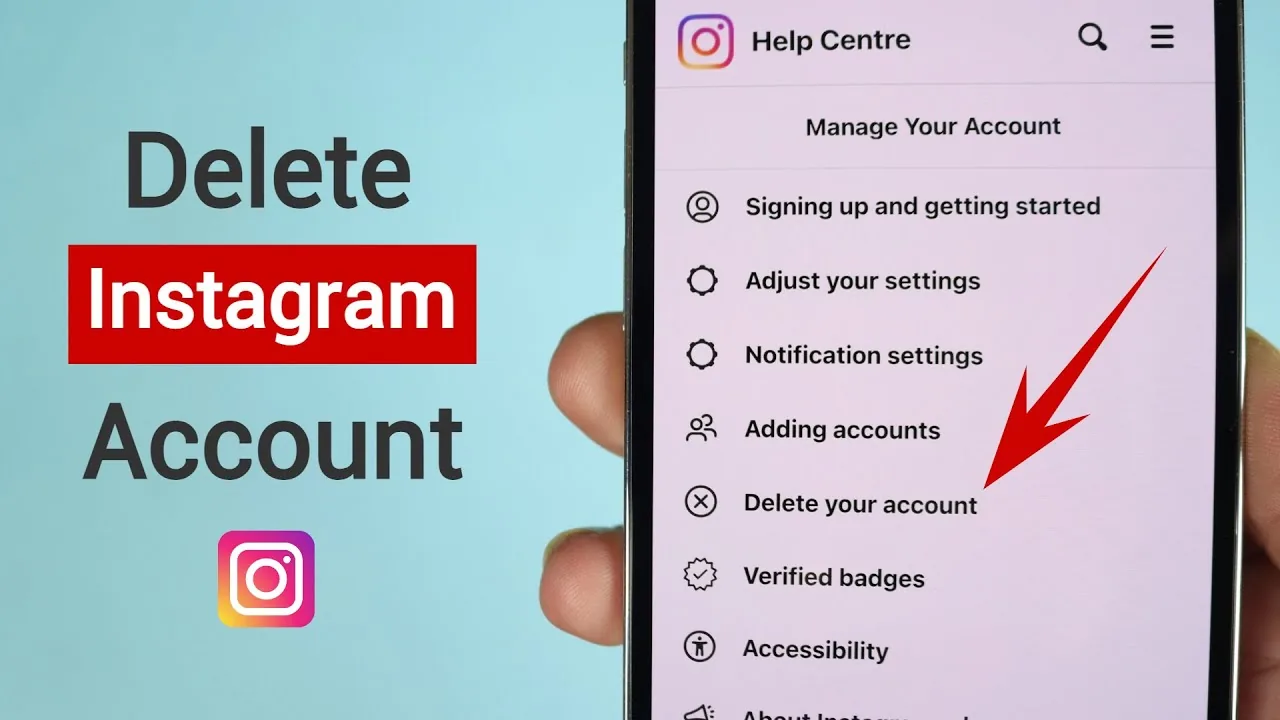
For a complete overhaul of your safety settings, you should make account private to block public access. Alternatively, if the app is causing too much distraction, you can read the temporary disable account or how to delete Instagram profile guides for a complete break.
How do you manage sharing settings for individual Reels?
Manage individual Reel settings on the final share screen by scrolling to Advanced settings and toggling off Remix permissions before publishing. This restricts sharing for a specific upload only.
- Open the creation screen and edit your Reel.
- Tap Next to reach the Share configuration page.
- Scroll to the bottom and select Advanced settings.
- Toggle off Allow remixing for this reel.
- Publish the post to apply the setting.
This method allows you to leave global sharing active while keeping sensitive uploads protected. When uploading, ensure you follow the technical standards in how to post on Instagram. If you experience system delays when saving these configurations, you can clear app cache on Android to refresh device parameters.
What security and privacy limitations exist?
No sharing setting can prevent someone from taking a screenshot, recording their screen, or using third-party browser scrapers to copy your content. These controls only block in-app native buttons.
If someone is determined to copy your media, they can use external screen capture tools. This is why you should check privacy limits; you can study does Instagram show screenshots to see what notices Meta sends. If you are worried about unseen visitors, read does Instagram have profile views for clarification. You can also monitor who accesses your account by checking if there's an anonymous Instagram viewer targeting your profile. For GPS privacy, adjust your Instagram location controls.
Frequently asked questions
Yes. Go to Settings > Sharing and remixes, and turn off 'Allow sharing to stories' to remove this option from all your posts.
Sources
Keep reading
More guides to grow your account.