How Do I Delete Instagram?
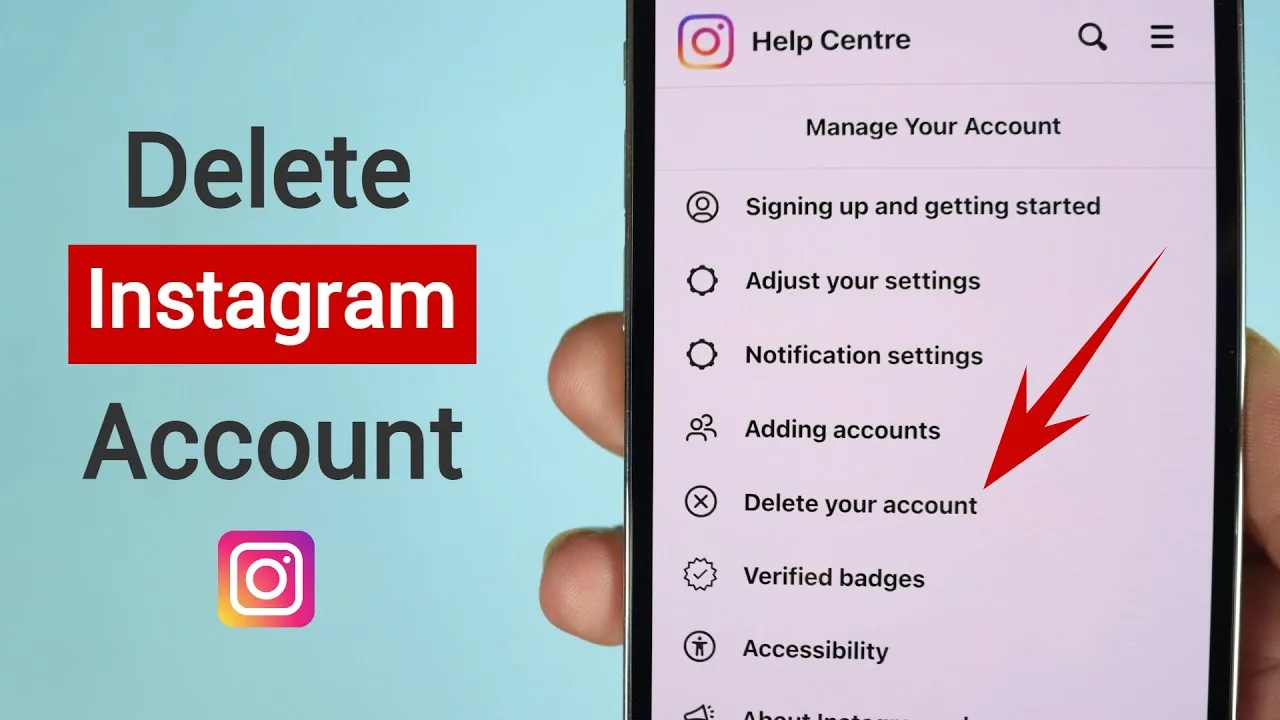
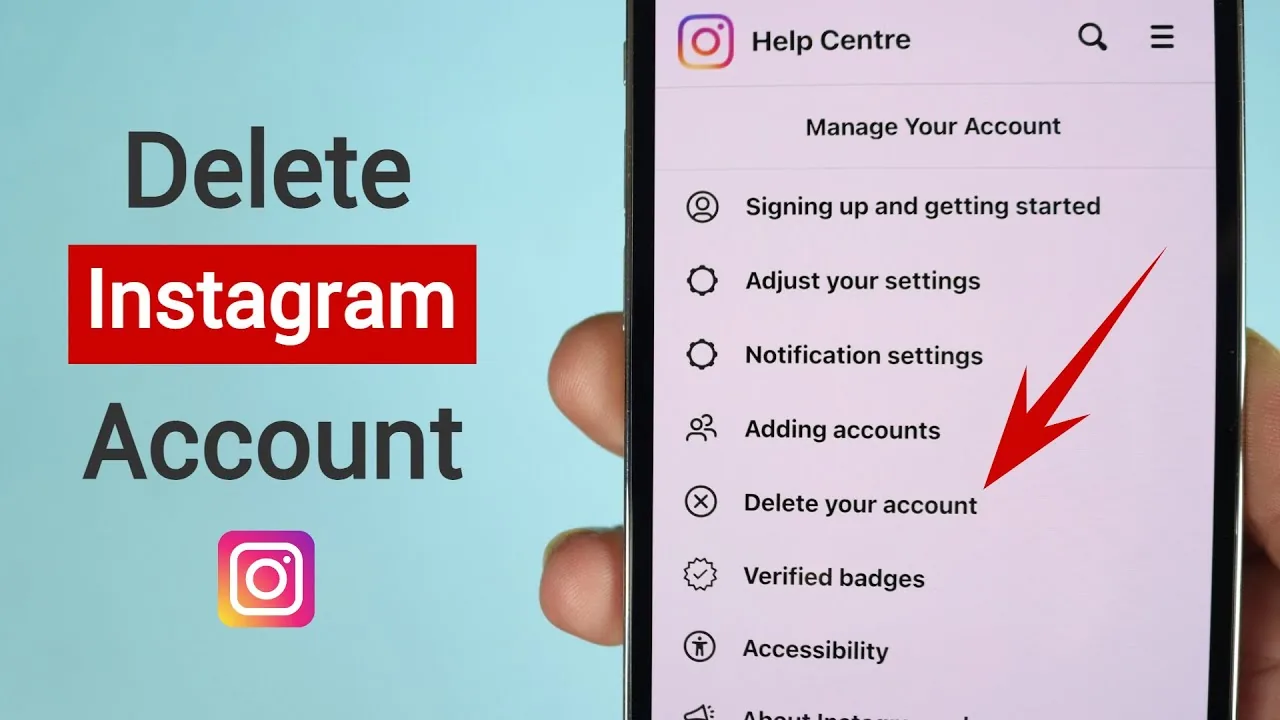
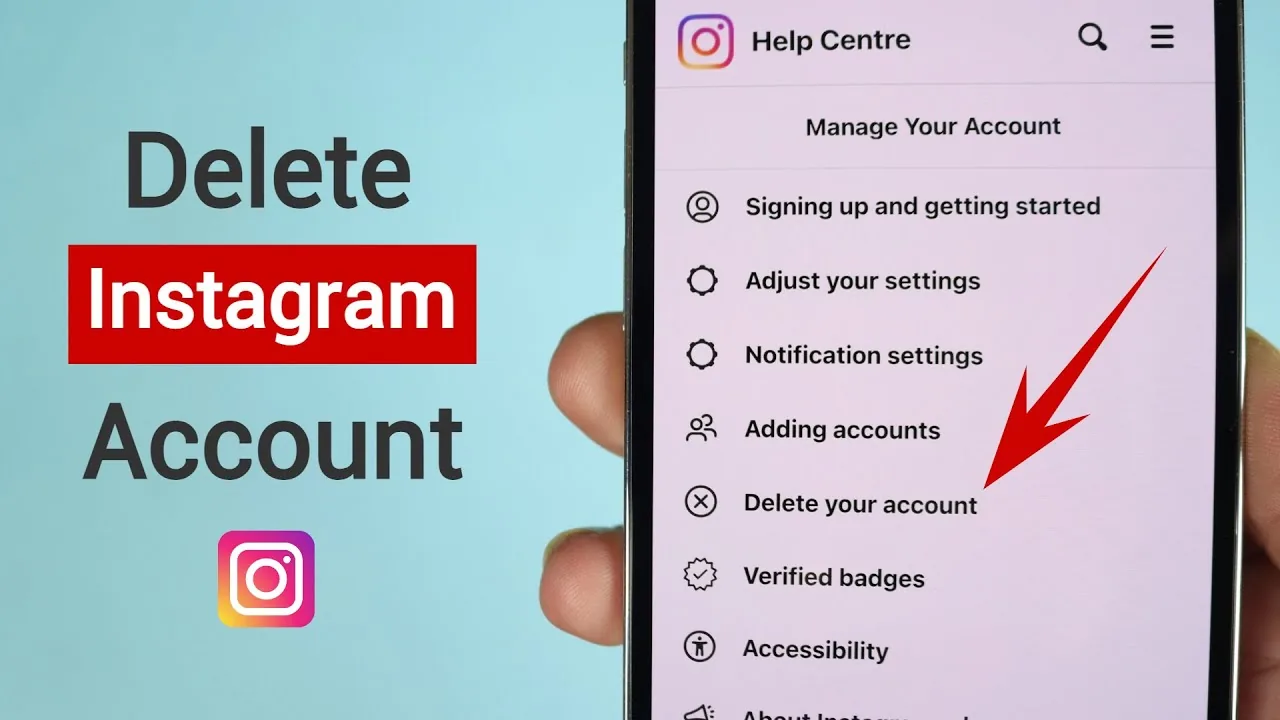
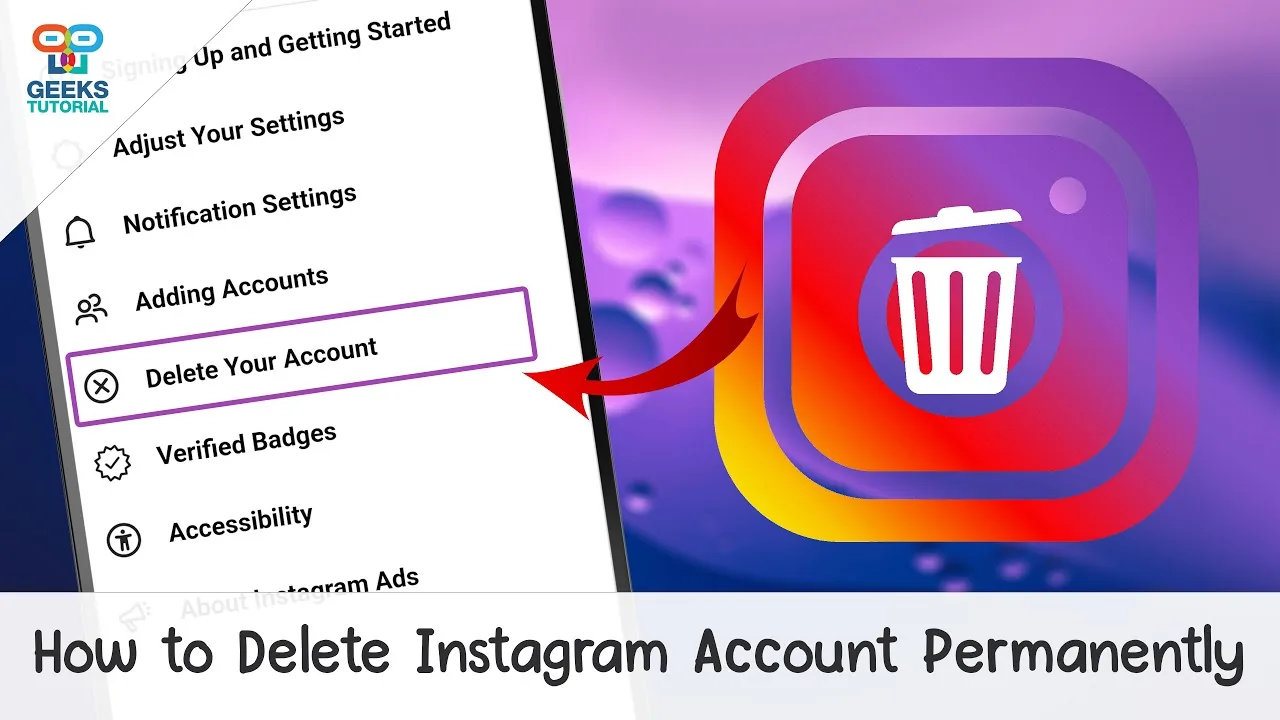
"Delete Instagram" usually means one of two very different things: uninstalling the app from your phone (which keeps your account intact) or permanently deleting your account and data (which requires the in-app Accounts Center flow and a 30-day wait before it's final).

Short answer
Uninstalling the Instagram app just removes it from your device and takes seconds; permanently deleting your account and data is a separate in-app process with a 30-day grace period before everything is actually erased.
Quick answer
It depends on what you actually mean by "delete Instagram." If you want the app off your phone, that's a normal uninstall through your phone's settings — your account, followers, and posts stay exactly as they are, and you can log back in anytime by reinstalling. If you want your account and data gone permanently, that's a separate process done inside the app itself, and it takes 30 days to become final.
Key takeaways
- Uninstalling the app removes it from your device only — it has zero effect on your account, which remains fully active and visible to everyone.
- Deleting the account permanently erases your profile, posts, comments, and likes, but only after a 30-day grace period passes without you logging back in.
- Account deletion is started from Settings and privacy > Accounts Center > Personal details > Account ownership and control > Deactivation or deletion, not from your phone's app management screen.
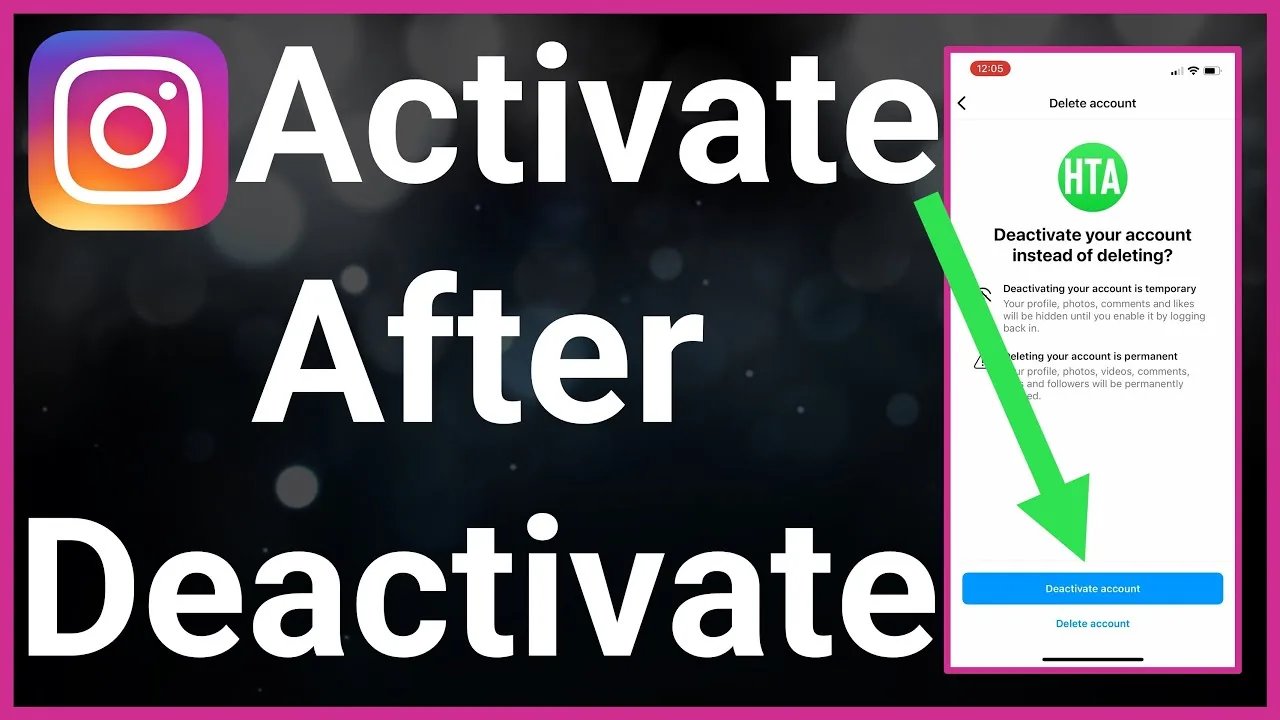
- If you just want a break rather than permanent removal, deactivating (browser-only, fully reversible) is a lighter option than deleting.
- Downloading your data before deletion is the only way to keep a copy of your photos, videos, and messages once the account is actually gone.
If you mean: remove the app from your phone
- On iPhone, press and hold the Instagram app icon until a menu appears, then tap Remove App > Delete App.
- On Android, press and hold the icon, drag it to Uninstall, or go to Settings > Apps > Instagram > Uninstall.
- That's it — your account is untouched. Reinstalling from the App Store or Google Play and logging back in restores everything instantly.
This is the right move if Instagram is just taking up space or you want to reduce how often you check it, without giving up your account, followers, or content.
If you mean: permanently delete your account
- Open the Instagram app and go to your profile.
- Tap the menu icon (three lines), then Settings and privacy.
- Tap Accounts Center, then Personal details.
- Tap Account ownership and control, then Deactivation or deletion.
- Select the account, choose Delete account, pick a reason, and confirm with your password.
Instagram will offer to let you download your data first — do this if there's anything you might want later, since recovery isn't possible once the deletion is final. For the full breakdown of the data export step, the 30-day window, and what happens to your username afterward, see how to delete an Instagram account permanently.
Why the 30-day window matters
Once you confirm deletion, Instagram doesn't erase anything immediately. Instead, the account enters a 30-day hold: it disappears from public view right away, but logging back in with your username and password during those 30 days automatically cancels the deletion and restores everything. Only after the full 30 days pass without a login does the deletion become permanent and irreversible.
Common mistakes to avoid
- Uninstalling the app expecting your account to also disappear — it won't. The account lives on Instagram's servers, not your phone.
- Looking for the delete-account option inside your phone's app settings — it's inside the Instagram app's own Settings and privacy menu instead.
- Deleting without exporting your photos and messages first, then realizing later there was content worth keeping.
- Logging back in "just to look" during the 30-day window and accidentally canceling a deletion you actually wanted to go through with.
Tips
- If you're unsure whether you want the account gone forever, deactivate first (reversible, browser-only) rather than jumping straight to deletion.
- If your goal is simply less screen time, uninstalling the app — or using Instagram's built-in time limit reminders in Settings > Your activity > Time spent — solves that without touching your account at all.
- Disconnect any linked Meta Business Suite, ad accounts, or third-party apps before deleting, since deletion can affect those integrations.
Frequently asked questions
No. Uninstalling only removes the app from your device. Your profile, posts, followers, and messages all remain exactly as they were on Instagram's servers, and reinstalling the app and logging back in brings everything right back.
Sources
Keep reading
More guides to grow your account.