How to Change Your DP on Instagram (Quick Steps)
"DP" just means profile picture — here's the fastest way to change your Instagram DP on mobile, the web, and what happens to your old one.
Short answer
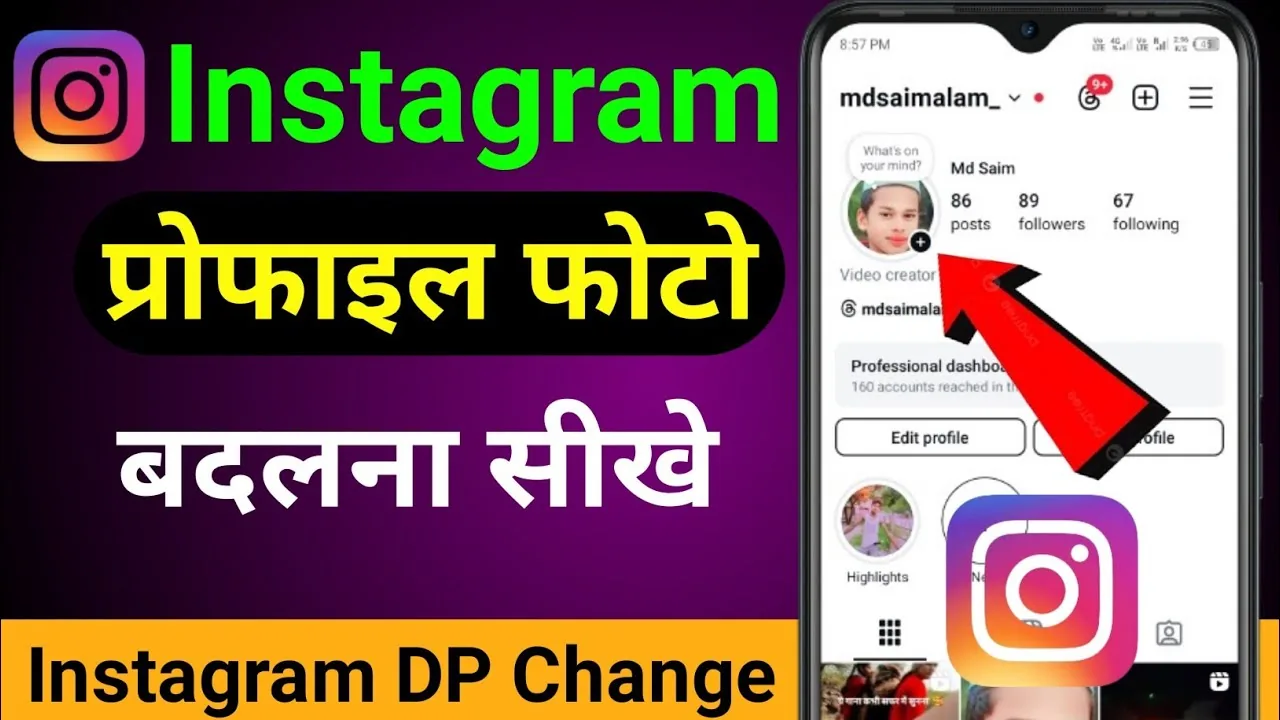
On Instagram, "DP" (display picture) is just another name for your profile picture — change it by opening Edit Profile, tapping your current photo, and choosing a new one from your library, a fresh photo, or an avatar.
Key takeaways
- "DP" (display picture) is not an Instagram-specific term — it's just what many users, especially in South Asia and the UK, call a profile picture.
- You change it from Edit profile, tapping the current photo, then choosing New profile picture, Choose from library, or an avatar option.
- Instagram crops every DP into a circle, so keep your subject centered with margin around the edges.
- Your DP stays publicly visible even on a private account — it is one of the few elements Instagram never hides.
- If your account is linked to Facebook through Accounts Center, changing your DP there can update it across both apps at once.
- There's no separate "DP setting" hidden anywhere else in the app — Edit profile is the only path, on both mobile and instagram.com.
Is "DP" the same thing as an Instagram profile picture?
Yes. "DP" is shorthand for display picture, an older term carried over from messaging apps like WhatsApp and BBM into everyday social media slang. Instagram's own interface never uses the word "DP" — it labels the field profile picture — so searching "change DP" and "change profile picture" gets you to the exact same setting.
How do you change your DP on the Instagram app?
Open your profile, tap Edit profile, then tap your current photo to open the picture options. From there you can choose New profile picture to upload from your camera roll, take a new photo on the spot, or pick a Meta avatar if you've set one up. For the full walkthrough — including cropping, importing from Facebook, and Meta Verified review rules — see our complete how to change your Instagram profile picture guide.
| Platform | Where to tap | Extra option |
|---|---|---|
| iOS / Android app | Edit profile → tap photo | Take new photo, choose avatar |
| instagram.com | Edit profile → Change profile photo | Upload from computer |
| Accounts Center | Profiles → your Instagram profile | Syncs photo across linked apps |
Can you change your DP from a computer?
Yes. Log into instagram.com, open your profile, select Edit profile, and click directly on the profile photo to upload a replacement from your computer's files. The desktop flow skips the in-app camera option but otherwise lands you at the same crop-and-confirm screen as mobile.
What happens to your old DP after you change it?
Your previous profile picture is simply replaced and is no longer shown anywhere on your live profile, but Instagram does not always delete it from its backend immediately. If you ever want a copy back, keep a saved version yourself rather than relying on Instagram to restore an old DP, since there's no native "profile picture history" feature.
Does changing your DP notify your followers?
No. Instagram does not push a notification to your followers when you update your profile picture, though the new DP will immediately appear next to any of your future comments, likes, and Story rings. If you post the new photo separately to your feed, that post triggers the normal notifications a regular post does.
Will a private account's DP still show publicly?
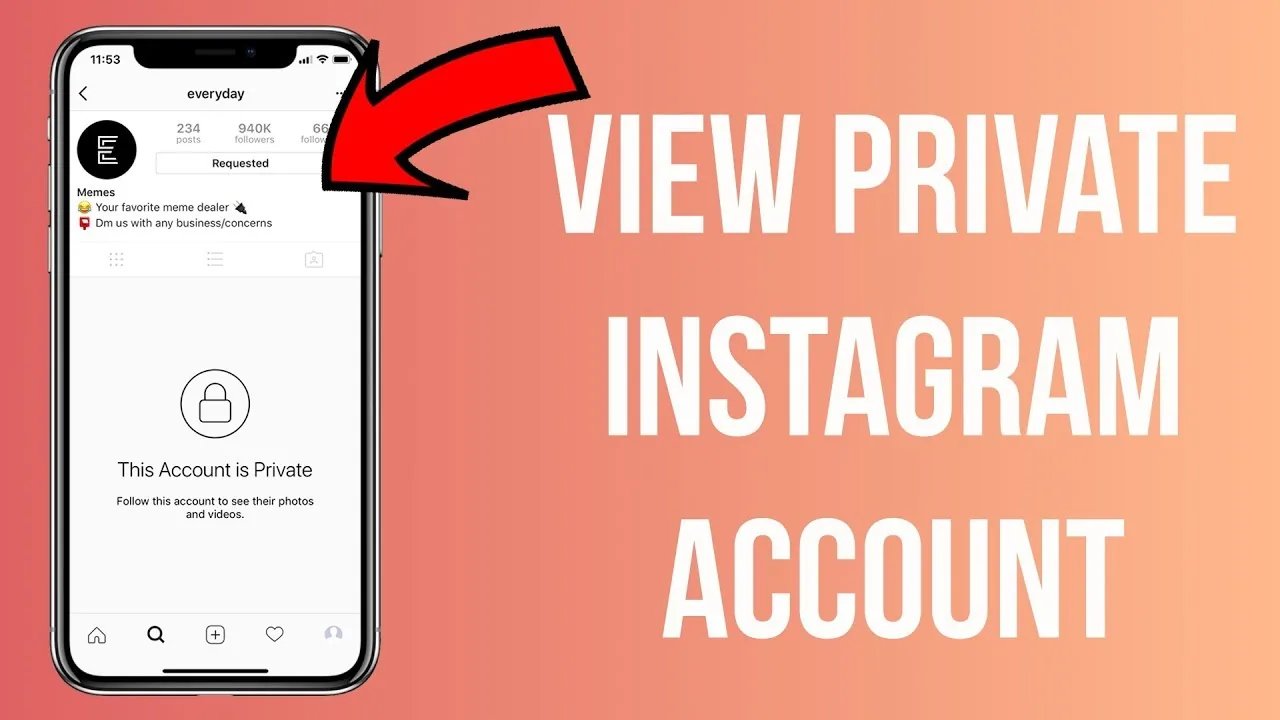
Yes. Even with a fully private account, your profile picture, username, name, and bio remain visible to anyone who looks up your profile — only your posts, followers list, and following list are hidden. If you want a photo that stays fully private, don't use it as your DP; keep it in a regular post shared to approved followers only, similar to the audience controls covered in how to make your Instagram account private.
What size and format should your DP be?
Upload a square image at least 320×320 pixels; Instagram automatically crops it into a circle and compresses it, so a sharper, higher-resolution source photo holds up better after compression than a small, blurry one. JPG and PNG both work, and Instagram strips most other metadata automatically on upload.
Can you remove your DP without adding a new one?
Not fully — you can only replace it, either with another photo or with Instagram's default silhouette-style placeholder if you delete your current one from the edit screen. There's no setting that leaves the space visibly blank while keeping the rest of your profile active.
Frequently asked questions
If you're weighing a full profile refresh, pairing a new DP with an updated Instagram bio or a cleaned-up username tends to have more impact than changing the photo alone.
Frequently asked questions
DP stands for display picture, a common nickname for profile picture that came from messaging apps. Instagram's interface calls it "profile picture," not "DP," but they're the identical setting.
Sources
Keep reading
More guides to grow your account.