How to Post on Instagram: Step-by-Step Guide (2026)
How do you post on Instagram in 2026? Tap the plus (+), pick a photo, edit, add a caption, then Share. Steps for posts, carousels, Reels, and Stories.
Short answer
To post on Instagram, tap the plus (+) icon, choose Post, select your photo or video, edit it, write a caption, and tap Share. The same flow works on desktop at instagram.com, and you can also post carousels of up to 20 slides, Reels, and Stories.
Key takeaways
- To post a photo, tap the plus (+) icon, choose Post, select your media, tap Next, add a caption, and tap Share (5 steps, under a minute).
- Carousels hold up to 20 slides in one post and are among Instagram's highest-reaching feed formats in 2026.
- You can post photos, carousels, Reels, and Stories from a desktop browser at instagram.com, but the web uploader cannot schedule posts.
- Reels reach non-followers fastest, feed posts build credibility, and Stories vanish after 24 hours.
- Use 3 to 5 relevant hashtags, not 30 - Instagram now rewards relevance over volume.
- Add alt text for accessibility and extra discovery context on every photo post.
How do you post a photo on Instagram?
To post a photo on Instagram, tap the plus (+) icon, choose Post, select your image, add a caption, and tap Share. The whole flow takes under a minute and is nearly identical on the app and on desktop in 2026.
- Open Instagram and tap the plus (+) icon at the top or bottom of the screen.
- Choose Post, then select a photo from your camera roll (or tap the camera to shoot a new one).
- Pick an aspect ratio, then tap Next to reach the editing screen.
- Apply a filter or fine-tune brightness, contrast, and warmth under Edit, then tap Next.
- Write your caption, add tags and location, then tap Share.
If you are brand new, our Instagram growth guide for beginners ties posting into a full strategy.
How do you post a carousel with multiple photos?
To post a carousel, tap the plus (+) icon, choose Post, then tap the Select multiple icon and pick your images in order. Carousels hold up to 20 slides in a single post and remain one of Instagram's highest-reaching feed formats in 2026.
- Tap the plus (+) icon and choose Post.
- On the media picker, tap the Select multiple icon (two stacked squares).
- Tap each photo or video in the order you want them to appear - Instagram numbers them as you go.
- Tap Next, then edit slides individually or apply one filter to all of them.
- Add your caption and tap Share.
Keep every slide in the same aspect ratio, ideally portrait at 1080 x 1350 px, so nothing gets awkwardly cropped mid-swipe.
Your first slide is the hook. Borrow the structure from our viral Reels hook formula, which works just as well for slide one of a carousel.
Can you post to Instagram from a computer?
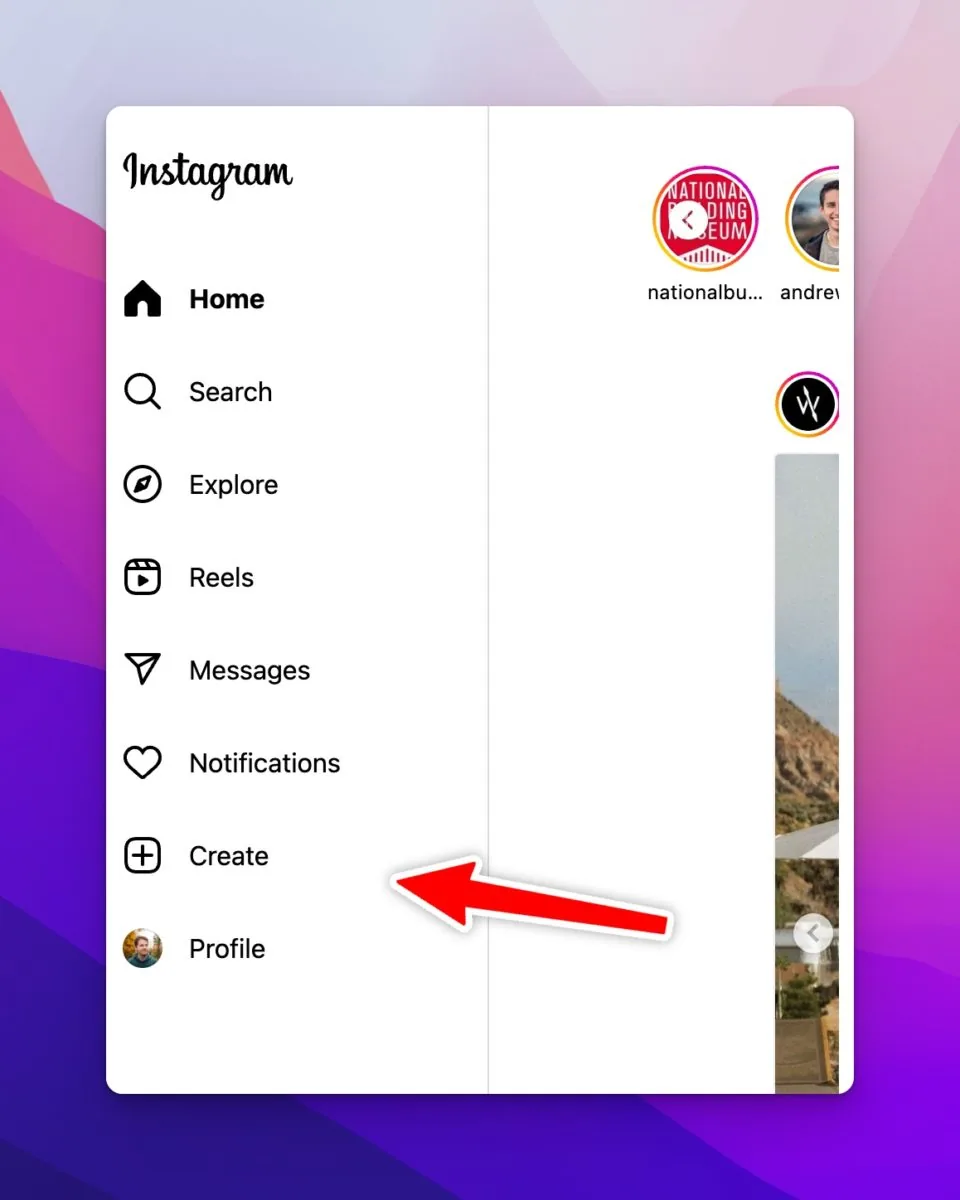
Yes - Instagram web fully supports photos, carousels, Reels, and Stories from any browser in 2026. Go to instagram.com, log in, and click Create in the left sidebar.
- Go to instagram.com and log in.
- Click the Create button (the plus icon) in the left sidebar.
- Drag your files into the upload window, or click Select from computer. For a carousel, drag several images in at once.
- Crop or filter, click Next, then write your caption.
- Expand the Accessibility section to add alt text, then click Share.
Desktop is ideal for bulk uploads, but the native web uploader cannot schedule posts and has bare-bones Reels editing. For planning ahead, use Meta Business Suite or a third-party scheduler.
Which post type should you use: feed, carousel, Reel, or Story?
Pick by goal: a feed photo for a single hero image, a carousel for a multi-part story, a Reel to reach new people, and a Story for casual daily updates. The table below compares all four.
| Post type | Best use | Max media | Where it appears |
|---|---|---|---|
| Feed photo | One polished hero image | 1 photo | Profile grid, followers' feeds |
| Carousel | Multi-part stories, tutorials | 20 slides | Profile grid, feeds, Explore |
| Reel | Reaching non-followers | 1 video (up to 3 min) | Reels tab, feeds, Explore |
| Story | Casual, time-sensitive updates | 1 photo/video per frame | Stories bar, disappears in 24h |
Mix all three feed formats: Reels pull in new eyes, feed posts build credibility, and Stories keep current followers engaged. See how the Instagram algorithm actually works, and if you delete a Story you loved, learn how to repost a Story on Instagram.
How do you write captions and use hashtags?
Lead your caption with a hook, add value in the middle, and end with a clear call to action. Instagram truncates captions after about 125 characters, so the first line does the heavy lifting.
- Lead with a hook in the first line before the caption cuts off.
- Add value or a short story in the middle.
- End with a clear call to action (comment, save, or share).
- Add 3 to 5 targeted hashtags rather than a wall of 30 - relevance beats volume in 2026.
Your bio matters as much as any caption, since it is the first thing new visitors read. Tighten it with our guides to optimizing your Instagram bio and writing an Instagram bio that converts.
How do you tag people and add alt text?
On the final screen before sharing, tap Tag people to tag accounts, Add location for discovery, then open Advanced settings and Write alt text. Tags and alt text improve both reach and accessibility.
- Tap Tag people and search for accounts to tag in the image.
- Tap Add location to appear in local discovery.
- Tap Advanced settings, then Write alt text to describe your image for screen readers.
- On desktop, expand the Accessibility accordion below the caption to add alt text.
Alt text also gives Instagram more context, which quietly helps discovery. Note that alt text is not available for Stories. Video formats have their own extras - for example, learn how to go live on Instagram for real-time reach.
How do you schedule an Instagram post?
Schedule a post using Meta Business Suite or a tool like Later, Buffer, or Hootsuite: connect your account, upload media, set a publish time, and it auto-publishes. The native app and web uploader cannot schedule posts on their own.
- Open Meta Business Suite or a scheduler like Later, Buffer, or Hootsuite.
- Connect your Instagram account and upload your media.
- Write the caption, add first-comment hashtags, and set a publish time.
- Confirm, and the tool auto-publishes for you.
Post when your audience is actually online. Check our data-backed breakdown of the best time for uploading to Instagram, including the best time to post on Monday, then batch a full week at once using our content calendar batch-week system.
Best practices in one line: post consistently, lead with a hook, use portrait dimensions, add alt text, and reply to early comments to signal quality to the algorithm.
Frequently asked questions
Tap the plus (+) icon, choose Post, and select a photo from your library. Edit or filter it, tap Next, write a caption, then tap Share to publish it to your feed.
Sources
Keep reading
More guides to grow your account.