How to Make an Instagram Reel Step by Step
Plan, record, edit, caption, cover, and publish an Instagram Reel with a clear hook, accessible text, safe audio, and measurable goal.
Short answer
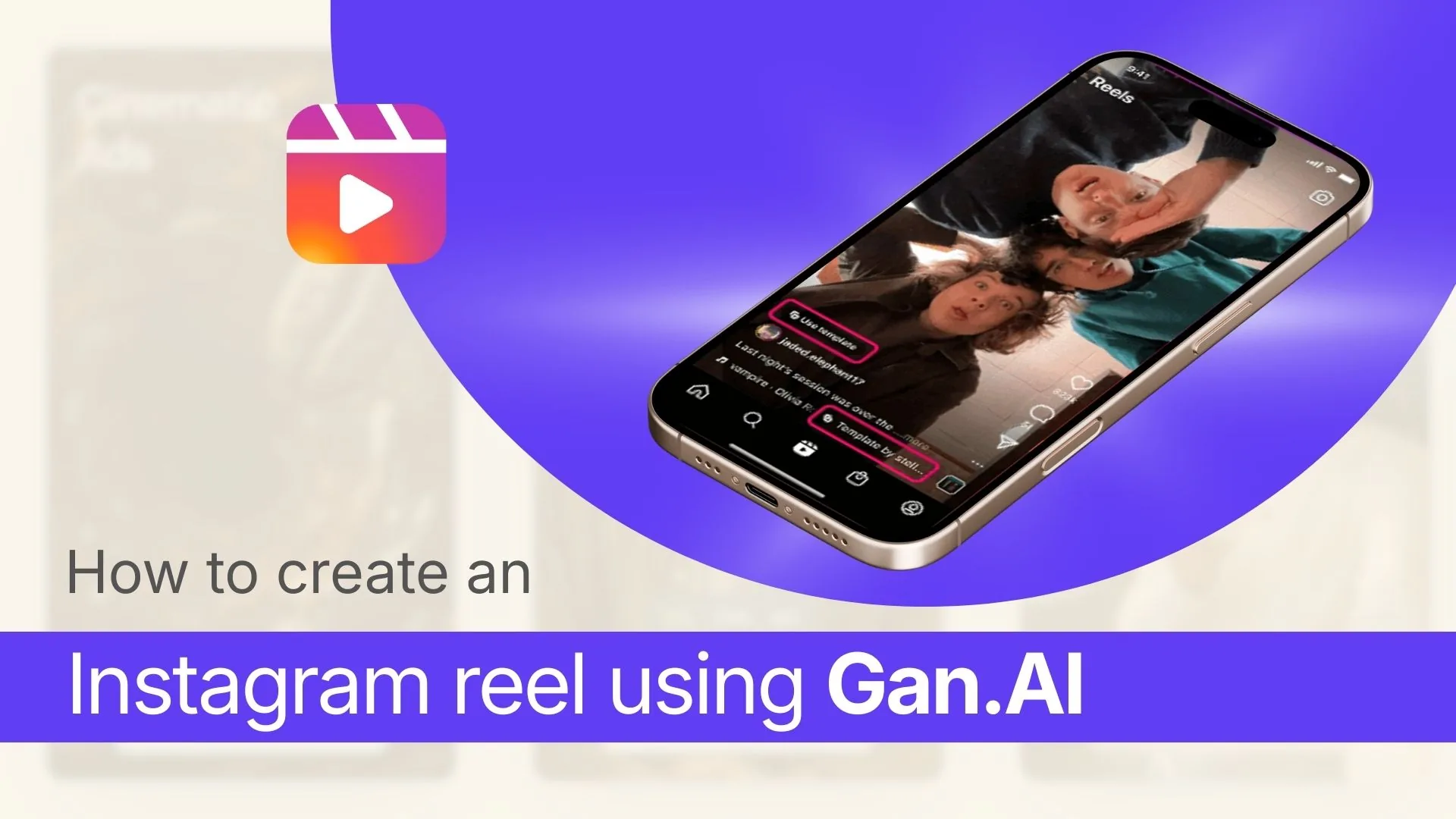
To make an Instagram Reel, open Create and choose Reel, record clips or add video from your device, edit the timeline, add permitted audio and captions, choose a cover, write the caption, review audience settings, and share. Start with one clear promise and save the original outside Instagram.
Key takeaways
- A Reel needs one viewer promise, an immediate opening, and a payoff—not every feature in the editor.
- Record or import vertical 9:16 video and keep important text away from interface overlays.
- Use captions because many people watch without sound and accessible text improves comprehension.
- Only use audio and footage you have rights to; business music availability can differ by license and region.
- Judge the Reel by watch time, completion, shares, saves, follows, or conversions that match its goal.
What do you need before making an Instagram Reel?
You need a single idea, a short shot plan, vertical source media, and a clear action for the viewer. Planning those elements first makes the in-app editor faster and the result more coherent.
Write the promise in one sentence: what will someone know, feel, or be able to do after watching? Turn it into a first-frame hook and list the minimum clips needed for proof. Decide whether the video needs original speech, licensed music, natural sound, or no audio. Prepare a cover concept and caption before recording so the Reel does not become a disconnected set of clips.
For useful context, compare post on Instagram with batch an Instagram content calendar.
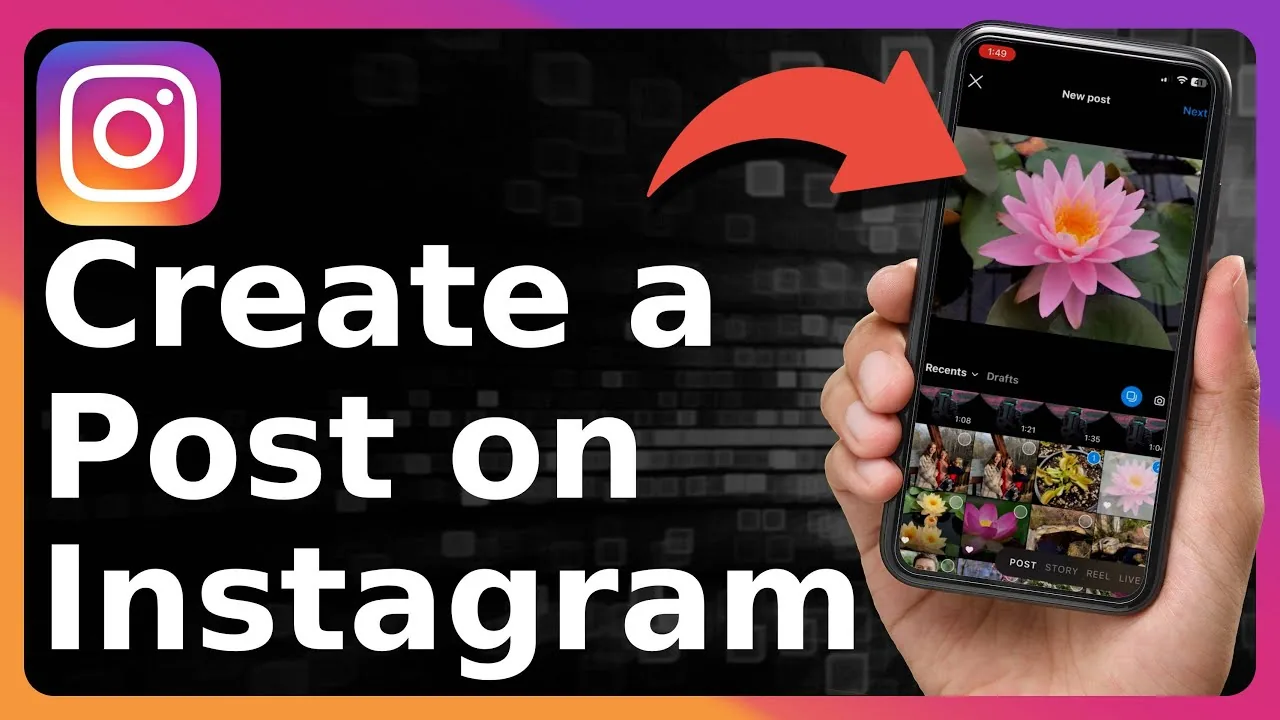
How do you create and post a Reel on Instagram?
Open the Reel composer, capture or import clips, tighten the timeline, add accessible creative elements, and review publishing controls before sharing.
- Tap Create and Reel, then set the camera, timer, speed, or layout only if the concept needs it.
- Record clips or import vertical video from the gallery, leaving extra handles for clean trimming.
- Open the timeline, remove dead air, reorder clips, balance audio, and add transitions sparingly.
- Add accurate captions, readable on-screen text, and audio that is licensed for the account and region.
- Choose a clear cover, write a searchable caption, add permitted tags or collaborators, and review the profile-grid crop.
- Check audience, remix, download, and sharing settings, preview once with sound on and off, then publish.
Save the final master and caption outside Instagram before sharing. Drafts are device-dependent and can disappear after app removal or device changes, so they are not the only copy of valuable work.
These steps also pair well with choose an Instagram posting time and find your own optimal posting time.
Should you record a Reel in Instagram or edit elsewhere?
Use the Instagram editor for fast native capture and trends; use a dedicated editor for precise timelines, reusable masters, or team review. Both can produce strong Reels.
| Workflow | Best for | Advantage | Tradeoff |
|---|---|---|---|
| Instagram camera | Spontaneous native clips | Fast access to effects | Draft and editing limits |
| Instagram timeline | Simple multi-clip Reel | Integrated captions and audio | Less precise than full editors |
| Phone video editor | Polished creator workflow | Reusable clean master | Must verify export settings |
| Desktop editor | Teams and advanced production | Precise audio, color, captions | Longer workflow |
| Template | Repeatable trend format | Quick structure | Can look generic or impose limits |
Avoid exporting with another platform's visible watermark. Keep text large, high contrast, and within safe zones. Native effects can be useful, but the story and clarity should still work if an effect becomes unavailable.
To choose the right option, keep write stronger Instagram captions and optimize content for Instagram search nearby.
Why might a Reel look blurry, silent, cropped, or fail to post?
Problems usually come from low-quality source files, unsupported exports, weak connections, missing permissions, licensing limits, or an outdated app. Diagnose the media before rebuilding the concept.
- A messaging app compressed the source before it reached the editor.
- The export is horizontal, unusually large, variable-frame-rate, or encoded with an unsupported setting.
- Licensed music is not available for the account type or viewer region.
- Text and faces sit under the caption, buttons, or profile-grid crop.
- The upload was interrupted or the device lacks storage for processing.
Test with a short clean clip, update Instagram, and upload on a stable connection. If only one audio track fails, choose another permitted track or use original audio rather than reinstalling the entire app.
If you hit a related problem, consult understand the Instagram algorithm and follow an Instagram growth plan.
What safety, copyright, and privacy rules apply to Reels?
Only publish footage, music, locations, and people you are authorized to share. A public trend does not grant rights to copyrighted clips or private recordings.
Get consent for identifiable people, especially children, clients, patients, students, and people in sensitive locations. Remove addresses, badges, screens, and real-time location clues. Disclose paid partnerships clearly, avoid dangerous challenges and deceptive claims, and keep evidence for licensed media. Do not download another creator's Reel, remove its watermark, and present it as your own.
For privacy and account safety, also review write a stronger Reels hook and optimize an Instagram bio.
What makes a Reel effective after it is published?
An effective Reel fulfills its opening promise and creates the intended response. Use the first results to improve the next Reel rather than editing the live post compulsively.
- Reply to genuine questions and pin useful context when appropriate.
- Check retention, average watch time, shares, saves, and follows against the goal.
- Record the hook, length, topic, and outcome in a simple content log.
- Remake strong ideas with new examples instead of reposting the exact file repeatedly.
A repeatable production system beats chasing every trend. Publish consistently enough to learn, but keep the quality bar high enough that each Reel teaches you something about the audience.
Frequently asked questions
Open Create, choose Reel, record or import clips, edit the timeline, add captions and permitted audio, choose a cover, then share.
Sources
Keep reading
More guides to grow your account.