How to Check DMs on Instagram, Including Requests
Where to find Instagram DMs, why message requests hide with no notification, and how the Primary, General, and Requests tabs actually work.
Short answer
Tap the paper airplane icon at the top of your Instagram home screen to open your inbox, then check the Primary, General, and Requests tabs. Messages from accounts you don't follow land silently in Requests, which is why they're easy to miss.
Key takeaways
- The paper airplane icon in the top-right of the home screen opens your DM inbox on mobile and web
- Your inbox splits into three tabs: Primary, General, and Requests
- Requests holds messages from people you don't follow, and Instagram doesn't notify you when one arrives
- Opening a request lets you preview it without the sender knowing, until you reply or accept
- Desktop access works identically at instagram.com once you're logged in
- Approving a request is required before you can send a reply back
Where do I check my Instagram DMs?
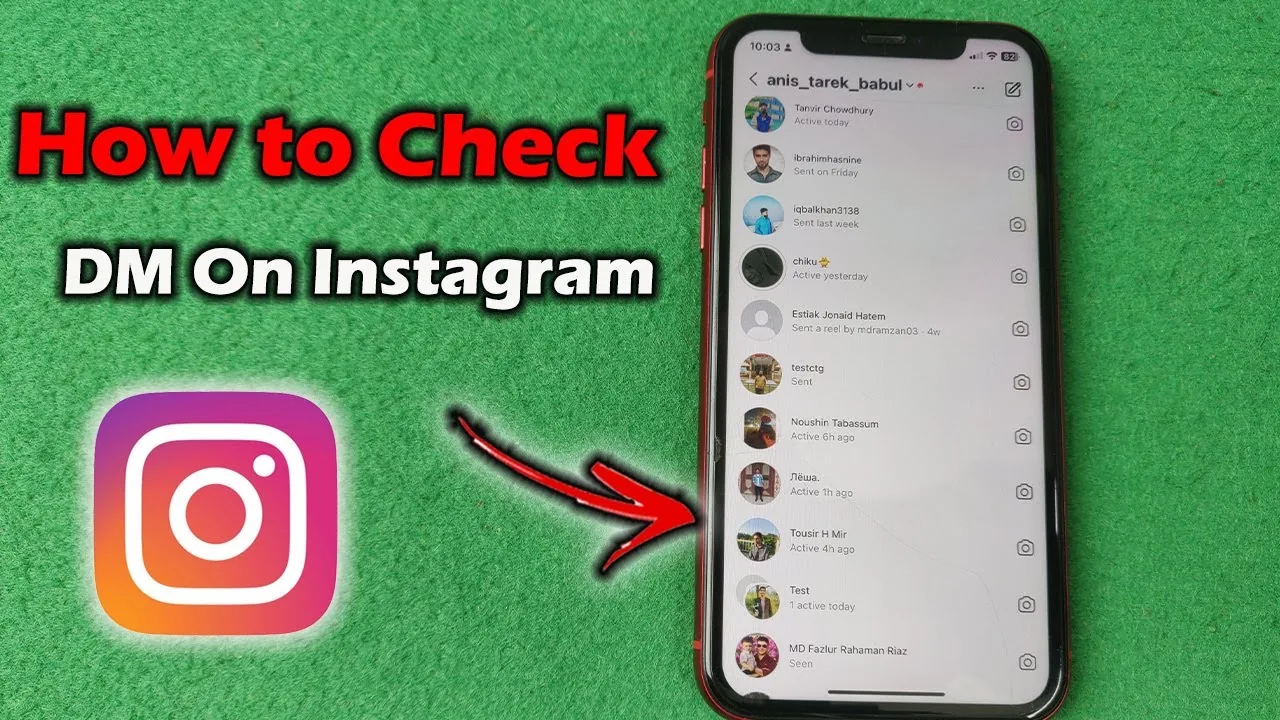
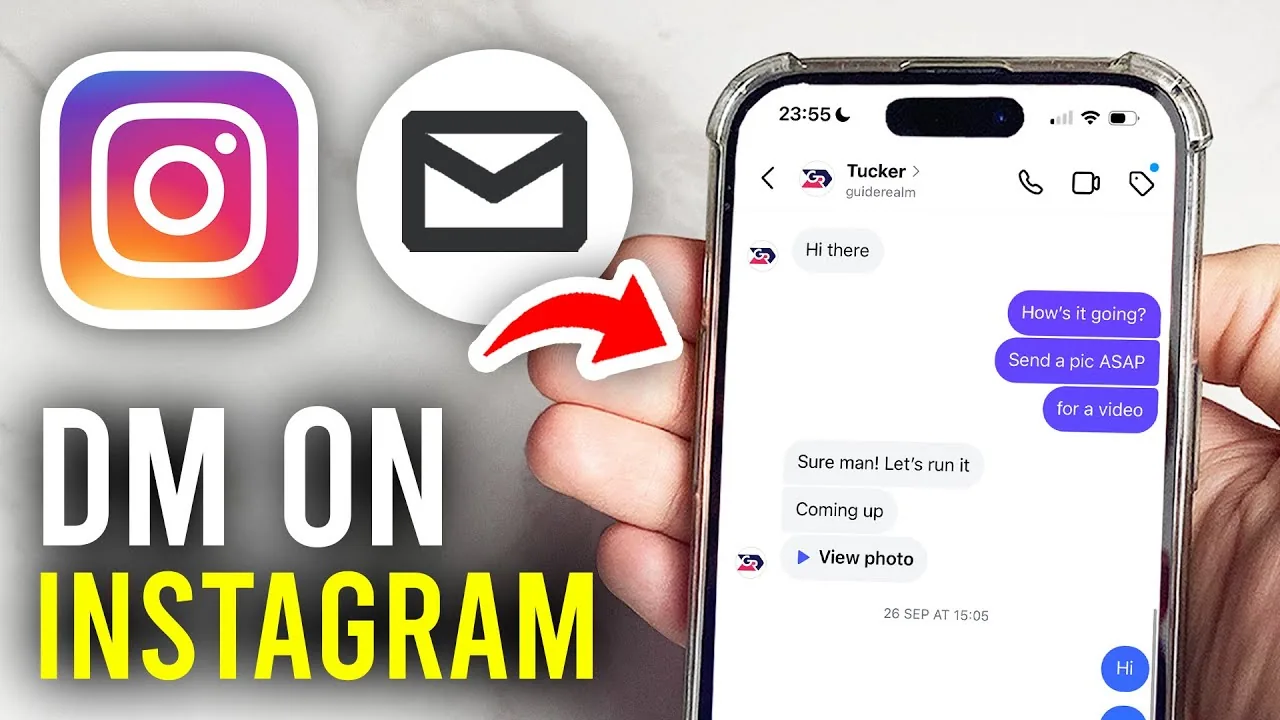
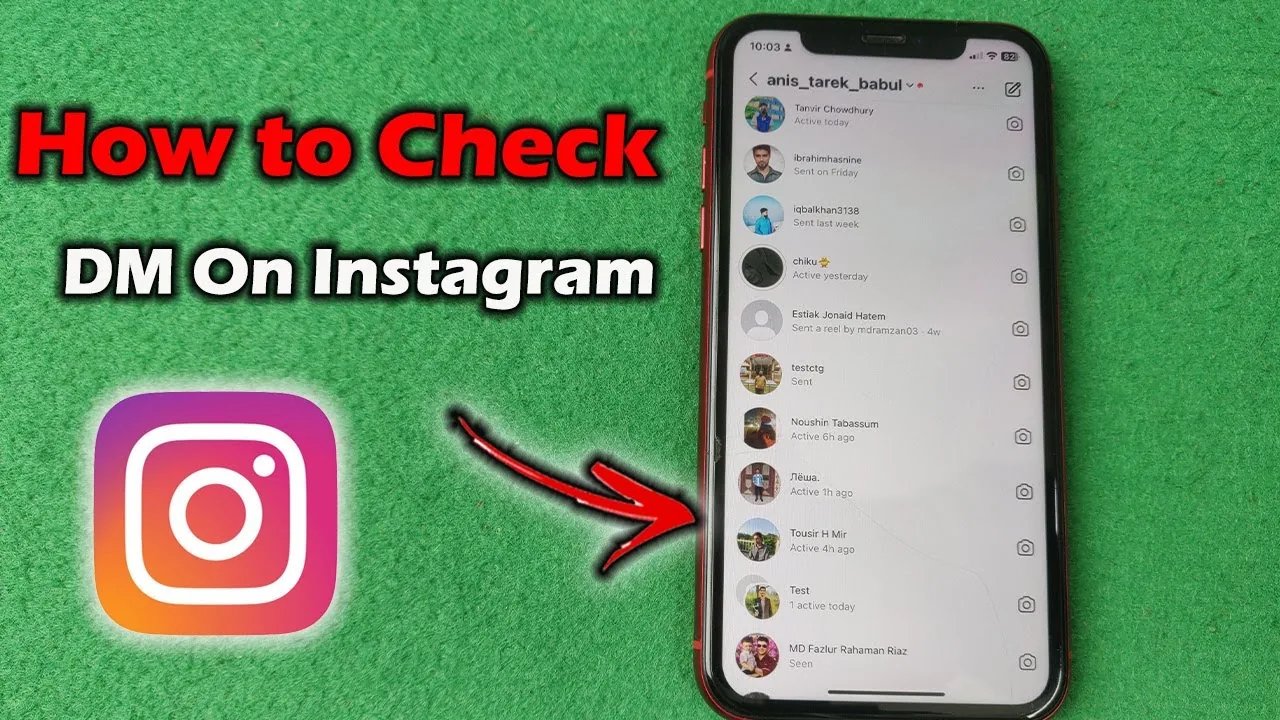
Tap the paper airplane icon in the top-right corner of the Instagram home screen on mobile, or click the same icon on instagram.com if you're on desktop. This opens your full inbox, and it works the same regardless of whether you're using a personal, business, or creator account.
Why does my inbox have three different tabs?
Instagram splits your inbox into Primary, General, and Requests to keep important conversations separate from noise. Primary holds chats Instagram considers important, usually from people you interact with often, General catches less urgent messages, and Requests holds anything from accounts you don't follow. Checking only Primary means you could be missing messages sitting quietly in the other two tabs.
How do I find message requests I might have missed?
Open your inbox and tap Requests at the top — this is where DMs from non-followers land, and critically, Instagram sends no notification when one arrives. Because of that silent delivery, it's worth checking Requests periodically, especially if you run a public or business account where strangers regularly reach out.
Will someone know if I read their message request?
No, not automatically. You can open and preview a request without the sender being notified — they only find out once you tap Accept or actually send a reply. This gives you room to screen messages before deciding whether to engage, which is useful for filtering spam or unwanted contact, similar to how you might screen who has blocked you before reaching out again.
Can I check Instagram DMs from a computer?
Yes, instagram.com supports the same inbox structure as the mobile app. Log in, click the paper airplane icon, and you'll see Primary, General, and Requests exactly as they appear on your phone, making it easy to reply to a DM from a laptop during work hours instead of only on mobile, the same way you might manage a scheduled post from a desktop browser.
What happens after I accept a message request?
Once you accept, the conversation moves out of Requests and into your regular inbox, and the sender is notified that you've accepted. From that point on, replying works like any normal DM thread, and future messages from that person will land directly in Primary or General instead of Requests. If you'd rather avoid a thread altogether, you can also mute someone instead of blocking them outright.
Can I recover a DM I accidentally deleted?
Sometimes. If you deleted a conversation rather than the sender deleting their side, Instagram may still retain it briefly, and there are steps for how to recover a deleted DM worth trying before giving up on the thread entirely.
Inbox tabs at a glance
| Tab | Who's in it | Notification on arrival |
|---|---|---|
| Primary | Accounts you interact with often | Yes |
| General | Less urgent contacts | Yes |
| Requests | People you don't follow | No |
Checking all three tabs, not just Primary, is the simplest habit for making sure you never miss a DM sitting unnoticed in Requests or General.
Frequently asked questions
Tap the paper airplane icon at the top-right of the home screen on mobile, or click it on instagram.com, then browse the Primary, General, and Requests tabs.
Sources
Keep reading
More guides to grow your account.