How Do I Post Videos from Youtube to Instagram?
Since Instagram doesn't accept a YouTube link as a video source, you first need to download your own YouTube video as an MP4 file, then upload that file to Instagram as a feed post, Reel, or Story — just be mindful of aspect ratio, since YouTube's widescreen format usually needs cropping or reformatting for Instagram.
Short answer
Download your YouTube video as an MP4 file first, then upload it directly to Instagram as a feed post, Reel, or Story — YouTube's typical 16:9 widescreen format usually needs cropping or reformatting to fit Instagram's vertical and square video specs.
Quick answer
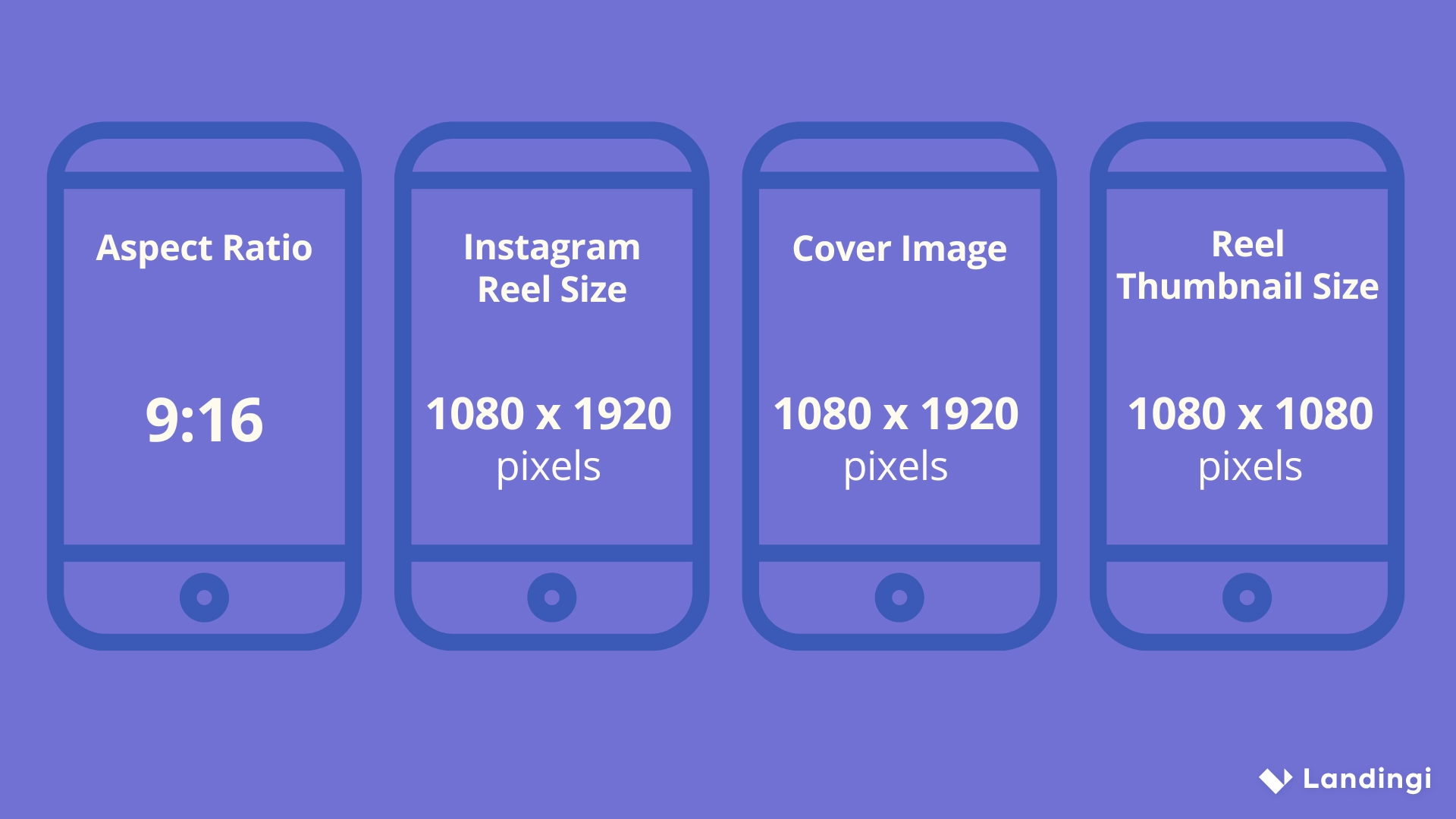
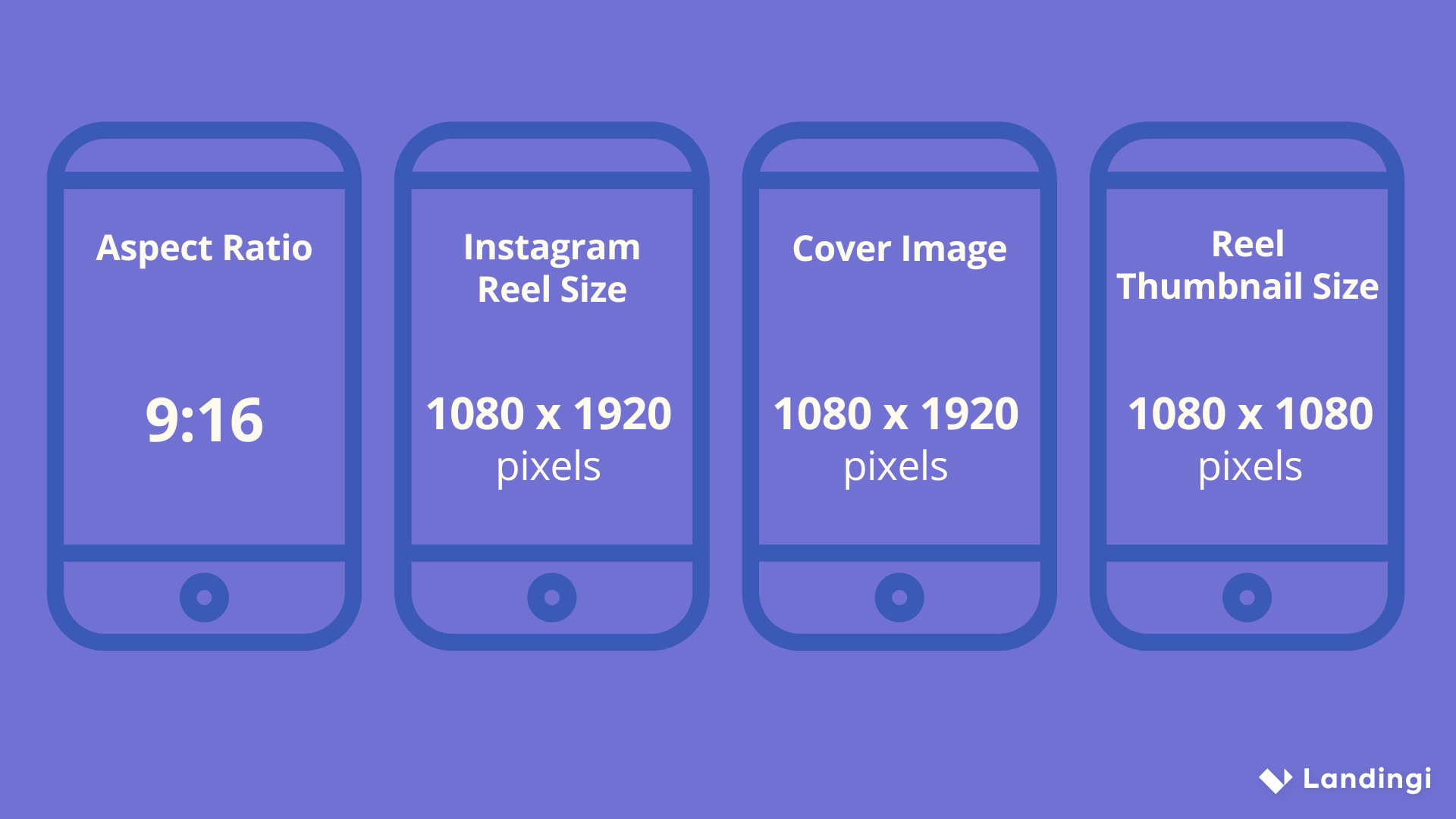
Instagram has no built-in tool to pull a video directly from a YouTube link — there's no "paste URL" option anywhere in the app. Instead, you download the video file from YouTube Studio (if it's your own content) as an MP4, then upload that file into Instagram like any other video, choosing feed post, Reel, or Story depending on the format. The main technical hurdle is aspect ratio: YouTube's standard 16:9 widescreen doesn't match Instagram's preferred 4:5 (feed), 9:16 (Reels/Stories), or 1:1 (square) formats, so you'll likely need to crop or add letterboxing.
Key takeaways
- Only post YouTube videos you own or have explicit permission to repost — Instagram enforces copyright claims the same way YouTube does, and violations can result in content takedowns or account penalties.
- Download your video directly from YouTube Studio's analytics/content dashboard if it's your own channel, rather than using third-party YouTube downloader sites, which raise both legal and security concerns.
- YouTube's widescreen 16:9 format needs to be cropped, center-focused, or padded with a blurred background to work well in Instagram's vertical Reels and Stories formats.
- Reels tend to get more organic reach for repurposed YouTube content than static feed posts, since Instagram actively promotes video in the Reels tab.
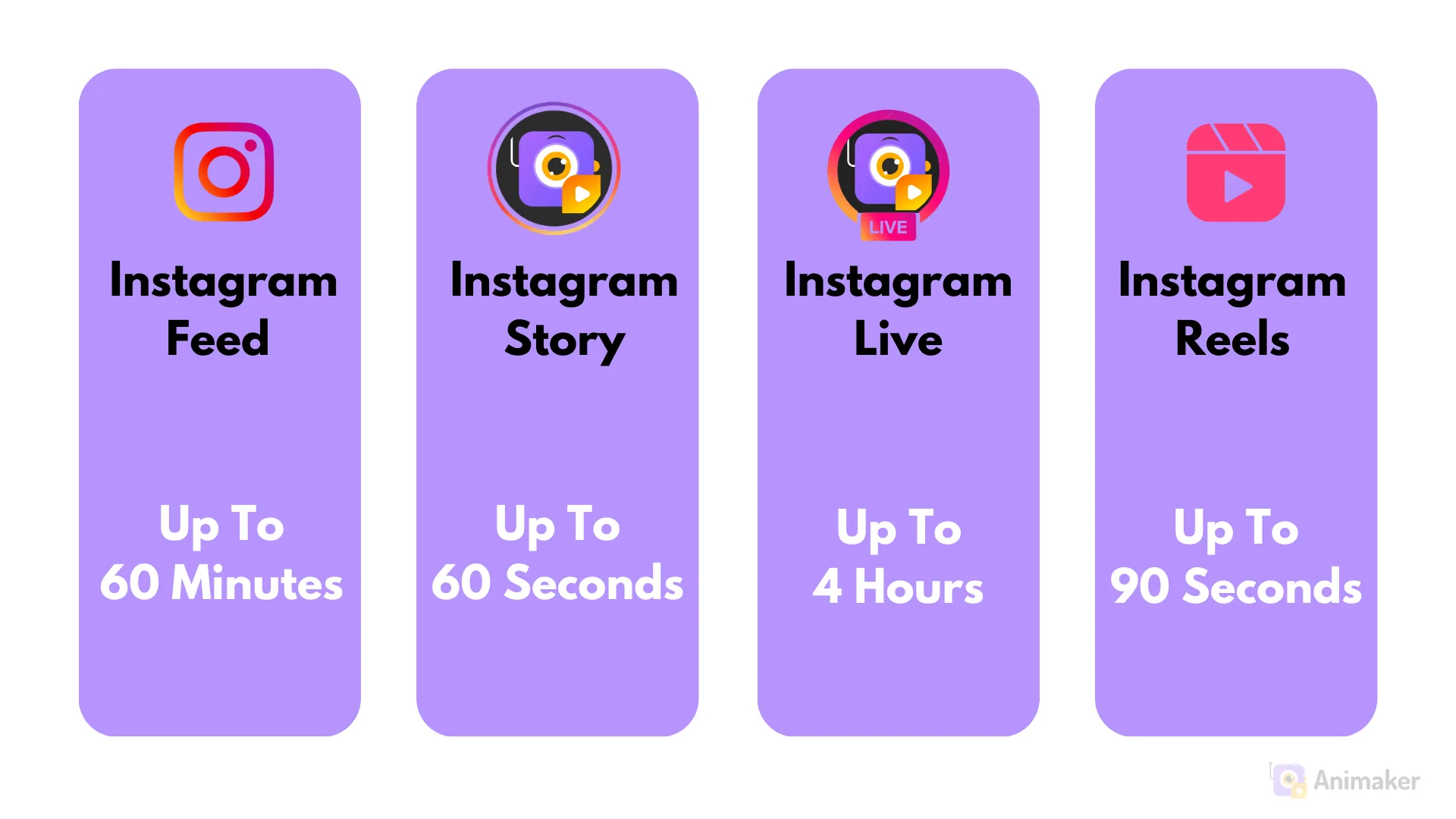
- Instagram enforces video length differently by format — Reels and feed videos have their own duration limits that may require trimming a longer YouTube video down.
Step-by-step: getting your YouTube video onto Instagram
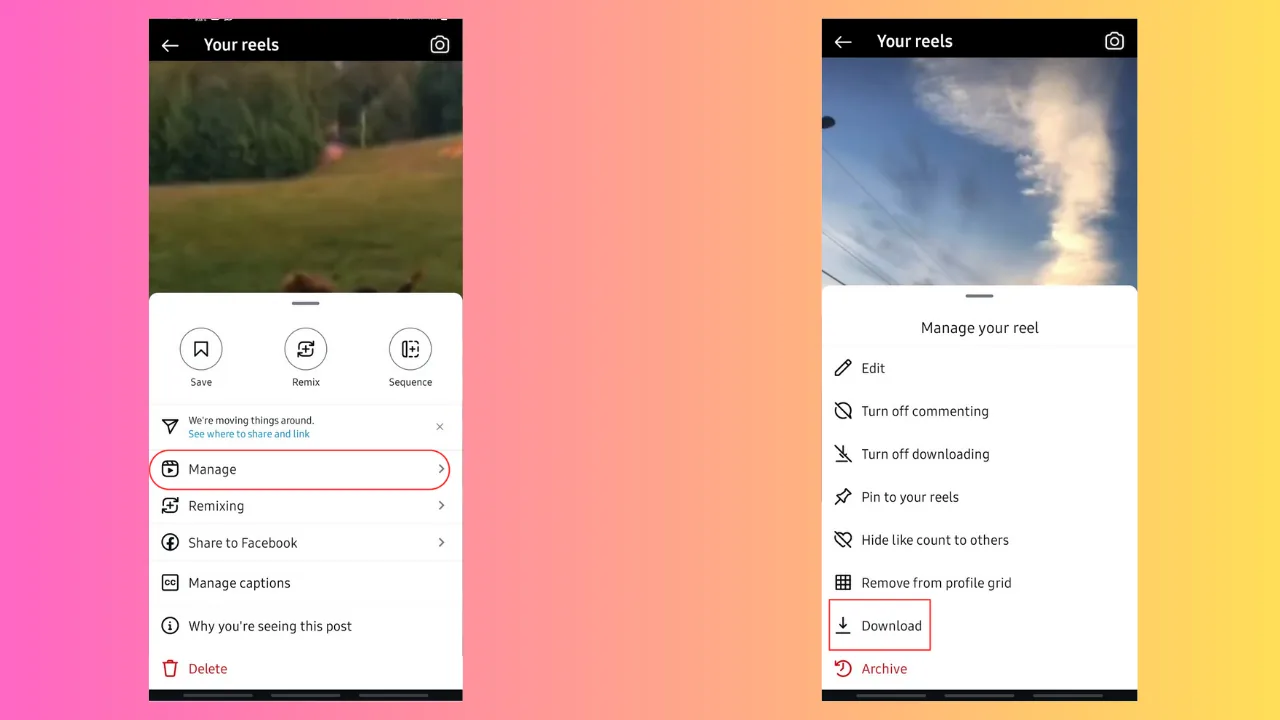
- If it's your own YouTube channel, log into YouTube Studio, go to Content, select the video, and use the download option in the video details menu to save the original file.
- Open a video editor (CapCut, InShot, Adobe Premiere Rush, or similar) and import the downloaded file.
- Reformat the aspect ratio: crop to 9:16 for Reels/Stories or 4:5 for a feed post, keeping the most important visual content centered in frame.
- Trim the video if needed to fit Instagram's duration limits for your chosen format.
- Export the reformatted video, then open Instagram and upload it as a new Reel, feed post, or Story as usual.
- Write a fresh caption — mentioning that it's also on YouTube can help cross-promote your channel if that's the goal.
Common mistakes to avoid
- Posting a widescreen video without reformatting it, resulting in thick black bars or an awkwardly cropped, hard-to-watch clip on mobile screens.
- Using an unofficial YouTube-to-MP4 downloader website, many of which carry malware risk or violate YouTube's own terms of service.
- Reposting someone else's YouTube content without permission — this can trigger a copyright claim on Instagram just as it would on YouTube.
- Forgetting to update the caption and hashtags for Instagram's audience and algorithm instead of just copying the YouTube description verbatim.
Tips
- If your goal is repurposing YouTube content you don't personally own, read our guide on posting a YouTube video to Instagram legally first — permission and fair use considerations matter here.
- For channels actively cross-promoting, posting a shorter, reformatted highlight as a Reel with a caption pointing to the "full video on YouTube" tends to perform better than trying to fit an entire long-form video into Instagram's format.
- Keep a library of vertical B-roll or cutaways filmed alongside your YouTube shoot specifically for reformatting — it saves having to awkwardly crop widescreen footage after the fact.
Frequently asked questions
No, Instagram doesn't support embedding or auto-pulling video from an external YouTube link. You have to download the actual video file first and then upload it to Instagram as a native file.
Sources
Keep reading
More guides to grow your account.