How Can I Save an Instagram Video?
Tapping the bookmark/ribbon icon on any Reel or video post saves it privately to your Instagram Saved collections for later viewing — but it doesn't download the file to your device. Actually downloading a video file requires it to be your own upload, screen recording, or a third-party tool that carries real privacy and Terms of Use risk.
Short answer
Tapping the bookmark/ribbon icon on any Reel or video post saves it privately to your Instagram Saved collections for later viewing — but it doesn't download the file to your device. Actually downloading a video file requires it to be your own upload, screen recording, or a third-party tool that carries real privacy and Terms of Use risk.
Quick answer
There are two very different things people mean by "saving" an Instagram video. Saving to your Instagram Saved collections (the bookmark/ribbon icon under any Reel or post) keeps a private reference to that video inside the app so you can find it again later — it does not put a video file on your phone, and it isn't visible to the original poster. Actually downloading the video file to your camera roll is only officially supported for content you posted yourself, using Instagram's own save-to-device options; downloading someone else's video requires screen recording or a third-party downloader, both of which come with tradeoffs worth knowing about.
Key takeaways
- The bookmark/ribbon icon saves a video inside Instagram (Saved > All Posts or a custom collection) — it's private, doesn't notify the poster, and doesn't create a downloadable file
- Instagram lets you save your own Reels directly to your device's camera roll when "Allow sharing" or download-related options are enabled for that Reel
- To download someone else's video, your realistic options are screen recording or a third-party downloader site/app, and both raise privacy, quality, and Terms of Use concerns
- Using someone else's video content without permission — even if you can technically download it — can violate Instagram's Terms of Use and copyright rules
- Third-party "Instagram video downloader" sites vary wildly in trustworthiness; many carry ads, trackers, or outright malware risk
Saving vs. downloading: they're not the same feature
When you tap the bookmark-shaped icon under a Reel, feed video, or carousel post, Instagram adds it to your Saved collections, accessible from your profile via the three-line menu (☰) > Saved. You can organize saved posts into custom named collections (tap and hold the bookmark icon, or use "Save to collection" from the share sheet). This is purely an in-app bookmarking feature — the video stays hosted on Instagram's servers, plays back inside the app, and nothing is copied to your phone's storage. It's private: the original creator gets no notification that you saved their content.
Downloading, by contrast, means getting an actual video file onto your device that you can use outside Instagram — attach to a text message, edit in another app, repost elsewhere. Instagram only builds this in for your own content in certain cases: after posting a Reel, options like "Save to camera roll" can appear in the "..." (more options) menu on the Reel, sometimes offered automatically at the point of posting for Reels editing drafts. Whether that download option appears at all can depend on your app version, region, and account type.
For other people's videos, Instagram does not provide a built-in "download this Reel" button in most cases, specifically to protect creators' control over their own content.
Step-by-step: saving a video for yourself (bookmarking)
- Open the Reel, video post, or carousel you want to keep
- Tap the bookmark/ribbon icon at the bottom right of the post (or long-press it to choose a specific Saved collection)
- Find it later via your profile > three-line menu (☰) > Saved > All Posts or the relevant collection
- To remove it, tap the bookmark icon again to un-save
Step-by-step: saving your own Reel to your camera roll
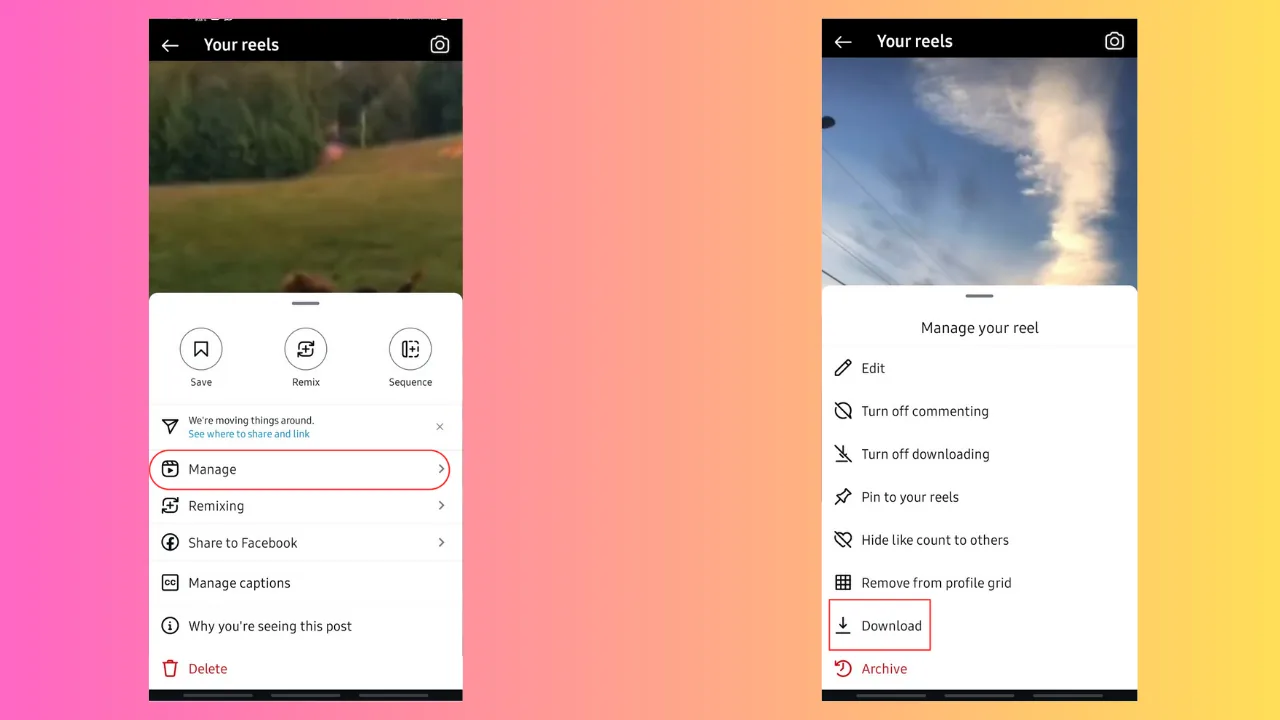
- Open your own Reel from your profile grid or Reels tab
- Tap the "..." (more options) icon on the Reel
- Look for an option like "Save" or "Save to camera roll" (availability depends on app version and whether the Reel allows remixing/sharing)
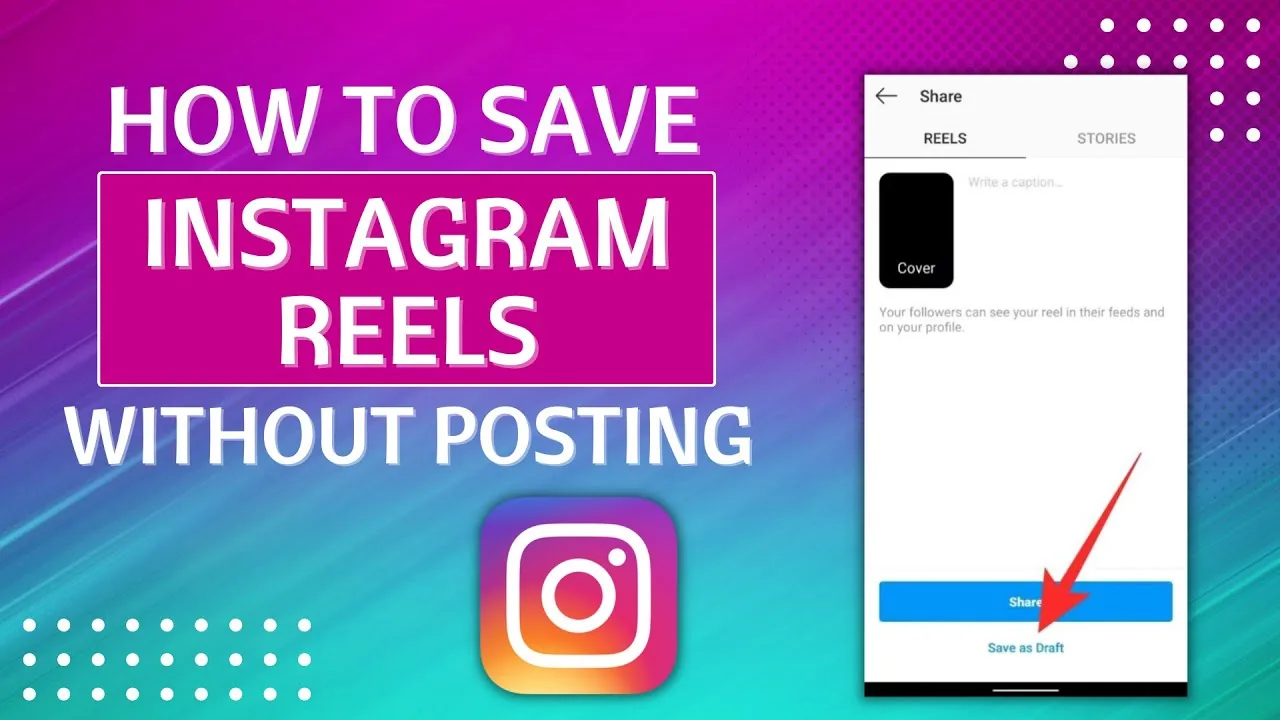
- If the option isn't available on the published Reel, check your original draft in the Reels camera before posting, where a "Save draft" or download option is usually offered before you tap Share
Common mistakes to avoid
- Assuming the bookmark/save icon downloads a file — it only bookmarks the post inside Instagram
- Using third-party downloader sites on other creators' videos without permission, which can violate both Instagram's Terms of Use and copyright law
- Entering your Instagram login on a third-party "downloader" site or app — legitimate download tools for public content never need your credentials
- Screen recording with system audio and notifications on, resulting in a messy file with pop-up alerts baked into the video
- Forgetting that downloaded or screen-recorded content from other creators still isn't yours to repost without credit or permission
Tips for success
- For personal reference (recipes, tutorials, outfit ideas), just use the bookmark/Saved feature — it's fast, private, and requires no extra tools
- If you need your own Reel as a file, check the Reels editor's save/draft options before you even publish, since post-publish download options aren't guaranteed to appear
- If you must screen record someone else's video, turn on Do Not Disturb first and use a screen recorder with no visible UI overlay for a cleaner result
- Always credit or ask permission from the original creator before reusing or reposting their video anywhere, even if you obtained the file legitimately
- Be skeptical of any third-party "IG downloader" that asks for account login rather than just a public post URL
Conclusion
If you just want to revisit a video later, Instagram's built-in Saved feature is the safe, private, zero-risk option. If you specifically need a video file — especially one that isn't yours — treat it carefully: prioritize your own content's built-in save options, and be cautious with any tool that asks for your Instagram credentials or targets other people's uploads without permission.
Frequently asked questions
No. It only saves a reference to the post inside your Instagram Saved collections. The video still streams from Instagram's servers — no file is stored on your device.
Sources
Keep reading
More guides to grow your account.