How to Upload a Post on Instagram: Quality and Specs Guide
Get the best quality on your Instagram uploads in 2026. A detailed walkthrough on aspect ratios, compression settings, and troubleshooting upload failures.
Short answer
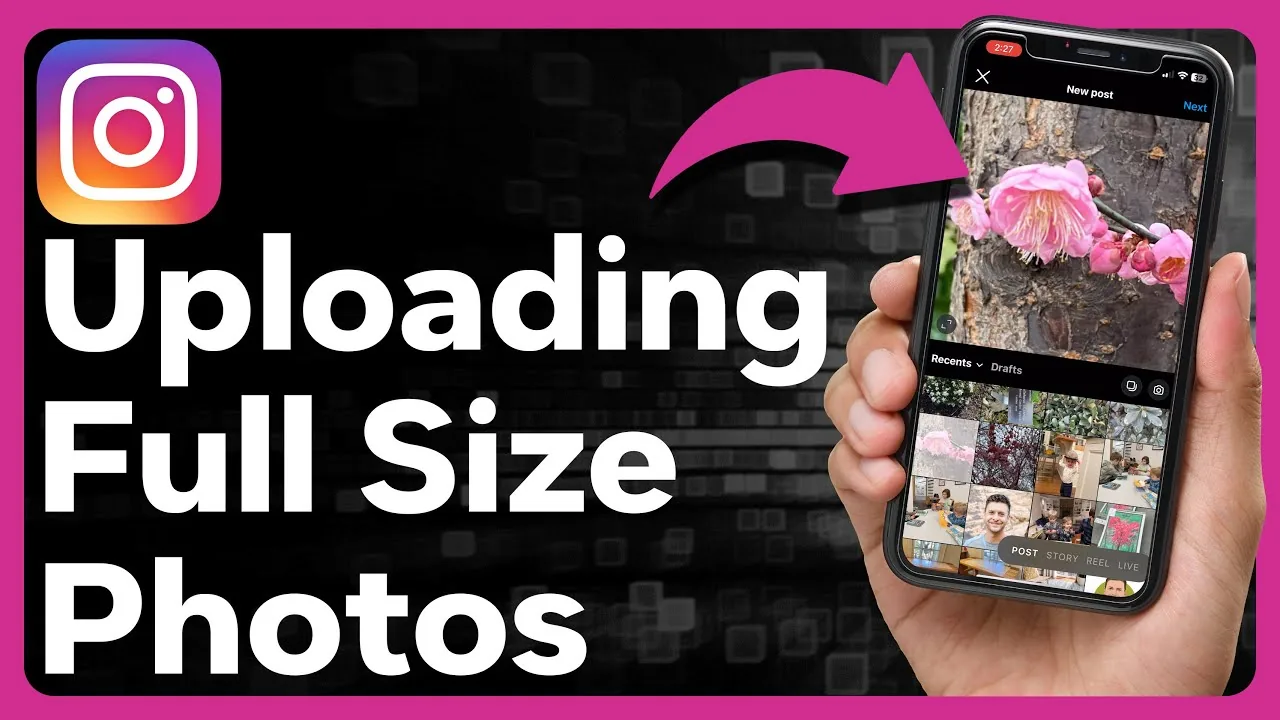
Upload high-quality photos and videos to Instagram by selecting the high-quality uploads option in your app settings, matching the platform's native aspect ratios, and using optimal compression to avoid blurry media.
Key takeaways
- Turn on the 'Upload at highest quality' setting in the app to prevent heavy compression.
- Square (1:1) and portrait (4:5) are the best aspect ratios for feed post visibility.
- Videos should be exported in MP4 format with H.264 codec at 1080p resolution.
- Upload failures are usually caused by unstable network connections or outdated app versions.
- High-resolution uploads help retain image sharpness and improve feed presentation.
What is the best way to upload media to Instagram?
To get the best results, you should prepare your photos and videos using Instagram's native aspect ratios and export them at high resolution before publishing. This minimizes the platform's automatic compression.
Instagram is notoriously aggressive with its compression algorithms. If you upload a massive, uncompressed file, the app's servers will compress it heavily, resulting in pixelated or blurry media. On the other hand, if you upload low-resolution images, they will appear stretched. Preparing your files beforehand ensures they look exactly as intended when you write your final caption and share them with your community. For a complete look at the publishing flow, check out our how to post on Instagram guide.
If you are serious about building an audience, media quality is a massive factor. High-quality posts stand out in the feeds of people looking at an Instagram account viewer or exploring recommendations. Keeping your uploads clean is just as important as having an optimized bio when converting visitors into active followers.
How do you enable high-quality uploads in settings?
To enable high-quality uploads, go to your profile settings, select Media quality under the Account preferences menu, and toggle on the 'Upload at highest quality' switch. This forces the app to upload media without pre-compressing it.
By default, Instagram may compress uploads when you are on mobile data to save bandwidth. Toggling this option ensures your high-resolution files are uploaded at full quality, even if the upload takes slightly longer. This is particularly important for videos and Reels. If you are producing videos, aligning your upload quality with the Reels hook formula ensures your opening seconds are sharp and engaging. This prevents users from scrolling past due to blurry video quality.
| Post type | Ideal aspect ratio | Recommended resolution | Max file size |
|---|---|---|---|
| Square photo | 1:1 | 1080 x 1080 pixels | 30 MB |
| Portrait photo | 4:5 | 1080 x 1350 pixels | 30 MB |
| Landscape photo | 1.91:1 | 1080 x 566 pixels | 30 MB |
| Video / Reel | 9:16 | 1080 x 1920 pixels | 4 GB |
If you find the app lagging or failing to save this setting, you can clear Instagram cache on your device to reset the app configuration. Having a solid back-end setup is essential for managing your presence, especially if you ever choose to disable account temporarily or use the how to delete Instagram account guides for a break.
How do you troubleshoot upload errors?
To troubleshoot upload errors, check your internet connection, verify that the media file is not corrupted, update the app to the latest version, or try uploading via the desktop browser site.
- Check your Wi-Fi or mobile data connection speed.
- Verify the image or video file format matches platform standards (JPEG or MP4).
- Close the app completely, restart your device, and try the upload again.
- If the mobile app continues to fail, log in to instagram.com on a computer to upload.
- Check server status sites to see if the platform is experiencing an outage.
If your page settings are acting up during these steps, check your connection parameters. When coordinating client work, you might want to adjust sharing settings; read how to repost on Instagram natively for details. You can also secure your privacy by choosing to make account private to control who sees your new uploads.
What metadata and safety rules apply to uploads?
Instagram records metadata such as camera model, exposure settings, and location details when you upload a file, though GPS data can be stripped in settings. The platform does not notify other accounts when you upload.
If you want to keep your location details completely private, you should disable device GPS permissions for the app. When adjusting your privacy, keep in mind that other platform settings can affect user interactions; check if does Instagram show screenshots or look into whether does Instagram have profile views for tracking rules. You can also hide who you interact with by configuring mute settings or checking how to hide following list to clean up your public lists.
Frequently asked questions
This happens if the image resolution was too high or too low, triggering aggressive compression. Export photos at 1080px wide and enable the high-quality uploads setting.
Sources
Keep reading
More guides to grow your account.