How Can I Use Instagram? A Beginner's Guide
Instagram centers on five tabs — Home feed, Search/Explore, Reels, notifications, and your profile — plus three content types (permanent posts, 24-hour Stories, and short-form Reels), tied together by following other accounts and messaging through DMs.
Short answer
New to Instagram, the fastest way to get oriented is understanding its five bottom tabs (Home, Search/Explore, Reels, Notifications, Profile), its three content formats (posts, Stories, Reels), and the basic following/DM/privacy model that everything else is built on.
Quick answer
Instagram is built around a simple loop: you follow accounts whose content you want to see, they show up in your Home feed and Stories tray, you post your own photos, videos, Stories, and Reels for your followers (or the public) to see, and you communicate one-on-one or in groups through direct messages. Everything else in the app — Explore, Reels, shopping, notifications — hangs off that basic structure.
Key takeaways
- Signing up takes a phone number or email, a username, and a profile photo — no real name is required beyond what you choose to display
- The five bottom tabs are Home, Search/Explore, Reels, Notifications (the heart icon), and your Profile
- Posts are permanent grid content, Stories disappear after 24 hours unless saved to Highlights, and Reels are short vertical videos designed for discovery
- "Following" and "followers" are two separate, one-directional lists — you don't need mutual approval to follow a public account
- A private account requires you to approve each new follower and hides your content from non-followers; a public account is visible to anyone
Setting up and getting oriented
To create an account, download Instagram, tap Create new account, and enter a phone number or email, a password, and a birthday, then choose a username. Instagram will prompt you to add a profile photo and optionally connect contacts or Facebook friends to find people to follow — both of those are optional and skippable.
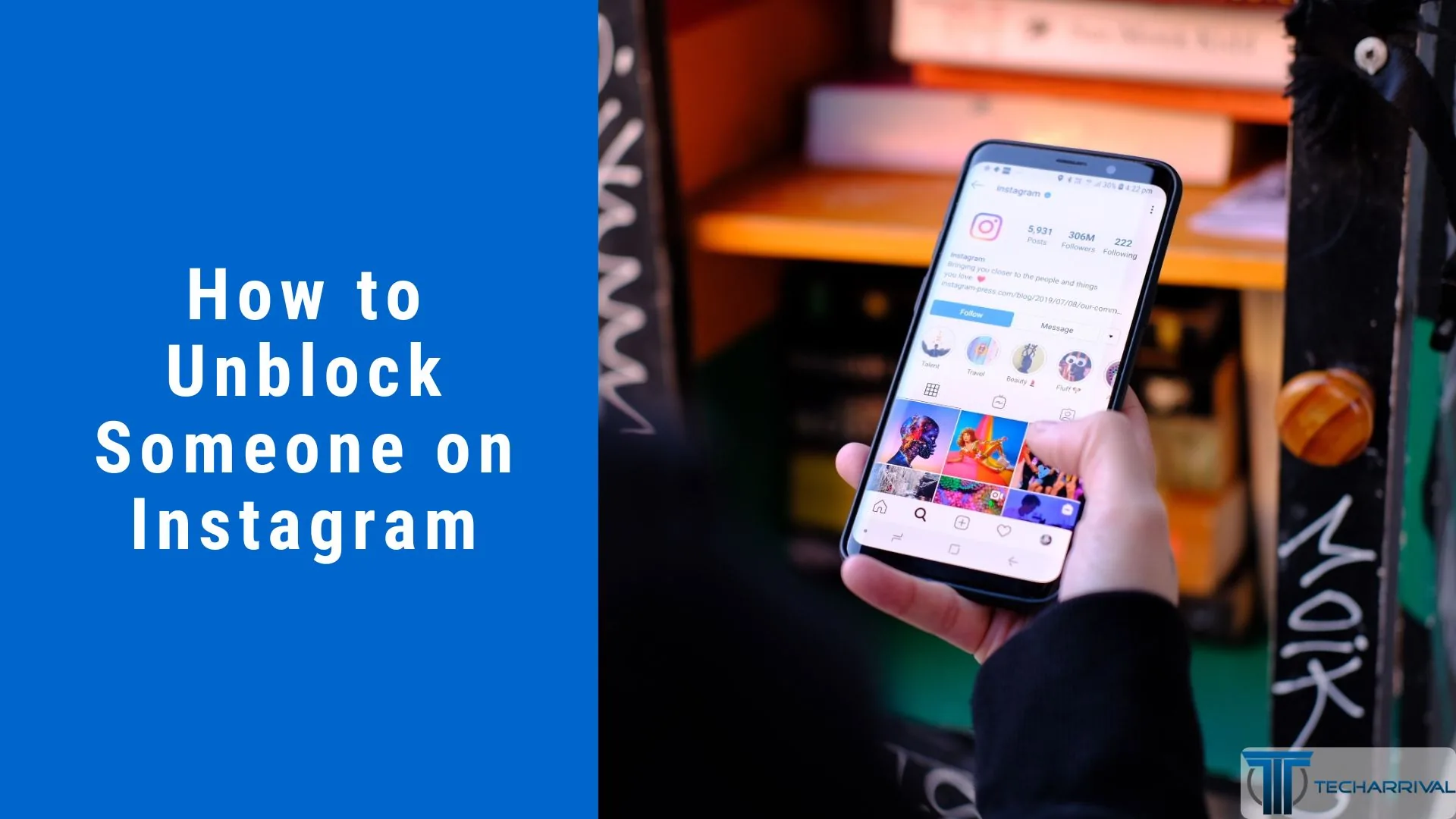
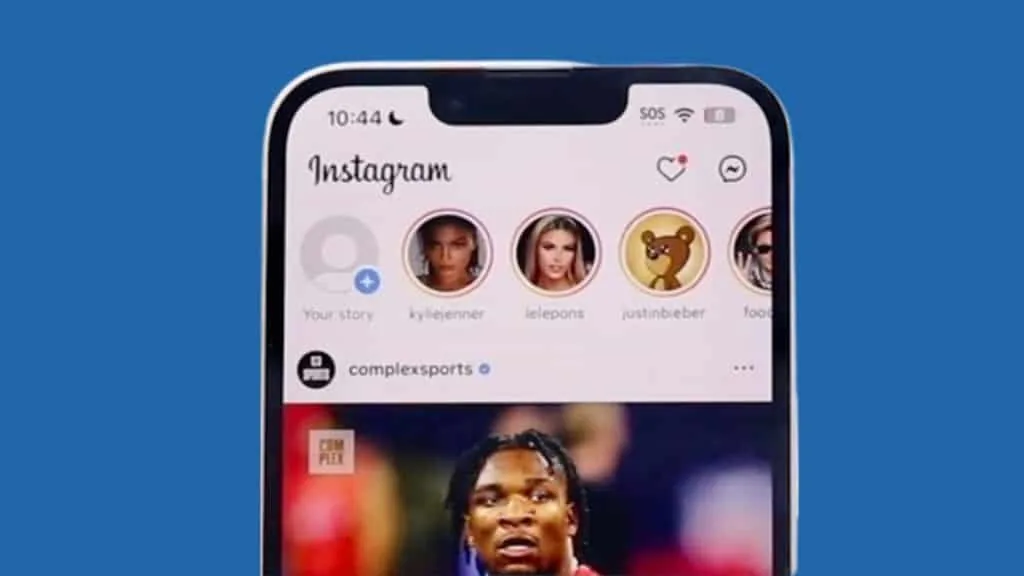
Once you're in, the app is organized around five icons along the bottom: Home (a house), which shows a chronological-ish, algorithm-influenced feed of posts and a horizontal tray of Stories from accounts you follow; Search (a magnifying glass), which doubles as the Explore page showing recommended content based on what you engage with; Reels (a clapboard-style icon), a dedicated vertical-video feed similar in spirit to TikTok; your Activity/notifications (a heart), showing likes, comments, and follows; and your Profile (your own photo), showing your grid of posts, saved content, and account settings.
Posts, Stories, and Reels — what's the difference
A post is what lives permanently in your profile grid — a photo, video, or multi-image carousel that stays until you delete or archive it. A Story is a photo or short video that appears in the tray at the top of Home and disappears after 24 hours unless you save it into a Highlight on your profile; Stories support interactive stickers like polls, questions, and links. A Reel is a short vertical video, usually set to music or audio, that's designed to reach people who don't yet follow you through the dedicated Reels tab and Explore page — it's Instagram's answer to short-form video apps and generally gets the widest non-follower reach of the three formats.
Following, followers, and messaging
Following someone adds their posts and Stories to your Home feed; it doesn't require their permission unless their account is private, in which case they must approve your follow request. Followers are the people who've chosen to follow you — the two lists are independent, so you can follow people who don't follow you back, and vice versa. Direct messages (the paper-airplane icon in the top-right of Home) let you message individuals or small groups privately, share posts and Reels, and send disappearing photos or videos.
Privacy basics
By default, new accounts are public, meaning anyone can see your profile, posts, and followers list. Switching to a private account (Settings and privacy > Account privacy) means only approved followers can see your posts and Stories, and people must send a follow request that you accept or decline. Private accounts still show your profile photo, name, and username publicly, but hide your actual content from non-followers.
Step-by-step: your first week on Instagram
- Create your account and add a profile photo and short bio
- Decide whether to keep your account public or switch to private in Settings and privacy > Account privacy
- Follow a handful of accounts you're genuinely interested in — this shapes what Explore and Reels show you early on
- Post your first photo or video from the + button, or start lower-stakes by posting a Story instead
- Explore the Reels tab and Search page to see what kind of content the algorithm surfaces for you
- Try sending a DM to a friend to get familiar with messaging
- Review your notification and privacy settings so you understand who can contact, tag, or comment on your account
Common mistakes to avoid
- Leaving your account public without realizing it if privacy matters to you — check Settings and privacy > Account privacy early on
- Confusing following with friending — following a public account is one-directional and needs no approval
- Assuming Stories are permanent — anything you want to keep needs to be saved to a Highlight
- Ignoring the difference between posts and Reels when you're trying to reach new people — Reels typically get more non-follower distribution
Tips for success
- Spend your first sessions following accounts and watching Reels before posting, so Explore has enough signal to show you relevant content
- Use Highlights to organize your best Stories by topic so new visitors to your profile see them
- Turn on two-factor authentication in Settings and privacy > Account Center > Password and security early, since account takeovers are one of the most common problems new users run into
- Don't feel pressure to post immediately — browsing, following, and messaging are all normal ways to use the app before you publish anything yourself
Conclusion
Instagram is simpler than it looks once you separate the five core tabs from the three content formats and understand that following, followers, and privacy settings control who sees what. From there, the rest of the app — Explore, shopping, monetization tools — builds on that same foundation.
Frequently asked questions
No, a personal account only needs a username and can be entirely anonymous beyond what you choose to share in your bio and posts. Business and creator accounts are optional upgrades with extra tools like insights and contact buttons.
Sources
Keep reading
More guides to grow your account.