How Can I Share an Instagram Post?
Tap the paper-airplane share icon under any post to send it as a DM or add it to your Story, or tap the three-dot menu and choose Copy Link or Share to... to send it outside Instagram entirely.

Short answer
Tap the paper-airplane icon beneath a post to DM it or add it to your Story, or open the three-dot menu for Copy Link and Share to... options that send it to apps outside Instagram.
Quick answer
There are four distinct ways to share an Instagram post, and which one you use depends on where you want it to end up: the paper-airplane icon under the post for sending it as a direct message or adding it to your own Story, and the three-dot (...) menu on the post itself for copying the link or handing it off to another app entirely.
Key takeaways
- The paper-airplane share icon covers DMs and your own Story — it does not post the content to your main feed
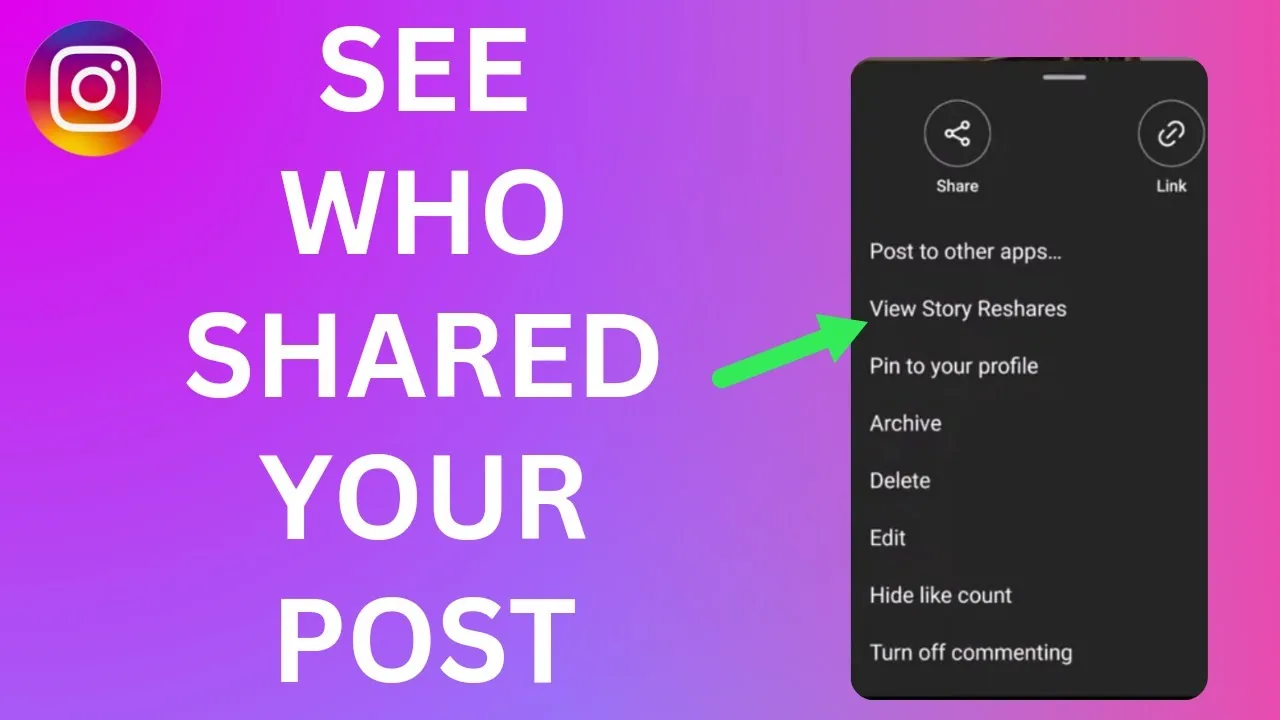
- The three-dot menu on a post gives you Copy Link, Share to..., and (on your own posts) Edit or Archive options
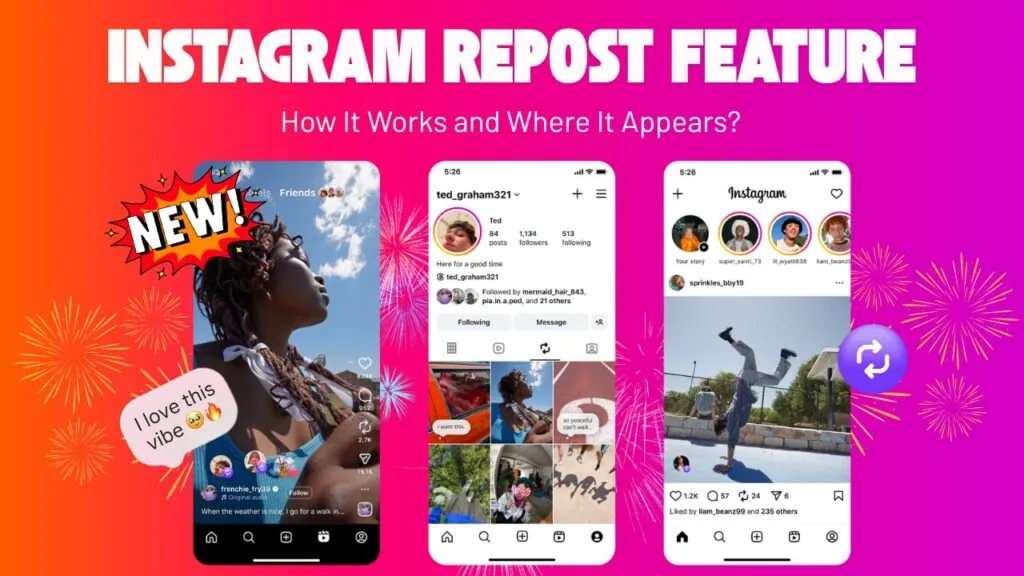
- You cannot share someone else's feed post directly into your own feed the way you can with Stories reposting or Reels remixing — Instagram has no native feed-repost button
- Private accounts restrict resharing: if a post's owner has disabled sharing or their account is private and you're not a follower, the share options may be limited or hidden
- Reels have an extra option, Share to Reels/Add yours, that regular feed photos don't
How sharing actually works on Instagram
Instagram splits "sharing" into a few separate mechanisms rather than one universal button. Tapping the paper-airplane icon (found under the like and comment icons on any post) opens a share sheet with your recent DM contacts at the top and a row of icons below, including "Add post to your story." Choosing a contact sends the post as a message; choosing your Story overlays the post as a shareable sticker that followers can tap through to the original.
Separately, tapping the three-dot menu in the top-right corner of a post (or long-pressing it) surfaces Copy Link, which puts a direct instagram.com/p/... URL on your clipboard, and Share to..., which hands the post off to your device's native share sheet so you can send it via text message, email, or a third-party app like WhatsApp or Messenger.
There is no built-in way to repost someone's feed photo into your own feed as if it were your own post. Creators who want to do that typically screenshot the post (with credit in the caption) or use a separate repost app that pulls the image and caption for manual reposting — Instagram doesn't provide this natively because of copyright and attribution concerns.
Step-by-step
- Find the post you want to share and locate the paper-airplane icon beneath it
- To send it privately, tap the icon, select one or more people from the list, optionally add a message, and tap Send
- To add it to your Story, tap the icon, then tap "Add post to your story," which opens the Story editor with the post pasted in as a tappable sticker; adjust placement and tap Your story to post it
- To get a shareable link, tap the three-dot menu on the post and choose Copy Link, then paste the link wherever you need it
- To send it to another app, tap the three-dot menu and choose Share to..., then pick the destination app from your device's share sheet
- For Reels specifically, look for the additional Reels-only icon to share to your Story or via the Share to... sheet, since Reels sometimes surface a slightly different icon layout
Common mistakes to avoid
- Expecting the paper-airplane icon to repost content to your own main feed — it only handles DMs and Stories
- Trying to share a private account's post when you don't follow them, or when the poster has sharing disabled — the option will be grayed out or missing entirely
- Forgetting that a Story share of someone's post disappears after 24 hours unless you save it to Highlights
- Using Copy Link and pasting it somewhere without checking that your own account is public if you want non-followers to be able to open it
Tips for success
- Always credit the original creator in your caption or sticker text when resharing content to your Story
- Save frequently reshared Story posts into a Highlight so they don't vanish after a day
- If a share option seems to be missing, check whether the poster's account is private or has disabled resharing in their own privacy settings
- Use Copy Link when you want to share a post to a platform Instagram doesn't integrate with directly, like a work chat tool or a blog
Conclusion
Sharing on Instagram isn't one action — it's a set of tools (DM, Story, link copy, external share sheet) that each solve a different distribution need. Once you know where each one lives, getting a post in front of the right audience takes just a couple of taps.
Frequently asked questions
Not natively. Instagram doesn't have a feed-repost button. Creators typically either add it to their Story with credit, or use a third-party repost app to save the image and caption for manual re-uploading.
Sources
Keep reading
More guides to grow your account.