How to Change Your Instagram Notification Sound (2026)
Instagram doesn't let you pick a custom in-app sound — here's how to actually change what your Instagram alerts sound like on iPhone and Android.
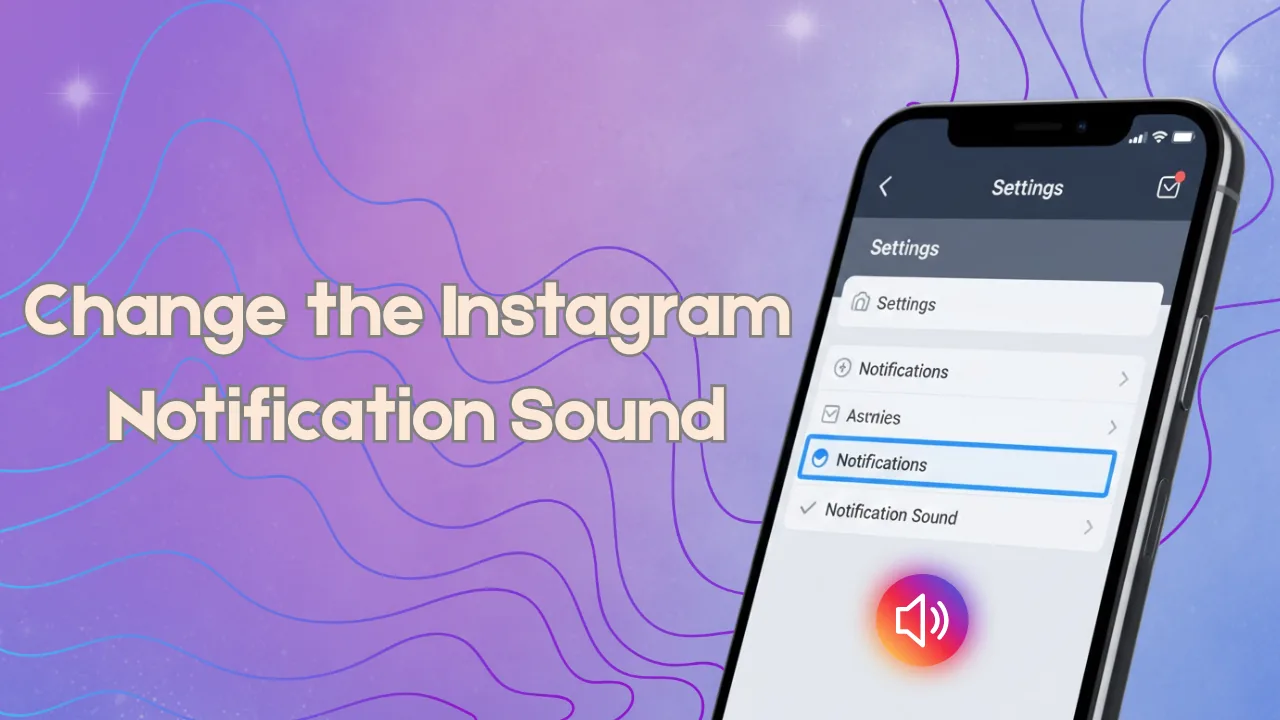
Short answer
Instagram itself has no built-in menu for picking a custom notification sound — that control lives in your phone's operating system. On iPhone you change the system-wide Text Tone in Settings, and on Android you set a per-app sound through the phone's notification channel settings, which is the one place OEMs still let you customize by app.
Key takeaways
- Instagram's app has no setting to pick a custom sound — it uses your phone's default notification tone, the same way most social apps do.
- On iPhone, changing the tone means going to Settings, then Sounds and Haptics, then Text Tone — but that changes the sound for texts and many other apps too, not just Instagram.
- On Android, you can usually set a sound just for Instagram through the phone's per-app notification channel settings, because Android exposes notification channels that iOS does not.
- What you can control inside Instagram is which alerts fire at all — likes, comments, messages, Reels suggestions — and whether notifications are paused, not what they sound like.
- If your alerts have gone silent instead of just sounding wrong, the fix is almost always a permissions or Do Not Disturb issue, not a bug in Instagram.
- Third-party "sound changer" apps or mods aren't necessary and can violate Instagram's terms, so stick to your phone's built-in settings.
Can you change the Instagram notification sound inside the app?
No. Instagram's own Settings menu lets you manage which notifications you receive — likes, comments, mentions, messages, live videos — but it does not include a sound picker. That's consistent with how Instagram changes your account username or other profile details: those live inside the app, but audio alerts are handed off entirely to the operating system. If you're digging through Settings and Privacy looking for a "notification sound" option, it isn't there, and it hasn't been added in any recent version.
How do you change the notification sound on iPhone?
You change it system-wide, not per app. Open the Settings app, tap Sounds and Haptics, then Text Tone, and choose a new tone from the list. That new sound applies to Messages and most third-party apps that don't ship their own custom tone, Instagram included, so you can't set one tone for Instagram and a different one for everything else.
Apple has kept it this way for years despite repeated developer requests for per-app sound customization. If you want to distinguish a DM from a like without a custom tone, your best option on iPhone is turning off lower-priority alerts (like post likes) inside Instagram's own notification settings, so only the alerts you care about make noise.
How do you change the notification sound on Android?
This is where Android has an edge: most Android phones let you assign a sound per app through notification channels, a system Google introduced in Android 8.0 Oreo. To get there, open your phone's Settings app, go to Apps (sometimes called Manage Apps or App Info), select Instagram, tap Notifications, and open a specific category — like Comments or Direct Messages. Inside that category you'll usually see a Sound or Ringtone option where you can pick a different tone just for that alert type.
Exact wording varies by manufacturer (Samsung, Pixel, and OnePlus organize this differently), so if you don't see it immediately, look for "Advanced" or "Additional settings in the app" inside the Instagram notification screen. This same menu is worth knowing if you're troubleshooting other account issues, like confirming you can still know if someone blocked you on Instagram when messages stop arriving.
What can you actually customize inside the Instagram app?
Instagram's in-app notification controls are about which alerts you get, not what they sound like. Inside Settings and Privacy, then Notifications, you can toggle categories on or off, choose push versus email for some alert types, and pause all notifications for a set window from 15 minutes up to 8 hours. That pause feature is handy before a big post goes out or when you just want quiet, similar in spirit to how you'd appear offline on Instagram without fully logging out.
| Setting | Where it lives | What it controls |
|---|---|---|
| Notification categories (likes, comments, DMs, Reels) | Instagram app: Settings and Privacy > Notifications | Which alerts you receive |
| Pause all notifications | Instagram app: Settings and Privacy > Notifications | Temporary silence, 15 min to 8 hrs |
| Notification sound / tone | Phone OS settings (iPhone: Sounds and Haptics; Android: App notification channels) | What the alert actually sounds like |
| Vibration pattern | Phone OS settings | Haptic feedback per app or per channel |
| Do Not Disturb / Focus | Phone OS settings | Whether any sound plays at all |
Why do Instagram notifications sometimes go silent?
Usually it's a permission or Focus Mode issue, not a broken app. Check that Instagram has notification permission enabled in your phone's system settings, confirm Do Not Disturb or a Focus mode isn't quietly suppressing it, and make sure the specific alert category (like Comments or Story Replies) is toggled on inside Instagram itself. It's also worth checking that you're not muted by the other person or restricted in a way that limits what reaches you, closer to how a restricted account can still mention you on Instagram without triggering a normal alert.
If sound is working for other apps but not Instagram specifically, a stale cache is a common culprit. Clearing it doesn't erase your account or posts, just temporary app data, and is worth trying before anything more drastic — the same first step recommended when clearing Instagram cache on iPhone and Android.
Does updating the app change notification behavior?
It can. Instagram periodically adjusts notification categories, batching, and default settings in app updates, so an outdated version might be missing a toggle you've read about or showing different default sounds than expected. Keeping the app updated is a quick first troubleshooting step, and it's the same advice that applies any time you're updating Instagram on iPhone and Android for other feature or bug-fix reasons. After an update, it's worth reopening Settings and Privacy > Notifications just to confirm your preferences carried over correctly, since some updates reset categories to their defaults.
Is it safe to use a third-party app to change the sound?
It's unnecessary and carries risk. No legitimate third-party tool gives Instagram an in-app sound picker it doesn't otherwise have — anything claiming to do that is either just changing your phone's system tone for free, or is a modified/unofficial app that can expose your login credentials. Stick to the built-in OS settings above; they're free and don't put your account at risk the way a third-party "Instagram mod" would.
What if you use Instagram on multiple devices?
Sound settings don't sync across devices because they're tied to each phone's operating system, not your Instagram account — unlike your Instagram password, which works the same everywhere you log in. If you use both an iPhone and an Android tablet, set the tone separately on each. Worth remembering if you also manage checking DMs on Instagram across devices, since notification behavior and sound can differ by device even though messages stay in sync.
Frequently asked questions
On Android, yes — most phones let you assign a different sound per notification channel, so Direct Messages can have a distinct tone from Comments or Likes. On iPhone, no; Apple applies one system-wide tone across apps, so DMs and other alerts share whatever Text Tone you have selected in Settings.
Sources
Keep reading
More guides to grow your account.