How Can I Deactivate My Instagram Temporarily?
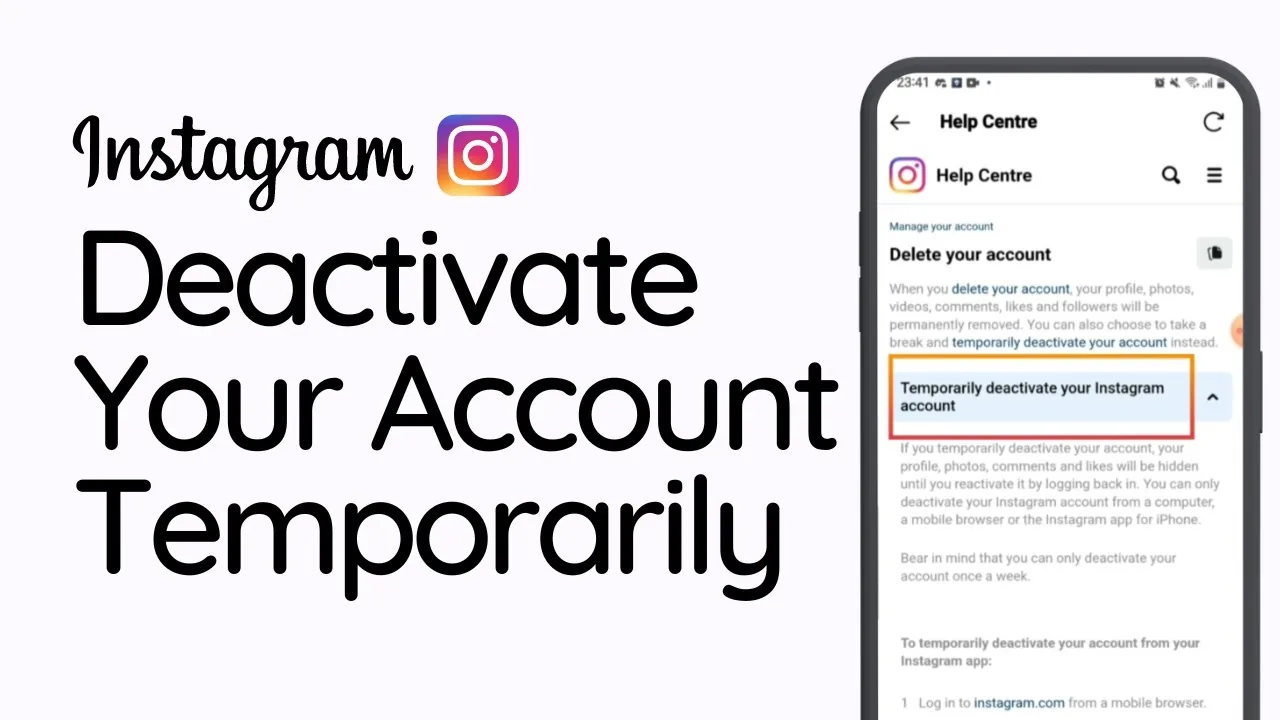
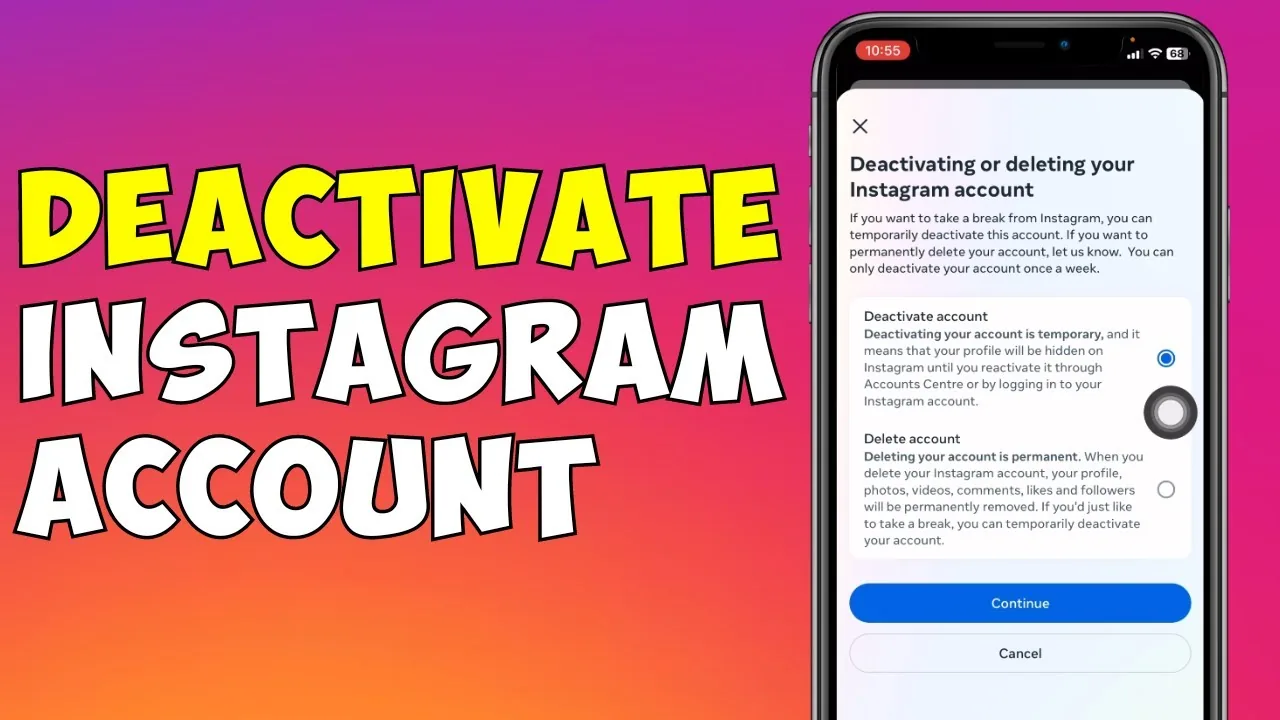
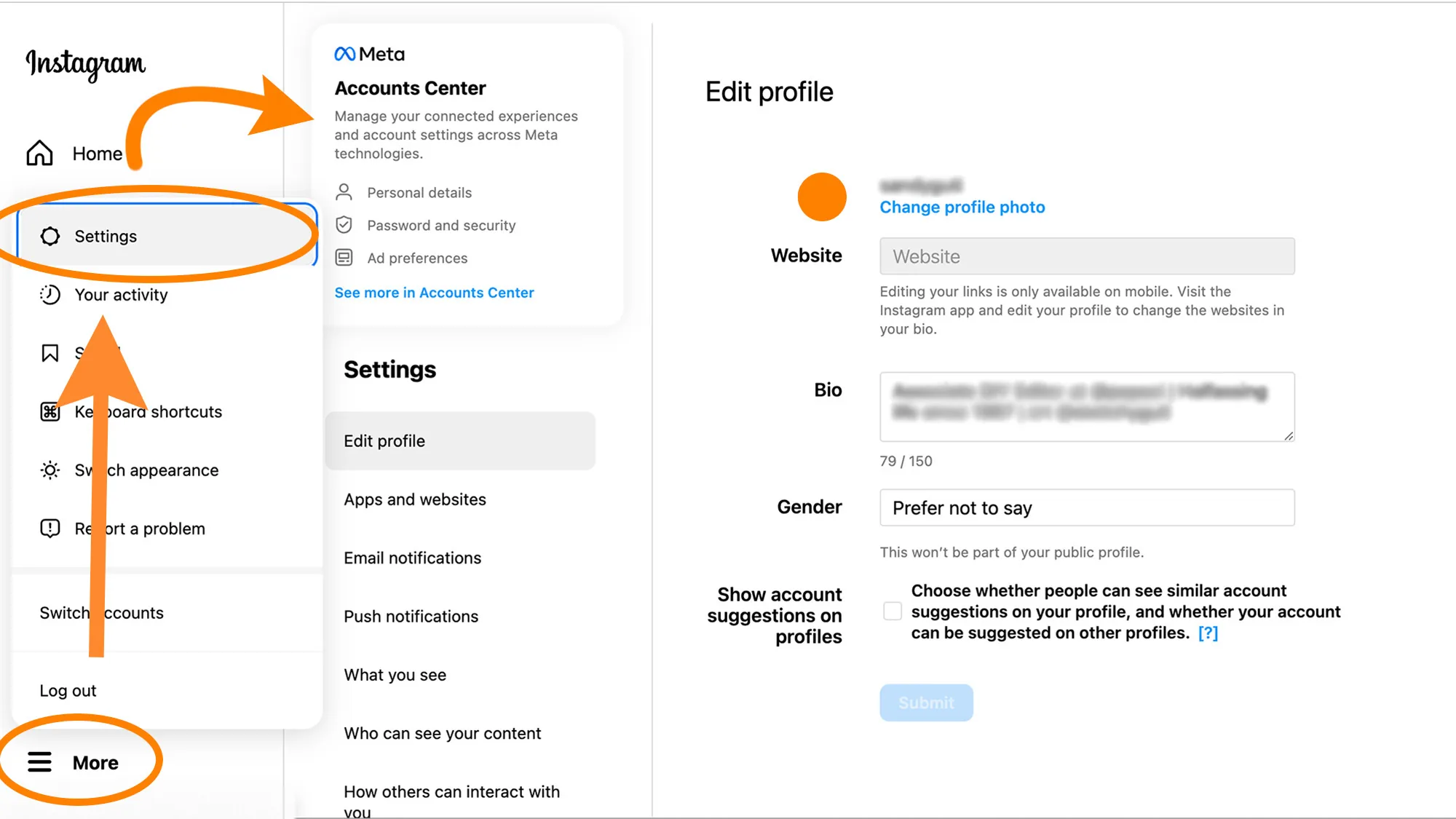
Temporary deactivation isn't available in the mobile app — you have to do it from a browser, via Settings/Accounts Center > Personal details > Account ownership and control > Deactivation or deletion.
Short answer
Temporary deactivation isn't available in the mobile app — you have to do it from a browser, via Settings/Accounts Center > Personal details > Account ownership and control > Deactivation or deletion.
Quick answer
You can't temporarily deactivate your Instagram account from the mobile app itself — Instagram requires you to do it through a web browser, either on desktop or mobile web. Log into instagram.com, go to your profile > Edit Profile, and near the bottom find Temporarily deactivate my account (this may also route through Accounts Center > Personal details > Account ownership and control > Deactivation or deletion). Pick a reason from the dropdown, re-enter your password, and confirm.
Key takeaways
- Temporary deactivation must be done in a browser (instagram.com), not the iOS or Android app — the app only offers permanent deletion, not a deactivate option
- Deactivating hides your profile, photos, videos, comments, and likes until you log back in
- Logging back in with your username and password reactivates the account instantly and restores everything exactly as it was
- This is different from deleting your account, which is permanent and erases your data after a grace period
- Instagram has historically limited you to deactivating one time within a certain window (commonly cited as about once per week), so you can't toggle it on and off constantly
- If you manage multiple accounts, you can only deactivate one at a time — each requires its own separate deactivation process
Why the app doesn't offer this option
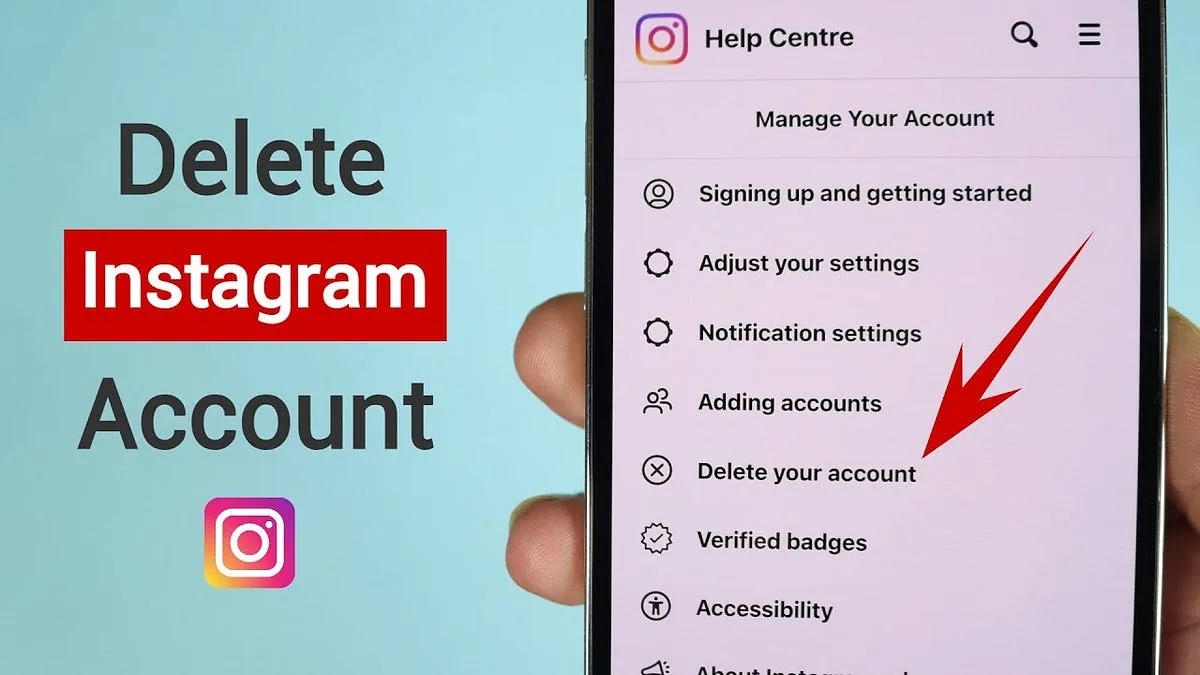
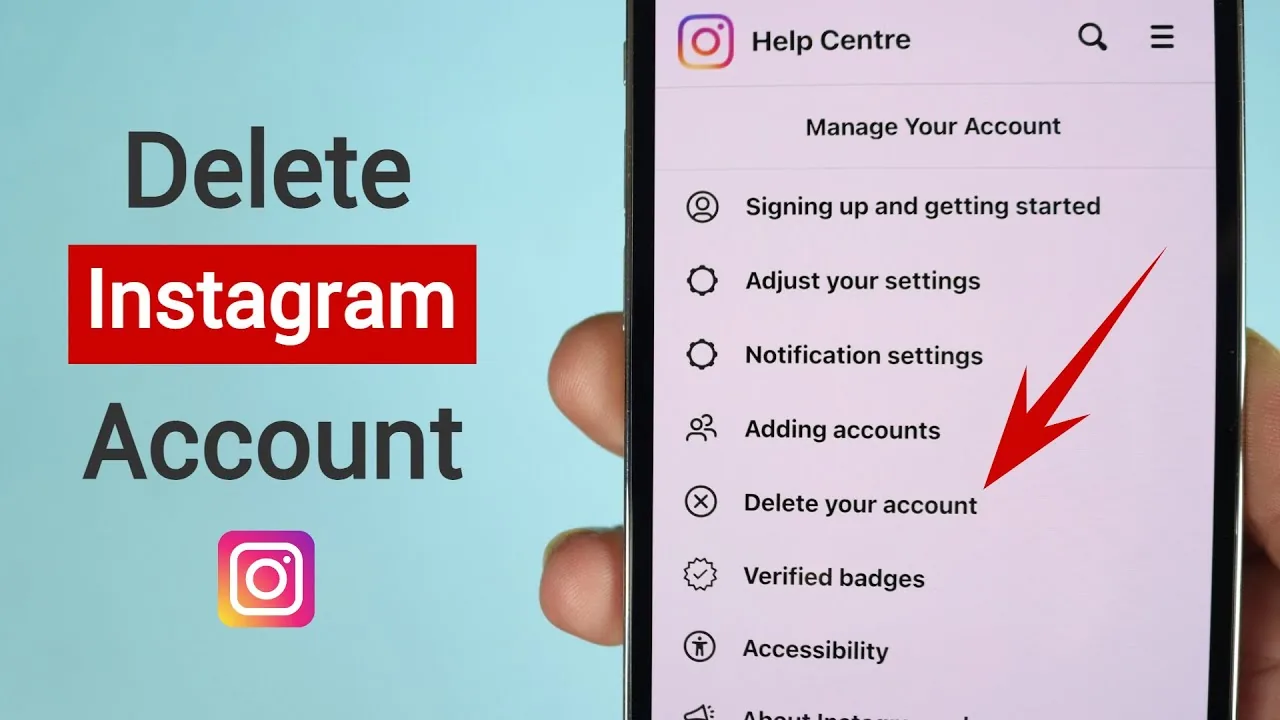
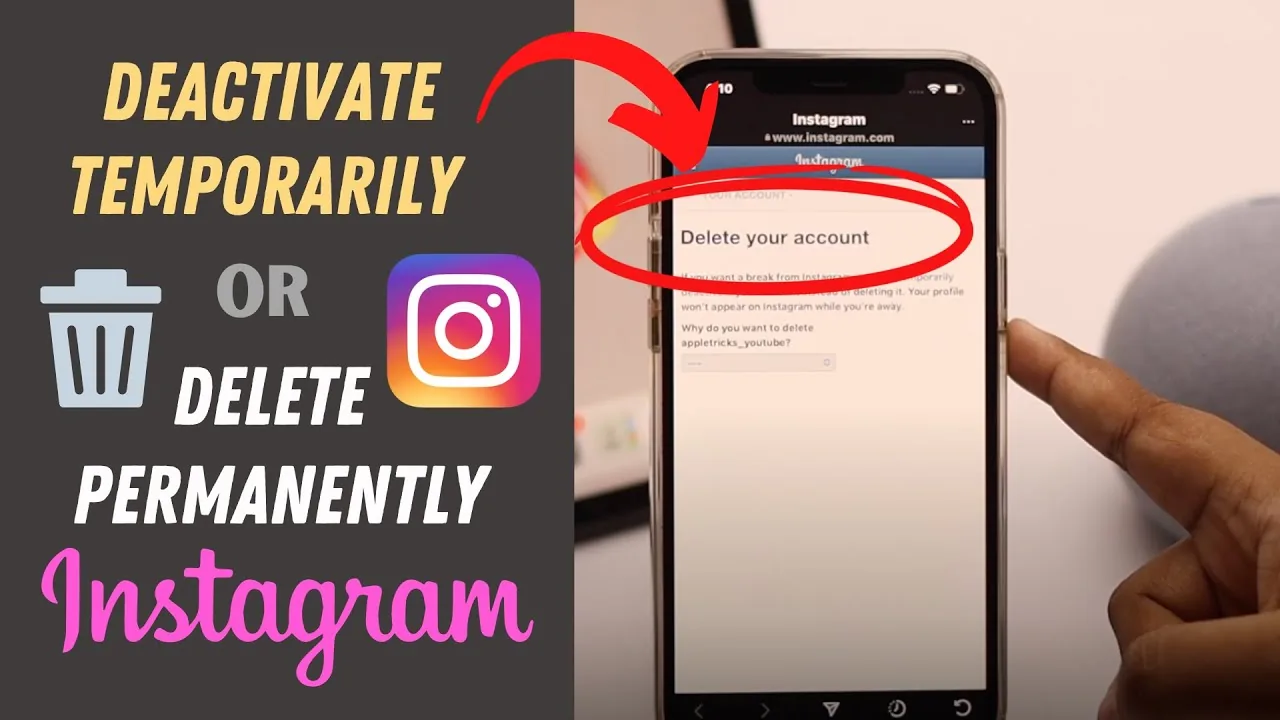
Instagram deliberately restricts temporary deactivation to the browser version of the site. The reasoning Instagram has given historically is to make deactivation a more deliberate action rather than something done impulsively from a phone in a couple of taps. The mobile app's account deletion flow will show you options to delete permanently, but it will redirect you to the website if you're looking to pause your account instead of erasing it.
Steps to deactivate temporarily
- Open a web browser (on your phone or computer) and go to instagram.com, then log in
- Click your profile picture in the top-right, then click Profile
- Click Edit Profile
- Scroll to the bottom of the Edit Profile page and click Temporarily deactivate my account (link text may vary slightly by rollout — some versions route this through Accounts Center > Personal details > Account ownership and control > Deactivation or deletion > Deactivate account)
- Choose a reason from the dropdown menu (this is just for Instagram's internal feedback, it doesn't affect the process)
- Re-enter your password when prompted to confirm it's really you
- Click Temporarily Deactivate Account to finish
Your profile, posts, comments, and likes disappear from Instagram immediately. Other users searching for you will see nothing, and your account effectively looks like it doesn't exist.
Reactivating your account
Simply log back in with your username and password, either through the app or the website. There's no separate "reactivate" button or waiting period — logging in is the reactivation. Everything (posts, followers, likes, comments, DMs) comes back exactly as it was before you deactivated.
Deactivation vs. deletion
- Temporary deactivation: hides everything, fully reversible by logging back in, no data is lost
- Permanent deletion: found in the app or web under Accounts Center > Personal details > Account ownership and control > Deactivation or deletion > Delete account. Instagram gives you a grace period (Instagram has stated around 30 days) during which logging back in cancels the deletion; after that window, your data is permanently removed and unrecoverable
Common mistakes to avoid
- Looking for the deactivate option inside the mobile app and assuming it's broken or hidden — it genuinely isn't there; you must use a browser
- Confusing deactivation with deletion and accidentally starting the permanent delete flow instead
- Trying to deactivate again immediately after reactivating — Instagram has restricted repeated deactivations within a short time frame, commonly citing roughly a week between attempts
- Forgetting your password before starting the process — you'll need to re-enter it to confirm deactivation, and if you've forgotten it you'll need to reset it first
- Assuming a business account's Instagram Shop, ads, or linked Facebook Page also pause automatically — check those separately since deactivating Instagram doesn't necessarily suspend a connected Facebook business presence
Tips
- If you're taking a short break, temporary deactivation is the right tool; if you genuinely want to leave and erase your data, use permanent deletion instead
- Save any photos, Reels, or messages you want to keep before deactivating, since although the data isn't lost, you won't be able to access or download it while deactivated (use Settings > Accounts Center > Your information and permissions > Download your information beforehand if you want a backup)
- Note the reactivation is literally just logging in — there's no confirmation email or extra step, so make sure you actually want your profile visible again before you do
Frequently asked questions
No. Temporary deactivation is only available through a web browser at instagram.com — the mobile app only exposes account deletion, not deactivation.
Sources
Keep reading
More guides to grow your account.