How to Update Instagram on iPhone and Android
Update Instagram from the official app store, turn on automatic updates, confirm the installed version, and fix a missing or stuck Update button safely.
Short answer
On iPhone, open the App Store, tap your profile, and update Instagram from available updates. On Android, open Google Play, tap your profile, Manage apps and device, and update Instagram. If no Update button appears, your store may already have the newest version available for that device and rollout.
Key takeaways
- Update only through Apple's App Store or Google Play; unofficial Instagram packages can contain malware or altered code.
- A missing Update button often means the store has no newer compatible build for your device, region, or staged rollout.
- Automatic updates reduce security lag but still require storage, network access, and store permissions.
- Updating normally preserves the account and posts, but device-local drafts should be backed up before reinstalling.
- An app update cannot fix a confirmed Instagram server outage or an account restriction.
How do you know whether Instagram needs an update?
Check Instagram's store listing: if it shows Update, a newer compatible build is available; if it shows Open, the store currently considers the app up to date. Feature differences can remain because Instagram also uses server-side rollouts.
The version number can be viewed in device app information or Instagram's app details, but version alone does not guarantee a feature. Meta can enable tools by account, region, operating system, or experiment after the app is installed. Update for security, compatibility, and fixes, not because a random website promises a hidden feature.
For useful context, compare clear Instagram's cache with fix Instagram message display problems.
How do you update Instagram on iPhone or Android?
Use the official store, install the offered update, then reopen Instagram and confirm the problem or feature. Keep the device charged and on a trusted network.
- On iPhone, open App Store, tap the profile picture, pull to refresh, and tap Update beside Instagram.
- On Android, open Google Play, tap the profile picture, choose Manage apps and device, and open Updates available.
- Select Instagram and tap Update, or open its store listing directly.
- Wait for installation to finish; do not interrupt the device while the app package is being replaced.
- Open Instagram, check the intended feature, and restart the phone if the old interface remains cached.
- For future updates, enable automatic app updates in the App Store or Google Play settings if that suits your data plan.
On managed school or work devices, an administrator may control app versions. Older phones may stop receiving compatible builds when their operating system is no longer supported. In those cases, do not sideload an unknown APK to bypass the store.
These steps also pair well with understand Instagram ranking and use legitimate Instagram support.
What should you do when the Instagram Update button is missing or stuck?
Refresh the store first, then check connection, storage, store account, device compatibility, and operating-system updates. Reinstall only after protecting local drafts and login methods.
| Symptom | Likely cause | Safe action |
|---|---|---|
| Store shows Open | No newer build offered | Check again later; rollout may be staged |
| Update waits forever | Network, storage, or store queue | Free space and restart the download |
| Not compatible | Old OS or device | Update OS or use supported web access |
| Updated but feature missing | Server-side rollout | Wait and verify account eligibility |
| App crashes after update | Cache or installation issue | Restart, clear cache, then reinstall carefully |
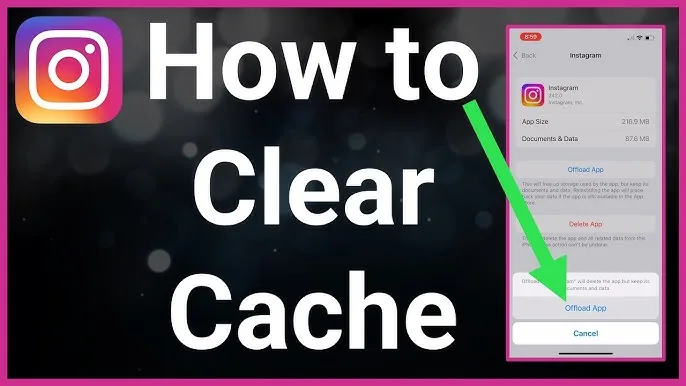
Android cache clearing can remove temporary app files without deleting the account. On iPhone, offloading or reinstalling replaces the app, but device-local drafts can be lost. Save important media and captions outside Instagram first.
To choose the right option, keep review Instagram location access and make an account private nearby.
Why can Instagram still fail after an update?
The original cause may be a service outage, account restriction, network filter, permission, corrupted local data, or unsupported device rather than the app version. Diagnose the remaining symptom.
- Instagram's servers are having an incident, so every current app build is affected.
- Photo, microphone, notification, location, or cellular-data permission is disabled.
- The device has low storage or an operating-system problem.
- A VPN, DNS filter, school network, or workplace firewall blocks requests.
- Only one account is restricted or missing a staged feature.
Do not repeatedly reinstall when the browser version and other accounts show the same outage. Conversely, if the web works and one phone app fails, a local cleanup is reasonable.
If you hit a related problem, consult check the standard posting workflow and review Accounts Center connections.
Is it safe to install an Instagram APK or beta update?
Install Instagram only from a trusted official store or an official beta program you intentionally joined. Random APK, mod, premium, or feature-unlock downloads can steal credentials, sessions, photos, and messages.
A modified app can bypass store review and request excessive permissions. It may also violate Instagram's Terms and trigger account-security checks. Leave a beta if stability matters, and never share a two-factor code with a site offering an update. If you installed an unknown package, remove it, scan the device, change the Instagram password from a clean device, and revoke unfamiliar sessions.
For privacy and account safety, also review understand account deletion and control activity status.
What is the best Instagram update routine?
Keep automatic updates on when practical, preserve original content outside the app, and treat server-side feature rollout separately from app installation.
- Use official stores and a supported operating system.
- Keep enough free storage for updates and media processing.
- Back up important drafts before reinstalling.
- Review permissions after major app or OS updates.
For a business or creator account, test major workflow changes before a campaign day. Store captions and media in a shared system so one app update cannot strand the publishing plan.
Frequently asked questions
Open App Store, tap your profile picture, refresh available updates, and tap Update beside Instagram.
Sources
Keep reading
More guides to grow your account.