How to Link Instagram to Facebook (2026 Step-by-Step)
How to link Instagram to Facebook in 2026 using Meta Accounts Center, plus how to cross-post, unlink, and what linking actually enables.
Short answer
To link Instagram to Facebook, open Accounts Center (Settings and privacy > Accounts Center) in either app, tap Add accounts, and confirm the connection. Linking lets you cross-post Posts, Reels, and Stories, share one login, and manage both profiles from a single hub.
Key takeaways
- Linking happens in Meta Accounts Center (Settings and privacy > Accounts Center), reachable from either the Instagram or Facebook app.
- A personal Instagram can link to a personal Facebook profile; connecting a Facebook Page for one-click cross-posting requires an Instagram Business or Creator account.
- Once linked, you can auto-share Posts, Reels, and Stories to Facebook from the same caption screen, or decide per post.
- Starting early 2026, Meta is retiring the separate "Logging in with accounts" setting so all accounts in one Accounts Center can log into each other by default.
- Unlinking is reversible: remove an account from Accounts Center anytime without deleting either profile.
- Cross-posting saves time but is not always ideal vertical Reels and square feed images render differently across the two apps.
What does linking Instagram to Facebook actually do?
Linking Instagram to Facebook connects both profiles inside Meta's Accounts Center, a shared control hub that ties your identity, logins, and sharing settings together. It does not merge your accounts or make one visible inside the other automatically; instead it unlocks connected experiences you can toggle on or off.
Here is what a linked connection enables:
| Connected experience | What it does |
|---|---|
| Cross-posting | Auto-share Posts, Reels, and Stories to Facebook when you publish on Instagram |
| Single sign-on | Log into both apps with one set of credentials |
| Shared story sharing | Push Instagram Stories to your Facebook profile or Page |
| Suggestions | Friend and follow recommendations informed across both apps |
| Meta payments and info | Shared saved payment methods and profile details |
If you are still setting up your presence, our beginner's Instagram growth guide for 2026 explains why a linked Facebook Page expands early reach.
How do I link Instagram to Facebook in 2026?
Open Accounts Center from either app and add the second account in about five taps. The fastest path is from Instagram.
- Open Instagram, tap your profile photo, then the menu (three lines).
- Tap Settings and privacy, then Accounts Center near the top.
- Tap Accounts (or Add accounts), then Add Facebook account.
- Log into the Facebook profile or Page you want to connect.
- Confirm, and the accounts appear together in your Accounts Center.
You can start the same process from Facebook: Menu > Settings and privacy > Accounts Center > Add Instagram account. After linking, review your bio and handle so both profiles stay consistent our guide to optimizing your Instagram bio and how to write an Instagram bio cover the details. New to publishing altogether? Start with how to post on Instagram.
Do I need a Business or Creator account to link?
No for basic linking, yes for one-click Page cross-posting. A personal Instagram account can link to a personal Facebook profile through Accounts Center with no professional switch required.
However, connecting a Facebook Page so you can cross-post with one tap requires an Instagram Business or Creator account and admin access to that Page. This professional connection also unlocks Instagram Insights, ads, and Facebook Shops. If you monetize, see landing your first brand deal as a small account and how to make money on Instagram.
How do I cross-post from Instagram to Facebook?
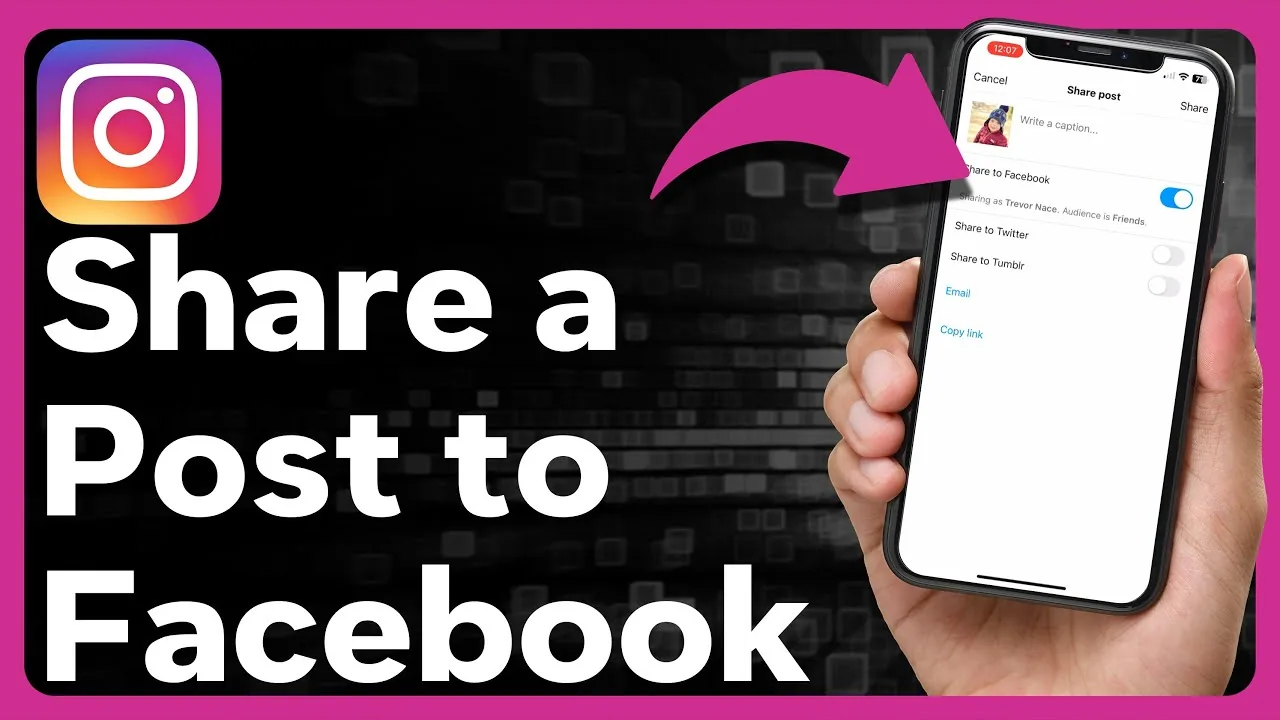
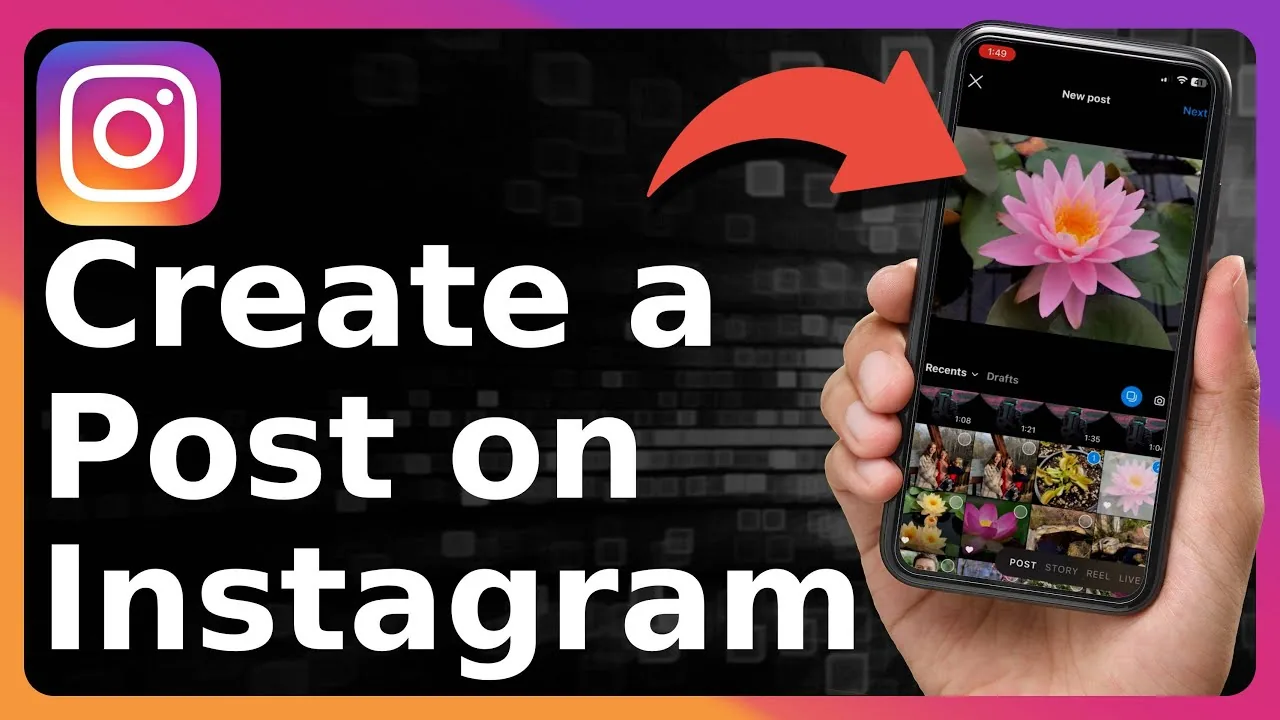
Enable cross-posting once and every new Post, Reel, or Story can publish to Facebook automatically. When you create a post, the caption screen shows a Facebook toggle you can flip on or off.
To set it as the default, go to Settings and privacy > Cross-posting to Facebook (labeled Cross-sharing in some app versions) and choose which content types Posts, Reels, and Stories share by default. According to search-result reporting on Meta's 2025 Creator data, users with connected accounts saw roughly 35% faster scheduling and 20% fewer posting errors, though results vary. Batch your content first our content calendar batching workflow pairs well with cross-posting, and the viral Reels hook formula helps each cross-posted Reel land.
Does linking change how the Instagram algorithm treats my posts?
No linking accounts does not give your posts a ranking boost. Cross-posting distributes the same content to a second audience, but each platform ranks it independently. Understanding this matters more than any linking trick; our Instagram algorithm explained breaks down what actually drives reach.
Timing still matters on both apps. If you cross-post, schedule around your strongest Instagram window see the best time to upload on Instagram, finding your optimal posting time, and day-specific data like the best time to post on Monday.
How do I unlink Instagram from Facebook?
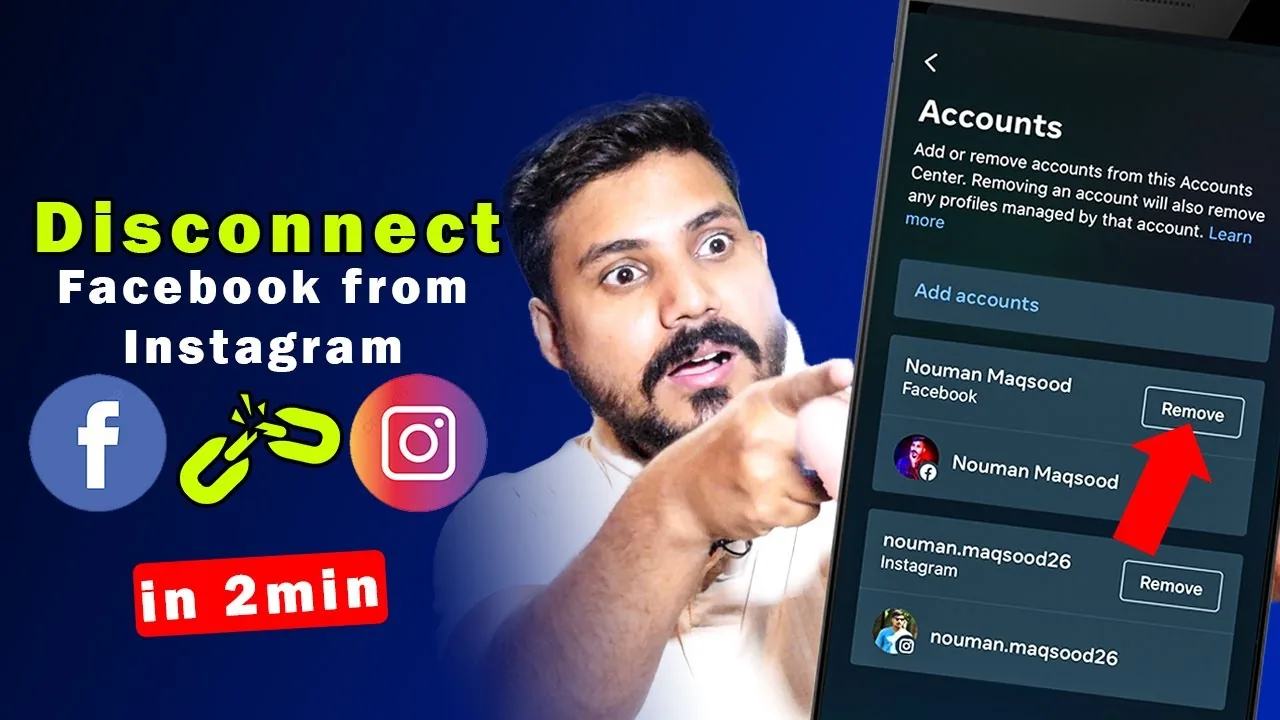
Unlinking takes about four taps and does not delete either account. Open Accounts Center > Accounts, tap the account you want to remove, then Remove from Accounts Center and confirm.
| Action | Result |
|---|---|
| Remove from Accounts Center | Stops cross-posting and shared login; both accounts stay live |
| Turn off cross-posting only | Keeps accounts linked but stops auto-sharing |
| Delete an account | Permanently removes that profile only |
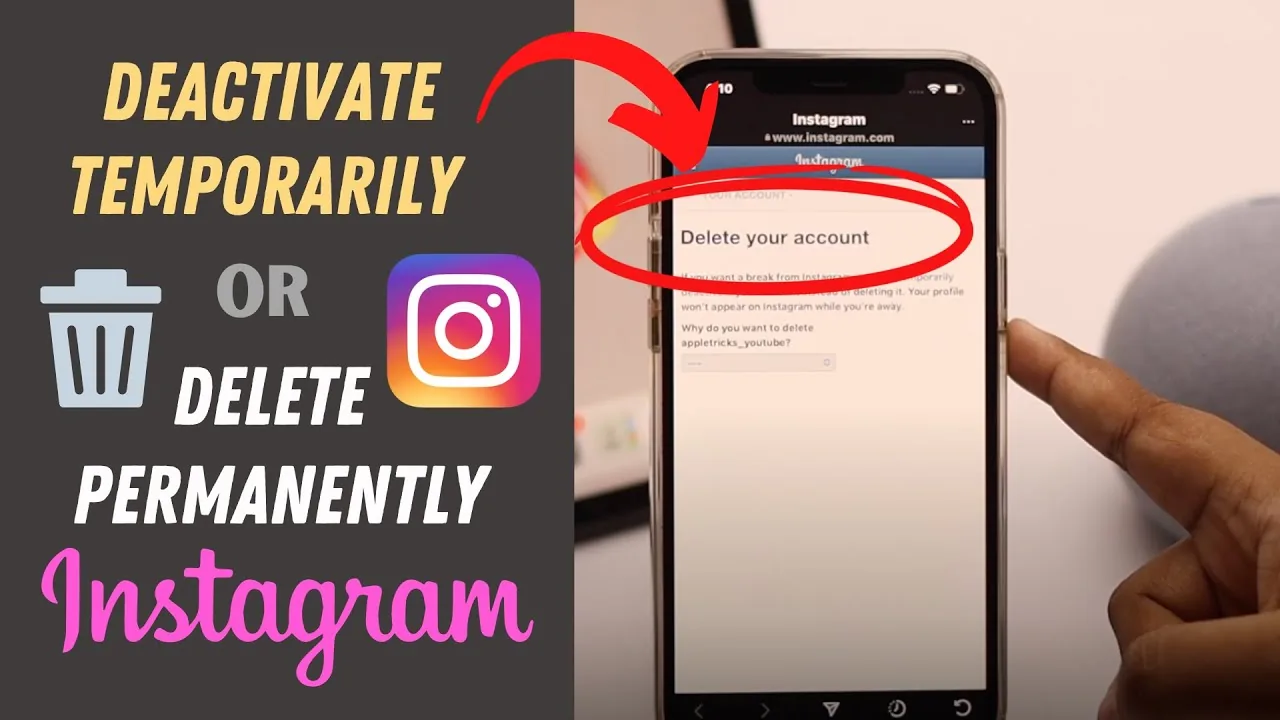
Unlinking is the right move if you want separate audiences or are cleaning up your presence entirely see how to delete an Instagram account.
What is changing with Accounts Center in 2026?
Starting early 2026, Meta is retiring the standalone "Logging in with accounts" setting. Per Meta's Help Center, all accounts inside one Accounts Center will be able to log into each other by default, and some accounts may be moved into different Accounts Centers unless that login sharing is enabled.
What to do: open Accounts Center > Connected experiences and confirm your accounts are grouped the way you want before the change rolls out. Review your privacy while you are there our guide on hiding your followers on Instagram covers who can see what once profiles are connected.
Bottom line: linking Instagram to Facebook is a two-minute job in Accounts Center that unlocks cross-posting and shared login without merging your accounts and it is fully reversible whenever you want.
Frequently asked questions
In Meta Accounts Center, reachable from either app under Settings and privacy > Accounts Center. Tap Add accounts and confirm the connection. Both accounts then appear together in the same hub.
Sources
- Manage connected experiences across your accounts in an Accounts Center Meta Help Center
- Connected experiences across your accounts in an Accounts Center Meta Help Center
- How to Link Instagram to a Facebook Page (step-by-step guide 2026) Leadsie
- How to Connect Your Instagram Account to a Facebook Page Spikerz
- 3 Expert Ways to Crosspost on Instagram and Facebook Metricool
Keep reading
More guides to grow your account.