How Do You Delete a Comment From Instagram? 2026 Guide
How do you delete a comment from instagram: Delete your comment by opening the post, selecting the comment, and tapping Delete; on your own post, you can also...

Short answer
Delete your comment by opening the post, selecting the comment, and tapping Delete; on your own post, you can also delete comments left by other accounts.
Key takeaways
- You can delete your own comment anywhere it appears.
- You can remove other people’s comments only from content you control.
- Deletion removes the comment from the visible thread and is not a moderation appeal.
- Restrict can hide future comments from a person until you approve them.
- Hidden Words can filter common abusive or unwanted terms.
What is the direct answer?
Delete your comment by opening the post, selecting the comment, and tapping Delete; on your own post, you can also delete comments left by other accounts. The important distinction is between what Instagram’s current interface actually provides and what old tutorials, third-party apps, or assumptions claim it provides.
Start with the official app or website and the account you control. Read every confirmation screen before accepting it, because a similar label can produce a different result: hiding is not deleting, a tag is not a collaborator invitation, and an aggregate metric is not a list of people. In 2026, Instagram also tests layouts by account and region, so the exact menu name can move while the underlying decision remains the same.
How do you delete an Instagram comment?
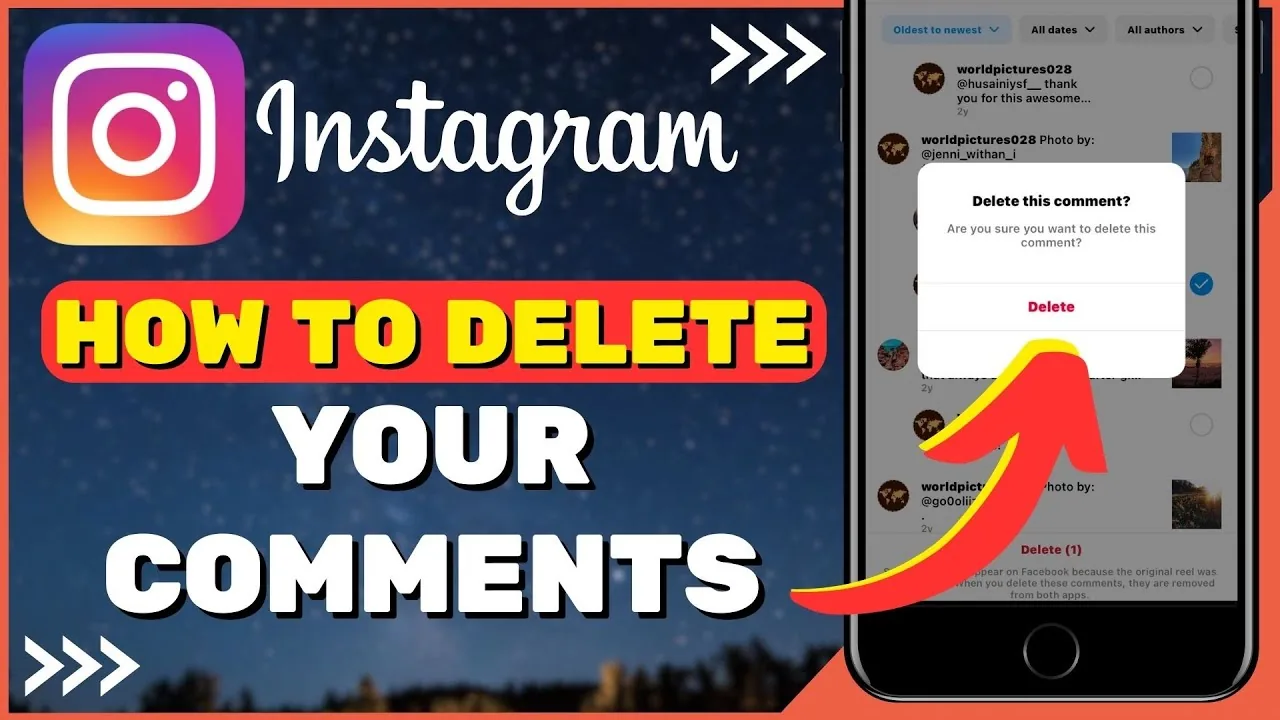
To delete an Instagram comment, follow the official path below and pause whenever the displayed result differs from the expected one. These steps are deliberately ordered so you can stop before a hard-to-reverse change.
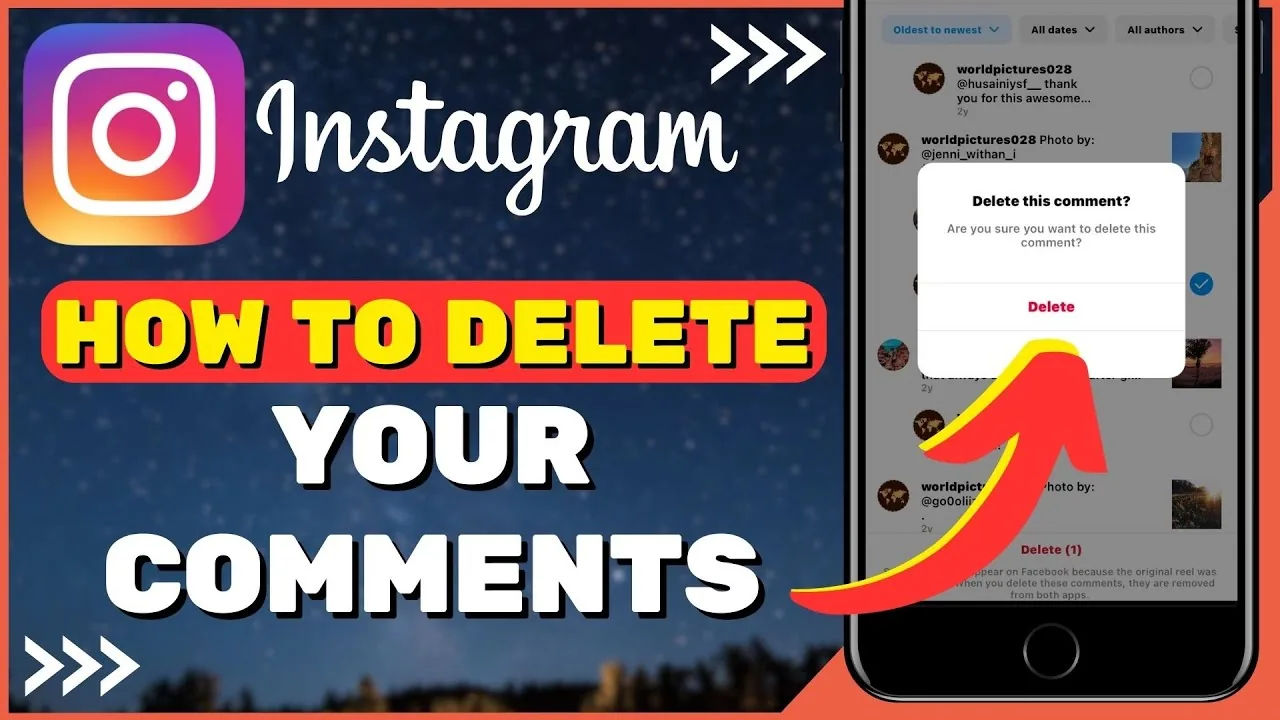
- Open the post or Reel and expand the comments.
- Find the exact comment and confirm the username and context.
- On iPhone swipe left; on Android press and hold; on web use the three-dot menu.
- Tap the trash or Delete option.
- Refresh the thread to verify removal.
- Use Restrict, Block, Report, or Hidden Words if the problem is repeated abuse.
After the final step, refresh the relevant profile, post, Story, message, or Insights screen. When visibility matters, verify from another account you are allowed to use instead of assuming the owner view matches what everyone else sees. Keep a screenshot of important business settings, disclosures, or recovery details, but never include passwords or authentication codes.
Which option should you choose?
Choose the least disruptive option that fully solves the problem. The table turns the workflow into a decision checklist rather than treating every Instagram control as interchangeable.
| Action or situation | What it tells you | Safe verification |
|---|---|---|
| 1. Open the post or Reel and expand the comments. | You can delete your own comment anywhere it appears. | Verify before moving to the next step |
| 2. Find the exact comment and confirm the username and context. | You can remove other people’s comments only from content you control. | Verify before moving to the next step |
| 3. On iPhone swipe left; on Android press and hold; on web use the three-dot menu. | Deletion removes the comment from the visible thread and is not a moderation appeal. | Verify before moving to the next step |
| 4. Tap the trash or Delete option. | Restrict can hide future comments from a person until you approve them. | Verify before moving to the next step |
If two options seem equally suitable, prefer the one that is reversible and preserves data. For creators and businesses, also consider whether the choice changes links, disclosures, analytics history, customer expectations, or a collaborator’s access.
What should you check if it does not work?
If the option is missing or the result looks wrong, first update Instagram, confirm the correct account, and test the same task once on a stable connection. Do not repeat taps rapidly, because duplicate publishing, invitations, or security checks can make the original problem harder to diagnose.
- Confirm the app came from Apple’s App Store or Google Play.
- Compare iPhone, Android, and web only when Instagram supports that task on each surface.
- Check Account Status, privacy settings, professional-account eligibility, and age or regional limits.
- Restart the app, then clear cache on Android or reinstall only after saving drafts and login details.
- Wait and retry later if several accounts show the same missing feature or service error.
A one-account problem usually points to settings, eligibility, or rollout. A one-device problem usually points to permissions, cache, or version. A problem affecting many people is more likely a service incident, so changing the account repeatedly will not fix it.
What privacy, safety, or policy limits matter?
Before deleting threats, harassment, or fraud, preserve screenshots and relevant account details because deletion may remove evidence you need for a report. Instagram controls reduce risk but cannot stop every screenshot, reshare, copied link, alternate account, or offline consequence.
Use a unique password, enable two-factor authentication, and distrust any service that needs your Instagram password to perform a task the official app does not offer. For copyright, commerce, advertising, minors, harassment, or personal safety, preserve records and follow the stricter legal or platform rule rather than a shortcut from a viral tutorial.
What related Instagram guides should you use next?
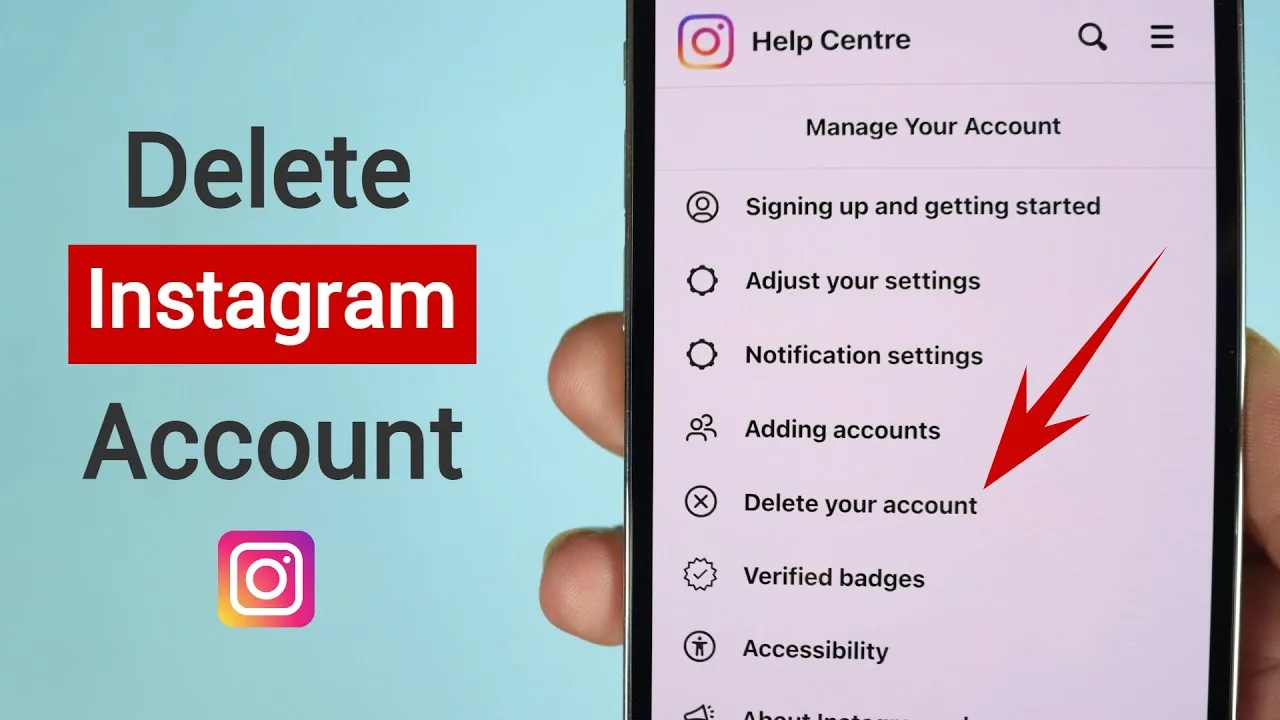
Use related guides only when they support the same goal, not as a substitute for checking the current screen. Build the foundation with the step-by-step Instagram posting guide. For the next decision, use the photo and video upload guide. A useful companion is the Instagram cache troubleshooting. When you need more detail, read the account deletion guide. To avoid a common detour, check the temporary deactivation guide. Build the foundation with the Instagram mute controls. For the next decision, use the active-status privacy steps. A useful companion is the location privacy guide. When you need more detail, read the Instagram and Facebook linking guide. To avoid a common detour, check the Instagram reposting guide.
This sequence keeps profile, publishing, privacy, growth, and troubleshooting decisions connected. It also prevents a narrow fix from creating a second problem, such as exposing a private account, breaking an old profile link, or sharing media without permission.
What is the bottom line?
Delete ordinary mistakes quickly, but use moderation controls and evidence preservation when a comment signals an ongoing safety problem. Complete the task once, verify the visible result, and keep a reversible fallback whenever Instagram offers one.
Use the official Instagram interface, protect your login, and treat missing features as a reason to verify—not a reason to install an unknown app.
Frequently asked questions
Start with this official step: Open the post or Reel and expand the comments. Then continue in order and verify the final screen before assuming the change worked.
Sources
Keep reading
More guides to grow your account.