How to Disconnect Instagram from Facebook (2026 Guide)
Step-by-step guide to unlinking Instagram from Facebook using Accounts Center, plus what stops working and what stays the same after.
Short answer
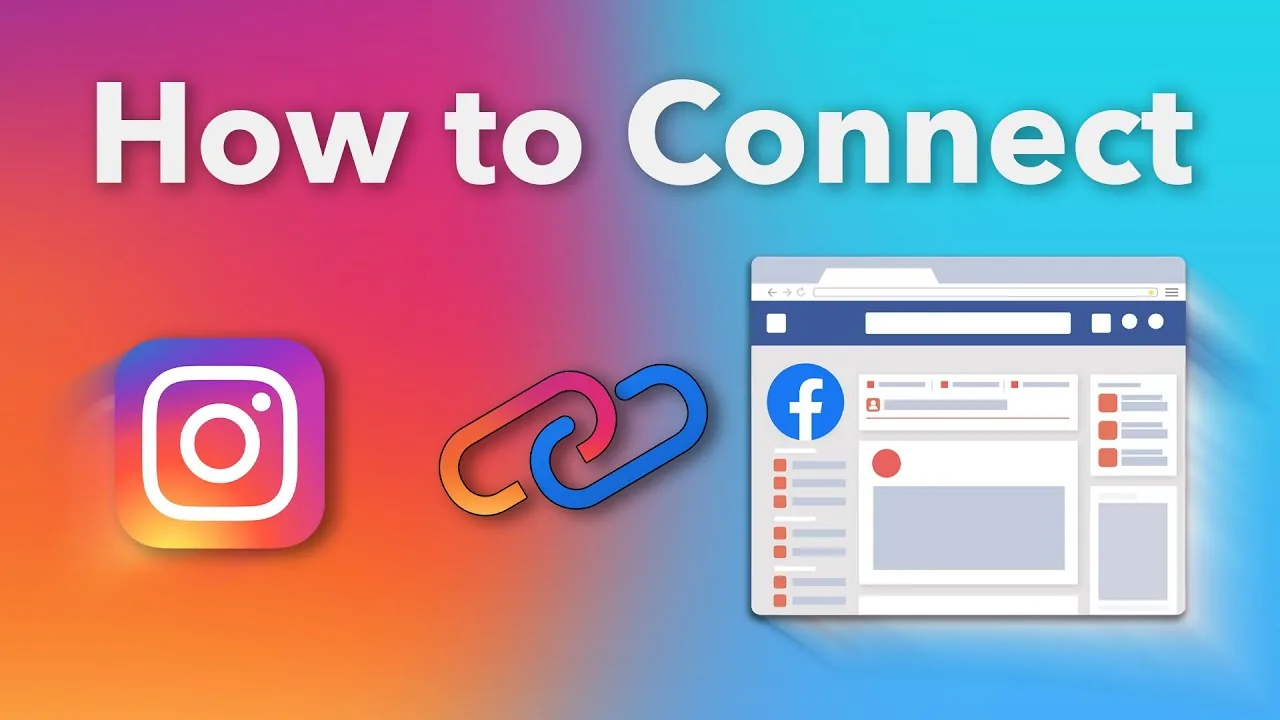
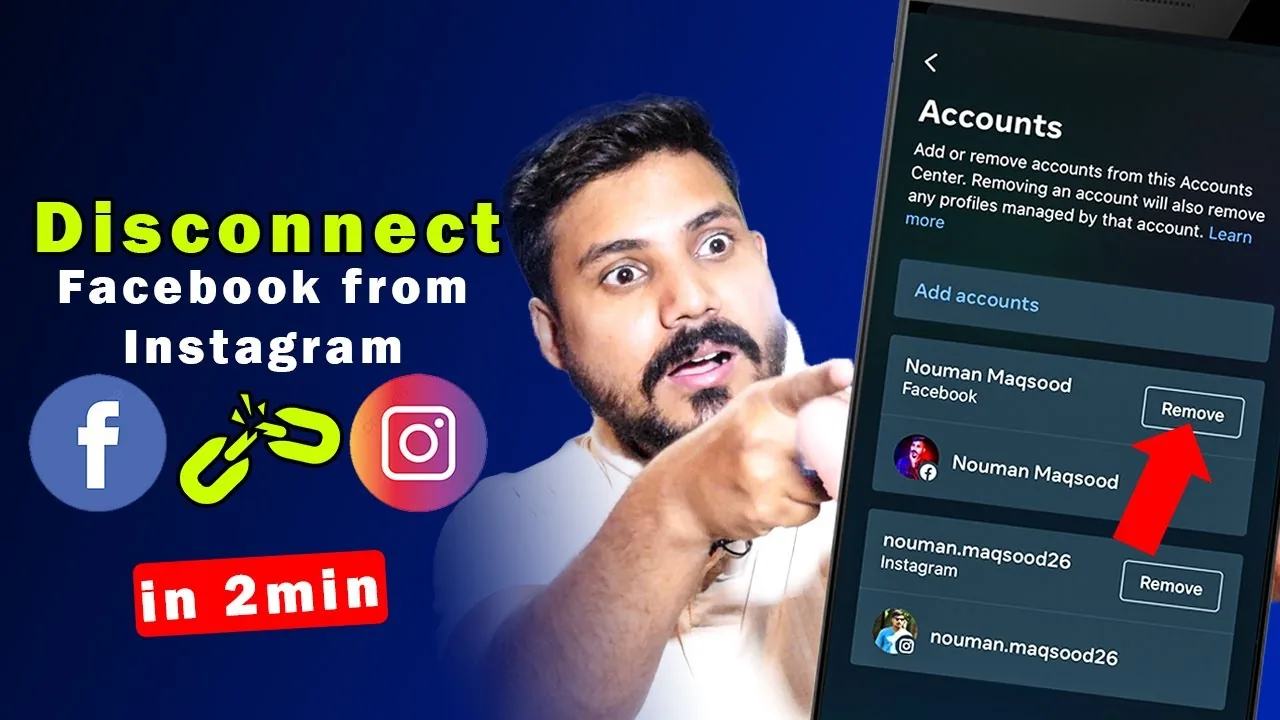
To disconnect Instagram from Facebook, open Instagram Settings, go to Accounts Center, select Accounts, tap your Facebook profile, then Remove. Cross-posting and shared login stop immediately, but each app keeps working independently.
Key takeaways
- Disconnecting happens in Accounts Center, the shared settings hub Meta uses across Instagram and Facebook
- After unlinking, you can no longer log into one app using the other's credentials
- Automatic cross-posting of Reels, Stories, and posts to Facebook stops immediately
- Your Instagram profile, followers, and posts are untouched — only the link between accounts is removed
- You can reconnect the same two accounts later if you change your mind
- Business Pages relying on Instagram-to-Facebook posting need to reconnect if they later want that shortcut back
Where do I actually disconnect Instagram from Facebook?
On mobile, open your profile, tap the three lines in the top right, go to Settings and privacy, then tap Accounts Center. From Accounts Center, tap Accounts, select your Facebook profile, tap Remove, then confirm by tapping Remove account again. This is the same hub Meta uses for managing passwords, so it's worth getting familiar with even beyond this one task.
Can I disconnect from desktop instead?
Yes — log into instagram.com, click More in the left panel, choose Settings, then open Accounts Center from the top of that menu. Click Accounts to see every linked Instagram and Facebook profile, select the Facebook profile you want removed, click Remove, then confirm with Yes. The desktop flow mirrors the mobile one closely, so use whichever device you have handy.
What breaks immediately after disconnecting?
You lose the ability to log into Instagram using your Facebook credentials, or vice versa, so make sure you know your standalone Instagram password before disconnecting. Automatic cross-posting also stops — the one-tap option to share new Reels, Stories, or feed posts straight to your Facebook Page or profile disappears from the share screen. If you regularly used that shortcut for a business account, you'll need to post to each platform separately going forward.
What stays exactly the same?
Your Instagram profile, follower list, saved posts, and content history are completely unaffected — disconnecting only removes the link between the two accounts, not any content on either one. Your Instagram bio, highlights, and settings stay intact, and Facebook's separate profile or Page keeps its own posts and audience too. Think of it as unplugging a cable between two independent devices rather than deleting either one.
Why would someone disconnect Instagram from Facebook?
Common reasons include wanting separate audiences for each platform, tightening privacy by not sharing activity data between apps, or simply cleaning up an old link from years ago. Some creators disconnect before selling or transferring an Instagram account so the new owner isn't tied to the previous owner's Facebook profile. Others do it after reading about how connected accounts can share more data across Meta's platforms than a single-app setup would.
Can I reconnect Instagram and Facebook later?
Yes, the same Accounts Center flow lets you relink the two accounts whenever you want — go back into Accounts Center, tap Add accounts, and follow the prompts to reconnect. Reconnecting restores cross-posting and shared login, but it does not restore any post history that existed only in the cross-posting feed while disconnected. If you're unsure, it's safe to disconnect and test your workflow before deciding it's permanent.
Disconnect vs. other account changes at a glance
| Action | What it affects | Reversible? |
|---|---|---|
| Disconnect Instagram from Facebook | Login link, cross-posting | Yes |
| Deactivate Instagram temporarily | Profile visibility | Yes |
| Delete Instagram account permanently | All content and profile | No |
| Unfollow a linked Facebook Page | Following relationship only | Yes |
If your real goal is closing an account entirely rather than just unlinking it, see how to deactivate Instagram temporarily instead — that's a much bigger step than a simple disconnect.
Disconnecting is a two-minute settings change with no permanent downside, so it's worth doing whenever you want more separation between your Instagram and Facebook presence.
Frequently asked questions
Open Settings and privacy, tap Accounts Center, select Accounts, tap your Facebook profile, then tap Remove and confirm. This severs the login and cross-posting link between the two accounts.
Sources
Keep reading
More guides to grow your account.