How to Link Facebook to Instagram: Step-by-Step Guide
Link your Instagram Business or Creator account to a Facebook Page to cross-post, share an inbox, and run Meta ads.
Short answer
Switch your Instagram account to Business or Creator, then go to Edit Profile and select your Facebook Page under Public Business Information. Once connected, you can cross-post, share a unified inbox, and run Meta ads across both platforms.
Key takeaways
- Linking Facebook to Instagram requires a Business or Creator professional account — personal accounts can't connect a Facebook Page.
- The connection is made from Edit Profile under Public Business Information, where you select the matching Facebook Page.
- Linked accounts let you cross-post to Facebook, unify inbox messages in Meta Business Suite, and run ads across both platforms.
- You can unlink or switch the connected Page at any time from the same settings screen without losing your Instagram content.
- Linking a Page is different from linking a personal Facebook profile URL, which is a separate, simpler bio-link feature.
Why would you link Facebook to Instagram?
Linking connects your Instagram professional account to a Facebook Page so you can cross-post content, manage messages in one inbox, and access Meta's advertising tools from a single dashboard. It's the backbone of running Instagram for business, since most Meta ad campaigns and analytics tools require the two accounts to be connected.
What do you need before linking the accounts?
Your Instagram account has to be a Business or Creator account, not personal, and you need admin access to a Facebook Page you own or manage. If you're still on a personal profile, switch first — the reverse of the process in how to switch to a personal account on Instagram — then create or claim a Facebook Page before attempting the connection.
How do you link Facebook to Instagram from the app?
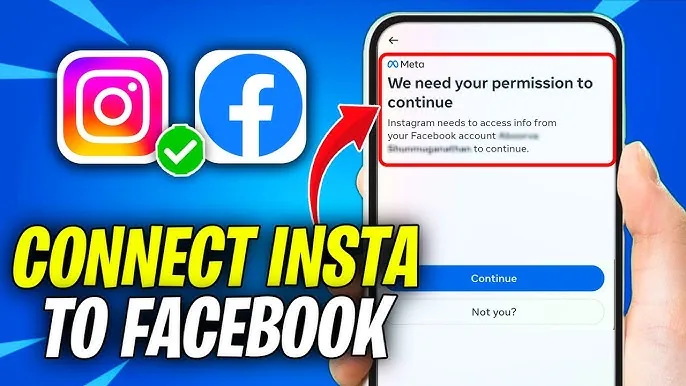
Open Instagram, tap your profile picture in the bottom right, then tap Edit Profile. Scroll to the Public Business Information section and look for the Page setting. Tap it, select the correct Facebook Page from the list, and confirm. Once confirmed, the linked Page name appears next to the Page field on your profile, and your accounts are now connected for cross-posting and unified messaging.
Can you link the accounts from Facebook instead?
Yes. Log into Facebook, go to your Page, open Settings in the left sidebar, then click Linked Accounts. From there you can search for and connect your Instagram account directly, which is useful if you manage the Page on desktop more than the Instagram app. Both directions produce the same linked connection.
What can you do once the accounts are linked?
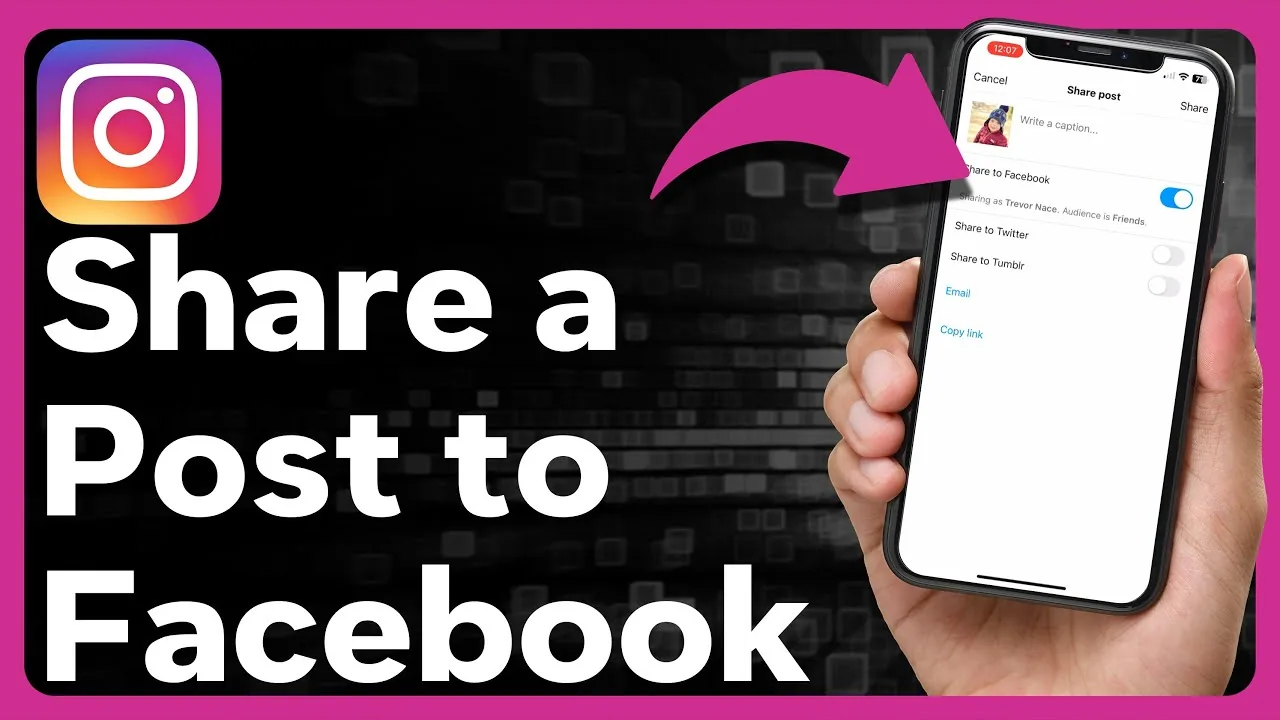
You can share Instagram posts directly to your Facebook Page with one tap, respond to comments and DMs from both platforms in a single Meta Business Suite inbox, and set up ad campaigns that run across Facebook and Instagram simultaneously. This also feeds into how to advertise on Instagram workflows, since Meta Ads Manager pulls from the same linked Page.
| Task | Requires linked Page | Where to manage it |
|---|---|---|
| Cross-post feed content to Facebook | Yes | Instagram share sheet |
| Unified inbox for comments and DMs | Yes | Meta Business Suite |
| Run Meta ads for Instagram | Yes | Ads Manager |
| Add a personal Facebook profile link to bio | No | Edit Profile > Links |
| Switch to a business account | No (prerequisite) | Edit Profile > Account type |
How do you unlink or change the connected Page?
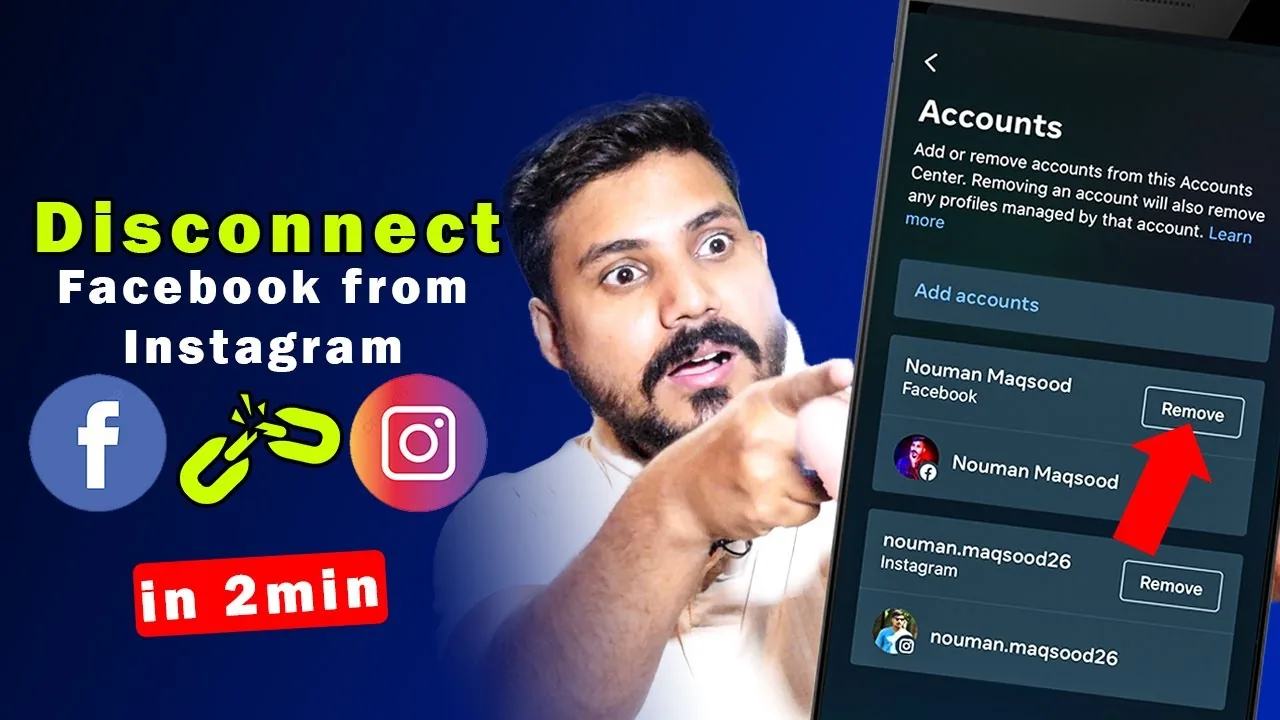
Go back to Edit Profile, tap the Page setting, and either select a different Facebook Page or choose to disconnect. Unlinking doesn't delete any Instagram content, it only removes the cross-posting and shared inbox connection. This is handy if you manage multiple brands and need to move an Instagram account between Pages, similar to how you'd handle unlinking Instagram accounts for other connected services.
Linking Facebook and Instagram takes only a couple of minutes once you have a professional account and Page admin access, and it unlocks the cross-platform tools most serious Instagram growth and ad strategies depend on.
Frequently asked questions
Yes, only Business and Creator professional accounts can connect a Facebook Page. Personal accounts need to switch account types first before the linking option appears.
Sources
Keep reading
More guides to grow your account.