Instagram Messages Black Screen? How to Fix It in 2026
Instagram messages showing a black screen in 2026? Here are the fastest fixes, from clearing cache and updating the app to spotting a server outage.
Short answer
An Instagram messages black screen is almost always a display or cache glitch, not a lost account. In 2026 the fastest fixes are to force-close and reopen the app, update Instagram, clear the cache (Android) or reinstall (iPhone), and confirm the servers aren't down. Most people are back in their DMs within a few minutes.
Key takeaways
- The Instagram messages black screen is almost always a display glitch from corrupted cache, an outdated app, a dark-mode rendering bug, or a temporary server outage - not a hacked or deleted account.
- The single fastest fix is to fully force-close Instagram and reopen it; this clears the frozen DM view for most people in under 30 seconds.
- Android users can clear the cache in Settings; iPhone has no cache button, so the equivalent fix is deleting and reinstalling the app.
- Installing the latest Instagram release often resolves display bugs that affect the DM screen.
- If DMs are black for many users at once, it is a server-side outage - check a status tracker and simply wait, since no local fix will help.
Why are my Instagram messages showing a black screen?
Your Instagram messages show a black screen because the DM view failed to render, usually from corrupted cached data, an outdated app version, a dark-mode display bug, or a temporary Instagram outage. In almost every case your messages are safe - the app just cannot draw the conversation on screen. The inbox loads a blank or all-black panel instead of your chats, and sometimes taps do nothing until you back out.
Because several causes produce the identical symptom, work through fixes from fastest to most thorough - start with a simple restart before you reinstall anything. Our guide on how to clear your Instagram cache pairs well with this troubleshooting.
Instagram messages black screen: cause vs fix
Here is a quick map of the common causes and the fix that resolves each one:
| Likely cause | What you see | Fastest fix |
|---|---|---|
| Frozen DM view | Black inbox after tapping the message icon | Force-close and reopen the app |
| Corrupted cache | Black screen that returns every time | Clear cache (Android) or reinstall (iPhone) |
| Outdated app | Glitch after a recent OS update | Update Instagram in the app store |
| Dark-mode bug | Black text on black background | Toggle light/dark theme |
| Account session issue | Blank DMs but feed works | Log out and back in |
| Server outage | Black DMs for many users at once | Check a status tracker and wait |
| Weak connection | Endless buffering, then black | Switch Wi-Fi and mobile data |
How do I fix the Instagram DM black screen fast?
Force-close Instagram completely and reopen it - this clears the frozen message view for most users in seconds. On iPhone, swipe up from the bottom and flick the Instagram card away; on Android, open the app switcher and swipe it closed. Then relaunch and tap into your DMs again.
If that alone does not work, run this quick sequence in order:
- Restart your phone. A full reboot refreshes system memory and clears minor bugs that keep DMs from drawing.
- Check your connection. Toggle airplane mode on and off, or switch between Wi-Fi and mobile data - a stalled connection often renders as a black panel.
- Reopen Instagram and go straight to your inbox.
These three steps resolve the majority of black-screen reports without touching your data or login.
How do I clear the Instagram cache to fix black messages?
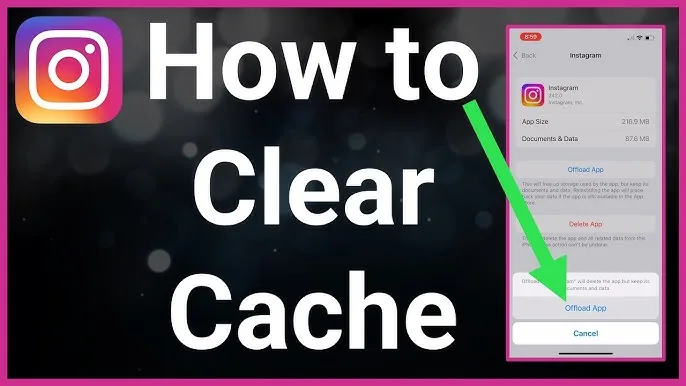
On Android, clear Instagram's cache in your phone settings; on iPhone, there is no cache button, so you delete and reinstall the app instead. A bloated or corrupted cache is the most common repeat-offender behind a black DM screen.
Android: Open Settings, tap Apps, select Instagram, tap Storage, then tap Clear Cache. This removes temporary files without logging you out or deleting saved posts.
iPhone: Press and hold the Instagram icon, choose Remove App, then Delete App. Restart your phone and reinstall Instagram from the App Store. You will need to log back in, so make sure you know your password first. For a full walkthrough of both platforms, see our dedicated guide on clearing the Instagram cache on iOS and Android.
Does updating or reinstalling Instagram fix the black screen?
Yes - updating to the newest Instagram version fixes most black-screen bugs, and a clean reinstall fixes nearly all the rest. Open the App Store or Google Play, search Instagram, and tap Update if it appears. If the black screen survives the update, reinstall: uninstall completely, restart your phone, then download a fresh copy. Reinstalling removes broken app files and is the single most effective fix when a restart fails. Once you are back in the refreshed app, brush up on how to post on Instagram and how to go live on Instagram.
Is the black screen a dark-mode glitch?
Sometimes yes - if your DMs show black text on a black background or a partially blank chat, a dark-mode rendering bug is the likely culprit. When Instagram's theme and your phone's theme fall out of sync, the message area can render as an unreadable black panel.
Fix it by toggling your theme. Open your phone's display settings and switch between light and dark mode, then reopen Instagram. On some builds you can also set Instagram's own theme independently in Settings under the accessibility or theme options. Switching either one forces the app to redraw the DM screen correctly. This is a display quirk only - it never affects your actual messages, unlike settings that change how to turn off your active status or read receipts, which change what other people see.
Is Instagram down, or is it just me?
If your DMs are black but the rest of the app also stalls - or friends report the same thing - Instagram's servers are probably down, and no local fix will help. Outages hit the messaging system periodically and produce a black or blank inbox for large numbers of users at once.
To confirm, check a third-party status tracker such as Downdetector or IsDown, or search social platforms for a spike in "Instagram down" posts. If it is a confirmed outage, the only fix is patience - service usually returns within minutes to a couple of hours once Meta resolves it. While you wait, avoid repeatedly reinstalling, since that will not speed anything up. If problems persist for you alone after an outage clears, a quick log-out and log-in refreshes your account session. And be wary of any site promising an Instagram 24/7 customer service number - Instagram has no phone support, and those numbers are scams.
For related privacy controls after the inbox works again, review how to mute someone and whether Instagram shows screenshots.
Frequently asked questions
It is usually a display glitch caused by corrupted cache, an outdated app, a dark-mode rendering bug, or a temporary server outage. Your messages are still there - the app just failed to draw them. Force-closing and reopening Instagram fixes it most of the time.
Sources
Keep reading
More guides to grow your account.