How to Go Live on Instagram: Step-by-Step (2026)
Start a live broadcast, add up to 3 guests, moderate comments, and save the replay — plus the new 1,000-follower requirement to go live.
Short answer
To go live, open Instagram, swipe to the camera, select Live, add a title, and tap the shutter to start. You need a public account with at least 1,000 followers; you can add guests, moderate comments, and save the replay to your profile after ending.
What you need before going live
As of August 2025, Instagram Live is no longer open to everyone. You now need a public account with at least 1,000 followers. Accounts that are private or under 1,000 followers see an "account is no longer eligible for Live" notice. If you're not there yet, our guide on growing your first 1,000 followers is the place to start. Before going live, make sure Instagram has camera and mic permission, and connect to strong Wi-Fi — Live is bandwidth-heavy.
Step-by-step: start a live video
- Open the app and tap the + (Create) icon, or swipe right to open the camera.
- Scroll the format options at the bottom and select Live.
- Tap the title area to add a short, descriptive title (e.g. "Morning Q&A") — it helps people understand your stream and can boost views. You can also set Practice mode for a private test.
- Tap the shutter (circle) button to begin. A 3-2-1 countdown plays, then you're broadcasting.
- Followers get a notification and your stream appears at the front of Stories.
Device notes: steps are nearly identical on iPhone and Android. You can't go live from the website with a plain webcam — desktop/OBS streaming needs a professional account plus software (OBS Studio, Streamlabs) via Instagram's Live Producer.
Adding guests (going live together)
Instagram supports up to three guests plus the host (four total).
- While live, tap the guests/people icon.
- Search and invite a follower, or approve viewers who requested to join.
- Once accepted, they join in split-screen, and their followers are notified too — expanding your reach.
- Tap the icon again to remove a guest. Guests must also meet eligibility rules.
Moderation and controls during the stream
- Assign a moderator: pick a viewer who can mute, report, and remove people so you can focus on presenting.
- Manage comments: use the three-dot Options menu to turn off commenting, filter offensive comments, or pin a comment.
- Mute and remove: mute a guest's audio/video and remove disruptive viewers.
- Turn off join requests if you don't want guests.
Ending and saving/sharing the replay
Tap the X and confirm End Video. The summary screen offers:
- Share — post the replay to your profile so followers can watch later (it lives in a video section of your profile).
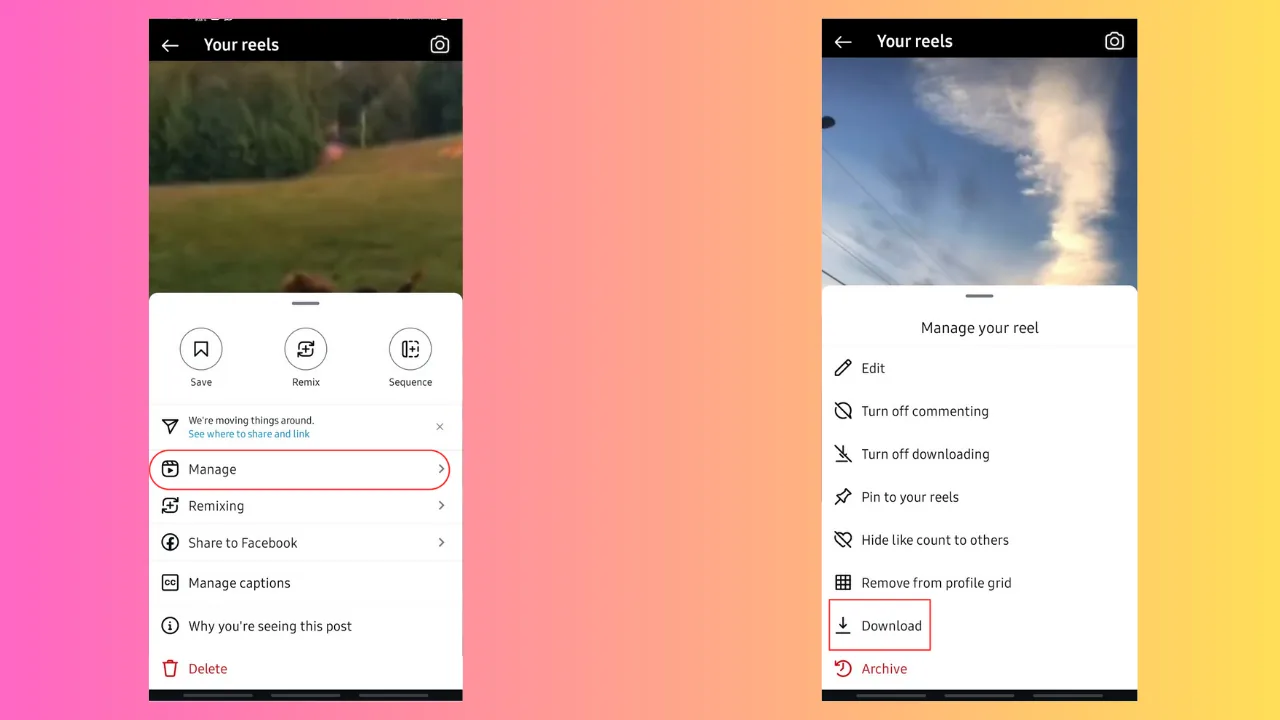
- Download — save the recording to your camera roll (video only; comments aren't included).
- Share to your Story for 24 hours, or Delete to discard.
For a permanent clip, download the video and re-upload the best moments as a Reel — write a strong opener first using our Reels hook formula.
Scheduling a live in advance
Professional and creator accounts can schedule up to 90 days ahead. From the Live camera, tap the schedule (calendar) icon, add a title, date, and time. Instagram creates a promotable announcement so followers can set a reminder.
Engagement best practices
Promote your Live ahead of time, go live at a consistent time, open with a hook, greet viewers by name, and read comments aloud to build a two-way conversation. Use a clear title, good lighting, and stable audio, and invite a guest to tap into their audience. Aim for at least 15–20 minutes so more followers can join. Make sure your bio has a clear call-to-action — new viewers will check your profile.
Frequently asked questions
Since August 2025 you need a public account with at least 1,000 followers. Private accounts and those under 1,000 followers are no longer eligible for Live.
Sources
- Instagram Help Center — Start a live broadcast on Instagram
- Instagram Help Center — Invite guests to your live broadcast
- Instagram Help Center — Share a live broadcast after it's ended
- TechCrunch — Instagram now requires at least 1,000 followers to go live
- Engadget — Public accounts under 1,000 followers can no longer go live
Keep reading
More guides to grow your account.