How to Delete an Instagram Story Safely
Delete an active Story, remove an archived or highlighted Story, restore eligible Recently Deleted content, and understand what deletion cannot undo.
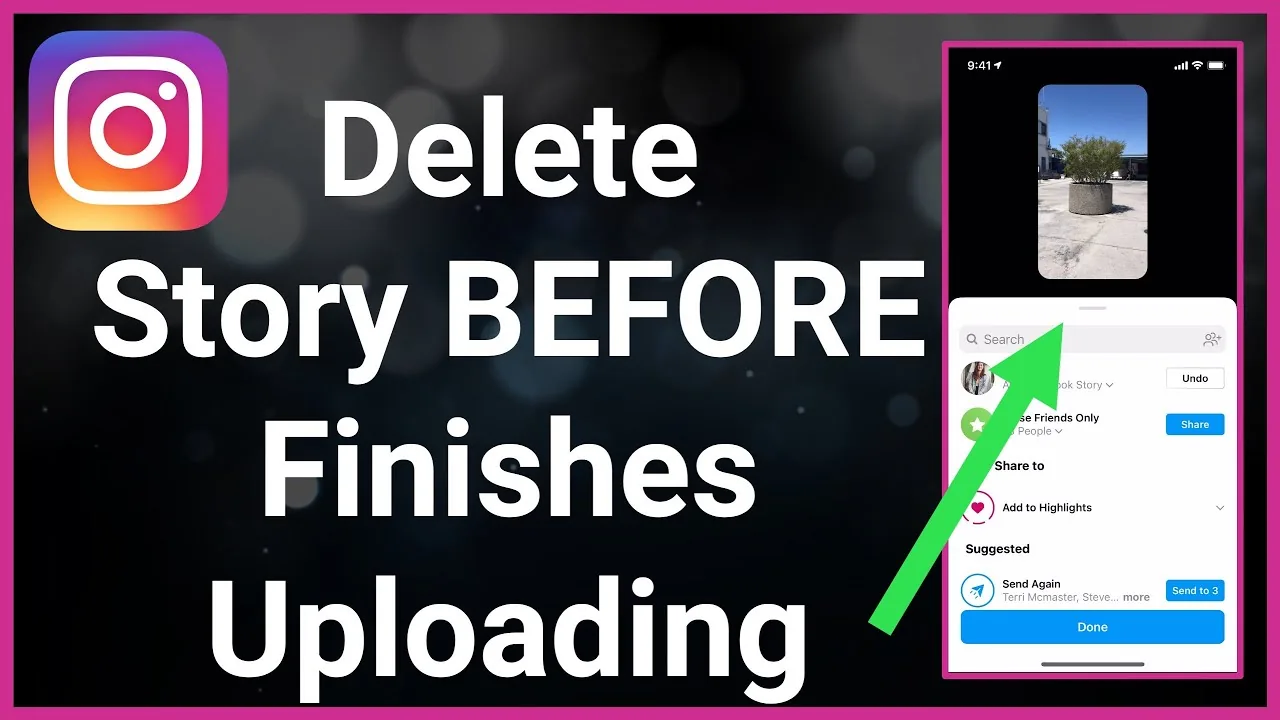
Short answer
To delete an active Instagram Story, open the Story, tap More, choose Delete, and confirm. To remove an older Story, open Archive or the relevant Highlight, select the item, and delete or remove it; eligible deleted content may remain in Recently Deleted for a limited restoration period.
Key takeaways
- Deleting one Story frame does not automatically delete every frame in the Story sequence.
- Removing a Story from a Highlight can leave the archived Story intact unless you delete it separately.
- Eligible deleted content may move to Recently Deleted temporarily before permanent removal.
- Deletion stops future Instagram access but cannot retract screenshots, screen recordings, downloads, or reshares already made.
- Preserve evidence before deleting harassment, threats, fraud, or account compromise content.
How do you delete a live Instagram Story?
Open the specific Story frame, tap the More or three-dot menu, choose Delete, and confirm. Repeat for each frame you want removed.
A Story can contain several separately published images or videos. Deleting the current frame leaves the others unless they are also selected and removed. After deletion, refresh the profile from another authorized account if immediate public removal matters, because cached previews can briefly persist.
For useful context, compare save Instagram Stories responsibly with repost an Instagram Story.
How do you remove Stories from Live, Archive, or Highlights?
Use the location where the Story currently lives: the active Story menu, Story Archive, or Highlight editor. Removing from a Highlight and deleting the archived source are different actions.
- For an active Story, open the exact frame, tap More, choose Delete, and confirm.
- For an archived Story, open Profile, menu, Archive, select the Story, and use its delete control.
- For a Highlight, open the Highlight, select the frame, and choose Remove from Highlight if you want to keep the archive.
- Choose delete rather than remove only when the archived source should also be removed.
- Open Your activity or Recently Deleted to review eligible removed content and restoration options.
- If the Story exposed sensitive information, change the underlying password, location, access, or audience setting as well.
Saving a copy before deletion is appropriate only when you own the content and storing it does not create additional privacy risk. Sensitive Stories should not be moved into an unsecured gallery merely for completeness.
These steps also pair well with understand anonymous Story viewing and evaluate anonymous Story viewers.
Should you delete, archive, remove from Highlight, or wait 24 hours?
Delete for urgent removal, remove from Highlight to change a collection while retaining Archive, and wait only when ordinary expiration is sufficient.
| Action | Public result | Copy retained? | Best use |
|---|---|---|---|
| Delete active Story | Frame removed | May enter Recently Deleted temporarily | Mistake or urgent exposure |
| Wait 24 hours | Story expires normally | Archive if enabled | No urgent issue |
| Remove from Highlight | No longer in that Highlight | Usually remains in Archive | Edit profile collections |
| Delete from Archive | Archived source removed | May be recoverable temporarily | Permanent cleanup |
| Save to device | No public change | Device copy created | Your own lawful backup |
Archiving is not the same as privacy from Meta or anyone who captured the Story while live. Choose based on the public audience and the need for a retained private copy.
To choose the right option, keep understand Highlight viewing and learn Instagram screenshot rules nearby.
Why can a deleted Story still appear?
The app may be showing cache, another frame or repost may remain, the item may still exist in a Highlight, or a viewer captured it before deletion. Confirm each surface separately.
- A second Story frame contains the same photo or video.
- The Story was added to a Highlight and only the active version was deleted.
- A collaborator or another account reposted the content.
- The app or browser displays a cached thumbnail until refresh.
- A viewer took a screenshot, screen recording, or external copy before removal.
Deleting and reinstalling Instagram will not remove someone else's copy. Ask the holder to remove unauthorized material, use reporting or copyright processes when appropriate, and seek legal or safety help for intimate or threatening content.
If you hit a related problem, consult check Story screenshot notices and make Instagram private.
What happens to a Story after deletion?
Instagram removes it from normal public access and may hold eligible deleted content temporarily in Recently Deleted before final removal. Backup, legal, safety, and technical retention can differ from the user-facing view.
Do not promise instant erasure from every Meta system or recipient device. If the Story revealed a live location, access code, ticket, identity document, school schedule, or financial detail, invalidate the information and alert affected people rather than relying only on deletion.
For privacy and account safety, also review control follower visibility and limit Instagram location access.
What should you check after deleting an Instagram Story?
Verify the active Story, Archive, Highlights, tagged reshares, and underlying security issue. Deletion is complete only when the exposure path is addressed.
- Refresh the profile and each relevant Highlight.
- Review Archive and Recently Deleted according to your goal.
- Change exposed credentials, location plans, or audience controls.
- Preserve lawful evidence and report abusive redistribution.
For future Stories, use Close Friends or a private account where appropriate, delay location posts, and inspect backgrounds for screens, addresses, badges, children, and confidential material before sharing. Review the full frame once more before every upload.
Frequently asked questions
Open the frame, tap More or the three-dot menu, choose Delete, and confirm. Repeat for other frames.
Sources
Keep reading
More guides to grow your account.