Can You Turn Off Repost on Instagram? 2026 Guide
Yes — you can stop others from reposting your Instagram content in Settings, though the Repost feature itself can't be removed entirely.
Short answer
You can't switch off Instagram's Repost feature app-wide, but you can stop people from reposting your own posts and Reels through Settings and Privacy, and you can block reposting on individual pieces of content. Reposts made before you flip the toggle will stay live until the person who reposted removes them.
Key takeaways
- There is no master switch that removes the Repost button from Instagram entirely — it's a platform-wide feature, similar to how reposting on Instagram itself works for any public account.
- You can stop other people from reposting your own posts and Reels by turning off a toggle in Settings and Privacy under Sharing and reuse.
- The setting is account-wide by default, but you can also block reposting on a single post or Reel from that post's Advanced settings.
- Turning off reposts on your account also removes your own ability to repost other people's content from that account.
- Reposts that already exist won't disappear automatically when you toggle the setting off — the person who reposted has to remove it themselves.
- Private accounts are effectively repost-proof already, since the repost feature only works on public content.
What Does Instagram's Repost Button Actually Do?
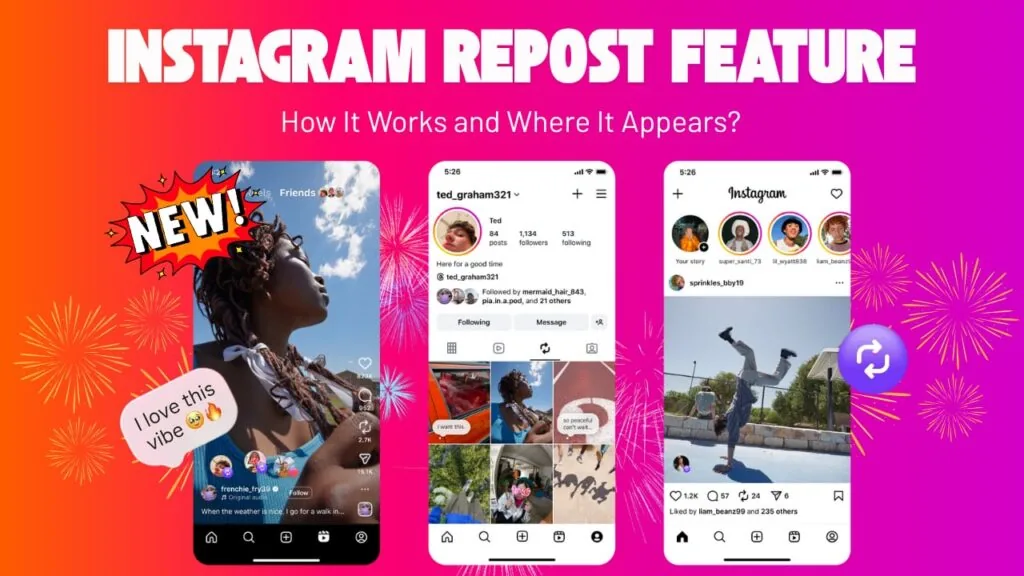
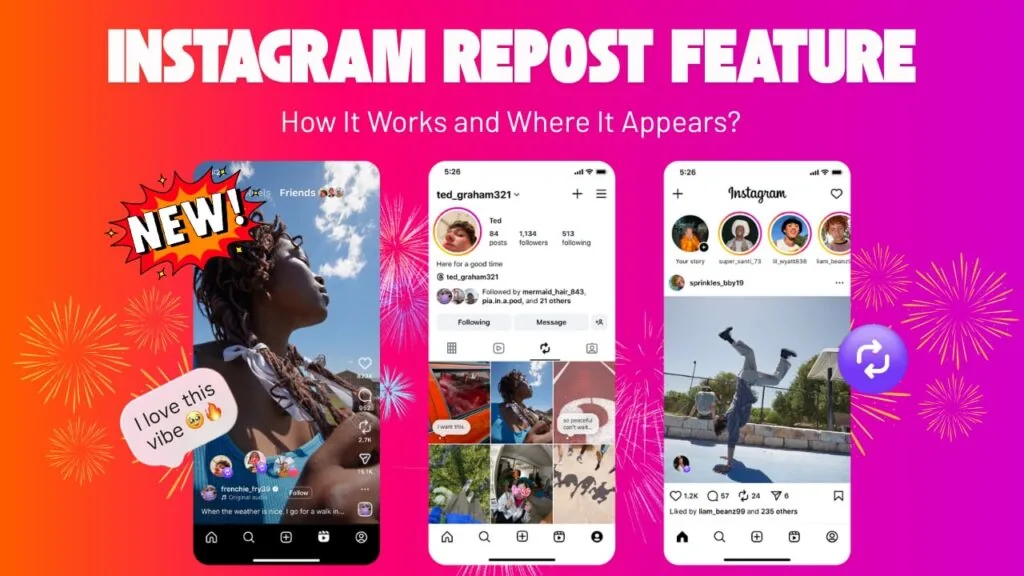
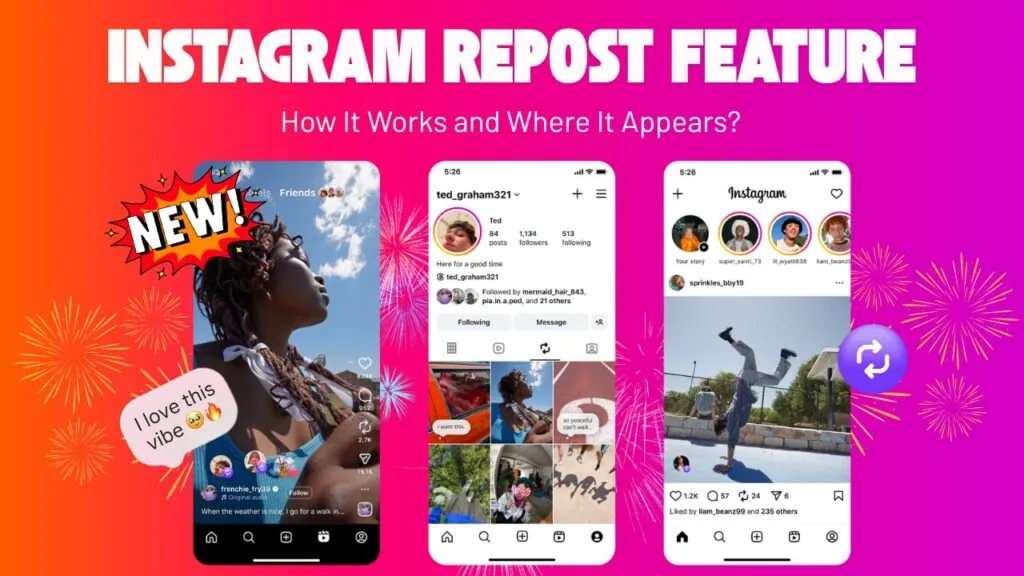
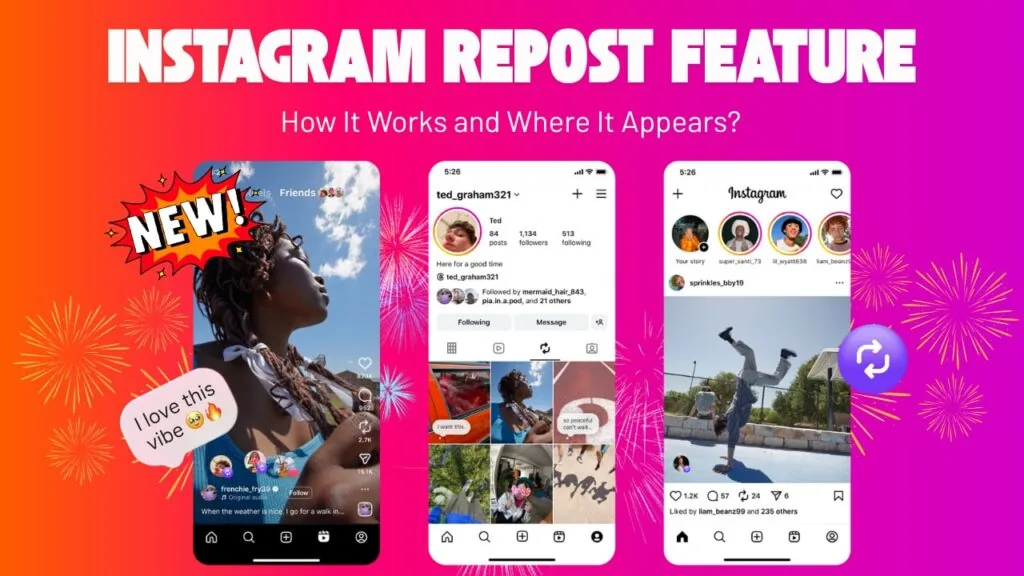
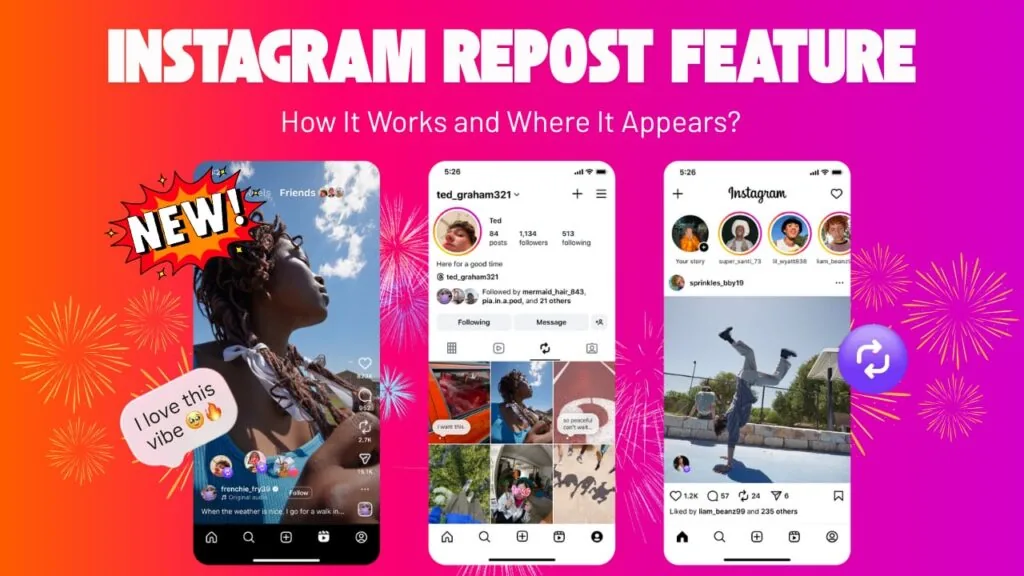
Instagram's Repost button lets someone share your public post or Reel to their own profile, where it appears in a dedicated Reposts tab and always credits you as the original creator. It's Instagram's built-in answer to the screenshot-and-repost habit that's existed on the app for years — you can read a full breakdown of what the repost button does on Instagram if you're still not sure how it differs from sharing to a Story or DM. Unlike a regular share, a repost lives permanently on the reposter's profile until they remove it, and the original poster gets a notification the first time it happens.
Can You Turn Off Repost on Instagram Completely?
No — there is no global switch that removes the Repost feature from the app itself. What you can control is whether other people are allowed to repost your specific content, and whether your own account participates in reposting other people's posts. Think of it less as an on/off feature and more as a permission you grant or revoke, similar to how you turn off read receipts on Instagram without disabling messaging altogether. Anyone can still see reposts other users make of content that hasn't restricted the feature, so it will keep showing up in your feed regardless of your own settings.
How Do You Stop Others From Reposting Your Content?
Open your profile, tap the menu icon in the top right, go to Settings and privacy, then Sharing and reuse. Inside that menu you'll find a toggle for reposts on posts and Reels — switch it off and the Repost button stops appearing on your content for everyone else. This is the same setting referenced in our companion guide on how to turn off repost on Instagram, which walks through the account-level toggle step by step. Once it's off, viewers only get the standard share-to-DM or share-to-Story options on your posts, not the dedicated repost action.
Can You Disable Reposts on Just One Post or Reel?
Yes, and this is the better option if you only want to protect a specific piece of content, like a sponsored post or a time-sensitive announcement. Open the post or Reel, tap the three-dot menu, choose Advanced settings, and toggle off the option that allows reposting. Everything else you've shared stays reposts-eligible, so you don't have to choose between blanket-blocking reposts and leaving everything wide open — most creators leave the account-level toggle on and only restrict individual posts as needed.
Does Turning Off Reposts Affect Your Own Reposting Ability?
Yes. The Sharing and reuse toggle is a two-way switch: turning it off stops others from reposting you, but it also removes your own ability to repost other creators' public posts and Reels from that same account. If you rely on reposting to curate content — the way many meme or fan pages do when they repost an Instagram post from another account — keep the setting on and instead lean on per-post restrictions for the specific content you want to protect.
Why Might Reposts Be Missing From Your Settings?
If you don't see a Sharing and reuse option at all, it's usually one of three things: your app isn't updated to a version that includes the feature, your account is set to private (reposting only works on public profiles), or Instagram hasn't rolled the feature out to your account yet, since it expanded gradually through 2025 and into 2026. Updating the app and checking that your profile is public are the first troubleshooting steps before assuming something is broken.
What Happens to Reposts Already Made Before You Turn the Feature Off?
Turning off the toggle only prevents new reposts. Anyone who already reposted your content keeps that repost on their profile until they personally delete it — your setting change doesn't retroactively pull it down. If you want a specific existing repost gone, you'll need to ask the person who made it to remove it, or report it if it violates Instagram's policies. It also helps to know who shared your Instagram post in the first place so you know who to contact.
How Is This Different From Making Your Account Private?
Going private blocks reposting automatically, since the feature only works on public content, but it also hides your posts from anyone who isn't an approved follower — a much bigger change than most people want just to manage reposts. Turning off the Sharing and reuse toggle lets you stay public and searchable while still shutting down reposts specifically. If unwanted sharing is a recurring problem from one particular account, blocking that person on Instagram or hiding your posts from them is a more targeted fix than going private.
Quick reference: repost controls compared
| Control | Where to find it | What it actually does |
|---|---|---|
| Account-wide repost toggle | Settings and privacy > Sharing and reuse | Stops everyone from reposting any of your public posts and Reels going forward |
| Per-post repost toggle | Post/Reel > three-dot menu > Advanced settings | Blocks reposting on that single piece of content only |
| Private account | Settings and privacy > Account privacy | Blocks reposting as a side effect, but also hides content from non-followers |
| Block a specific user | Profile > three-dot menu > Block | Stops that person from seeing or interacting with your content at all |
| Report an existing repost | Repost > three-dot menu > Report | Flags a repost that violates Instagram's rules for review |
Between these five options, most people only need the account-wide or per-post toggle. Going private or blocking someone is a heavier tool worth saving for situations where reposting is only one part of a bigger harassment or privacy problem, and muting is worth considering too if you'd rather just stop seeing someone's activity than restrict what they can do, similar to how you'd mute someone on Instagram without unfollowing them.
Whichever combination you use, check back periodically — Instagram has continued adjusting how reposting works since it launched broadly, so settings names and menu locations can shift with app updates.
Frequently asked questions
No single setting removes the Repost feature from the whole app. You can only control whether people can repost your own content, either account-wide or per post, through Settings and privacy.
Sources
Keep reading
More guides to grow your account.