Is Instagram Down? How to Check and Fix It
Is Instagram down right now, or is the problem on your phone? Check service status, isolate the cause, and use the right fix without risking your account.
Short answer
Instagram may be down if many people lose Feed, Stories, Reels, or DMs at the same time. Check Meta's status information and independent outage reports first; if reports are normal, test your connection, update the app, and clear local app data before reinstalling.
Key takeaways
- A widespread spike across several regions points to an Instagram outage; one failing device usually points to a local problem.
- Check both Meta status information and a crowd-reported monitor because consumer-app incidents are not always posted immediately.
- Do not reset your password, delete your account, or pay a supposed support agent merely because the app is temporarily unavailable.
- Test Instagram on mobile data, Wi-Fi, and the web to separate a service outage from a network or app fault.
- Capture the error message and time before troubleshooting so you can report a repeatable problem accurately.
How can you tell whether Instagram is down?
Instagram is probably down when the same features fail for many unrelated users at once and status reports rise sharply. If only your account, device, or Wi-Fi connection is affected, the cause is more likely local.
Start with symptoms, not guesses. A global incident may stop timelines from refreshing, prevent media uploads, delay direct messages, or show repeated server errors across both the app and instagram.com. A local fault often changes when you switch networks, open a different account, or use another device. Crowd reports are useful signals, but they are not proof by themselves: a popular app can receive a burst of reports after a single viral complaint. Compare at least two signals and avoid repeatedly logging in while authentication is unstable.
For useful context, compare clear Instagram's cache with fix Instagram message display problems.
What should you check when Instagram is not working?
Check service status first, then your connection, account, app version, and device storage in that order. This sequence avoids destructive fixes before you know where the failure sits.
- Open Meta Status and a reputable outage monitor; note the affected product and incident time.
- Try instagram.com in a browser and test one other Meta service to see whether the failure is app-specific.
- Switch between Wi-Fi and mobile data, disable a malfunctioning VPN, and confirm other websites load.
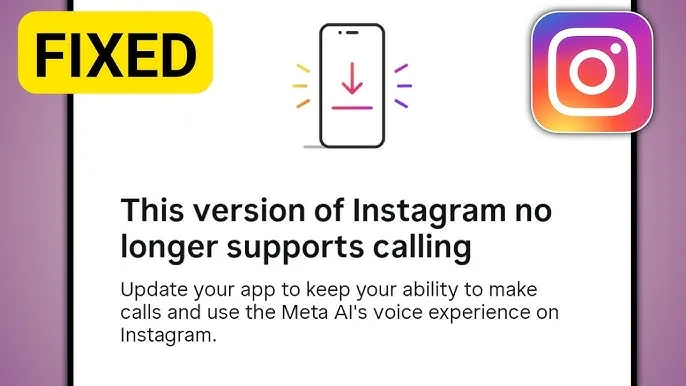
- Force-close Instagram, reopen it, and check the App Store or Google Play for an update.
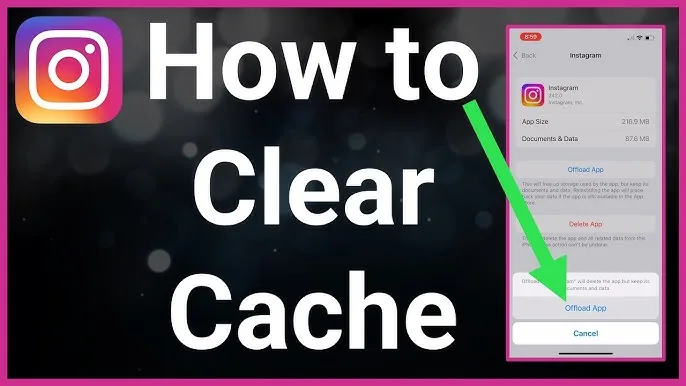
- Restart the phone, confirm free storage, and clear cache on Android or offload/reinstall on iPhone only if needed.
- If one account alone fails, check Account Status and report the exact error through Help inside Instagram.
Wait during a confirmed outage instead of repeating uploads or password requests. Queued posts and messages can appear later, and repeated actions may create duplicates once the service recovers. If you manage a business account, record what was scheduled and pause automated retries until Feed and publishing are stable.
These steps also pair well with understand Instagram ranking and use legitimate Instagram support.
Is it an outage, network fault, app bug, or account restriction?
The scope of the failure is the best diagnostic clue. Use the comparison below before choosing a fix.
| Signal | Likely cause | Best next step |
|---|---|---|
| Many regions report failures | Instagram outage | Wait and monitor official updates |
| Works on mobile data only | Wi-Fi, DNS, or router issue | Restart network equipment or change DNS |
| Works in browser, not app | App cache or version issue | Update, clear cache, then reinstall |
| Only one account fails | Account restriction or session issue | Check Account Status and Help |
| Uploads fail but browsing works | Media, storage, or publishing issue | Check file format, storage, and permissions |
An error such as challenge_required, feedback_required, or an Account Status notice deserves account-specific handling; it is not evidence of a platform-wide outage. Conversely, a blank Feed on every device during a large status spike is unlikely to be fixed by deleting local data.
To choose the right option, keep review Instagram location access and make an account private nearby.
Why might Instagram fail when there is no outage?
Instagram can stop working because of stale app data, a weak connection, an outdated build, low storage, permission changes, or an account-level action block. Fix the narrowest likely cause first.
- A VPN, private DNS service, school network, or workplace firewall is interrupting Meta requests.
- The app is outdated or its cached files became inconsistent after an operating-system update.
- The device lacks enough storage to process a Reel, Story, or carousel upload.
- Photo, microphone, mobile-data, or background permissions were turned off.
- Rapid follows, likes, comments, or third-party automation triggered a temporary action limit.
Avoid unofficial APKs, browser extensions, and people claiming they can restore Instagram through a paid phone number. Those routes create credential and malware risk without fixing Meta's servers. Use the official app stores, Instagram's in-app reporting flow, and account recovery pages.
If you hit a related problem, consult check the standard posting workflow and review Accounts Center connections.
What should you do during a confirmed Instagram outage?
During a confirmed outage, protect your work, stop repeated retries, and wait for service recovery. There is no device setting that can repair a server-side incident.
Save captions and media locally, take screenshots of failed paid-campaign or publishing screens, and tell collaborators that the issue is platform-wide. Do not log out if you are unsure of the password or two-factor method, because login services may also be impaired. Never share a security code with a person posing as support. After recovery, verify scheduled posts, drafts, messages, and ad delivery rather than assuming every queued action completed.
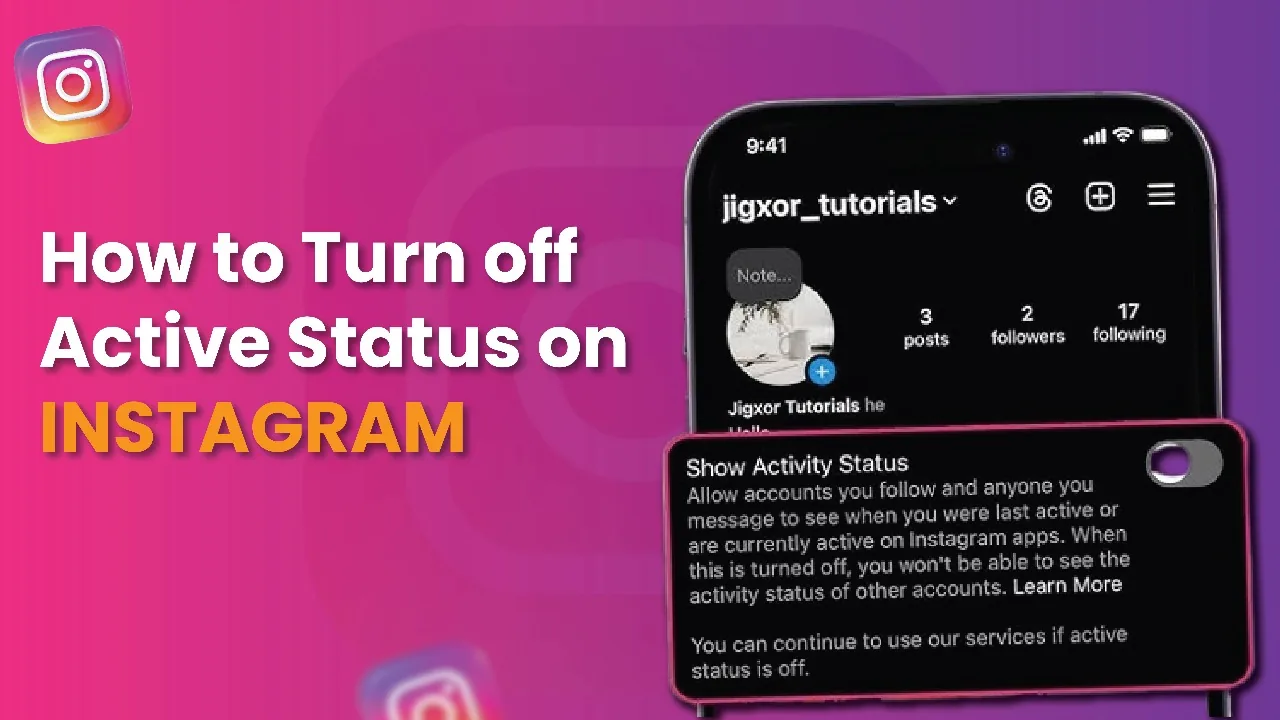
For privacy and account safety, also review understand account deletion and control activity status.
What is the fastest safe fix for Instagram problems?
The fastest safe fix is diagnosis: confirm whether the failure is global, then change only the layer that is broken. Most local problems resolve after a network switch, app update, restart, or cache cleanup.
- Record the failing feature and exact error.
- Compare app, browser, network, and account behavior.
- Apply one reversible fix at a time.
- Report persistent failures through Instagram Help with evidence.
If a problem continues for more than a day without an outage, reproduce it on another device and include the app version, phone model, operating system, and time in your report. That information is far more useful than repeatedly reinstalling the app.
Frequently asked questions
Check Meta Status and a reputable crowd-reporting service for a current spike. If failures appear across regions and devices, an outage is likely.
Sources
Keep reading
More guides to grow your account.