How Do You Upload a Gif on Instagram?
If a GIF won't upload the way you expect, it's almost always a format issue — Instagram's feed and Reels don't accept .gif files at all, only MP4/MOV video, so the fix is converting it first, choosing the right export settings (frame rate, resolution, file size), and picking the right editing app for the job.
Short answer
Feed and Reels reject raw .gif files, so the practical fix is converting the GIF to MP4 first using a converter app, keeping the resolution reasonably high and frame rate smooth, and checking the final file size and duration fit Instagram's video requirements before uploading.
Quick answer
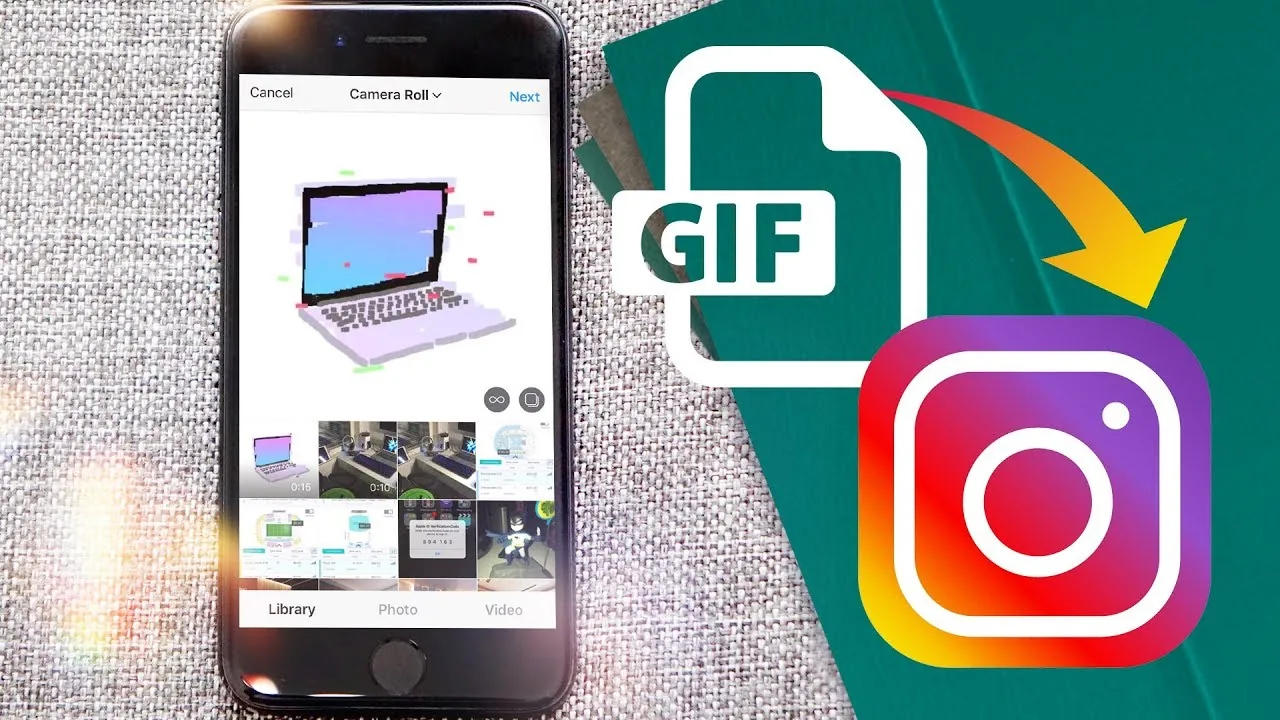
If your GIF isn't uploading properly to Instagram's feed, Reels, or a regular post, it's not a bug — Instagram simply doesn't accept .gif as a valid upload format for those areas, only photos and video files like MP4 or MOV. The fix is converting your GIF into a video file first using a converter tool, then uploading that converted file like any normal video post.
Key takeaways
- Feed posts and Reels require video formats (MP4/MOV) or photos — a raw .gif either fails to upload or gets flattened into a single static frame, depending on the app version.
- Converting a GIF to video is usually free and fast using apps like CapCut, EZGIF (web-based), or GIPHY's own converter tool.
- Low frame rate or low resolution in the original GIF carries over to the converted video — Instagram can't add detail that wasn't in the source file.
- Instagram compresses uploaded video somewhat regardless of your source quality, so starting with the highest-quality GIF or export you can gives the best final result.
- Story GIF stickers are the one exception that doesn't need conversion, since Instagram's built-in GIPHY sticker search handles genuine animated GIFs natively there.
Fixing a failed GIF upload: step by step
- Confirm where you're trying to upload — if it's a feed post or Reel, conversion is required; if it's a Story sticker, use the built-in GIF search instead (no file upload needed there at all).
- Choose a converter: EZGIF.com (web-based, no install needed), CapCut, or GIPHY's own GIF-to-MP4 tool all work for this.
- Upload your GIF to the converter and export it as MP4.
- Check the exported file's resolution — aim for at least 720p if the tool allows adjusting it, since low-resolution GIFs often convert to blurry, small video files.
- Save the converted MP4 to your camera roll and upload it through Instagram's normal post or Reel composer.
Why quality sometimes looks worse after converting
Most GIFs are captured or exported at low resolution and low frame rate to begin with (this keeps file sizes small for use in chats and forums), so converting one to video doesn't magically add detail — you're limited by the original source quality. If you have access to the original video the GIF was made from, it's almost always better to convert and upload that instead of the compressed GIF version.
Common mistakes to avoid
- Assuming a failed .gif upload means your Instagram app is broken — it's a format restriction, not a bug, for feed posts and Reels.
- Using a low-quality, heavily compressed GIF as your source and expecting sharp results after conversion — quality can't exceed the original file.
- Forgetting that Story GIF stickers work completely differently (via built-in GIPHY search, no upload) from feed/Reel content (which requires manual conversion) — using the wrong method for the format you're trying to post to leads to confusion.
- Not checking video length limits after conversion — a longer looping GIF converted to video might exceed feed or Reels duration limits and need trimming.
Tips
- If you're trying to post to a Story specifically, skip conversion entirely and use the built-in GIF sticker search instead — see our full breakdown on posting a GIF to Instagram.
- Keep a folder of your original source videos (before they were turned into GIFs) if you plan to repost that content to Instagram later, since converting from the original avoids extra quality loss.
- Test the converted video by playing it back on your phone before posting, to confirm frame rate and quality look acceptable at the size viewers will actually see it.
Frequently asked questions
Instagram's feed post composer doesn't accept raw .gif files — only photos and video formats like MP4. You need to convert the GIF to a video file first before it will upload properly.
Sources
Keep reading
More guides to grow your account.