How to Archive an Instagram Post, Reel, or Story
Archive an Instagram post, Reel, or Story to hide it from your profile without deleting it — here's exactly how, and how to restore it later.
Short answer
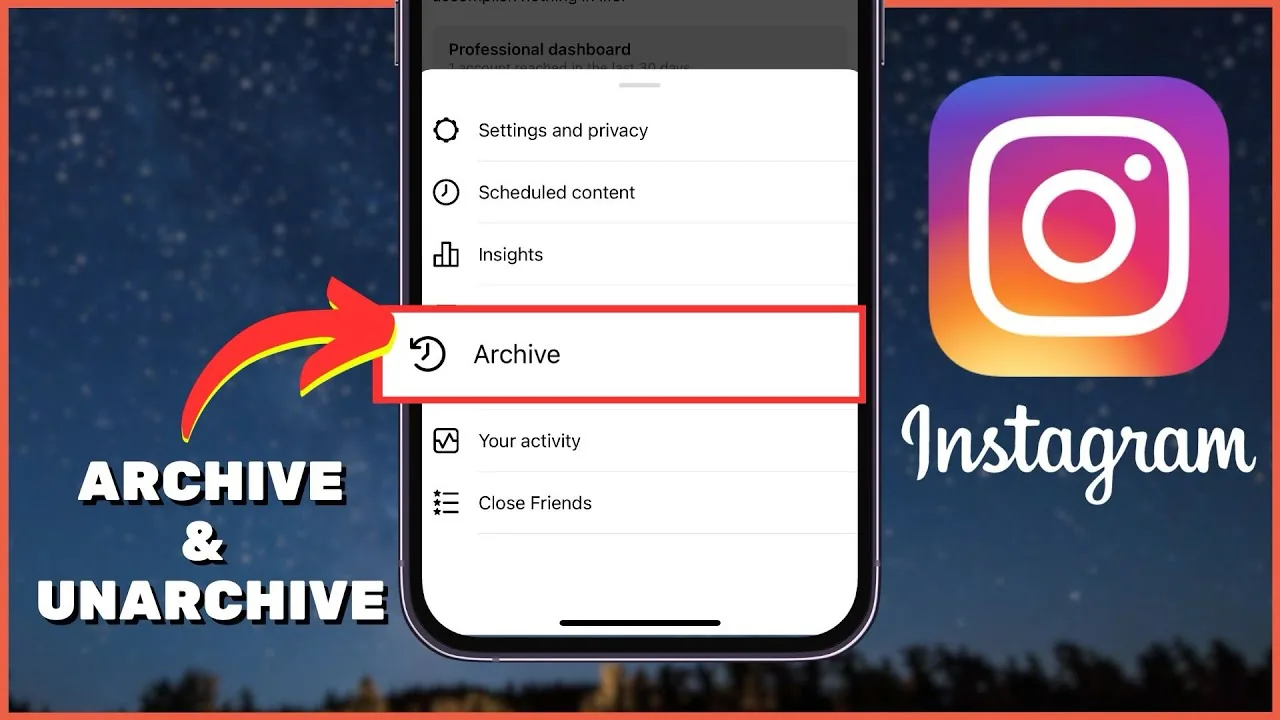
Open the post, Reel, or Story, tap the three dots, and select Archive — Instagram pulls it from your profile and grid instantly while keeping every like and comment intact. Only you can see archived content, in the Archive section of Your Activity, and you can restore it to its original spot on your profile at any time.
Key takeaways
- Archiving hides a post, Reel, or Story from your profile and followers, but it stays on Instagram's servers — only you can see it, in the Archive.
- Likes, comments, view counts, and share totals are frozen and fully restored the moment you unarchive, unlike deletion, which erases everything permanently.
- You reach Archive from a single post's three-dot menu, or from your profile's clock icon for a bulk view of everything you've archived.
- Stories archive automatically after 24 hours unless you turn Stories Archive off in settings; feed posts and Reels only archive when you manually choose to.
- Archiving a Reel stops its algorithmic distribution immediately, so check its Insights before you archive one that's still gaining views.
- Archiving is not the same as switching a post's audience to Only Me — that setting doesn't exist for feed posts, so archiving is Instagram's actual "hide it from everyone but me" tool.
What does archiving a post actually do?
Archiving removes a post, Reel, or Story from your profile and followers' feeds while keeping the content and its data stored in your account. It's fully reversible, and nobody is notified when you do it. If you're still unclear on the mechanics, the fuller breakdown in what archived actually means on Instagram covers edge cases like tagged photos and shared posts.
How do I archive a single post on Instagram?
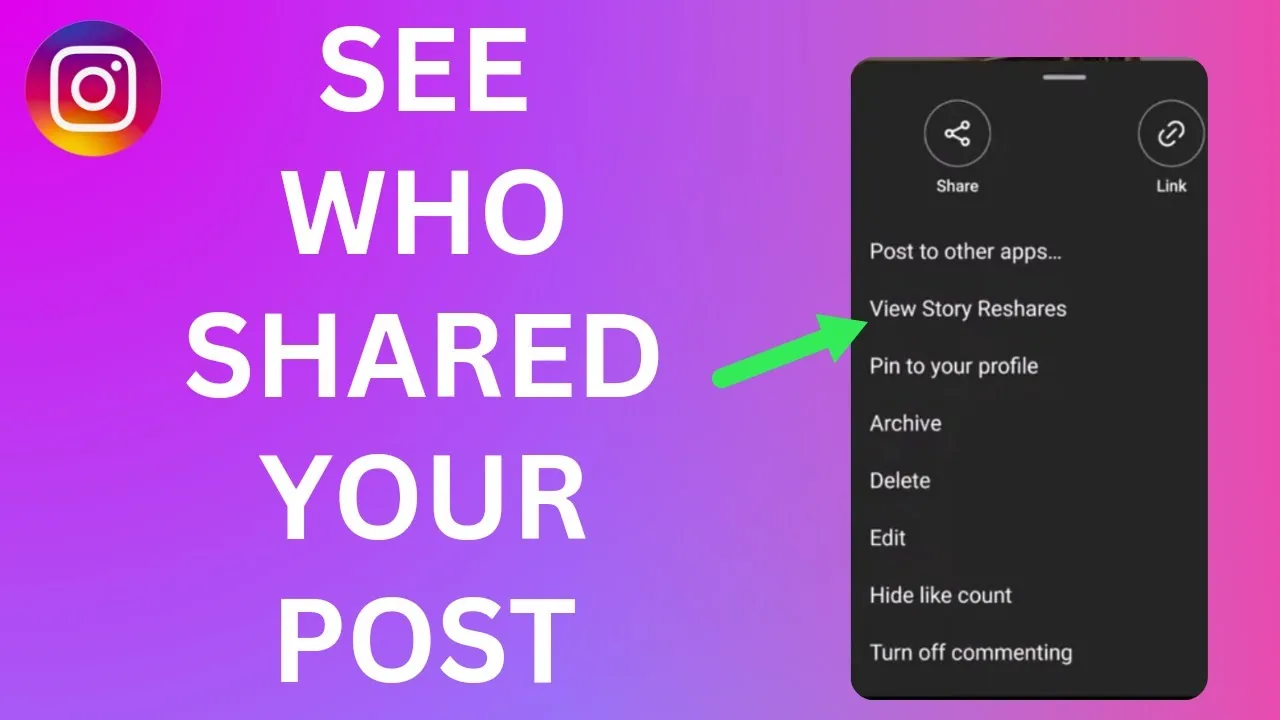
On mobile, go to your profile, tap the post you want to hide, tap the three dots (Options) in the top right, and select Archive. The post disappears from your grid immediately and moves into your private Archive, where only you can view it. This works the same way whether the post is a single photo, a carousel, or an older upload, and it's the same starting point used when you post photos on Instagram in the first place.
How do I archive a Reel specifically?
Open the Reel from your profile or the Reels tab, tap the three dots, then tap Manage and choose Archive. The Reel is pulled from your Reels tab, Explore, and anyone else's feed right away, and it's stored in the same Archive as your regular posts, not a separate folder. Because Reels can keep getting recommended for weeks after posting, check the Reel's insights before archiving one that's still pulling in views — similar to how timing matters when you pause or rewind an Instagram Reel mid-watch.
How do I archive or manage a Story?
Stories archive themselves automatically 24 hours after posting, and that's where you'll find every Story you've shared unless you've turned the feature off under Settings > Archiving and Downloading. You can also manually archive a Story early by opening it while still live, tapping the three dots, and selecting Archive — though this doesn't hide it from viewers before the 24 hours elapse, so it isn't a way to pull a live Story early.
How do I find and view everything I've archived?
Go to your profile, tap the menu icon in the top right, and select Archive, or tap the clock-style Archive icon above your grid on some app versions. From there you can toggle between Posts Archive, Stories Archive, and Reels, browsing everything chronologically — a separate list from the one tracking how many posts you've liked on Instagram.
How do I unarchive and restore a post to my profile?
Open the Archive, tap the post or Reel you want back, tap the three dots, and choose Show on Profile. Instagram puts it back in its original grid position based on its publish date, not the restore date, and every like, comment, and view count reappears intact. This differs from content you've deleted, which only survives 30 days in Recently Deleted before it's wiped for good — a distinction worth knowing before you delete your Instagram account outright.
Does archiving affect my likes, comments, or Insights?
No — archiving freezes engagement rather than removing it. Likes, comments, saves, and share counts stay attached to the post and return exactly as they were once you unarchive it, and you can still view an archived post's Insights while it's hidden. The one caveat for creators is that impressions and reach from an archived post get subtracted from your account-level totals for the period it covered, so bulk-archiving old high-performing posts can visibly dent your historical analytics even though nothing was deleted.
Archive vs delete vs hide from specific people: what's the difference?
These three tools solve different problems, and mixing them up is the most common mistake people make when trying to clean up a profile.
| Action | Who can still see it | Is it reversible? | Where it lives afterward |
|---|---|---|---|
| Archive | Only you | Yes, anytime | Archive (Posts, Stories, or Reels) |
| Delete | Nobody (after 30-day recovery window) | Only within 30 days, via Recently Deleted | Recently Deleted, then permanently erased |
| Hide from specific people | Everyone except the people you selected | Yes, edit the audience list anytime | Stays live on your profile for everyone else |
If your goal is to hide a post from one or two people rather than everyone, archiving is the wrong tool — use the audience controls described in how to hide Instagram posts from specific people instead, since archiving removes the post from your entire audience, not a chosen subset.
Is archiving the same as an Only Me privacy setting?
Not exactly. Instagram doesn't offer a per-post "Only Me" audience toggle for feed content the way some platforms do — archiving is effectively how Instagram implements that idea for posts and Reels, since it makes content visible to nobody but you while keeping it saved. Story audience, by contrast, does have granular controls (Close Friends, hidden from specific people), which is a different mechanism covered in how to hide who you follow on Instagram and similar visibility settings elsewhere in your privacy menu.
Will followers be notified or see a gap when I archive something?
No notification is sent to you or your followers when you archive a post, Reel, or Story. The content simply stops appearing in the grid, Reels tab, or Stories tray, and followers scrolling your profile won't see any indicator that something used to be there. That silence is exactly why archiving is popular for cleaning up a feed before an event or a rebrand without triggering the same reaction people get when they notice posts have been deleted, similar to the quiet way likes disappear if you look into how to hide Instagram likes on your own posts.
Should I archive or delete old Instagram posts?
Archive if there's any chance you'll want the post back, since it preserves engagement data and costs you nothing to keep hidden in storage. Delete only when you're certain — deletion is permanent after the 30-day Recently Deleted window closes, and rebuilding lost likes and comments on a re-uploaded photo is not possible. For a full breakdown of the permanent route, see how to permanently delete an Instagram account if you're clearing out more than individual posts.
Frequently asked questions
Open the post from your profile, tap the three dots in the top right, and select Archive. It disappears from your grid instantly and moves into your private Archive, visible only to you.
Sources
Keep reading
More guides to grow your account.