What Does Archived Mean on Instagram?
Archiving a post or Story removes it from your public profile and Story tray without deleting it — only you can see archived content, stored in a private Archive section, and you can unarchive it back to your grid or Highlights at any time.
Short answer
Archived content is hidden from your public profile and only visible to you in a private Archive section — it isn't deleted, and you can restore a post to your grid or a Story to your Highlights at any time by unarchiving it.
Quick answer
When a post or Story is "archived" on Instagram, it means it's been removed from public view — off your profile grid or Story tray — but not deleted. Archived content moves to a private section only you can see, and you can restore ("unarchive") it back to your public profile at any time. It's essentially a hide button, not a delete button.
Key takeaways
- Archived posts and Stories are invisible to everyone except you — followers can't find them by scrolling your profile or checking your Story tray.
- Archiving is fully reversible; unarchiving restores the post to its original position on your grid, or the Story back to visibility (though expired Stories return to your archive, not a live 24-hour Story).
- Likes, comments, and captions on an archived post are preserved and reappear exactly as they were when you unarchive it.
- Archiving is different from deleting — deletion is permanent and removes the post's likes and comments for good, while archiving just hides it temporarily.
- All your Stories are automatically saved to your Archive after they expire, whether or not you manually chose to archive them, unless you've turned this automatic saving off in settings.
How to archive a post
- Go to the post on your profile.
- Tap the three-dot menu in the top right of the post.
- Select Archive.
- The post disappears from your grid and moves to your Archive.
How to view and unarchive content
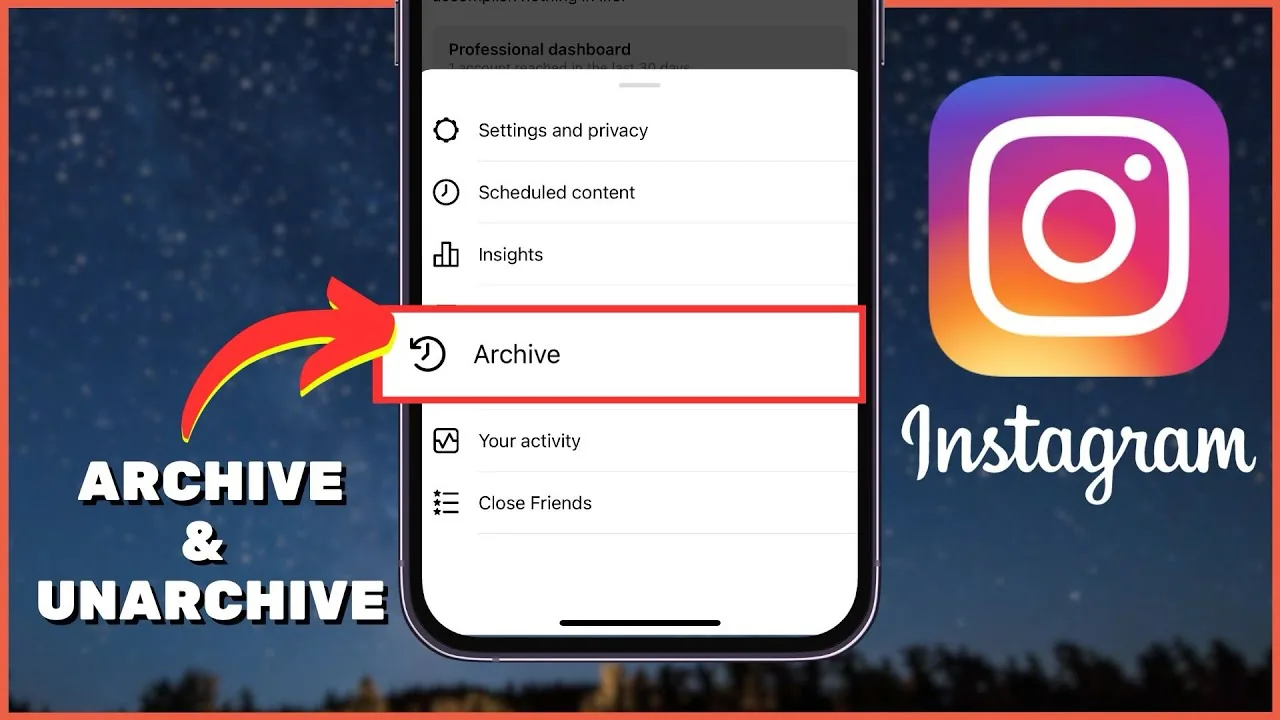
- Go to your profile and tap the menu icon (three lines).
- Select Archive (or Your Activity > Archive, depending on app version).
- Toggle between Posts and Stories archives at the top.
- Tap the item you want to restore, then tap the three-dot menu and select Show on Profile (for posts) or the equivalent restore option for Stories.
Why people archive instead of delete
Archiving is useful when you want a post temporarily off your profile — maybe it feels outdated, doesn't fit a rebrand, or you're unsure about it — without losing the accumulated likes, comments, and engagement history that permanent deletion would erase. It's a low-commitment way to curate your profile's current appearance while keeping the option to bring content back later.
Common mistakes to avoid
- Assuming archiving deletes the post permanently — it doesn't; the post is fully recoverable at any time from your Archive.
- Forgetting that all Stories automatically land in your Archive after 24 hours by default, which is why your Archive may already contain months or years of past Stories you never manually archived.
- Confusing Archive with Highlights — Highlights are Stories you've deliberately chosen to keep visible on your profile permanently, while Archive is the private, hidden storage of past Stories and posts.
- Archiving a post expecting followers to be notified or see any trace of the change — there's no announcement; it simply disappears from the grid.
Tips
- If you want certain past Stories to stay visible to visitors long-term, move them from Archive into a Highlight rather than leaving them just archived and invisible.
- Use Archive as a low-risk way to test how your profile looks with certain posts temporarily hidden before deciding whether to delete them for good.
- Check your Settings for the option to control whether Stories save to Archive automatically, if you'd rather manage that manually.
Frequently asked questions
No, all likes, comments, and engagement remain intact and fully preserved. They reappear exactly as they were the moment you unarchive the post.
Sources
Keep reading
More guides to grow your account.