How to Switch to a Personal Account on Instagram
Switch an Instagram business or creator profile back to personal, and understand what happens to insights, ads, contact buttons, music, and privacy.
Short answer
To switch back to a personal Instagram account, open Settings and activity, find the professional or creator tools section, choose Switch account type, and confirm Switch to personal account. You will lose access to professional insights and tools, so export or record important data first.
Key takeaways
- Switch account type appears in professional or creator settings, though labels can vary by app version.
- Historical insights and professional dashboard access may be lost when you return to personal.
- Active ads, business integrations, contact buttons, category labels, and shopping tools should be reviewed before switching.
- A personal account can be private; professional business profiles generally cannot use the same private setting.
- Changing account type does not delete posts, followers, messages, or the username.
What happens when you switch Instagram to personal?
Your content and audience remain, but professional features such as Insights, category labels, contact buttons, ad tools, and some integrations are removed or disabled. The account becomes eligible for personal privacy controls.
Instagram supports personal, creator, and business account types. Creator and business profiles are professional accounts with analytics and commercial tools; personal profiles keep a simpler settings surface. Switching is reversible, but data availability is not always reversible. Capture important performance reports and resolve active campaigns before making the change.
For useful context, compare make a personal Instagram account private with optimize an Instagram profile.
How do you switch back to a personal account?
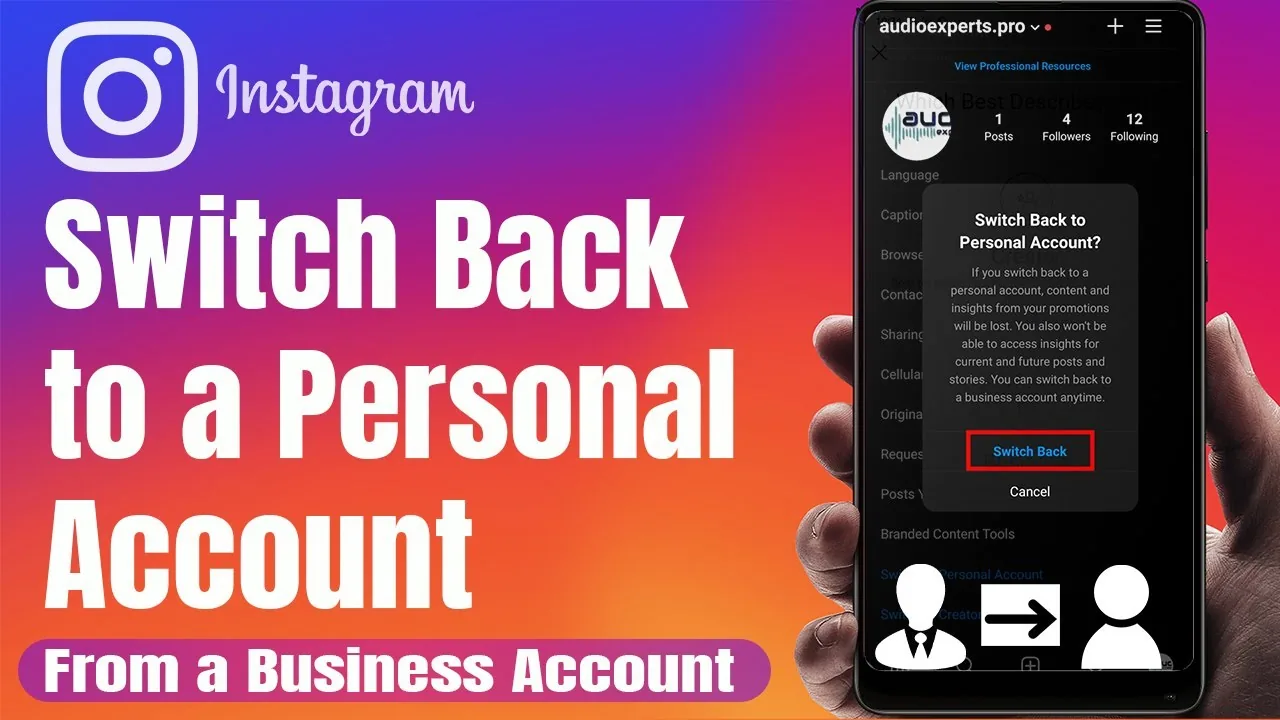
Open the professional account's settings, choose Switch account type, select Personal, and confirm after reviewing the warning. Use the latest Instagram app because menu names move.
- Open the correct Instagram profile and tap the three-line profile menu.
- Choose Settings and activity, then scroll to the section for professional, business, or creator tools.
- Open Business tools and controls or Creator tools and controls, depending on the profile.
- Tap Switch account type and choose Switch to personal account.
- Read the notice about Insights and professional features, then confirm the switch.
- Reopen Edit profile and privacy settings to remove leftover public details and choose whether the personal account should be private.
If several profiles are signed in, verify the username before confirming. Do not use an account-type change as a troubleshooting shortcut for a hacked or restricted account; it does not remove enforcement or restore ownership.
These steps also pair well with write an Instagram bio and manage the Facebook connection.
Should you use a personal, creator, or business Instagram account?
Choose personal for private everyday use, creator for a public individual brand, and business for an organization that needs commercial tools. The best type follows the account's real purpose.
| Account type | Best for | Key benefit | Tradeoff |
|---|---|---|---|
| Personal | Friends, family, private use | Simpler privacy controls | No professional Insights |
| Creator | Public creators and personalities | Creator tools and analytics | Public professional setup |
| Business | Brands, shops, services | Business tools, ads, contact options | Some music and privacy differences |
| Private personal | Limited approved audience | Follower approval | Lower public discovery |
| Public personal | Casual public posting | Simple open profile | No professional dashboard |
A teacher sharing classroom resources publicly may benefit from creator or business tools, while a teacher sharing family life should consider a separate private personal profile. Do not expose personal phone, email, school, or student information merely to complete a professional profile.
To choose the right option, keep turn off Instagram location access and control Instagram activity status nearby.
Why can you not find Switch account type?
The option may be under a different professional-tools label, the app may be outdated, or the account may already be personal. Confirm account status and profile type first.
- The menu is called Business tools and controls, Creator tools and controls, or Account type and tools on your build.
- You opened Settings for a different signed-in profile.
- The profile is already personal, so professional-switch controls are absent.
- An app update or feature rollout changed the placement of the command.
- A managed business integration or active campaign requires cleanup before the workflow is clear.
Search Settings and activity for account type if available, or update and restart the app. Avoid third-party utilities that claim to change profile type; this is an official setting and never requires giving someone your password.
If you hit a related problem, consult understand Instagram search visibility and plan public account growth.
What should you save before turning off a business account?
Save the performance information, campaign details, contact setup, and integration list that you may need later. Switching can remove access to Insights even if you return to professional mode.
Export screenshots or reports for reach, audience, content, and conversion periods that matter. Finish or transfer active ads, review Page and Accounts Center connections, and document connected scheduling or customer-service tools. Remove public contact information if the account is becoming personal, then review privacy, mentions, tags, activity status, and location exposure after the switch.
For privacy and account safety, also review understand Instagram monetization and prepare for brand partnerships.
Can you switch back to professional later?
Yes, Instagram normally lets a personal account become creator or business again, but previous insights may not return. Treat each switch as a new analytics boundary.
- Record essential Insights before switching.
- Confirm ads and integrations are settled.
- Switch through Instagram's official settings.
- Review privacy and profile information afterward.
Frequent switching creates reporting gaps and operational confusion. Pick the account type that matches the next several months of use, and separate personal and commercial identities when their audiences, privacy needs, or responsibilities differ.
Frequently asked questions
In Settings and activity, open professional or creator tools, tap Switch account type, choose Personal, and confirm.
Sources
Keep reading
More guides to grow your account.