How to Change Instagram Notification Sounds in 2026
Instagram version 425.0.0 does not provide one universal sound picker. Change notification sound through Android channels or iPhone notification controls.
Short answer
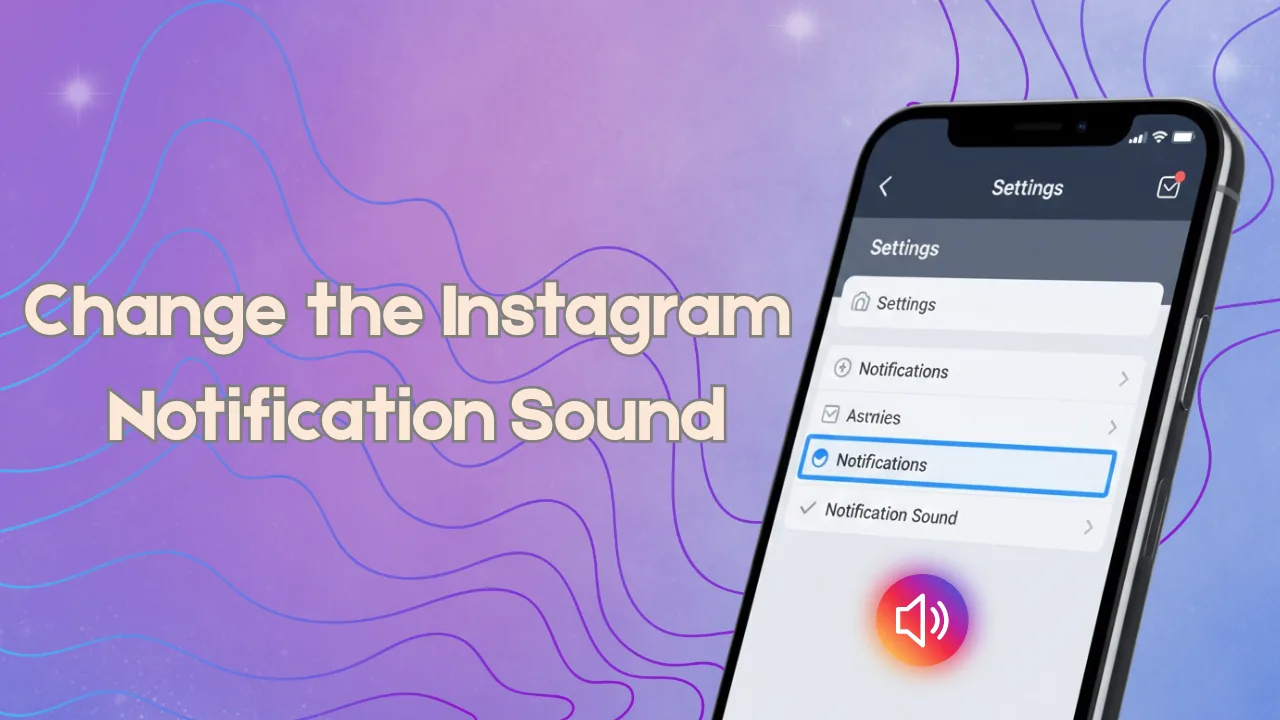
Instagram app version 425.0.0 does not by itself determine a universal notification-sound menu. On Android, open system Settings, Notifications, App notifications, Instagram, then choose a notification category and its sound when the device supports it. On iPhone, Settings can enable or disable Instagram sounds, but iOS may not offer a custom tone picker for Instagram.
Key takeaways
- Notification sound behavior is mainly controlled by iOS or Android, not by the Instagram version number alone.
- Android often exposes separate Instagram notification categories with alerting, silent, vibration, and sound controls.
- iPhone lets you enable Instagram Sounds, but a custom per-app tone may not be available for third-party apps.
- Silent mode, Focus or Do Not Disturb, low alert volume, Bluetooth routing, and notification summaries can suppress sound.
- Do not install a modified Instagram build or ringtone tool that asks for account credentials or broad device permissions.
Can you change the Instagram notification sound in version 425.0.0?
You may be able to change it through the phone's notification settings, especially on Android, but version 425.0.0 does not guarantee an in-app sound picker. iPhone commonly allows sound on or off without a custom Instagram tone.
Instagram sends notification categories and the operating system decides how they alert. Android manufacturers can expose different channel names and custom sounds; iOS uses Apple's notification framework and the app's configured sound behavior. Therefore, two people with the same Instagram version can see different controls.
For useful context, compare control Instagram activity status with manage Instagram read receipts.
How do you change or silence Instagram notification sound?
Open system settings for Instagram notifications, select the relevant category when available, and choose alerting, silent, vibration, or sound. Test with a real notification after saving.
- On Android, open Settings, Notifications, App notifications, and choose Instagram.
- Select a notification category such as Direct, Live, comments, or another channel if the phone exposes categories.
- Choose Alerting or Silent and open Sound to select a permitted tone when that control exists.
- On iPhone, open Settings, Apps, Instagram, Notifications, and toggle Sounds along with banners, badges, and lock-screen display.
- Check system alert volume, Silent mode, Focus or Do Not Disturb, Bluetooth output, and notification-summary settings.
- Send a test from another account and verify that the chosen Instagram category is the one receiving it.
Menu names vary by Samsung, Pixel, Xiaomi, and other Android versions. Long-pressing a real Instagram notification and opening Settings is often the fastest route to its exact channel.
These steps also pair well with troubleshoot Instagram messages and clear Instagram cache safely.
What notification-sound control exists on Android versus iPhone?
Android generally offers more per-category sound customization, while iPhone offers consistent app-level notification and sound toggles but may not expose a custom Instagram tone.
| Platform/control | Custom tone? | What you can change | Common blocker |
|---|---|---|---|
| Android app notification | Often, by channel | Sound, alerting, silent, vibration | Manufacturer menu differences |
| Android default notification sound | Yes | Phone-wide fallback tone | App channel may override |
| iPhone Instagram Notifications | Usually on/off sound | Sounds, banners, badges, lock screen | No third-party tone picker |
| Focus/Do Not Disturb | No tone choice | Which alerts interrupt | Mode suppresses sound |
| Instagram in-app notifications | Topic preferences | Which events notify | Not a system tone editor |
Changing the phone's default tone may affect other apps and still not override an Instagram channel that has its own sound. Record the old setting before testing so it can be restored.
To choose the right option, keep avoid fake Instagram support and mute Instagram content nearby.
Why are Instagram notifications silent after changing settings?
The wrong channel may be silent, system volume may be low, Focus may suppress alerts, Bluetooth may route sound elsewhere, the app may lack permission, or Instagram's in-app notification preference may be off.
- The phone category for DMs is alerting but likes or Live notifications are set to silent.
- Notification volume is separate from media volume and remains at zero.
- Focus, Do Not Disturb, Sleep mode, battery optimization, or Notification cooldown reduces interruption.
- An Apple Watch, earbuds, car, or Bluetooth speaker receives the alert instead.
- Instagram and system settings disagree about whether that event may notify.
Update Instagram and the operating system, restart the device, and test one category. Clearing app data or reinstalling can remove local drafts and should not be the first sound fix.
If you hit a related problem, consult review Instagram device permissions and review Instagram privacy.
Is a custom ringtone app or modified Instagram APK safe?
Only use trusted system controls and reputable audio files. Do not install a modified Instagram package, configuration profile, accessibility service, or ringtone app that demands Instagram credentials or excessive permissions.
A sound utility does not need your Instagram password, session cookie, direct messages, contacts, or two-factor code. Android sideloads and iPhone profiles can change more than notification audio and may compromise the device. Remove suspicious software and secure the account if credentials were exposed.
For privacy and account safety, also review review connected Meta accounts and avoid unsafe account tools.
What is the practical fix for version 425.0.0 notification sound?
Ignore the version-specific wording and configure the operating-system notification channel that actually produced the alert. Accept that iPhone may offer only sound on or off for Instagram.
- Long-press a real alert to find its category.
- Set that category to Alerting and choose sound where supported.
- Check volume, Focus, Bluetooth, and in-app preferences.
- Test before installing or resetting anything.
App versions change frequently, while the platform distinction is more durable. Document the device model and OS version when asking for help; those determine the available notification controls more than Instagram 425.0.0 alone.
Frequently asked questions
Open system notification settings for Instagram, select the relevant category, choose Alerting, and select Sound when supported.
Sources
Keep reading
More guides to grow your account.