How to Add a GIF on Instagram Stories and Posts
How to add GIFs to Instagram Stories using the built-in GIPHY sticker tray, plus how to use your own custom GIF stickers.
Short answer
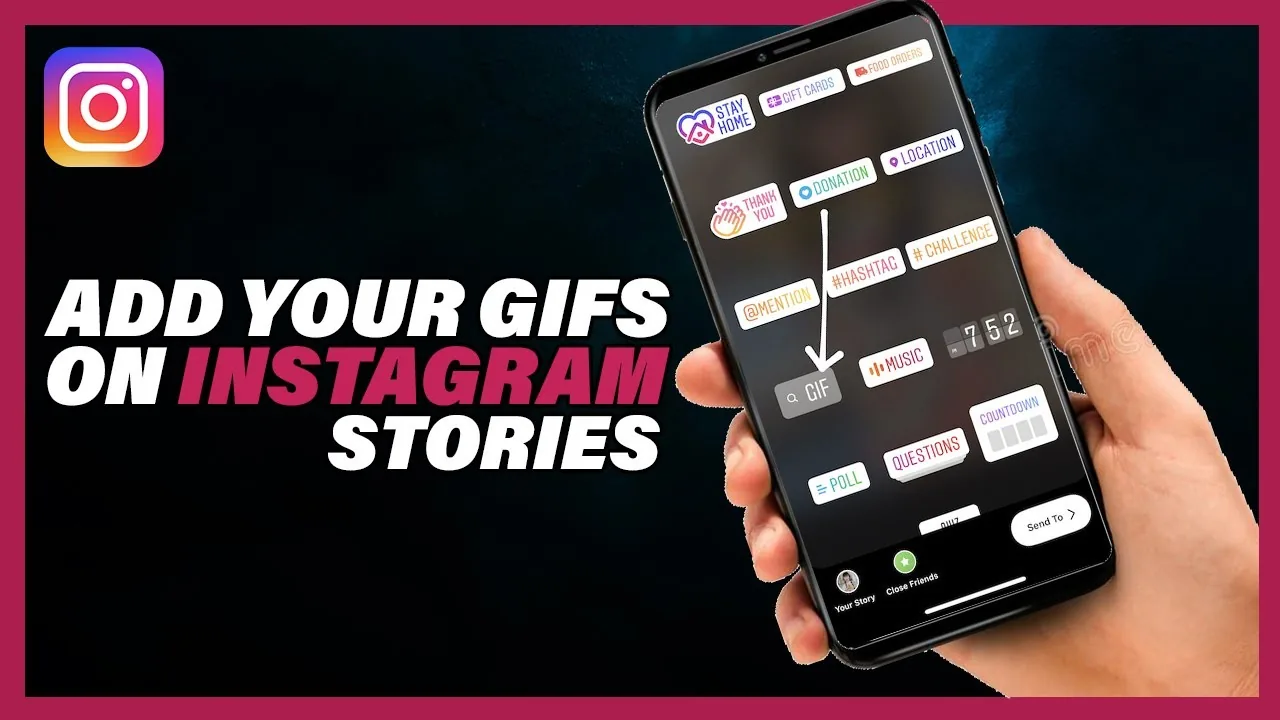
You can add a GIF to an Instagram Story by opening the sticker tray, tapping GIF, and searching Instagram's built-in GIPHY library, then resizing and placing it on your Story before posting. Adding an animated GIF to a feed post isn't natively supported, but you can convert it to a short video clip first.
Key takeaways
- Instagram Stories have a built-in GIF sticker tray powered by GIPHY, searchable right inside the app.
- Feed posts don't support animated GIFs directly, so a GIF needs to be converted to a video or Boomerang-style clip first.
- You can create and use your own custom GIF stickers on Stories by copying them from your camera roll.
- Uploading original GIF stickers to Instagram's public library requires applying through GIPHY as an artist or brand channel.
- Resizing and repositioning a GIF sticker uses the same pinch-and-drag gestures as any other Story sticker.
- If a GIF doesn't appear in search, try broader keywords since GIPHY's library is what's being searched, not a separate Instagram catalog.
How do I add a GIF to my Instagram Story?
Swipe right from the Instagram home feed to open the Story camera, take or upload a photo or video, then tap the sticker icon in the top toolbar. In the sticker tray, tap GIF, type a keyword related to the GIF you want in the search bar, and tap your chosen result to drop it onto your Story. From there you can pinch to resize it and drag it to reposition it before sharing, the same basic workflow used for how to add link to instagram story.
Can I add a GIF to a regular feed post?
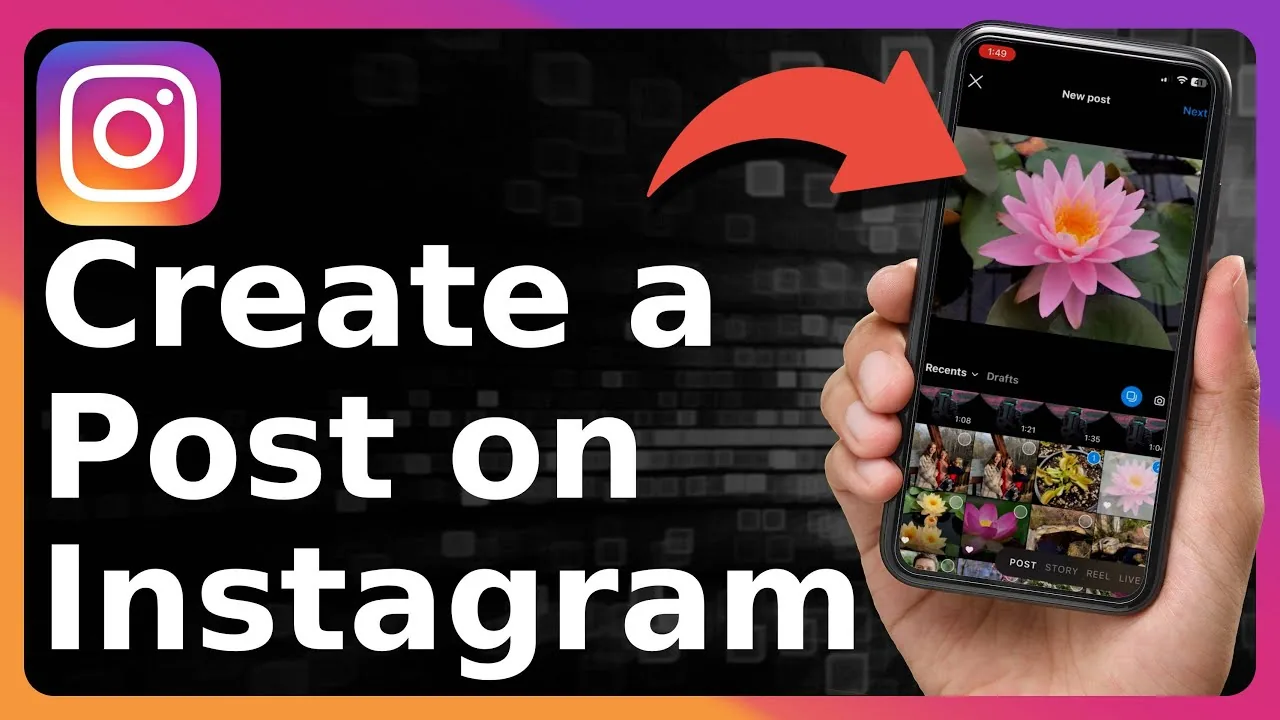
Not as a true animated GIF. Instagram feed posts only support static images, video, and Reels, so an animated GIF needs to be converted into a short video file before you can post it as a Reel or video post. Many free online converters turn a GIF into an MP4, which you can then upload the same way you would how to post a video on instagram.
How do I use my own custom GIF instead of a searched one?
Create your animated GIF with a transparent background using an app like GIPHY's own tools or a third-party editor, then save it to your camera roll. Open your Story, open the saved GIF file, use the copy option from its menu, then return to Instagram Stories, where the sticker will appear and can be tapped into place. Once it's positioned, you can layer on other elements the same way you would when you add music to instagram post.
Do I need to apply for a GIPHY artist channel to upload my own GIFs?
Only if you want your GIF searchable by everyone in the public sticker tray. To apply as a verified artist or brand channel on GIPHY, you generally need to upload at least five GIFs to your GIPHY channel first before requesting verification. Until approved, your own GIFs are still usable in your Stories through the copy-paste method, they just won't show up in other people's searches.
Why can't I find the GIF I'm searching for?
The search pulls directly from GIPHY's library rather than a separate Instagram database, so if a specific GIF doesn't appear, try a broader or more common keyword instead of a very specific phrase. Some regions and account settings also filter certain GIF categories, similar to how other content controls work, such as how to turn off sleep mode on instagram affecting what surfaces where.
GIF options on Instagram compared
| Method | Where it works | Setup needed |
|---|---|---|
| Built-in GIF sticker search | Stories only | None, just search and tap |
| Custom GIF via copy-paste | Stories only | Create and save GIF with transparent background |
| Public GIPHY artist channel | Stories, searchable by everyone | Apply through GIPHY, 5+ GIFs uploaded first |
| GIF converted to video/Reel | Feed posts and Reels | Convert GIF to MP4 before uploading |
Whichever method you use, GIFs on Instagram almost always end up as either a Story sticker or a converted video file, since native animated GIFs in the feed aren't supported.
Frequently asked questions
Open the Story camera, tap the sticker icon, select GIF from the sticker tray, search a keyword, and tap the result to add it to your Story before resizing and posting.
Sources
Keep reading
More guides to grow your account.