How to Reset Instagram Feed: Curate and Filter Your Feed
Curate and reset your Instagram Feed in 2026 using Favorites, chronological views, mute controls, and suggested post snooze settings.
Short answer
Reset your Instagram feed by switching to the chronological Following or Favorites view, muting accounts you no longer want to see, and snoozing suggested posts in your content preferences. This alters your feed structure immediately, distinct from a full recommendations algorithm reset.
Key takeaways
- Switching to the Following or Favorites feed filters out algorithmic recommendations and shows posts chronologically.
- You can snooze suggested posts in your feed for 30 days via Content Preferences.
- Muting accounts hides their posts and stories from your main feed without triggering unfollow notifications.
- Adjusting Sensitive Content settings controls the intensity of suggested posts and Reels.
- The home feed curation rules apply globally across iOS, Android, and desktop interfaces.
How can you reset your Instagram feed layout?
You can change your Instagram feed layout by selecting the chronological Following or Favorites feeds at the top of the app. This hides suggested posts and ads in the main feed.
To access this view, open the app, tap the Instagram logo in the top-left corner, and select Following or Favorites from the dropdown menu. This chronological view focuses exclusively on accounts you follow and does not use the default recommendation algorithm. For a broader overview of how the app handles sorting, you can check the Instagram algorithm explained guide.
If you prefer to clean up your main home feed permanently, you should combine feed filters, snoozes, and mute options rather than relying on a single control. Using these controls helps you manage who you interact with, similar to how you unfollow someone on Instagram to adjust your network.
What tools can you use to curate the feed?
You can use native features like Mute, Favorites, Close Friends, and Suggested Post Snoozes to curate what you see. These settings are local to your profile and do not notify other accounts when changed.
| Curation tool | Action | Main outcome | Reversible? |
|---|---|---|---|
| Mute posts/stories | Hides user posts from feed | Cleans feed without unfollowing | Yes, instantly |
| Favorites list | Adds key profiles to a priority feed | Shows select posts first chronologically | Yes, manageable |
| Snooze suggested posts | Pauses recommended posts for 30 days | Limits feed to followed accounts | Yes, expires after 30 days |
| Close Friends | Restricts story visibility | Curates who can see your personal shares | Yes, customizable |
For more complex privacy adjustments, you can also learn to make account private to restrict who can see your profile details, which pairs well with learning how to hide followers list to protect your network visibility.
How do you snooze suggested posts in your feed?
To snooze suggested posts, locate any recommended post in your main feed, tap the three dots or 'X' in its corner, and choose to snooze all suggested posts for 30 days. This hides non-following recommendations from your feed.
- Scroll through your home feed until you see a suggested post.
- Tap the small 'X' or the three horizontal dots icon on the post card.
- Tap Snooze all suggested posts in feed for 30 days in the options menu.
- Confirm the snooze settings if prompted by a pop-up notice.
- Wait for the 30-day window to expire before repeating this action.
This temporary control is highly useful for users who find algorithm recommendations distracting. If you are experiencing technical bugs during this setup, you can clear Instagram cache on your device to resolve interface glitches. Alternatively, if you want a complete break, you can read the temporary disable option guide.
How is a feed reset different from an algorithm reset?
A feed reset curates your active home layout and filters who you see, while an algorithm reset erases recommendation models across Explore and Reels. Curating the feed keeps your existing data intact.
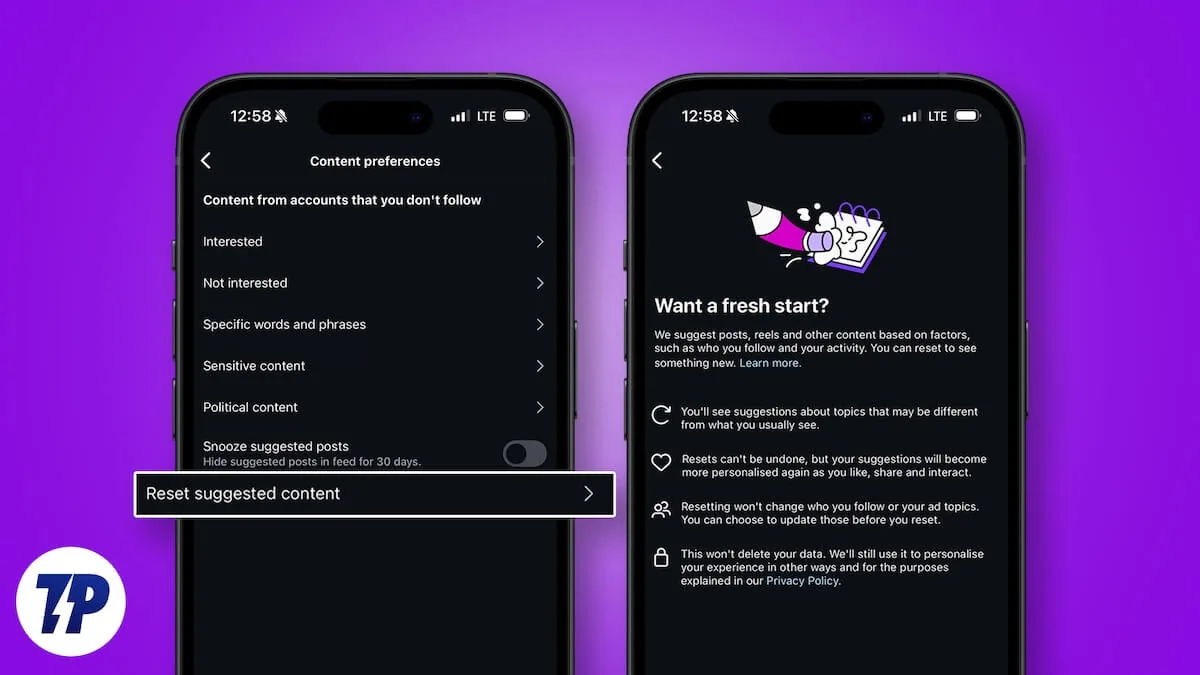
Curating your home feed does not clear your search history or delete your account's personalization training. If you want to train the algorithm from scratch, you must use the broad Reset Suggested Content tool inside Content Preferences. For creators looking to understand search optimization instead of feed curation, the search queries optimization guide outlines how users find profiles, which is a great asset for Instagram growth guide planning.
What settings manage sensitive content in your feed?
Manage sensitive content by opening Content Preferences in Settings, selecting Sensitive Content, and choosing the Less option. This filters out graphic, violent, or sexually suggestive posts.
- Open your profile screen and tap the top-right menu icon.
- Choose Settings and activity, then scroll to Content preferences.
- Tap Sensitive content and select the Less setting to apply maximum filtering.
- Combine this with Hidden Words to hide comments containing specific terms.
Adjusting these settings ensures a safer browsing environment for all users. If you manage multiple profiles or share a device, you can use the active-status privacy settings to control who sees your online status. When uploading your own content, refer to how to post on Instagram to ensure correct formats are used.
How do you mute accounts to clean your feed?
To mute an account, navigate to their profile, tap the Following button, select Mute, and toggle the switches for Posts and Stories. This hides their updates without unfollowing.
Muting is completely silent; the user is never notified that you muted them. This is an excellent alternative to blocking or unfollowing when you want to avoid social friction. Detailed mute mechanics are explained in the how to mute someone on Instagram tutorial. If you decide that the profile is no longer worth maintaining, you can consult the how to delete Instagram account or how to delete Instagram account permanently guides for complete details on profile termination.
Frequently asked questions
Yes. You can switch to the Following feed or snooze suggested posts for 30 days to hide recommendations, keeping all your follows intact.
Sources
Keep reading
More guides to grow your account.