How to Change Your Instagram Story Background Color
Two real ways to set a solid background color on an Instagram Story: the Create mode picker for text-only stories, and the Draw-tool press-and-hold fill trick.
Short answer
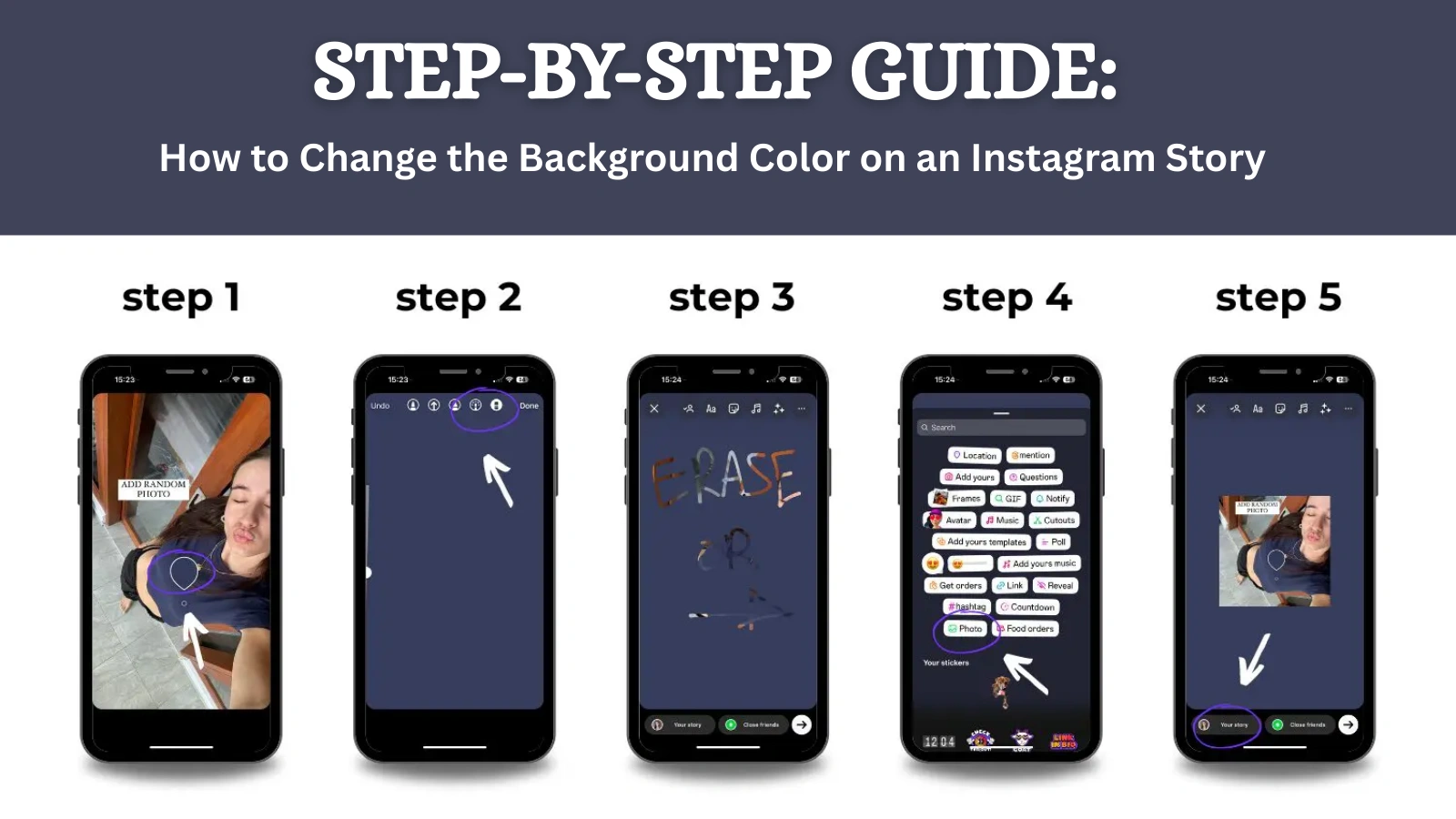
For a blank story, pick a color directly in Create mode's background picker; for a story with a photo or video already loaded, select the Draw tool's pen, choose a color, and press and hold anywhere on the screen to flood-fill the background.
Key takeaways
- There's no single "background color" setting — the method depends on whether your story is blank text or already has a photo/video loaded.
- For a blank, text-only story, Create mode lets you pick a background color directly before adding text.
- For a story with media already loaded, open the Draw tool, pick a color, then press and hold anywhere on the canvas to flood-fill the whole background.
- Pressing and holding directly on top of an existing photo or video covers it entirely — that fill technique replaces the media, it doesn't tint behind it.
- Gradients aren't manually mixable; Instagram cycles through a fixed set of preset colors and gradients as you tap and hold the color swatch.
- The color you pick isn't saved as a default — you set it fresh on every new story.
How do you set a background color on a blank story?
Open the Stories camera, swipe to Create (sometimes labeled Aa or Type) mode, and tap the background color circle before or after adding text — this mode is built for text-first stories and shows a color picker without needing a photo underneath. Tap through the swatch to cycle solid colors and gradient combinations until you find one you want.
How do you fill the background behind a photo or video?
- Load your photo or video into the Stories editor.
- Tap the Draw (pen) icon in the top toolbar.
- Choose a color from the swatches, or use the color dropper to match an existing shade.
- Press and hold your finger anywhere on the screen until the color fills the visible canvas.
This technique covers whatever is on screen at the moment you hold — including your photo or video — so it works best on a mostly blank frame, not as a way to add a colored border around existing footage.
Can you add a background color without covering your photo or video?
Not with the flood-fill trick — pressing and holding replaces whatever's on that layer. To keep your media visible while adding color, add the color as a separate framing element instead: crop or resize your photo/video smaller on the canvas first, then fill the surrounding blank space, or layer a colored sticker/shape behind text rather than over your media.
Can you pick a custom hex color for your story background?
No. Instagram cycles through a fixed rotation of preset solid colors and gradients as you tap and hold the swatch — there's no hex code entry or full custom color wheel inside the native Stories editor. Creators wanting an exact brand color typically prepare a solid-color image in an outside editor and upload that as the story's base layer instead.
| Method | Best for | Covers existing media? |
|---|---|---|
| Create/Aa mode background picker | Blank, text-only stories | N/A, no media loaded |
| Draw tool press-and-hold | Solid-fill background from scratch | Yes, replaces what's underneath |
| Pre-made colored image upload | Exact brand color matching | Depends on layout |
Does the background color you choose get saved for next time?
No, each new story starts with the default camera view, and you re-pick a color every time. If you want visual consistency across stories, some creators keep a saved template image with their brand color as a base layer they re-upload for each new story instead of manually re-selecting a color — the same consistency principle behind a well-planned Instagram content calendar.
Does a colorful background actually help a story get seen?
Not directly — background color is a design choice, not a ranking signal. What does influence reach is covered in how Instagram's algorithm ranks content and optimizing your bio and profile so people who see your story convert into follows.
Why does the color fill sometimes look different than expected?
Backed-in compression and Instagram's color rendering can shift a color slightly from what you tapped, especially with gradients. This is a known limitation of the in-app editor rather than a bug specific to your device, and it's part of why brand-sensitive accounts prefer uploading a pre-made background image over relying on the live color picker.
Does this work the same for regular Stories and Close Friends stories?
Yes, the Draw tool and Create mode work identically no matter which audience you're posting to — background color options aren't tied to your story's privacy setting. If you're managing what different audiences see more broadly, that's controlled separately through your Close Friends and story audience settings, not through the editing tools themselves.
For creators building a consistent visual identity across posts and stories, pairing a deliberate background color choice with a clear content calendar and a hook-driven Reels format does more for growth than the color alone — the background is a small polish detail, not a strategy. If you're just getting started with Stories and Reels as a format, Instagram growth for beginners and posting at the right time matter far more to reach than any single visual choice.
Frequently asked questions
For a blank story, use Create mode's background color picker. For a story with a photo or video loaded, use the Draw tool, pick a color, and press and hold to flood-fill the canvas.
Sources
Keep reading
More guides to grow your account.