How to Go Live on Instagram: Requirements & Steps
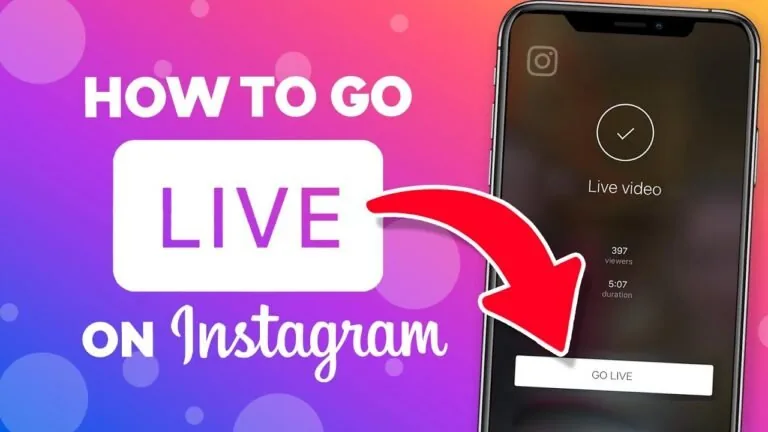
To go live on Instagram you need a public account with 1,000+ followers, then tap + and select Live. Here's the full walkthrough.
Short answer
To go live on Instagram, your account must be public with at least 1,000 followers, then you tap the + icon, select Live, add a title, and choose your audience. You can also invite up to three guests or schedule a Live up to 90 days ahead.
Key takeaways
- You need a public account with at least 1,000 followers to go live on Instagram
- Private accounts cannot go live at all, regardless of follower count
- Tap the + icon, select Live, add a title, and choose your audience before starting
- You can add up to three guests for a four-person split-screen broadcast
- Lives can be scheduled up to 90 days ahead to build anticipation
- If you're building an audience toward that 1,000-follower mark, see how to get more followers
What are the requirements to go live on Instagram?
Your account must be public and have at least 1,000 followers, a rule Instagram introduced in 2025 and has kept in place through 2026. Private accounts are blocked from going live no matter how many followers they have, so you would need to make your account public first, which is the reverse of learning how to make Instagram private. You also need a stable internet connection, ideally Wi-Fi at 20 Mbps or faster, to avoid lag or a dropped stream.
How do I start a Live broadcast?
Open the Instagram app, tap the + icon at the top or bottom of your screen, and select Live from the menu. Add a short title describing your stream, choose whether your audience is Public or Close Friends, then tap the Live button to go live instantly. Your followers get a notification the moment you start, similar to how notifications work when you go live on Instagram from any device running the latest app version.
Can I add other people to my Live?
Yes, you can invite up to three guests for a combined four-person split screen. This works well for interviews, collaborations, or Q&A sessions, and it functions similarly to tagging a collaborator on a regular post since all participants' followers can be notified.
Can I schedule a Live in advance?
Yes, Instagram lets you schedule a Live session up to 90 days ahead of time. This creates a countdown that followers can set reminders for, which tends to boost turnout compared to going live with no notice. Scheduling works well alongside your general posting schedule since consistent, announced Lives build a habit among your audience.
Why can't I find the Live option?
If the Live option is missing, first confirm your account is public and has at least 1,000 followers, since Instagram hides the feature entirely for accounts below that threshold. Also make sure you're on the latest app version, as older builds sometimes don't render newer features correctly, and check that you haven't hit a temporary restriction from being reported or flagged for unusual activity.
What happens to my Live after it ends?
After you end a Live broadcast, Instagram gives you the option to share it to your Story for 24 hours or download it to your device. If you don't save it, the broadcast is gone permanently once you close out of the Live screen.
| Requirement | Detail |
|---|---|
| Minimum followers | 1,000 |
| Account privacy | Must be public |
| Max guests | 3 (4-person split screen) |
| Scheduling window | Up to 90 days ahead |
| Recommended connection | 20 Mbps+, Wi-Fi preferred |
Conclusion
Going live on Instagram is simple once you clear the 1,000-follower, public-account requirement: tap +, select Live, set your title and audience, and you're broadcasting. Scheduling ahead and inviting guests are optional ways to boost turnout and engagement.
Frequently asked questions
You need at least 1,000 followers and a public account. Private accounts and smaller accounts cannot access the Live feature at all.
Sources
Keep reading
More guides to grow your account.