How to Delete Instagram Messages and Chats (2026)
Delete a chat from your Instagram inbox or unsend a message for everyone, and understand screenshots, reports and data-export limits.
Short answer
To remove one message for everyone, press and hold it or open its options and choose Unsend. Deleting a conversation from your own inbox is different: it removes your view of the chat but does not guarantee removal from other participants’ inboxes.
Key takeaways
- Unsend removes a message you sent from the visible chat for all participants.
- People may already have read, copied, screenshotted or reported an unsent message.
- Deleting a conversation from your inbox is not the same as unsending every message.
- Instagram says unsent messages are not included in your Data Download.
- Preserve evidence before deleting harassment, threats or fraud.
How do you delete one Instagram message?
Delete one message you sent by opening the chat, pressing and holding the message or opening its options, choosing Unsend and confirming. Instagram says the message will no longer be visible to people in the chat, but they may already have seen it. You cannot use Unsend to erase a message another person sent. Save necessary business records or safety evidence before taking an irreversible action.
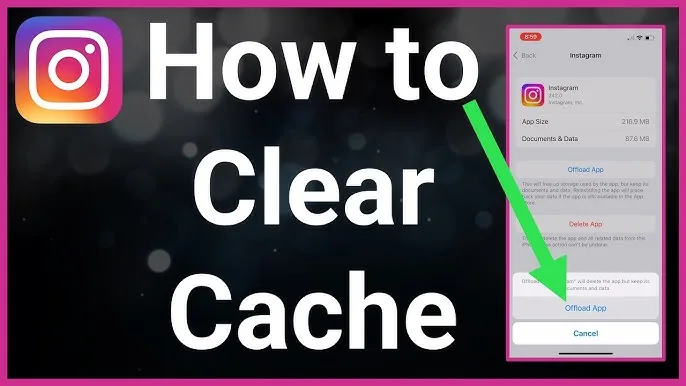
For the neighboring workflow, use How to Clear Instagram Cache on iPhone and Android before changing another setting. The related guide to Instagram Messages Black Screen? How to Fix It in 2026 explains the control users most often confuse with this one.
How do you delete an entire Instagram chat?
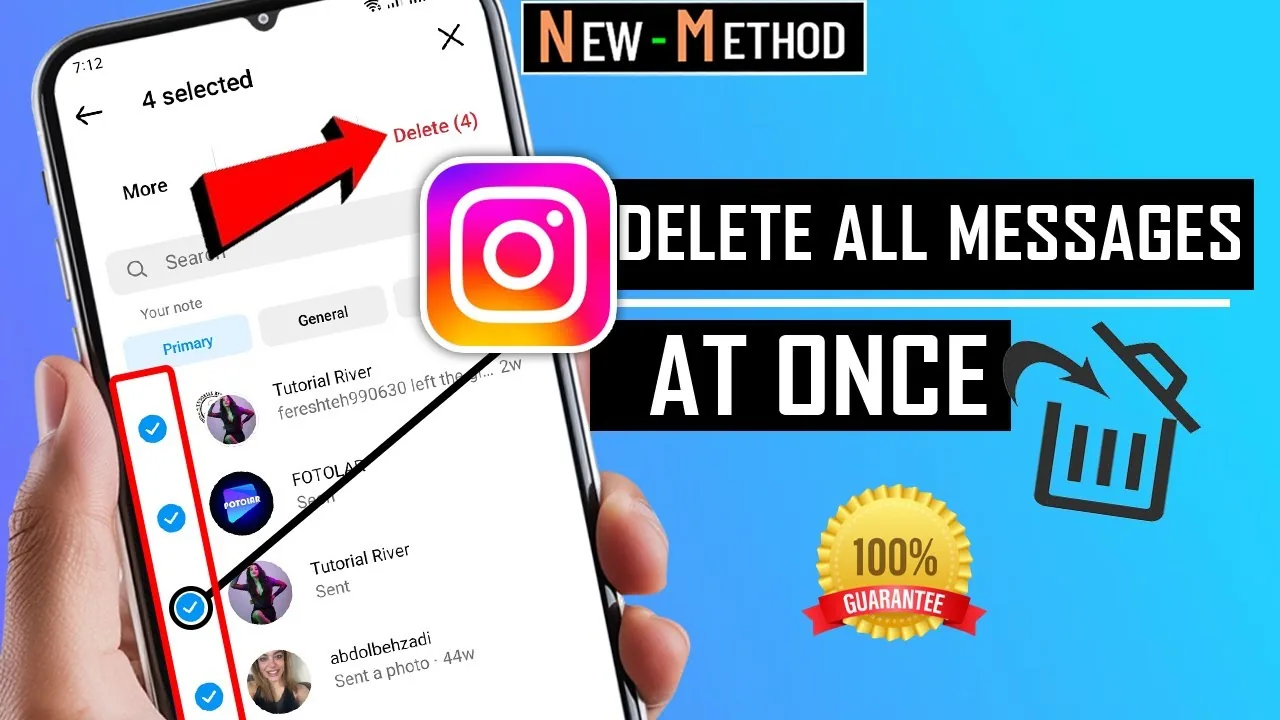
Delete a conversation from your inbox by opening Direct, using the chat’s menu or swipe action and choosing Delete where available. This cleans up your own inbox; it does not promise to erase the other participant’s copy. Interface labels differ on iPhone, Android and web, so read the confirmation. If the goal is to remove one message from everyone, use Unsend on that specific message instead.
- Open Instagram Direct and select the correct conversation.
- Press and hold your message or open its options.
- Choose Unsend to remove that message from the visible chat.
- Use the conversation menu and Delete only to remove your inbox copy.
- Report and preserve evidence before blocking when safety matters.
If your goal is broader account management, Instagram Customer Service Number 24/7: Does It Exist? is the practical next step. You can compare the result with How to Turn Off Read Receipts on Instagram in 2026 so you do not solve the wrong problem.
What is the difference between Delete and Unsend?
Delete chat is an inbox-management action, while Unsend targets a message you authored and removes it from the visible conversation. Blocking is different again: it stops or limits future contact but leaves old conversations in the inbox. Reporting can preserve surrounding messages for review even after an Unsend. Choose the action based on whether you want local cleanup, message removal, contact boundaries or platform review.
| Action | What it affects | Main limit |
|---|---|---|
| Unsend | One message you sent | May already be seen or captured |
| Delete chat | Your inbox view | Other participants may retain chat |
| Block | Future contact and access | Old chat can remain |
| Report | Sends content for platform review | Does not guarantee deletion |
Use each control for its actual purpose instead of treating Delete, Unsend, Block and Report as synonyms.
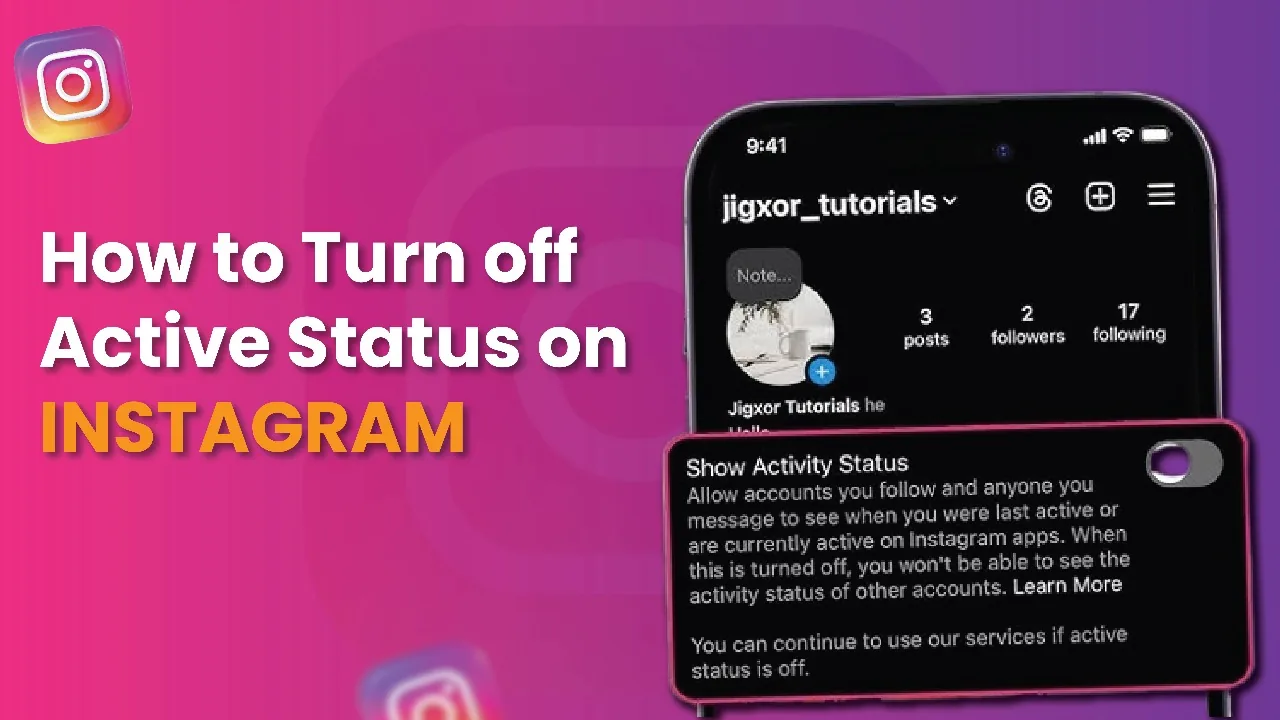
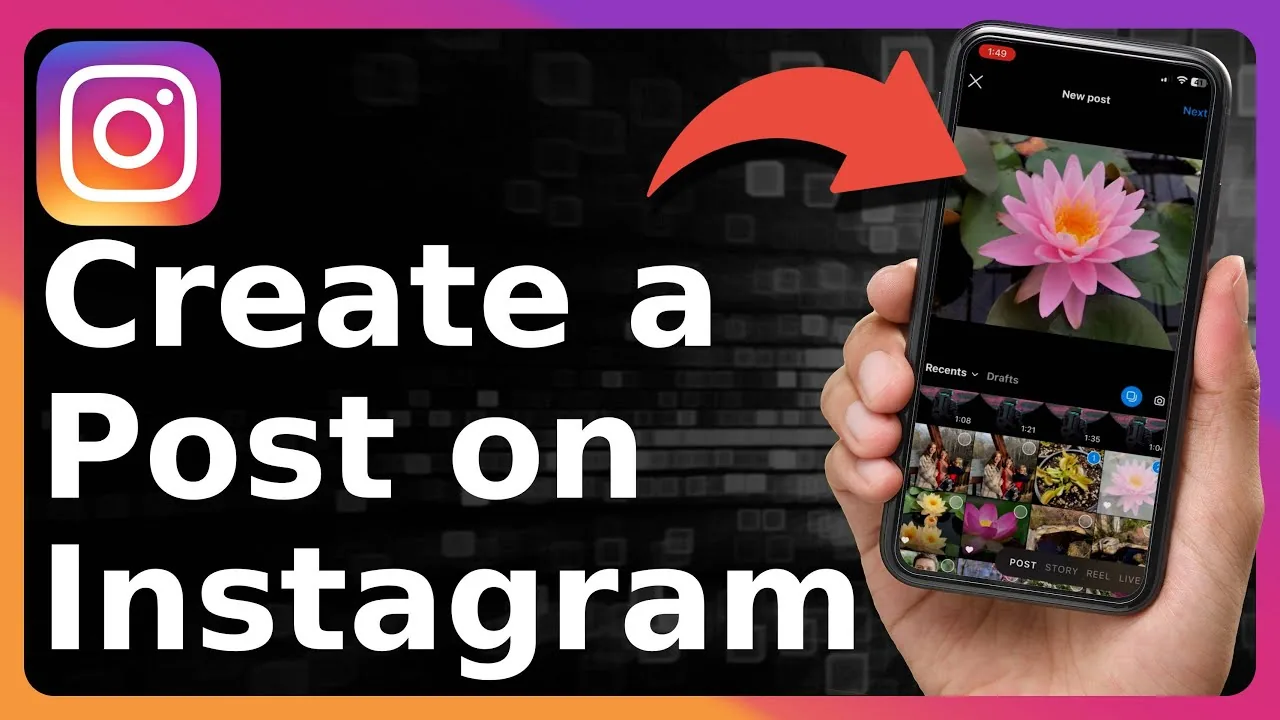
For a safer fallback, follow How to Turn Off Active Status on Instagram instead of handing credentials to an unknown service. Creators should also review How to Post on Instagram: Step-by-Step Guide because the same choice can affect reach or presentation.
Can someone still see an unsent Instagram message?
A person cannot normally continue seeing the message in the chat after Unsend, but they may have read it in the app, seen a notification preview, taken a screenshot or copied it. Instagram also notes that unsent messages may be included when a chat or surrounding message is reported. Unsend is therefore not a guaranteed way to retract a threat, contract, disclosure or sensitive file from every copy.
- Preserve threats, fraud and harassment evidence before removal.
- Do not assume Unsend erases notification previews or screenshots.
- Never install a tool that promises mass DM deletion with credentials.
- Keep regulated business records outside Instagram.
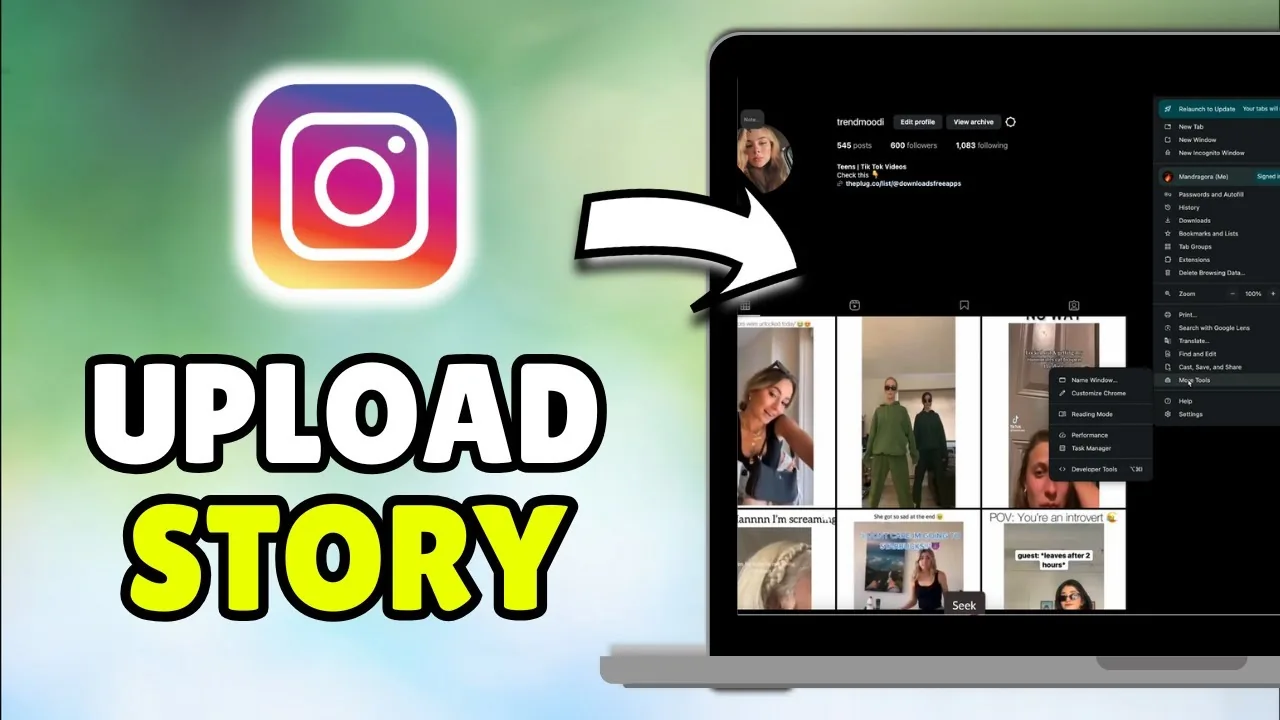
The platform behavior makes more sense alongside How Do You Upload on Instagram? Phone & Desktop. For the privacy side of the decision, read How the Instagram Algorithm Works in 2026, Explained and keep the two settings separate.
Why can’t you delete an Instagram message?
You may be trying to remove a message someone else authored, using an outdated app, looking at a channel with different controls or experiencing a synchronization bug. Update Instagram, try the web version and confirm you are signed into the correct account. If Unsend succeeds on one device but remains visible elsewhere, refresh before repeating it. Never give a “DM cleaner” your password or session cookie.
- Update the app and refresh the web inbox.
- Confirm that you authored the message you want to Unsend.
- Check whether the chat is a standard Direct conversation or another surface.
- Report a reproducible synchronization problem through Instagram.
A complete setup also benefits from How to Make Instagram Private in 2026: Steps and Limits, especially after an app update. When this action changes what other people see, Does Instagram Show Screenshots? 2026 Notification Guide provides useful context.
What should you do before deleting sensitive DMs?
Before deleting sensitive DMs, preserve lawful evidence, export retained account data when appropriate and document usernames, dates and report links. For harassment or fraud, report the relevant chat before blocking if it is safe to do so. For business records, move decisions to an approved system rather than relying on Direct. Deletion should reduce unnecessary exposure, not destroy evidence required by policy, law or personal safety planning.
Frequently asked questions
Open its options and choose Unsend. You can only unsend a message that you sent.
Sources
Keep reading
More guides to grow your account.