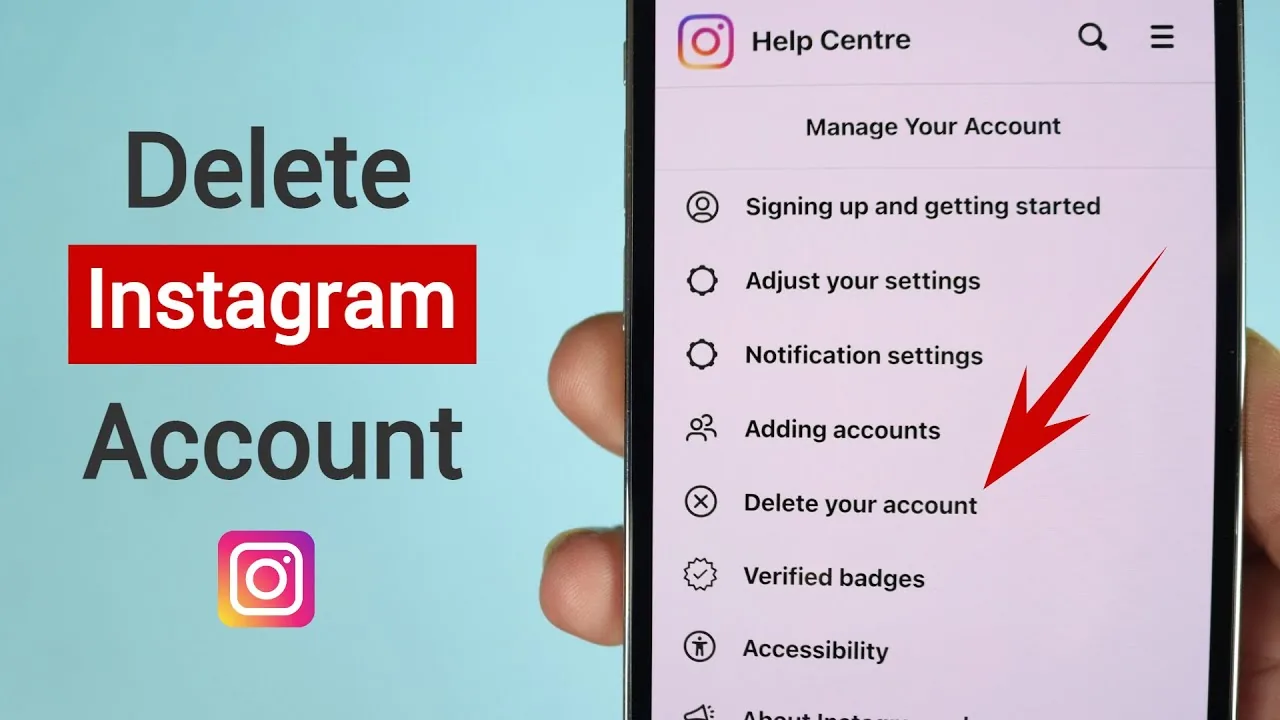
How to Temporarily Disable Your Instagram Account
Temporarily disabling (deactivating) your account hides your profile, posts, and comments until you log back in - it's fully reversible and instant, unlike permanent deletion. Do it through Accounts Center > Personal details > Account ownership and control > Deactivation or deletion.
Short answer
Temporarily disabling (deactivating) your account hides your profile, posts, and comments until you log back in - it's fully reversible and instant, unlike permanent deletion. Do it through Accounts Center > Personal details > Account ownership and control > Deactivation or deletion.
Quick answer
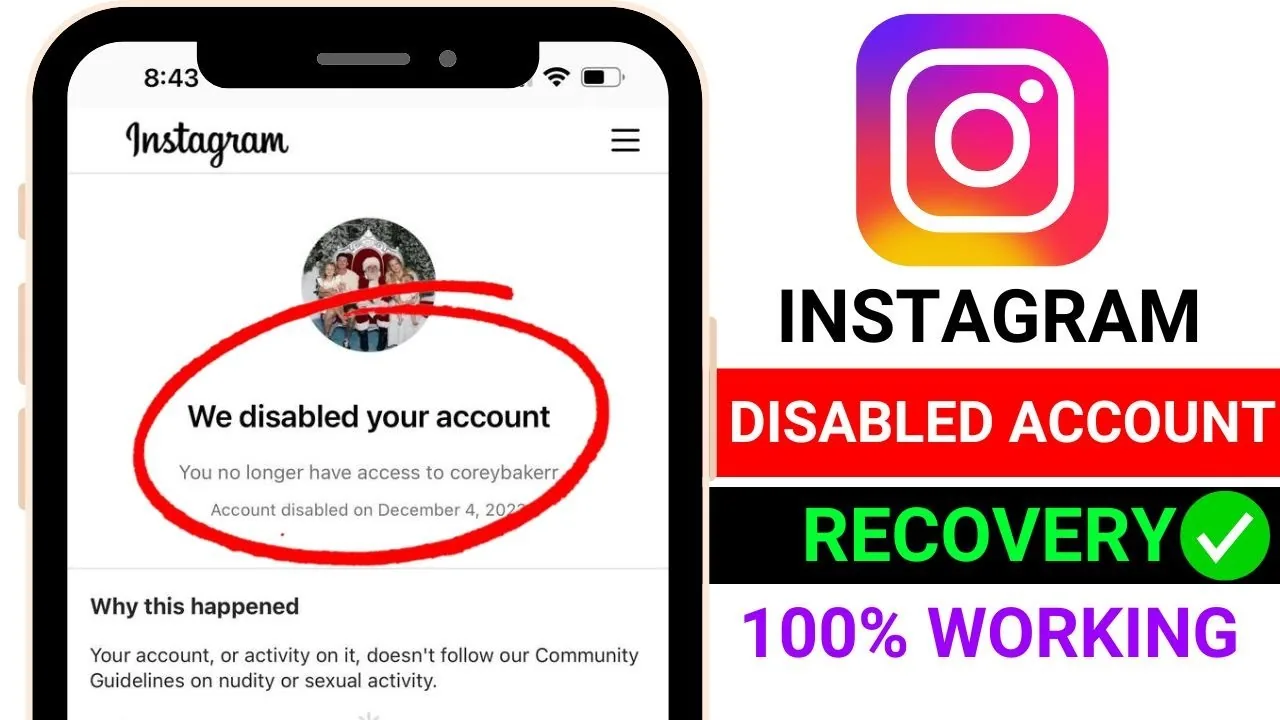
"Disabling" your own Instagram account means temporarily deactivating it - your profile, photos, and comments become invisible to everyone else, but nothing is deleted. The moment you log back in with your username and password, everything is instantly restored exactly as it was. This is different from a permanent account deletion, and different from Instagram disabling your account for a policy violation.
Key takeaways
- Temporary disabling (deactivation) is fully reversible simply by logging back in
- It hides your profile, posts, and comments from other users while disabled
- Instagram limits how often you can deactivate - generally once per week
- This is separate from Instagram disabling an account for violating Community Guidelines, which requires an appeal instead of a simple login
Steps to temporarily disable your account
- Go to Settings and privacy > Accounts Center
- Tap Personal details
- Select Account ownership and control
- Tap Deactivation or deletion
- Choose your account and select Deactivate account
- Follow the prompts to confirm
What happens while your account is disabled
- Your profile shows as unavailable to other users
- Your posts, comments, and likes disappear from public view
- Direct Messages you sent remain visible to the people you sent them to
- You won't receive push notifications while deactivated
Reactivating your account
Just log back in with your normal username and password, either in the app or on instagram.com. There's no separate "reactivate" button to find - logging in is the reactivation step, and your profile, posts, and followers return immediately.
If Instagram disabled your account instead
If you're locked out and seeing a message that your account was "disabled," that typically means Instagram's own enforcement system flagged it for a suspected Community Guidelines or Terms of Use violation - this is different from a self-initiated deactivation, and you can't fix it just by logging in. Instead, look for an in-app appeal option, or use Instagram's official Help Center account-disabled appeal form to request a review.
Common mistakes
- Confusing self-deactivation with an Instagram-enforced disable, which require completely different fixes
- Trying to deactivate more than once within Instagram's roughly weekly limit and getting an error
- Assuming deactivation deletes your data - it doesn't; permanent deletion is a separate, browser-only process
Frequently asked questions
Go to Accounts Center > Personal details > Account ownership and control > Deactivation or deletion, then choose Deactivate account.
Sources
Keep reading
More guides to grow your account.