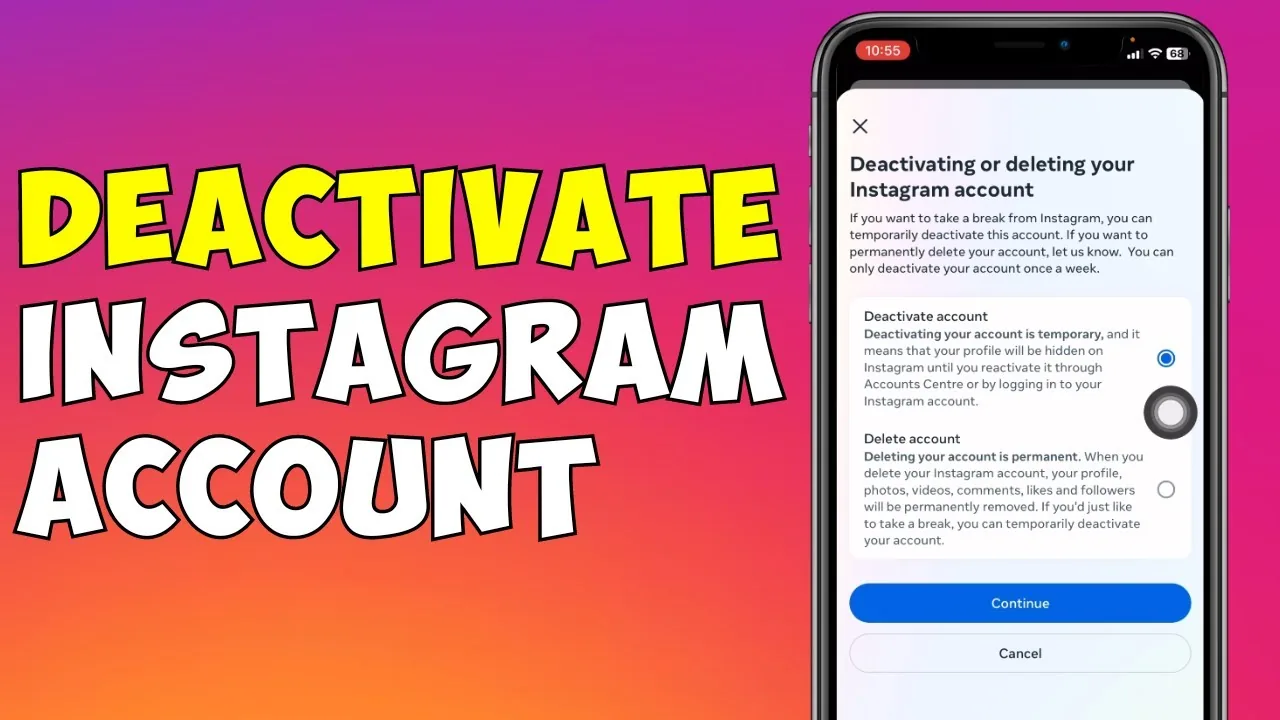
How Do I Close My Instagram Account?
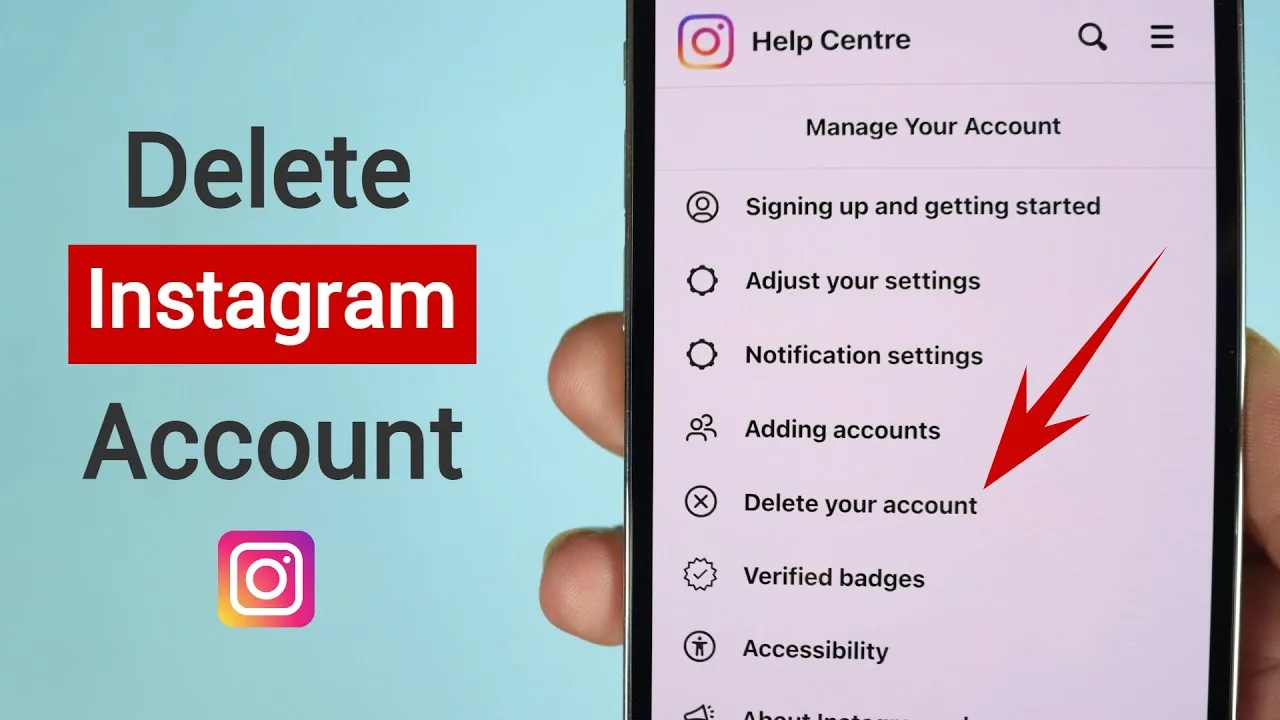
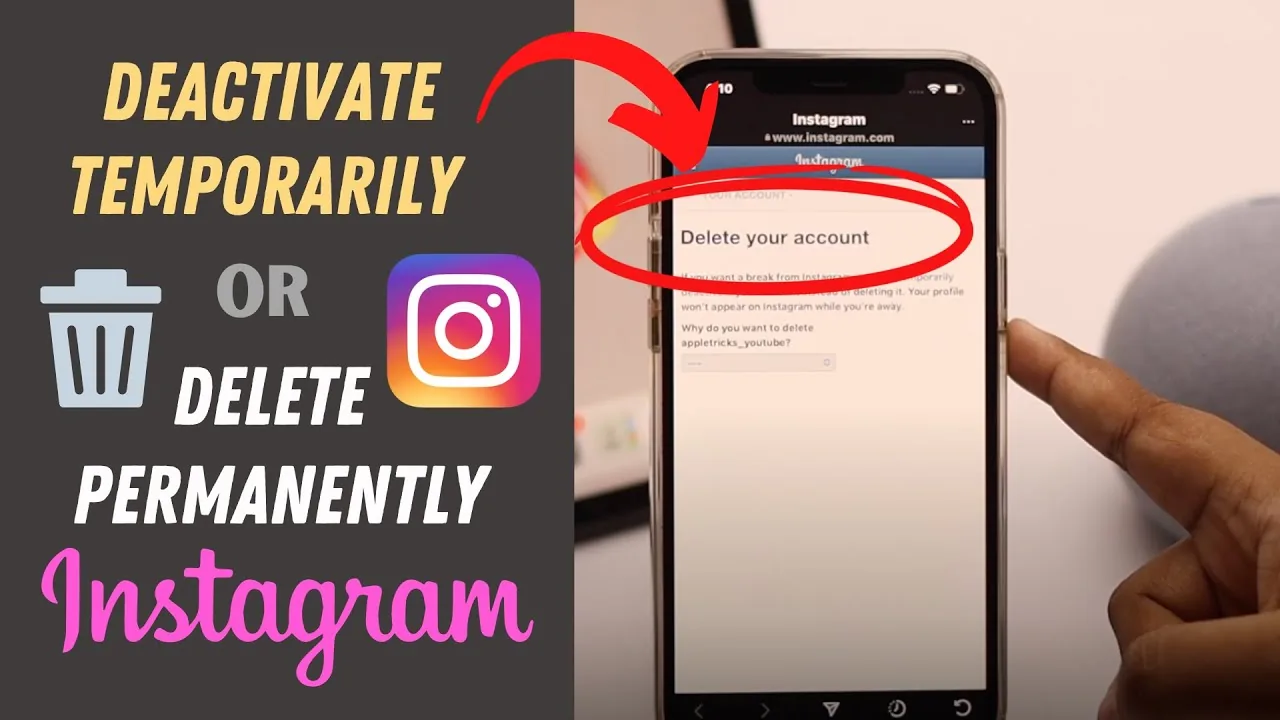
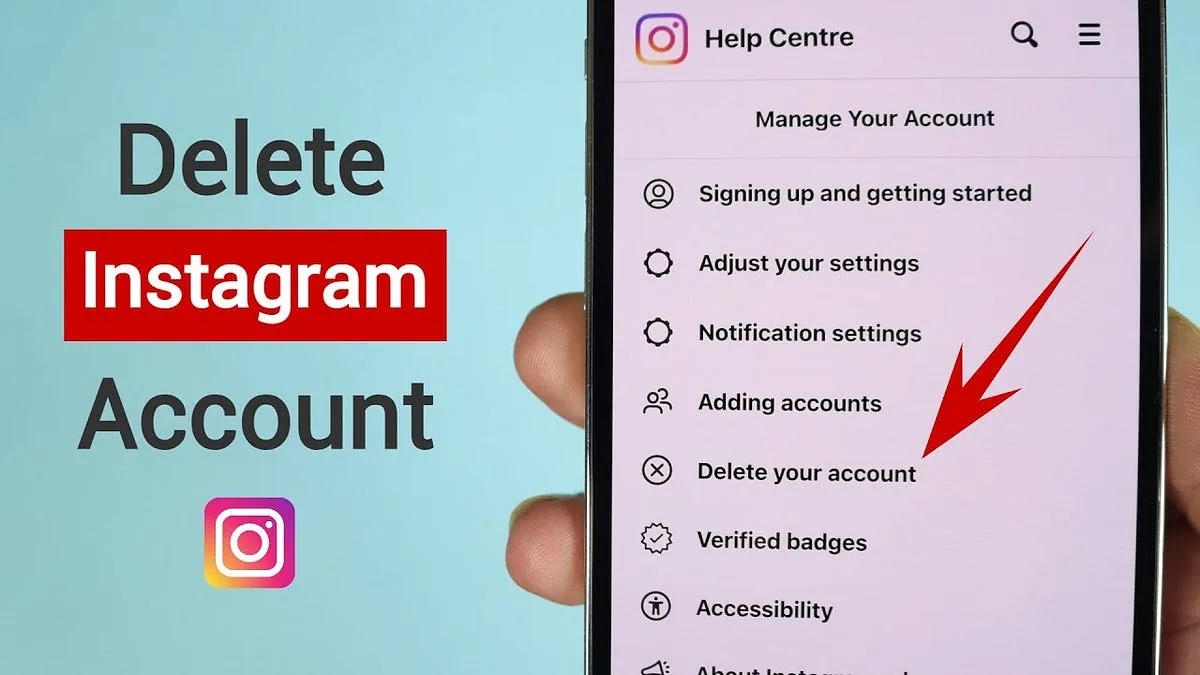
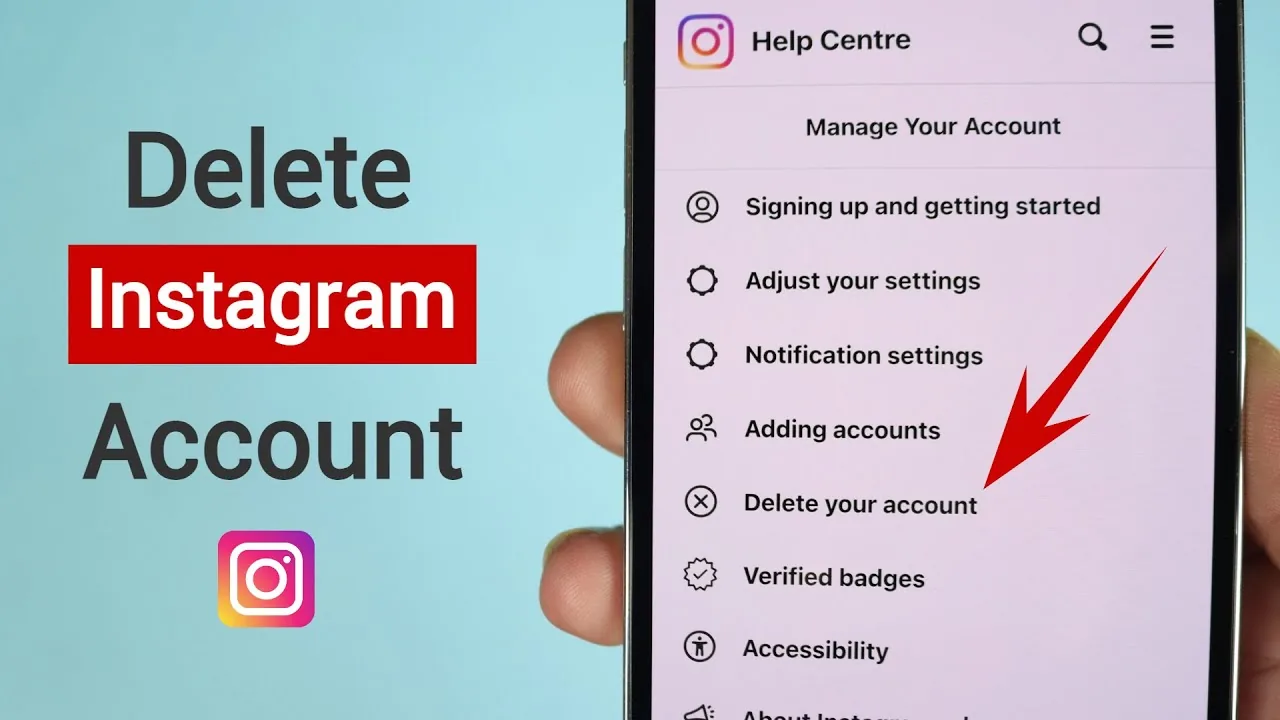
You can close an Instagram account two ways: temporarily deactivate it (only possible through a mobile or desktop browser, not the app) to hide everything until you log back in, or permanently delete it in-app, which gives you a 30-day window to change your mind before it's gone for good.
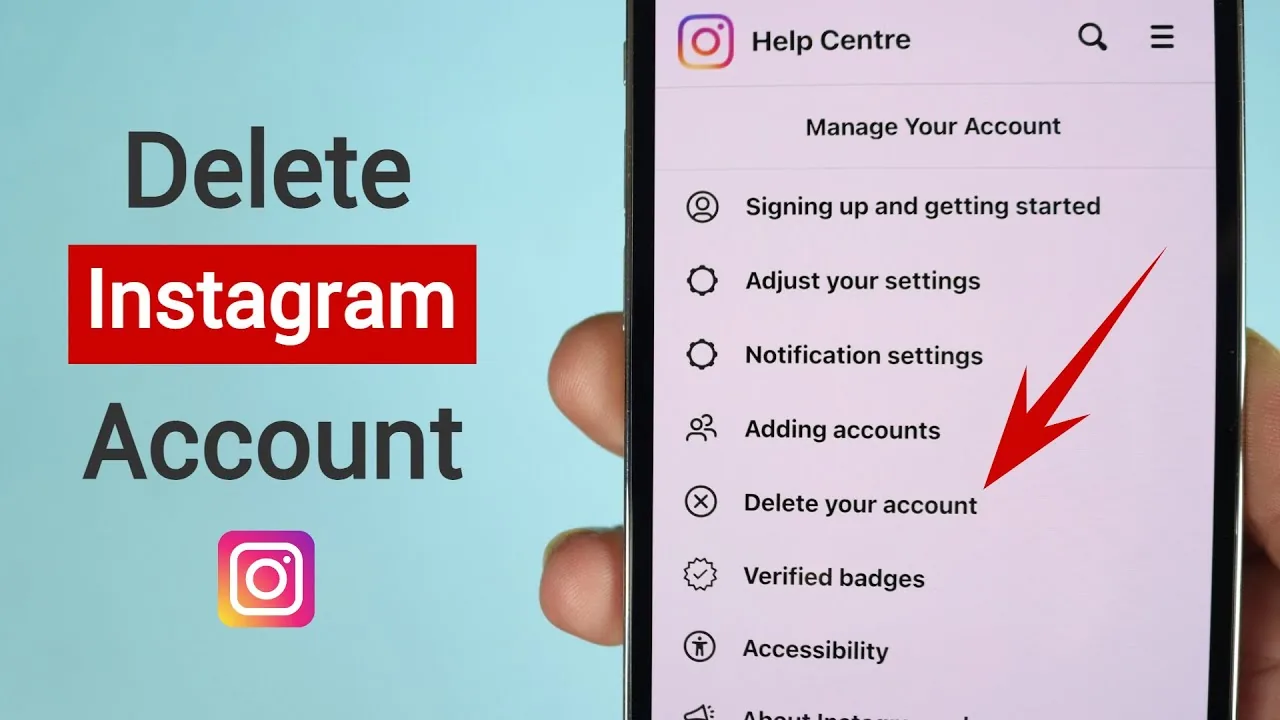
Short answer
Instagram gives you two distinct ways to close an account: temporary deactivation (browser only, reversible by logging back in) and permanent deletion (available in-app, with a 30-day grace period before your data is actually erased).
Quick answer
"Closing" an Instagram account really means one of two different things, and Instagram treats them very differently. Temporary deactivation hides your profile, posts, comments, and likes until you log back in — but you can only start it from a web browser, not the Instagram app itself. Permanent deletion erases the account and its data for good, is done entirely inside the app, and comes with a 30-day grace period during which logging back in cancels the deletion.
Key takeaways
- Deactivation is temporary and reversible — logging back in at any time restores everything exactly as it was.
- Deactivation can only be started from mobile Safari/Chrome or a desktop browser at instagram.com — the option does not exist in the iOS or Android app's settings.
- Deletion is permanent and is the one you start from inside the app itself.
- Deleted accounts get a 30-day grace period; logging in during that window cancels the deletion and restores your account.
- After the 30 days pass, your profile, photos, videos, comments, and likes are removed and generally cannot be recovered — some information may persist briefly in backup systems, but the public account and content are gone.
- Neither option deletes messages you sent to other people's inboxes — those can still be visible to the recipients depending on the conversation.
How to temporarily deactivate your account
- Open a browser (not the app) on your phone or computer and go to instagram.com.
- Log in, then go to your profile and select Edit profile.
- Scroll to the bottom and tap Temporarily deactivate my account.
- Choose a reason from the dropdown when prompted.
- Re-enter your password to confirm, then select Temporarily Deactivate Account.
Your profile, posts, and activity disappear from Instagram immediately. Direct messages you've already sent may still be visible to the other person. To come back, just log back into the app or website with your normal credentials — there's no separate reactivation process.
How to permanently delete your account
- Open the Instagram app and go to your profile.
- Tap the menu icon, then Settings and privacy.
- Go to Accounts Center, then Personal details.
- Tap Account ownership and control, then Deactivation or deletion.
- Select your Instagram account, choose Delete account, pick a reason, and confirm with your password.
Instagram will ask if you want to download your data first (photos, videos, messages, and profile information) before you confirm — it's worth doing this if there's anything you might want later, since recovery isn't guaranteed once the 30 days pass. For a deeper walkthrough of the data export step and what happens to your content afterward, see our guide on how to delete an Instagram account permanently.
Deactivate vs. delete: which one do you actually want?
If you're taking a break, dealing with burnout, or just don't want people seeing your activity for a while, deactivation is the better fit — you keep everything and can undo it instantly by logging back in. If you're done with the account entirely, want your username freed up, or are concerned about old content resurfacing later, deletion is the one that actually removes the data rather than just hiding it. If you're unsure, deactivating first is the safer, reversible move; you can always go back and delete later, but you can't undo a completed deletion after the 30-day window closes.
Common mistakes to avoid
- Looking for deactivation inside the app and assuming it's broken — it's genuinely only accessible through a browser, which trips up a lot of people.
- Logging back in "just to check" during the 30-day deletion window, not realizing that cancels the deletion entirely.
- Deleting the account without exporting photos, videos, or message history first, then realizing later there was something worth keeping.
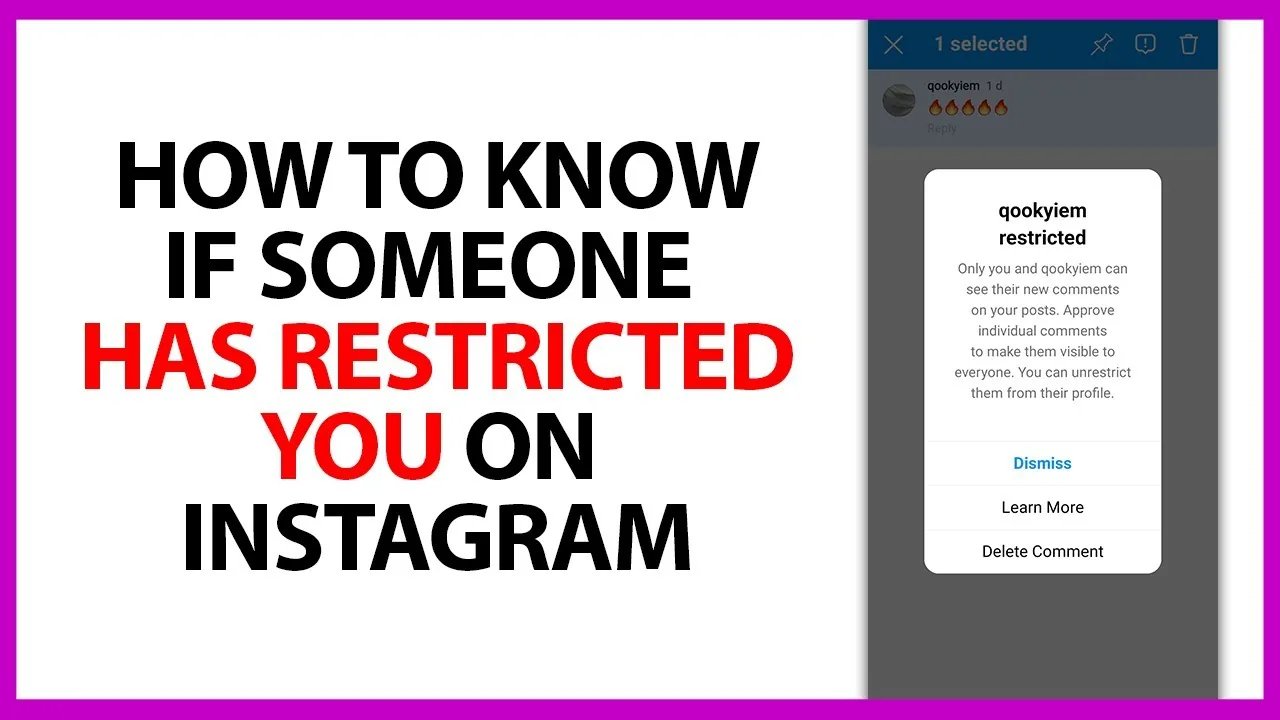
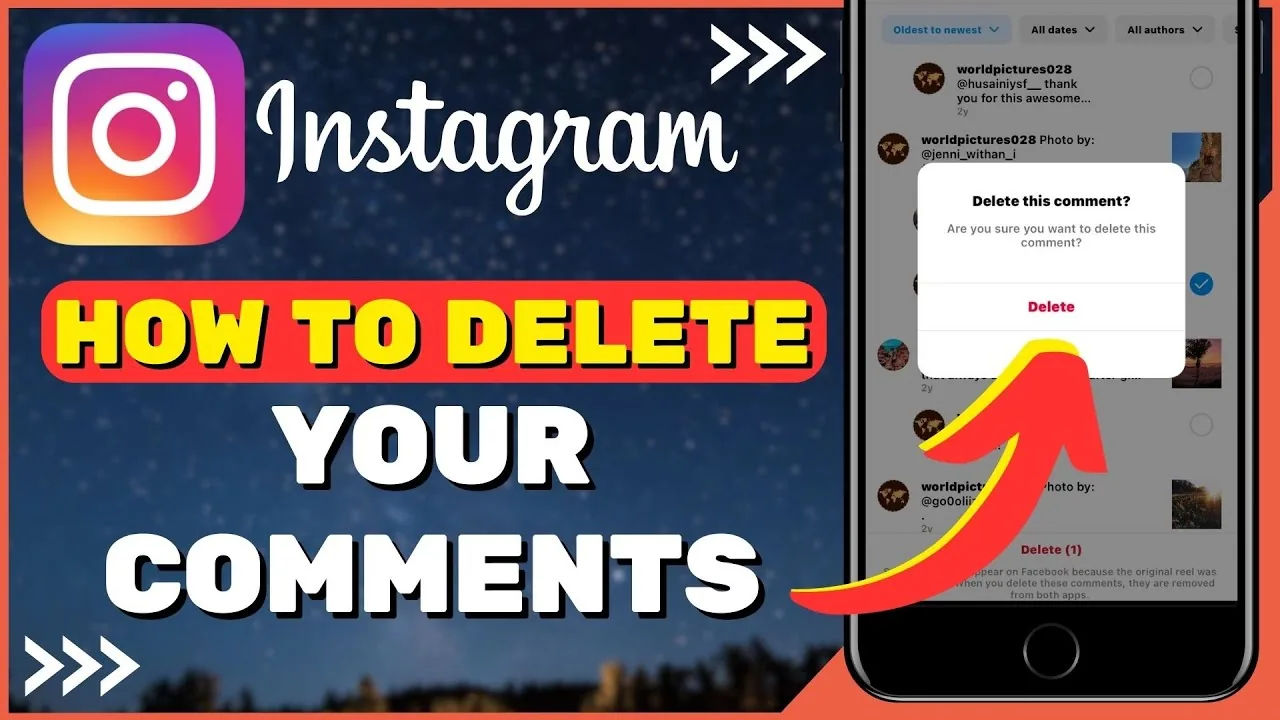
- Confusing deactivation with disabling comments, restricting an account, or blocking someone — those are separate, narrower privacy features covered in our guide on what a deactivated account looks like to others.
Tips
- If you manage a business or creator account linked to Meta Business Suite or ad accounts, disconnect those integrations first — deleting the Instagram account can affect linked Facebook Page tools.
- Write down or save your username before deleting if you might want to reuse it — once deleted, there's no guarantee the exact handle stays reserved for you.
- If your goal is just privacy from specific people rather than leaving the platform, consider narrower tools first, like making your account private or restricting/blocking specific accounts, before deactivating or deleting entirely.
Frequently asked questions
Because it isn't there. Instagram deliberately only allows temporary deactivation through a mobile browser or desktop site at instagram.com, not the native app's settings menu. Permanent deletion, by contrast, is done entirely inside the app under Settings and privacy > Accounts Center.
Sources
Keep reading
More guides to grow your account.