How to Post Animated GIFs on Instagram (Stories & Feed)
Instagram Stories has built-in GIPHY stickers, but Feed posts don't accept raw .gif files — here's the workaround for both.
Short answer
Add GIF stickers to Stories directly through the built-in GIPHY search, but for feed posts you first need to convert the GIF to an MP4 video since Instagram's feed does not accept raw .gif files.
Key takeaways
- Stories support GIFs natively through a built-in GIPHY sticker search — no conversion needed
- Instagram's Feed does not accept .gif files at all; uploads fail or get silently rejected
- The workaround for Feed is converting the GIF to a short MP4 loop, which then posts like a normal video
- GIPHY's own app can auto-convert and hand a GIF straight to Instagram's Feed composer
- Reels work the same way as Feed — you need a video file, not a raw GIF
How do I add a GIF to my Instagram Story?
Open the Stories camera by tapping the plus icon or swiping right from your feed, take or upload your background photo or video, then tap the sticker icon and search GIPHY's library right inside the app. This is the fastest route if you only want animated stickers layered over a Story, and it works well whether you're publishing one Story or planning a broader content-calendar-batch-week of posts. You can resize, rotate, or stack multiple GIF stickers before publishing.
Why won't Instagram let me upload a GIF to my feed?
Instagram's Feed composer simply doesn't support the .gif format — it's built to handle photos and video files, and a raw GIF gets rejected or fails silently on upload. This trips up people who assume posting instagram photos works the same way for any file type; it doesn't, and GIFs have to be treated as video content instead.
How do I convert a GIF so it posts to my feed?
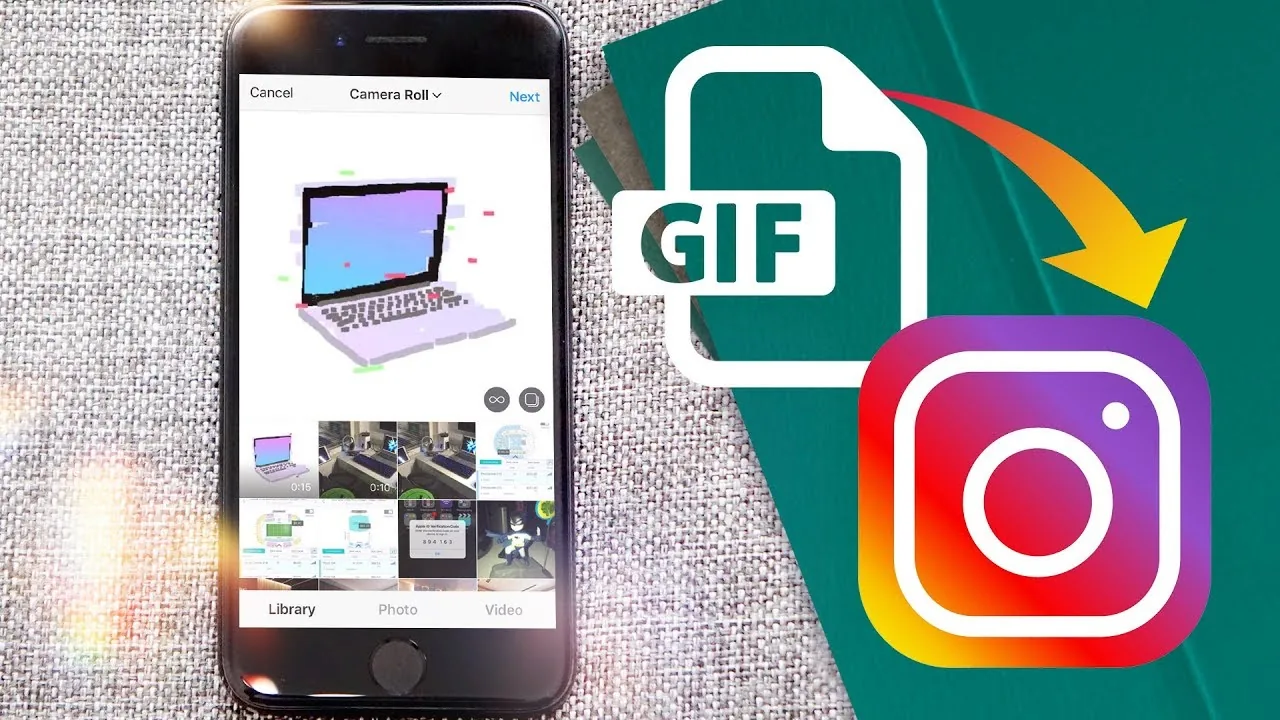
Convert the file to an MP4 using a free tool like Ezgif, Convertio, or CloudConvert, then upload the resulting video the same way you'd share any clip. Once converted, the GIF loops automatically in the feed just like a short reel, preserving the original animation and timing. If you're on mobile, the GIPHY app itself can skip the manual step — search your GIF there, tap the share icon, choose Instagram, and pick Feed to get an auto-converted 15-second MP4 dropped straight into Instagram's composer.
Can I send GIFs in Instagram DMs?
Yes — tap the GIF icon in the message compose bar, search GIPHY's library, and send it like any other message attachment. This works instantly with no conversion since Direct Messages support the format natively, the same way you might add music to a post through Instagram's other built-in libraries.
Does converting a GIF also work for Reels?
No native support either — Reels require an actual video file, so a raw GIF has to be converted first just like a feed post. Creators who make reels on Instagram often build one segment from a converted GIF clip, especially when repurposing meme-style content that started life as a looping GIF.
| Placement | Native GIF support | What you need |
|---|---|---|
| Stories | Yes, via GIPHY stickers | Nothing — search and tap |
| Direct Messages | Yes | Nothing — GIF icon in chat |
| Feed posts | No | Convert to MP4 first |
| Reels | No | Convert to MP4 first |
What's the best free tool to convert a GIF to video?
Ezgif.com's GIF-to-MP4 converter is the simplest for a one-off clip since it needs no account and runs entirely in the browser. For batch conversions or higher-resolution output, CloudConvert and Convertio both offer free tiers with more format and quality controls, useful when prepping several clips at once for a posting schedule.
Frequently asked questions
No. Instagram's feed composer rejects raw .gif files outright. You need to convert the GIF to an MP4 video first, then upload it as you would any other clip.
Sources
Keep reading
More guides to grow your account.