How Do I Find My Instagram Password?
Instagram never lets you view your existing password in plain text, even in your own account settings — if you've forgotten it, your only real option is to reset it via email, SMS, or your linked Facebook account.
Short answer
You can't retrieve your current Instagram password because Instagram stores it in a form even Instagram itself can't read back — the only real fix for a forgotten password is resetting it through the "Get help logging in" flow using your email, phone, or linked Facebook account.
Quick answer
There's no way to "find" or view your existing Instagram password, on purpose. Like virtually every legitimate service, Instagram stores passwords in a hashed, one-way encrypted form — not as readable text — so even Instagram's own systems can't display your current password back to you. If you've forgotten it, the real solution is to reset it through the Get help logging in flow using your email, phone number, or linked Facebook account.
Key takeaways
- No app, menu, or settings screen — official or otherwise — can show you your current Instagram password as plain text.
- Any tool, browser extension, or website that claims to "reveal" or "recover" your saved Instagram password is either a password manager showing something you saved locally, or a phishing attempt.
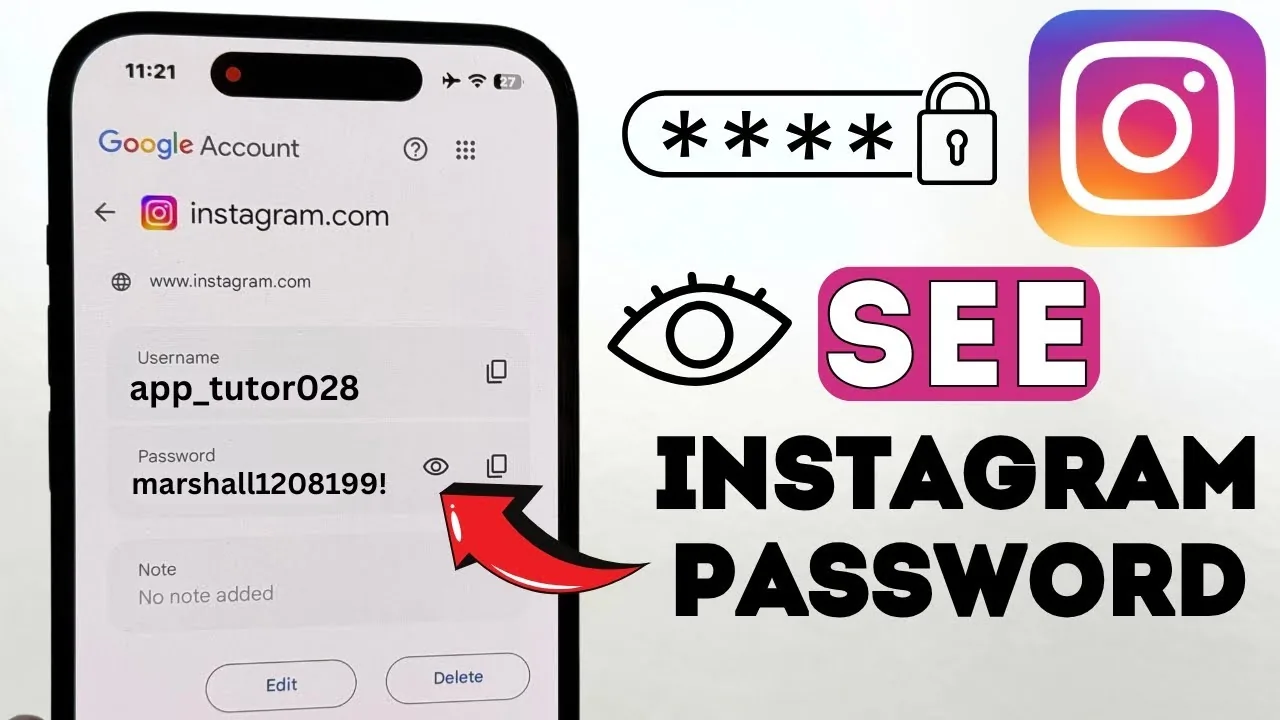
- Your browser or phone's built-in password manager (like Chrome, Safari, or your phone's keychain) may have autofill data saved from when you first typed it in — that's the one legitimate place a password might actually be retrievable.
- If you truly can't remember it, resetting via email or SMS takes just a couple of minutes through Instagram's official recovery flow.
- Using a password manager going forward avoids this problem entirely, since it stores and autofills the password without you needing to remember or "find" it again.
Where a browser or phone password manager might actually have it saved
If you've ever logged into Instagram on Chrome, Safari, Firefox, Edge, or through your phone's built-in password manager (iCloud Keychain on iPhone, Google Password Manager on Android), it's possible the password was saved there automatically at some point:
- iPhone: Settings > Passwords, search for Instagram, then authenticate with Face ID or your passcode to reveal it.
- Android: Settings > Google > Manage your Google Account > Security > Password Manager, then search for Instagram.
- Chrome (any device): chrome://password-manager/passwords, search Instagram, click the eye icon to reveal it.
This only works if you specifically allowed the browser or device to save the password when you logged in previously — it isn't guaranteed to be there.
How to reset your password if you can't recover it
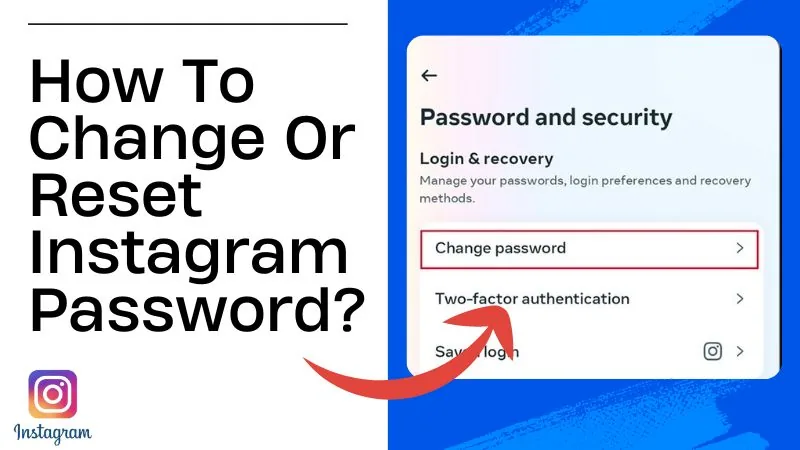
- On the Instagram login screen, tap Forgot password? (or Get help logging in).
- Enter your username, email, or phone number linked to the account.
- Instagram sends a reset link or code to your email or phone — open it and follow the link.
- Enter a new password. Instagram requires it to meet basic security criteria (length and complexity).
- Log in with the new password — your old one is now invalid.
If you no longer have access to the email or phone number on the account, Instagram's Help Center has a separate identity verification process for account recovery, which can take longer since it may involve submitting proof of identity.
Common mistakes to avoid
- Downloading a third-party "Instagram password finder" app — these do not exist as legitimate tools and are almost always scams designed to steal your login credentials.
- Reusing the same password you use elsewhere when you reset it — if this password issue started because of a data breach on another site, reusing it just repeats the vulnerability.
- Assuming a forgotten password means you've lost the account entirely — as long as you still have access to the linked email or phone number, recovery is usually fast and straightforward.
Tips
- Once you've reset your password, consider updating it directly rather than waiting to forget it again — see our guide on how to change your Instagram password safely.
- Turn on two-factor authentication after resetting your password; it adds a second layer of protection even if your password is ever compromised again.
- Use a dedicated password manager (built into your phone or a standalone app) going forward so you're never stuck trying to "find" a forgotten password again.
Frequently asked questions
No. Instagram does not store passwords in a readable format, and even its own support staff cannot look up or tell you your existing password. The only path forward for a forgotten password is resetting it.
Sources
Keep reading
More guides to grow your account.