How to Add Photos to Instagram: Feed, Carousel & Story Guide
Post single photos, 20-image carousels, and Story photos on Instagram in 2026, plus what you can and cannot edit after publishing.
Short answer
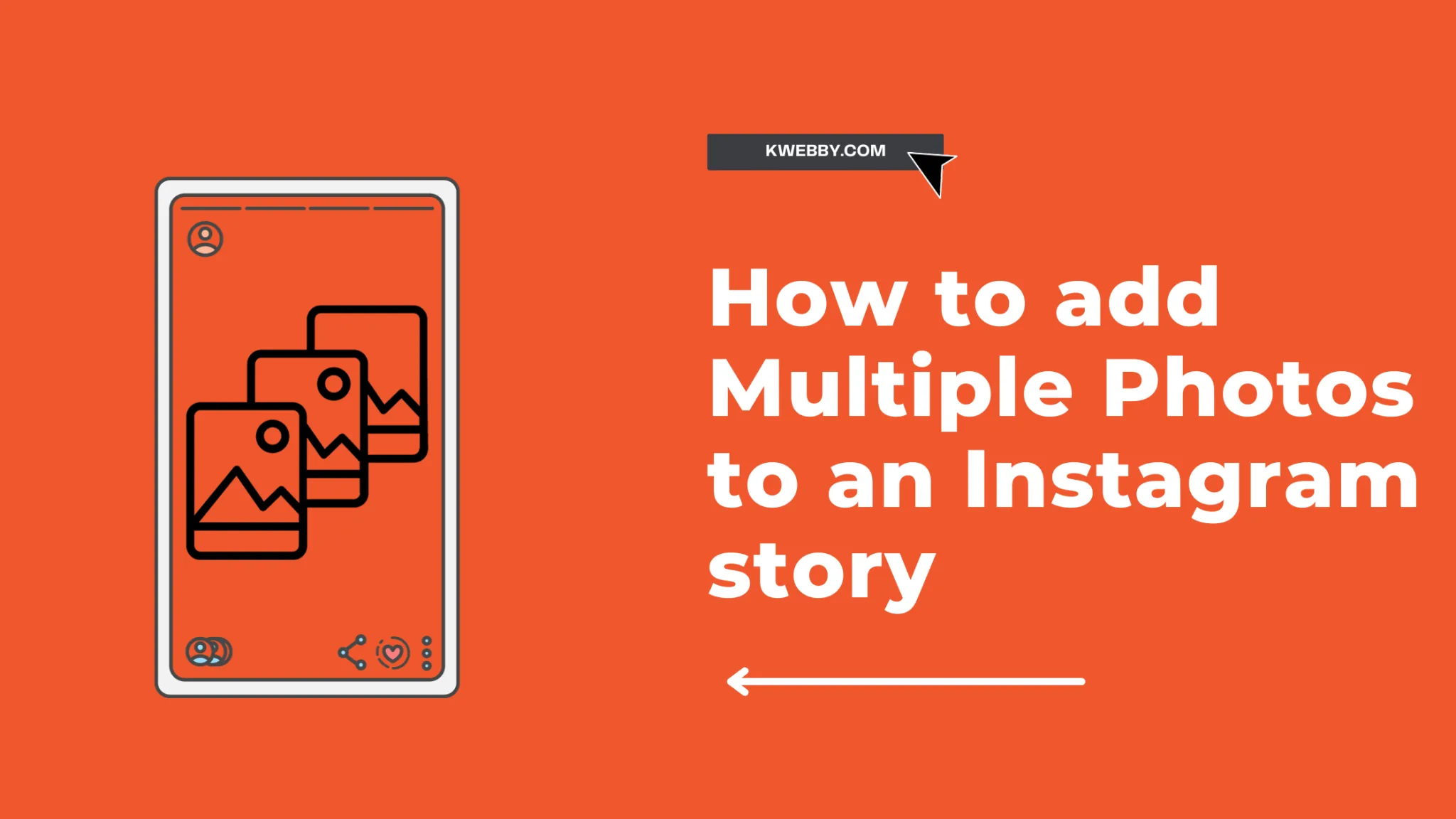
To add photos on Instagram, tap the plus icon, choose Post, select one image for a single photo or the multi-select icon for a carousel of up to 20 images, then edit, caption, and share. You can reorder or delete carousel slides after posting, but you cannot add brand-new photos to a carousel once it is live — you would need to delete and repost it.
Key takeaways
- A single feed post supports one photo, while a carousel post supports up to 20 photos or videos in one swipeable post, a limit Instagram raised from 10 in 2024.
- Tap the plus icon, choose Post, then tap the multi-image icon above your camera roll to start a carousel — you can drag to reorder images before sharing.
- Instagram will not let you add new photos to a carousel after it is published; you can only reorder slides, delete slides, or edit the caption, tags, and location.
- Stories support photos too, but they follow a 9:16 vertical format and disappear after 24 hours unless saved to Highlights.
- Posting from desktop at instagram.com now supports full photo and carousel uploads, not just browsing, which matters if you are working from a laptop.
- If you are trying to combine a video with several photos in one Story, you need a different workflow than a feed carousel.
How do you post a single photo to Instagram?
Open the app, tap the plus (+) icon at the bottom of the screen, and select Post. Choose one photo from your camera roll, tap Next to apply filters or adjustments, then tap Next again to add a caption, tag people, add a location, and share. This is the fastest route if you just need to know how do you add photo to Instagram without building a multi-image set.
You can crop the photo, adjust brightness and contrast, or apply one of Instagram's built-in filters before sharing. If you decide you picked the wrong filter after publishing, you can still tap Edit on the post later and change the filter without losing your likes or comments.
How do you create a carousel post with multiple photos?
Tap the plus icon, choose Post, then tap the layered-squares icon above your photo library to switch into multi-select mode. From there you can select up to 20 photos and videos, tap and hold any thumbnail to drag it into a new position, then tap Next to edit each slide individually or apply one filter to the whole set. This is the answer to how many photos can you post on Instagram in a single post — 20 is the current in-app cap, though third-party scheduling tools that rely on Meta's Graph API are often capped at 10 slides per post.
Carousels are useful for tutorials, before-and-after shots, or product catalogs, since viewers swipe through at their own pace and each slide can carry its own crop and filter.
Can you add photos to a post after you have already published it?
No. Instagram does not allow you to insert brand-new photos or videos into a carousel once it is live, and this is one of the most common points of confusion covered in can you add photos to an Instagram post questions. What you can do, using the three-dot menu and Edit on an existing post, is reorder the slides you already posted, delete individual slides (as long as at least two remain), edit the caption, alt text, tags, and location.
If you genuinely need to add a photo that was not part of the original set, your only option is to delete the post and repost the full carousel with the new image included, which does reset your likes and comments.
How do you add photos to more than 10 in one post?
If your app is showing a 10-photo limit, you likely have an outdated version installed. Update Instagram from the App Store or Google Play, since the 20-photo carousel limit is server-side and tied to app version. For a deeper walkthrough see how to post more than 10 photos on Instagram, which covers the update path and what happens if a slide upload fails partway through.
How do you post photos to Instagram Stories instead of the feed?
From the home screen, tap your profile photo or swipe right to open the camera, then select a photo from your gallery using the square icon in the bottom-left corner. Stories crop to a 9:16 vertical frame by default, so a landscape or square photo may need manual resizing before you add stickers, text, or a link sticker. Full instructions live in how to post a story on Instagram.
Unlike feed posts, Stories disappear after 24 hours unless you save them to a Highlight on your profile, which is worth doing for photos you want visible long-term.
What are the photo requirements for feed, Story, and Reels covers?
| Placement | Aspect ratio | Recommended resolution | Disappears? |
|---|---|---|---|
| Feed single photo | 1:1, 4:5, or 1.91:1 | 1080 x 1080 to 1080 x 1350 px | No |
| Feed carousel | Same ratio for all slides | 1080 px wide minimum | No |
| Story photo | 9:16 | 1080 x 1920 px | 24 hours (unless saved) |
| Reel cover photo | 9:16 | 1080 x 1920 px | No |
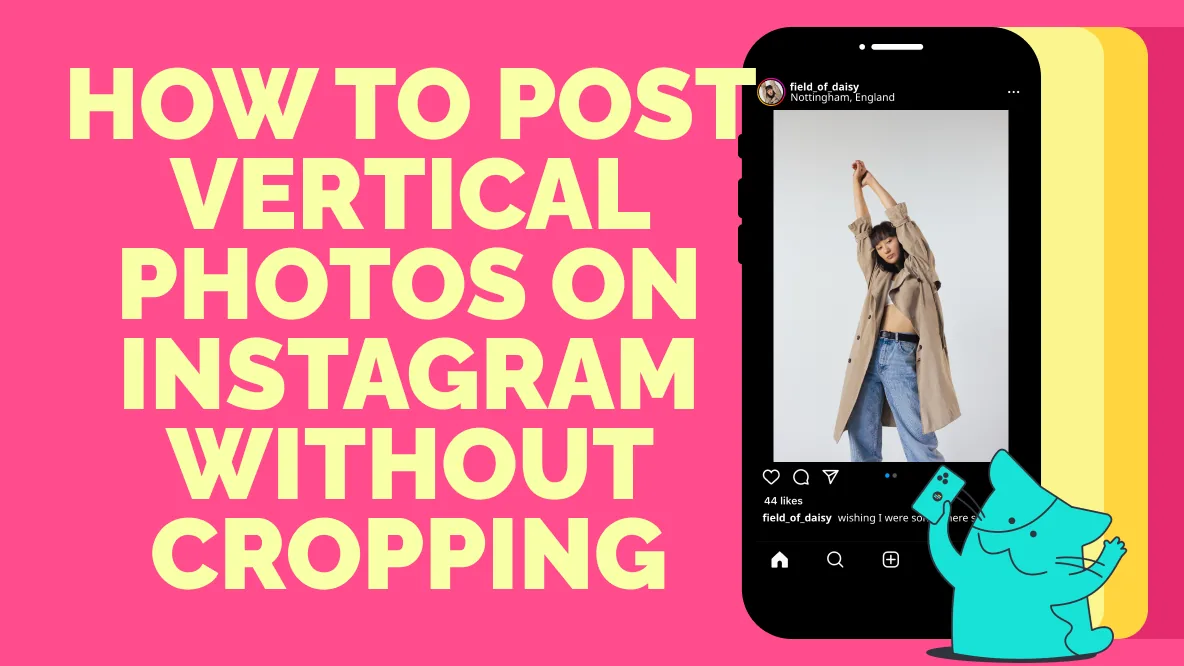
Mixing aspect ratios within a single carousel is possible, but Instagram will crop every slide to match the ratio of the first photo you select, so pick your lead image carefully.
How do you add photos and videos together in one post or Story?
A feed carousel can mix photos and videos freely in the same 20-item set — just select both types when building the carousel. Stories work differently: adding a photo and a separate video clip to the same Story means posting them as sequential Story frames rather than merging them into one frame, which is explained step by step in how to add videos and photos together on Instagram story.
Can you post photos to Instagram from a desktop computer?
Yes. Instagram.com now supports uploading single photos and full carousels directly from a browser, not just viewing your feed. Click the plus icon near the top of the page, drag in your photo or photos, crop or filter them, write a caption, and publish exactly as you would on mobile. This matters if you edit photos on a desktop workflow and do not want to transfer files to your phone first — see how do you upload on Instagram for the full desktop-versus-phone comparison.
What if a photo will not upload or looks blurry after posting?
Blurriness is usually caused by uploading a file smaller than 1080 pixels wide, which Instagram then stretches to fit. Re-export your photo at a higher resolution and avoid heavy in-app compression from messaging apps before uploading. If uploads fail outright, check your connection, update the app, and confirm the file is a supported JPEG or PNG rather than a RAW or HEIC file Instagram cannot process directly.
How do you save photos you have already posted, or that you find on Instagram?
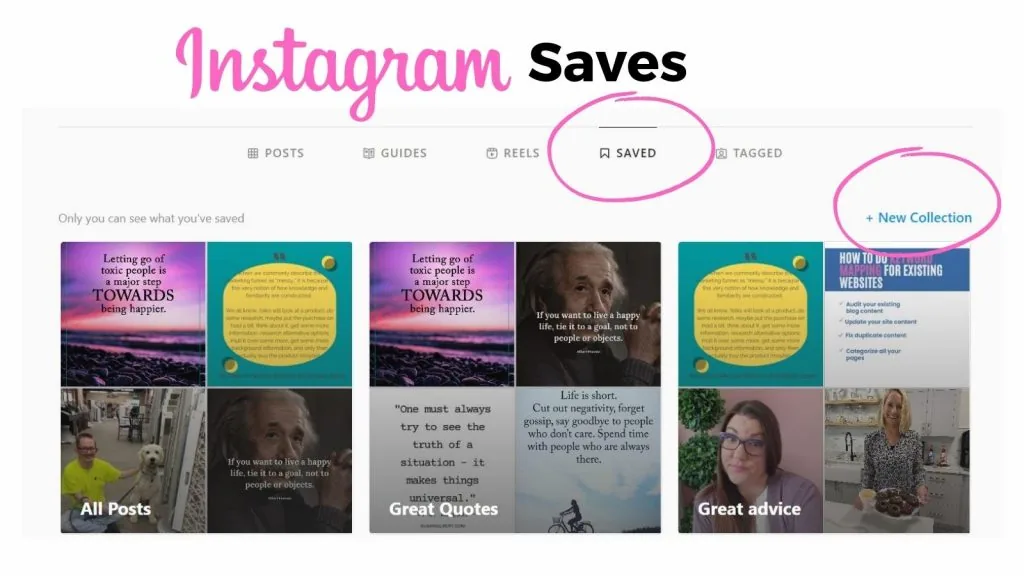
To keep a personal copy of a photo you posted, most people export it before uploading, but you can also learn methods in how can you save photos on Instagram for both your own posts and saved content from others, keeping in mind Instagram's terms around downloading other people's images without permission.
Frequently asked questions
A single feed post holds one photo, while a carousel post holds up to 20 photos or videos combined, a limit raised from the original 10 in 2024. Third-party scheduling apps using Meta's Graph API are often still limited to 10 slides per post.
Sources
Keep reading
More guides to grow your account.