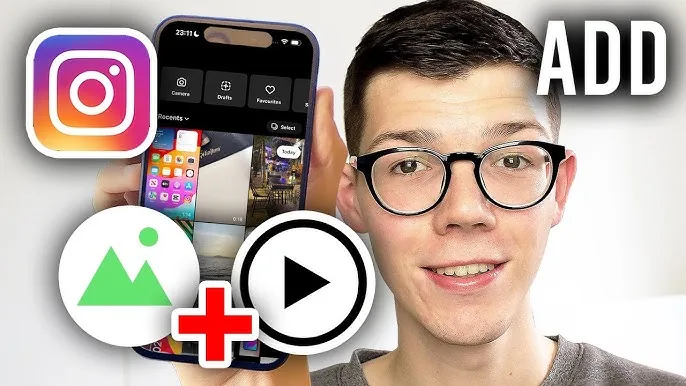
How to Add Videos and Photos to One Instagram Story
Select multiple photos and videos at once from your camera roll when creating a Story to build an ordered sequence of frames, or use the Photo sticker to layer a still image on top of a video background — each still counts as a separate Story card even though it plays as one continuous sequence.
Short answer
Multi-select several photos and videos from your camera roll when starting a Story to create an ordered sequence of separate frames, or use the Photo sticker to layer a still image directly on top of a video background within a single frame — the two methods serve different purposes.
Quick answer
There are two distinct ways to combine photos and video in an Instagram Story. For a sequence (photo, then video, then another photo, each as its own frame), use multi-select when choosing content from your camera roll. For a layered single frame (a photo pasted on top of a video background, or vice versa), use the Photo sticker to drop a still image directly onto whatever you're already filming or have selected as the background.
Key takeaways
- Multi-select creates multiple separate Story frames that play in sequence, one after another — it's not one merged clip, just an ordered set of individual Stories.
- The Photo sticker lets you layer one still image on top of a video (or another photo) within a single frame, resizable and repositionable like any other sticker.
- Stories are built for a vertical 9:16 canvas, so photos and videos shot in other aspect ratios may need cropping or will show with blank space/blur padding around them.
- Each frame in a multi-select sequence can be individually edited (trimmed, captioned, filtered) before you publish the whole set.
- Layout (Instagram's built-in photo grid tool) handles multiple still photos well but isn't designed for combining video into the same grid arrangement.
Creating a sequence of photos and videos (multi-select)
- Swipe right from your feed or tap + > Story to open the Story camera.
- Tap the gallery/camera-roll icon in the bottom-left corner.
- Instead of tapping a single item, tap and hold or use the selection circles to choose multiple photos and videos — Instagram lets you pick the order they'll play in.
- Once selected, tap Next (or the arrow) to move into the editor, where each frame appears individually for you to trim, caption, or filter before moving to the next.
- Preview the full sequence, then tap Your Story to publish — viewers will see each item play one after another, tapping or waiting to advance exactly like any multi-frame Story.
Layering a photo on top of a video (Photo sticker)
- Start a Story and either shoot or select a video as your base layer.
- Tap the sticker icon in the top toolbar.
- Scroll to find the Photo sticker option (sometimes listed simply as "Photo" among the other sticker types).
- Choose a photo from your camera roll — it appears as a resizable, draggable sticker on top of your video.
- Position and resize it as needed, then publish as a normal Story.
Common mistakes to avoid
- Expecting multi-select to merge everything into one single continuous video file — it creates separate sequential Story frames, not a single stitched clip.
- Forgetting that photos and videos shot in different aspect ratios can look inconsistent back-to-back in a sequence — consider cropping content to a consistent vertical format beforehand for a cleaner look.
- Placing a Photo sticker so large it completely obscures the video background, defeating the purpose of layering the two together.
- Assuming Layout (the grid tool) supports mixing in video clips — it's built specifically for arranging multiple still photos, not combining photo and video content in one grid.
Tips
- Plan your sequence order before selecting multiple items, since reordering mid-selection can be less intuitive than choosing them in your intended viewing order from the start.
- Use consistent filters or color grading across a multi-frame sequence so the Story feels cohesive rather than like disconnected clips.
- If you're building a narrative Story (before/after, tutorial steps, event recap), the sequence method suits that better than layering, which works best for adding a small supplementary image to a primary video moment.
Frequently asked questions
No, multi-select creates a sequence of separate Story frames that play one after another, not a single merged video file. Each item remains its own individually editable frame within the sequence.
Sources
Keep reading
More guides to grow your account.