How Do You Add Photo to Instagram?
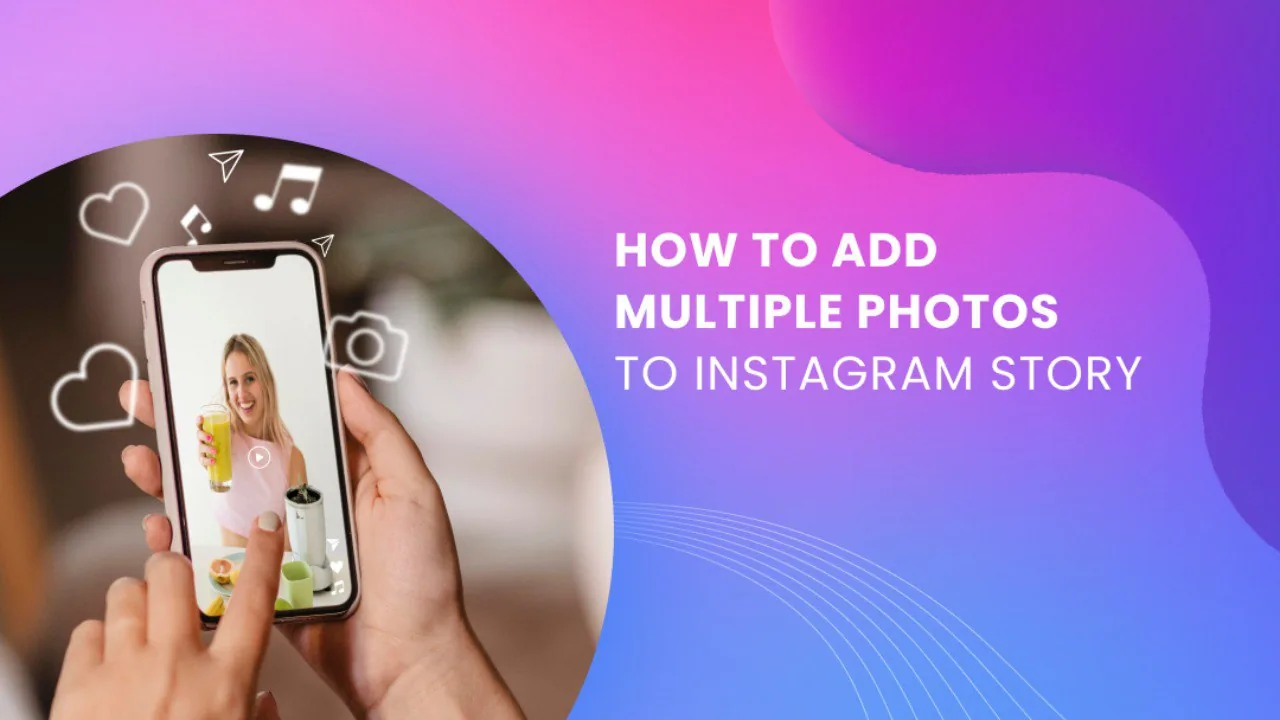
Adding a photo to Instagram means something different depending on where you want it: swipe right for a Story photo, tap the plus icon for a feed post, or use Select Multiple to layer several photos into one Story or carousel — each format has its own editing tools once the photo's in place.
Short answer
Where you add a photo determines the tools available: Stories (swipe right from your feed) give you drawing, text, and sticker overlays on top of the image, while feed posts (tap the + icon) offer filters and multi-photo carousels — pick the format based on whether you want it permanent (feed) or temporary (Story).
Quick answer
How you add a photo depends on where you want it to live. For your main feed, tap the + icon at the top of Instagram, select Post, and choose your photo. For a Story, swipe right from your feed (or tap + > Story) and either take a new photo or tap the gallery icon in the bottom-left to pick one from your camera roll. Stories give you extra tools right on top of the photo — text, drawing, stickers — that regular feed posts don't offer in the same way.
Key takeaways
- Feed posts are permanent (until you delete them) and appear on your profile grid; Stories disappear after 24 hours unless saved to Highlights.
- Story photos support on-image tools like text boxes, drawing, and interactive stickers (polls, questions, location) layered directly on top.
- Feed posts support filters, cropping, and up to 10 photos/videos in one swipeable carousel, but don't have the same sticker overlay system as Stories.
- Uploading from your camera roll versus taking a photo live within the app both work identically once the image is selected — the editing tools that follow are the same either way.
- If you accidentally add the wrong photo, you can back out before finalizing (tap back or the X) without it being posted.
Adding a photo to your feed
- Tap the + icon at the top of your Instagram feed.
- Select Post.
- Choose a photo from your gallery, or tap the camera icon to take a new one immediately.
- Tap Next, apply a filter or manual edits (brightness, contrast, warmth, etc.).
- Tap Next again, add your caption, tags, and location, then tap Share.
Adding a photo to a Story
- Swipe right from anywhere in your main feed, or tap the + icon and select Story.
- Tap the gallery icon in the bottom-left to choose an existing photo, or tap the shutter button to take a new one.
- Once the photo is loaded, use the toolbar to add text, draw, or drop in stickers (polls, location, music, and more).
- Tap Your Story to post it for 24 hours, or Close Friends to limit who sees it.
Common mistakes to avoid
- Confusing the Story camera with the feed post camera — they open from different taps (swipe right vs. the + icon > Post) and lead to different editing toolsets.
- Forgetting Stories disappear after 24 hours unless manually saved to your profile's Highlights — don't rely on a Story as a permanent post.
- Applying heavy filters to a feed photo without previewing how it looks against your existing grid — inconsistent filter styles can make your profile feel visually disjointed.
- Not checking photo orientation before posting — a portrait photo taken sideways can display awkwardly if not rotated properly beforehand.
Tips
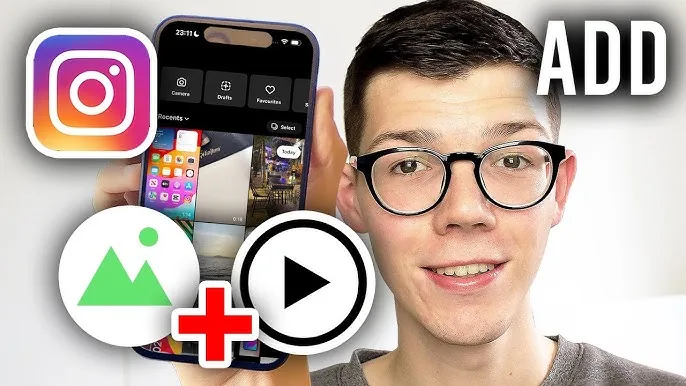
- If you want a Story that layers multiple photos together rather than just one, see adding videos and photos together to one Instagram Story for combining several clips into a single Story sequence.
- Save Stories you want to keep permanently visible to a Highlight on your profile immediately after posting, since the original Story itself still expires after 24 hours.
- If you ever need to remove a photo you've posted, see our guide on deleting Instagram photos and posts for the difference between archiving and permanently deleting.
Frequently asked questions
Feed photos are permanent (until deleted) and appear on your profile grid with filter and carousel options, while Story photos disappear after 24 hours but support on-image tools like text, drawing, and interactive stickers that feed posts don't have in the same format.
Sources
Keep reading
More guides to grow your account.