How to Switch Between Instagram Accounts Fast
Add up to five Instagram accounts to one device and switch between them in a tap. Here's every method, from the profile menu to double-tap shortcuts.
Short answer
You can switch between Instagram accounts by tapping the down arrow next to your username and selecting another added account, without logging out and back in each time. Instagram allows up to five accounts logged in simultaneously on one device.
Key takeaways
- Instagram allows up to five accounts to stay logged in on the same device at once.
- The fastest way to switch is tapping the down arrow next to your username at the top of your profile.
- Long-pressing the Profile tab icon also brings up a quick account switcher.
- Double-tapping the profile icon in the bottom right corner cycles to your most recently used other account.
- New accounts can be added from Settings, under Add Account, using that account's username and password.
- Switching accounts keeps each account's notifications, DMs, and settings fully separate.
How do I add a second account to switch between?
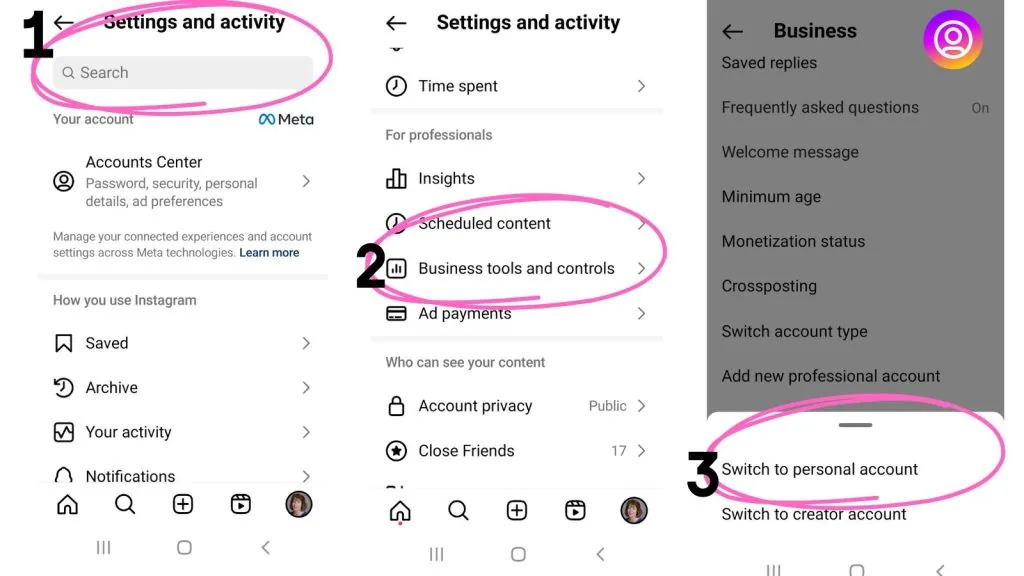
Go to your profile, tap the Menu icon, scroll to the bottom, and tap Add Account, then enter the username and password of the account you want to add. Alternatively, tap the down arrow next to your current username at the top of your profile and choose Add account from the dropdown. This is often the first step people take when setting up a business page alongside a personal profile, similar to workflows described in how to switch to a personal account on instagram, or when someone wants to recover instagram account access before adding it to the switcher.
What's the fastest way to switch accounts once they're added?
Tap the down arrow next to your username at the top of your profile screen and select the account you want to switch to from the list that appears. This is the most direct method and works identically on iOS and Android. You can also long-press the Profile tab icon at the bottom of the screen to bring up the same account list without navigating to your profile first, a shortcut worth knowing alongside other quick actions like how to mute someone on instagram.
Is there a shortcut for switching to just one other account?
Yes, double-tapping the profile icon in the bottom right corner instantly switches you to your most recently used secondary account, which is useful if you only manage two accounts and switch between them often. This shortcut doesn't show a list, so it's best reserved for people who only need to jump back and forth between exactly two profiles.
How many Instagram accounts can I stay logged into at once?
Instagram currently allows up to five accounts to remain logged in on a single device at the same time, and switching between any of them doesn't require re-entering a password. If you manage more than five, you'll need to fully log out of one and log into another, similar to the process in how to log out of instagram.
Does switching accounts affect notifications or DMs?
No, each account keeps its own separate notifications, direct messages, and settings entirely independent of the others. Notifications for a non-active account still arrive in the background, though you'll need to switch into that account to read and reply to its DMs, which is covered further in how to check dms instagram.
Account switching methods compared
| Method | Steps required | Best for |
|---|---|---|
| Down-arrow dropdown | Tap username arrow, select account | Managing 3-5 accounts |
| Long-press Profile tab | Hold Profile icon, select account | Quick access without opening profile |
| Double-tap profile icon | Two taps on profile icon | Switching between exactly two accounts |
| Full logout and login | Log out, enter new credentials | Accounts beyond the 5-account limit |
Choosing the right method mostly comes down to how many accounts you juggle regularly, with the dropdown menu being the most reliable option for anyone managing more than two.
Frequently asked questions
Tap the down arrow next to your username at the top of your profile and select the account you want to switch to from the list, no password needed if it's already added.
Sources
Keep reading
More guides to grow your account.