How Can I Logout of Instagram?
Tap your profile picture, open the menu (☰) in the top right, scroll to the bottom, and tap Log out — if you have multiple accounts logged in, you'll be asked whether to log out of just that account or all of them.
Short answer
Profile > menu icon (☰) > scroll down > Log out is the standard path on both iOS and Android; if you have several accounts saved, you'll get an option to log out of one or all of them.
Quick answer
On the Instagram app: tap your profile picture (bottom right) > tap the menu icon (☰) in the top right > scroll all the way down in Settings and privacy > tap Log out. If you have more than one account logged into the app, Instagram will ask whether you want to log out of just the current account or Log out of all accounts. On the web at instagram.com, the same option sits at the bottom of the settings/account menu accessed from your profile icon.
Key takeaways
- Logging out is different from deactivating or deleting your account — logging out just ends your session on that device
- If you have multiple accounts saved (Instagram allows adding several), you choose between logging out of one or all
- Logging out clears the saved login state and disables push notifications for that account on that device
- Face ID/Touch ID or password-based quick login may be offered again the next time you sign in, depending on your device settings
Step-by-step: logging out on mobile (iOS and Android)
- Open the Instagram app and tap your profile picture in the bottom-right corner
- Tap the hamburger menu icon (☰) in the top-right corner of your profile
- Tap Settings and privacy
- Scroll all the way to the bottom of the settings list
- Tap Log out (it appears under your account name near the very bottom)
- If you're only logged into one account, this logs you out immediately
- If multiple accounts are logged in, you'll see a prompt with two choices: log out of just the current account, or tap Log out of all accounts to sign out of every account on that device at once
Step-by-step: logging out on instagram.com (desktop)
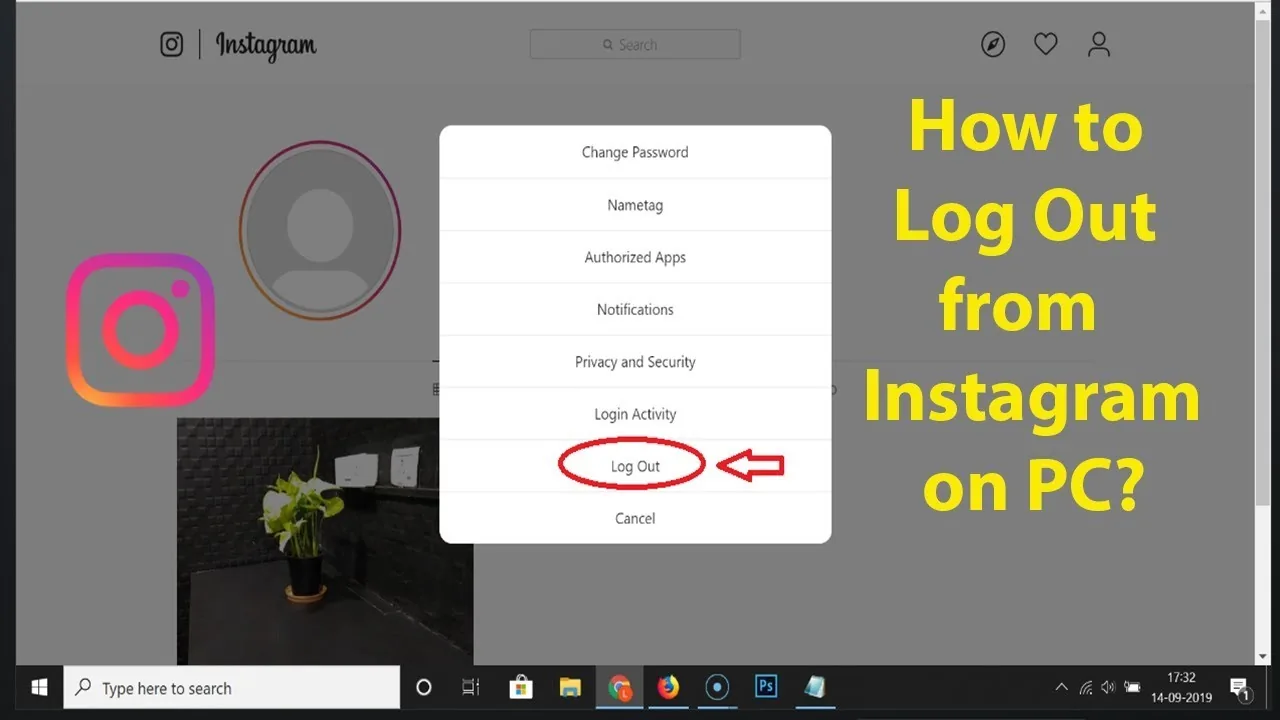
- Click your profile icon in the top-right corner
- Click More (or the settings/account menu, depending on layout)
- Select Log out from the dropdown
- Confirm if prompted
What actually happens when you log out
- Your session token for that device is invalidated, so anyone with physical access to the device can no longer open the app and see your account without re-entering credentials
- Push notifications for that account stop arriving on that device until you log back in
- Saved login info (like an auto-fill password or Face ID/fingerprint quick login) may still be offered the next time you tap to log back in, unless you also clear it during logout or in your device's saved passwords
- Your account itself, posts, followers, and messages are completely unaffected — logging out is purely local to that device and session
Logout vs. deactivation vs. deletion
These are commonly confused:
- Log out: Ends your session on one device. Your profile, posts, and everything else stay exactly as they are and are still visible to others. You can log back in anytime with your username and password.
- Deactivate: Temporarily hides your entire profile, photos, comments, and likes from other users until you log back in and reactivate it. Found under Settings and privacy > Accounts Center > Personal details > Account ownership and control > Deactivation or deletion.
- Delete: Permanently removes your account and all content after a set grace period (historically around 30 days), and cannot be undone once that period passes.
Logging out doesn't touch any of that — it's the safest, fully reversible option if you just want to sign out of a shared or borrowed device.
Common mistakes to avoid
- Confusing "Log out" with "Deactivate" — deactivating hides your whole profile from others, which logging out does not do
- Forgetting you're logged into multiple accounts and only logging out of one when you meant to clear the device entirely
- Assuming logging out deletes saved login credentials from the device — check your phone's password manager separately if you're using a shared device
- Not realizing that after logout, scheduled posts or drafts tied to your account are unaffected and will still process normally
Tips
- On a shared or public device, also clear the app's saved login suggestions afterward so your username doesn't autofill for the next person
- If you manage multiple accounts, use "Log out of all accounts" only when you actually want to clear every profile from that device
- If you can't find Log out, make sure you've scrolled fully to the bottom of Settings and privacy — it's intentionally placed as the last item, below Accounts Center and Help
Frequently asked questions
Profile > menu icon (☰) top right > Settings and privacy > scroll to the very bottom > Log out. It's placed as the last item on the settings screen.
Sources
Keep reading
More guides to grow your account.