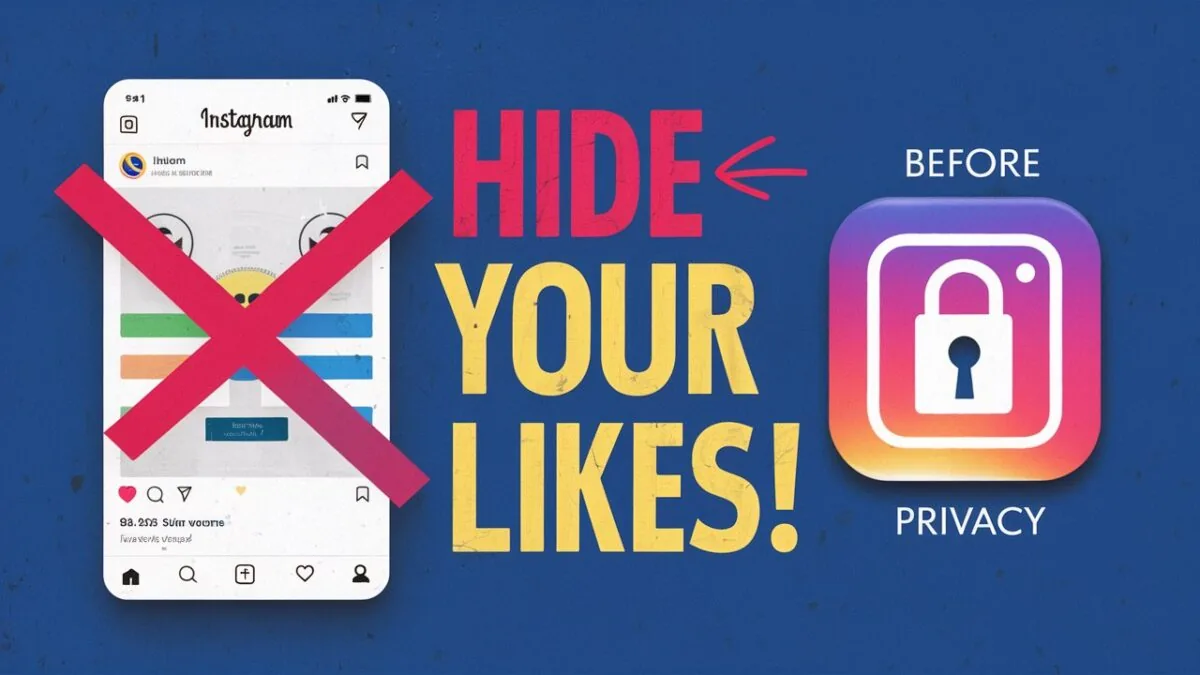
How to Hide Your Like Count on Instagram (2026 Guide)
Turn off visible like counts on a single post, all future posts, or just your own view of the feed — here's exactly where each toggle lives.
Short answer
You can hide like counts on a single post before or after publishing through the Advanced Settings toggle, or turn off like and view counts across your whole feed from Settings and Privacy — Reels currently don't support this option.
Key takeaways
- New posts can hide likes through the Advanced Settings toggle before you tap Share
- Existing posts can have likes hidden individually via the three-dot menu
- A feed-wide setting under Settings and Privacy hides like counts you see from others, not what others see on your posts
- Hiding likes doesn't change your reach — Instagram still uses engagement data internally for ranking
- As of 2026, Reels do not support hidden like counts, only feed posts do
How do I hide likes on a new Instagram post before I publish it?
While creating your post, scroll to the final screen where you write your caption, then tap Advanced Settings and turn on Hide like and view counts on this post. This works the same for a single photo or a full carousel, and it hides the count from everyone viewing the post except you.
How do I hide likes on a post I already published?
Open the post, tap the three dots in the top right, select Hide Like Count, and confirm. This has to be repeated for each individual post — Instagram doesn't offer a bulk option to hide likes across every post you've already shared, unlike a single account-wide setting.
Can I hide the like counts I see on other people's posts?
Yes, but that's a separate personal setting rather than something you control per-post. Go to your profile, tap the three lines menu, open Settings and Privacy, scroll to Likes and views, and turn on the toggle — this only changes what you see, not what your followers see on your own posts.
Does hiding my likes hurt my reach or the algorithm?
No — Instagram still tracks and uses your engagement data internally for ranking and recommendations even when the count is hidden from public view. Hiding likes is purely a display choice; your actual performance numbers remain fully visible to you in Instagram Insights, which is useful if you're also tracking how many followers you need to get paid on the platform.
Why can't I hide likes on my Reels?
Instagram has not extended the hide-likes toggle to Reels as of 2026 — it currently applies only to feed posts and carousels. If you're focused on Reels performance, your only privacy lever right now is restricting who sees your liked videos, not hiding the like count on the Reel itself.
| Where you're hiding likes | Setting location | Applies to |
|---|---|---|
| A new post | Advanced Settings before sharing | That single post |
| An existing post | Three-dot menu → Hide Like Count | That single post |
| Everyone else's posts (your view) | Settings and Privacy → Likes and views | Your feed only |
| Reels | Not available | N/A |
Will hiding my likes affect brand deals or sponsorships?
It can complicate quick outreach, since some brands scan visible like counts as a fast credibility signal before reaching out, so keeping likes visible while pursuing your first brand deal is often smarter. Once a relationship is established, most brands rely on Insights data or media kits rather than public like counts anyway.
Does hiding likes change how people perceive my account?
It can shift the focus toward your captions and content quality instead of social proof, which some creators prefer while others feel it makes new visitors less confident to engage first. This is a purely personal or brand-strategy decision, similar to choosing whether to hide your followers list publicly at all.
Can I hide likes only on certain posts and not others?
Yes — the Advanced Settings toggle and the three-dot Hide Like Count option both apply per post, so you can mix hidden and visible like counts across your feed however you like. This flexibility is useful if you want to hide likes on lower-performing posts while keeping strong numbers visible on posts you're using to pitch sponsors or grow through organic follower growth strategies.
Frequently asked questions
On the final screen of the post-creation flow, tap Advanced Settings and turn on Hide like and view counts on this post. This applies only to that one post.
Sources
Keep reading
More guides to grow your account.