How Do I Do Instagram Live?
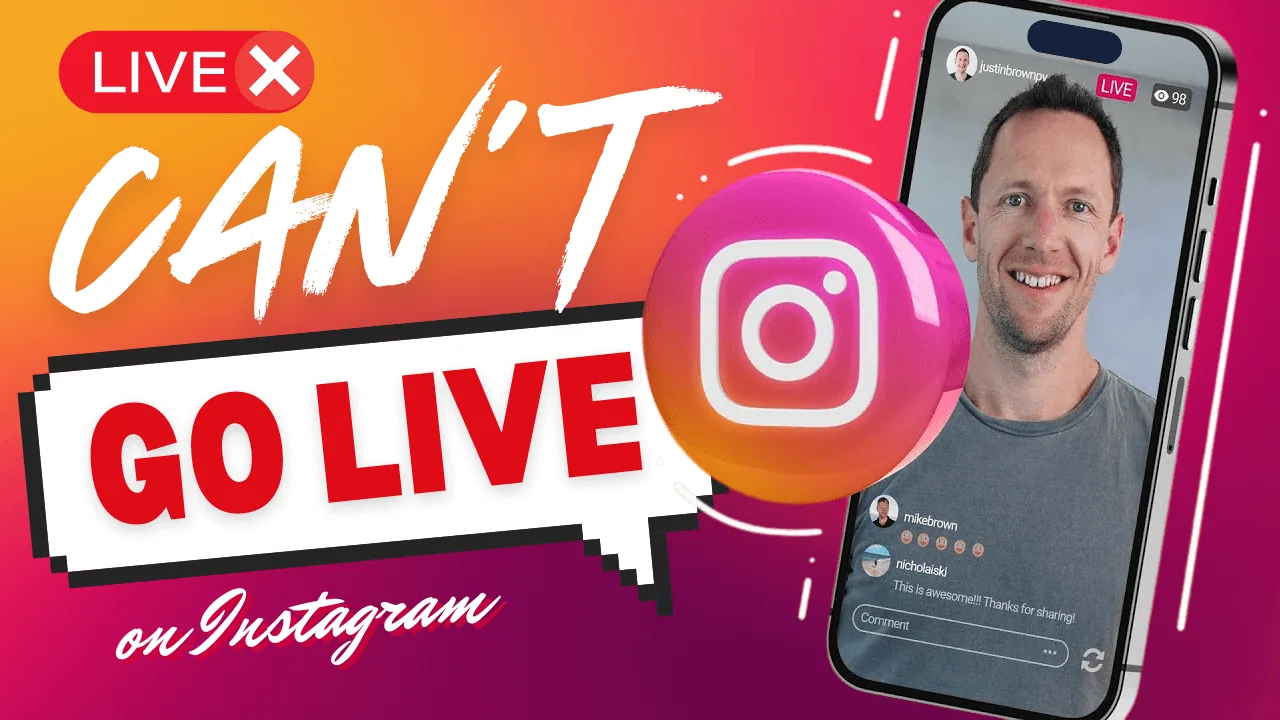
To go live on Instagram, tap the plus icon, swipe to Live in the camera options, add a title, and tap Start Live Video — anyone you haven't blocked can join and comment in real time, and you can invite a guest or save the replay to your Stories afterward.
Short answer
Tap the create-post plus icon, swipe the camera to the Live option, give it a title, and tap Start Live Video. Followers get a notification, viewers can comment and send hearts in real time, and you can add a second person as a guest.
Quick answer
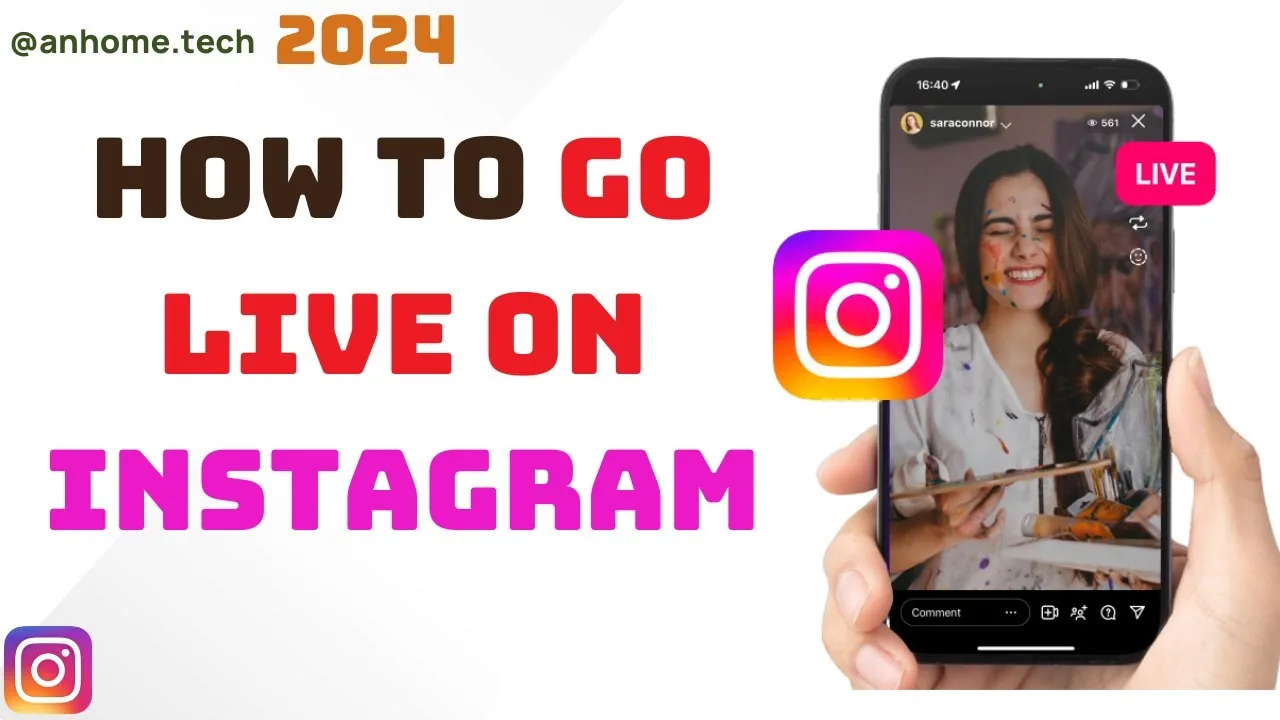
To start an Instagram Live, tap the + icon (or swipe right from your feed to open the camera), swipe along the bottom options until Live is selected, optionally add a title, and tap Start Live Video. Instagram notifies your followers that you're live, viewers can join, comment, and send hearts in real time, and you can invite another account to join as a guest mid-stream.
Key takeaways
- Live videos are broadcast in real time and appear at the front of the Stories bar with a "Live" label while active.
- You can add up to one guest (or more in some group Live configurations) who joins your stream from their own camera.
- Comments and viewer counts are visible during the broadcast; you can turn off comments or restrict who can comment before or during the Live.
- When you end a Live, you get the option to share the replay to your Stories for 24 hours, save it to your device, or discard it entirely.
- Instagram Live requires an internet connection stable enough for real-time video — weak connections can cause the stream to freeze, lag, or drop viewers.
Step-by-step: starting an Instagram Live
- Open the Instagram app and tap the + icon at the top of your screen, or swipe right anywhere in your main feed.
- Along the bottom of the camera screen, swipe to select Live (it sits alongside Post, Story, and Reel).
- Tap the title field to add a name for your stream if you want one — this is optional but helps viewers know what to expect.
- Tap Start Live Video. Instagram sends a notification to followers letting them know you've gone live.
- While live, you'll see real-time comments, viewer count, and hearts. Tap the message icon to moderate or turn off comments if needed.
- To add a guest, tap the icon showing two overlapping circles during the stream and invite someone to join.
- When you're finished, tap End Live, then choose to share the replay to your Story, save it to your camera roll, or discard it.
Who can go live and who can watch
Any Instagram account — personal, business, or creator — can start a Live broadcast as long as it meets Instagram's minimum age and account standing requirements; accounts that have violated community guidelines can have Live access temporarily restricted. Anyone who hasn't been blocked by you can find and watch your Live from your Stories bar or profile while it's active, though you can restrict comments to followers only or turn them off completely from the Live settings before you start.
Common mistakes to avoid
- Going live without checking your Wi-Fi or cellular signal strength first — a weak connection is the most common cause of a Live that freezes or disconnects viewers.
- Forgetting that comments are public and visible to anyone watching — review your comment settings beforehand if you want a more controlled Q&A format.
- Assuming the replay saves automatically — you have to actively choose to share it to your Story or save it after ending the broadcast, or it's lost.
- Not testing your camera and audio in a private moment first if this is your first time going live — Instagram doesn't offer a true "private rehearsal" mode for Live specifically.
Tips
- If the Live option doesn't appear in your camera menu at all, see our guide on why you can't go live on Instagram for the most common causes, from account restrictions to app version issues.
- For a broader look at what Instagram Live is and how it compares to Stories and Reels, check can you go live on Instagram.
- Announce your Live in advance through a regular Story or post if you want a bigger audience — the in-the-moment notification alone often reaches only a fraction of your followers who happen to have the app open.
Frequently asked questions
Yes, Instagram sends a notification to followers when you start a Live broadcast, though not everyone will see or act on it immediately depending on their notification settings and whether they have the app open.
Sources
Keep reading
More guides to grow your account.