How to Post a Reel on Instagram: Step-by-Step Guide
Post a Reel on Instagram by tapping +, selecting Reel, recording or uploading your clip, editing it, and sharing with the right specs.
Short answer
To post a Reel on Instagram, tap the + icon, choose Reel, record or upload your video, then trim it, add music and text, pick a cover, write a caption, and tap Share. Reels can now run up to three minutes, though shorter clips are recommended more.
Key takeaways
- Tap the + icon on your feed, then choose Reel to start recording or upload from your camera roll
- Reels now support clips up to three minutes long, though shorter Reels tend to get recommended more
- Editing tools let you trim clips, add music, text, auto-captions, and a custom cover
- Export video in 9:16 at 1080x1920 using H.264 MP4 with AAC audio for the cleanest upload quality
- You can also upload and schedule Reels from a desktop browser or a scheduling tool
- Pair a strong caption with proven hook techniques from the viral Reels hook formula
How do I start creating a Reel?
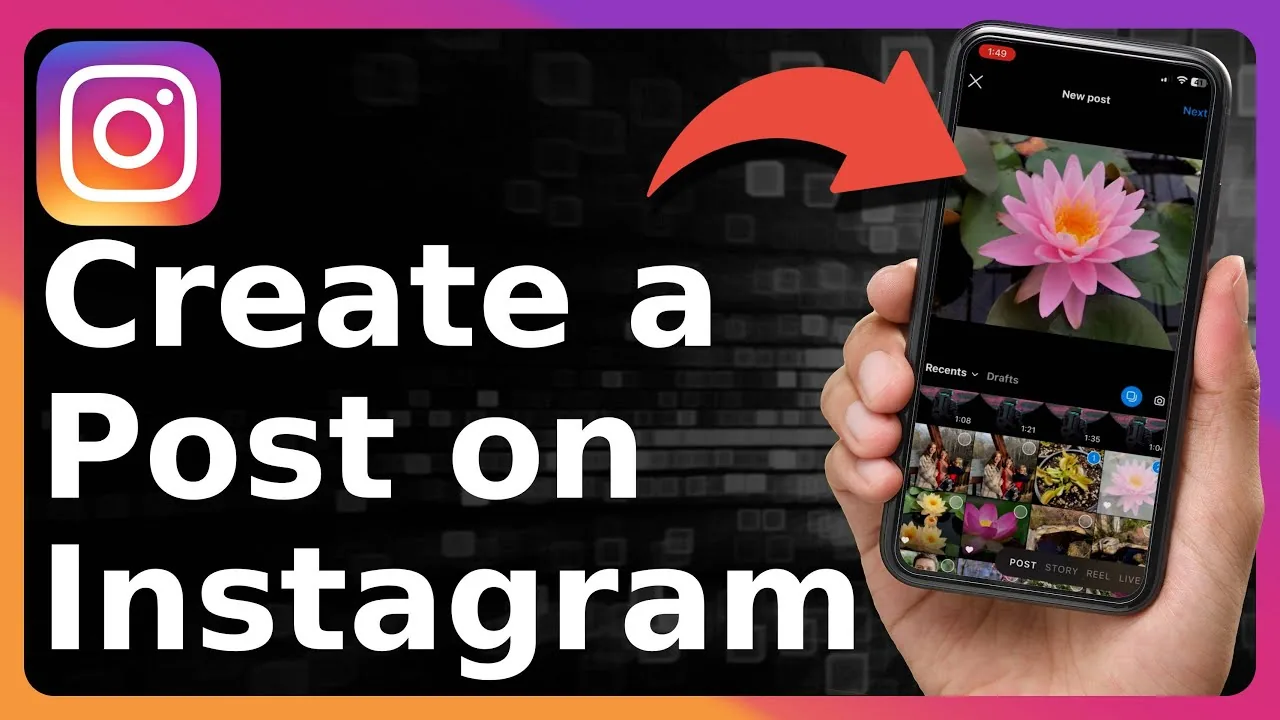
From your Instagram feed, tap the + icon, then select Reel from the menu that appears. You can either hit record to capture a new video directly in the app, or tap the camera roll icon to choose a pre-shot video or photos you already have saved.
What editing tools are available before posting?
You can trim individual clips, add a licensed song from Instagram's audio library, layer on text and auto-generated captions, and adjust the speed of parts of the clip. Once your edit is done, pick a cover frame that looks good on your profile grid, similar to choosing a strong thumbnail when you post a video elsewhere on the platform.
What are the ideal video specs for a Reel?
Export your video vertically at 1080x1920 (a 9:16 aspect ratio) using H.264 compression in an MP4 file, with AAC audio at 44.1 kHz for the cleanest playback quality. Getting this right matters more than people expect, since a mismatched aspect ratio can get your video cropped awkwardly or displayed with black bars.
How long can a Reel be?
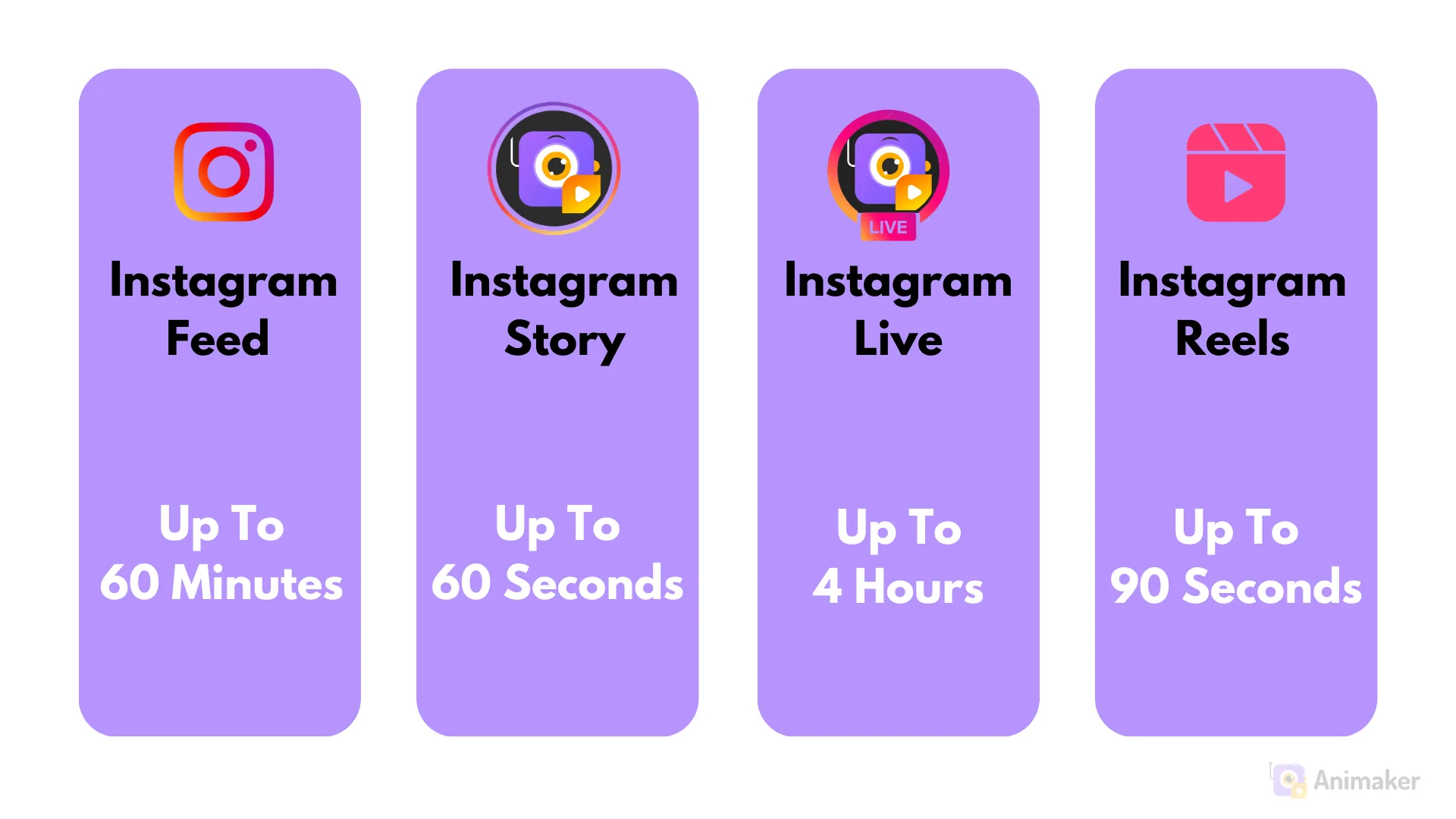
Instagram expanded Reels to a maximum length of three minutes in 2026, making longer vertical video a legitimate format on the platform. That said, Reels over three minutes are less likely to be pushed to new audiences by the algorithm, so if discovery is your goal, keeping most Reels well under that ceiling still performs best, as covered in how long Reels can be.
How do I finish and publish the Reel?
After editing, write a caption, ideally with relevant keywords, tag any people or a location, choose whether it also appears on your main grid, set your audience, and tap Share. If you want more eyes on it beyond your own followers, review how hashtags work since a few relevant tags can still help with discovery inside Explore.
Can I post a Reel from a computer instead of my phone?
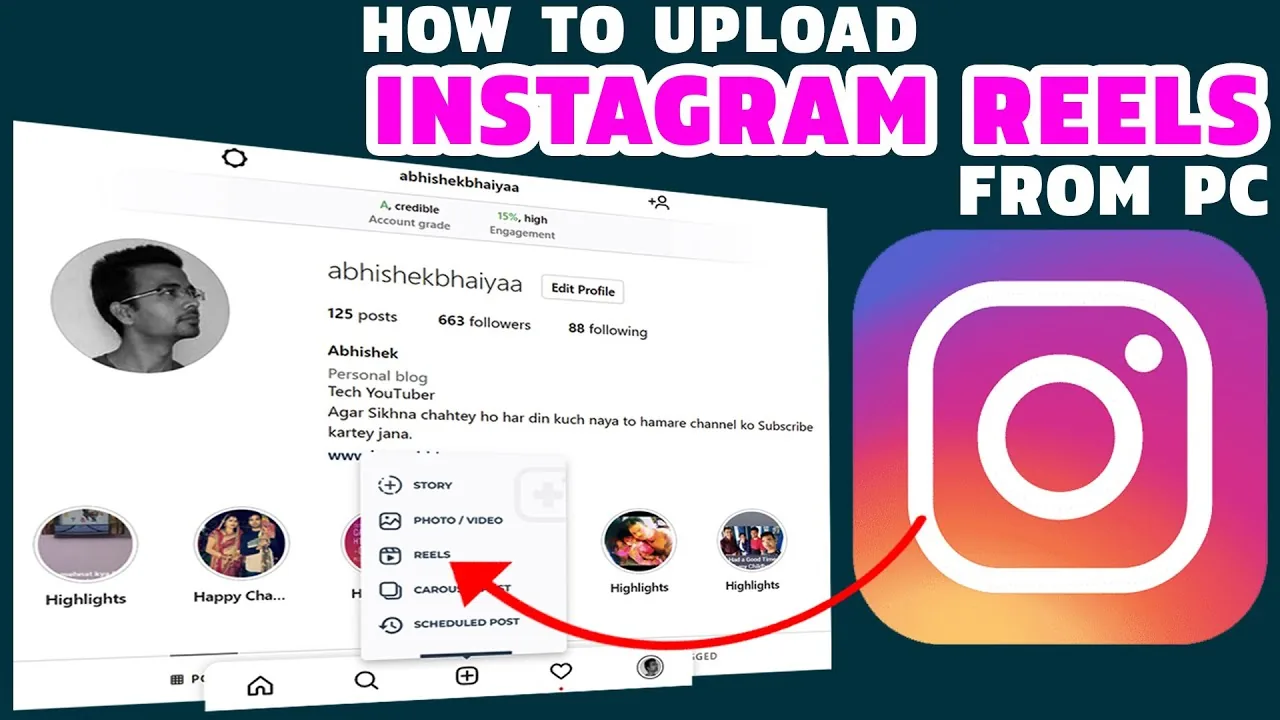
Yes, you can upload a pre-edited Reel through Instagram's desktop website or through a third-party scheduling tool connected to your account. Desktop uploading is handy for creators who edit on a computer, though the in-app editing tools like trimming, music, and stickers are still faster to use on mobile.
| Step | What to do |
|---|---|
| 1 | Tap + then select Reel |
| 2 | Record or upload from camera roll |
| 3 | Trim, add music, text, and captions |
| 4 | Choose a cover frame |
| 5 | Write caption, tag people, set audience, and Share |
Conclusion
Posting a Reel on Instagram comes down to tapping +, selecting Reel, recording or uploading your clip, editing it with music and text, and sharing it with a solid caption. Keep your export at 9:16 and your length intentional, and you'll avoid the most common quality mistakes.
Frequently asked questions
Tap the + icon on your feed, select Reel, record or upload a video, edit it with music and text, then write a caption and tap Share.
Sources
Keep reading
More guides to grow your account.