How Can I Post a Gif on Instagram?
Instagram feed posts don't accept native animated GIF uploads — pick a static frame or convert the clip to an MP4/Boomerang to post it in the grid, or use a GIF sticker instead in Stories.
Short answer
Instagram feed posts don't accept native animated GIF uploads — pick a static frame or convert the clip to an MP4/Boomerang to post it in the grid, or use a GIF sticker instead in Stories.
Quick answer
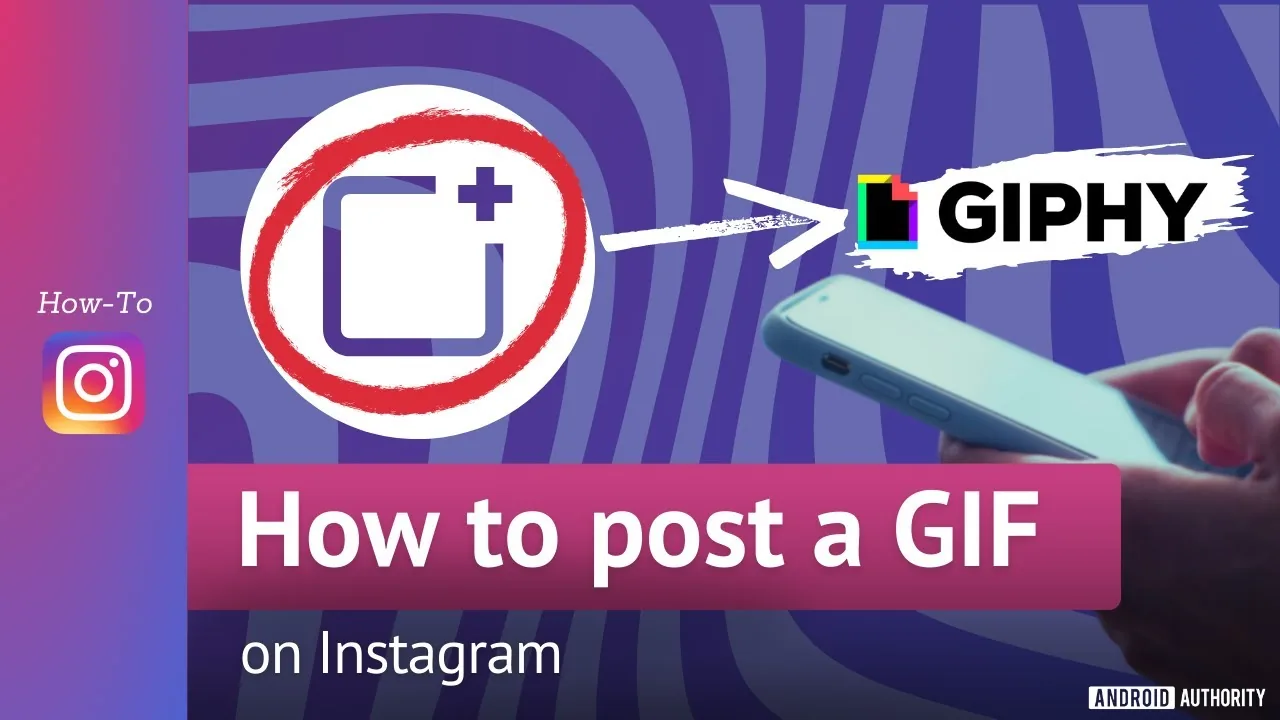
There is no button that lets you upload a .gif file straight into an Instagram feed post and have it animate. If you try to select a .gif from your camera roll when creating a feed post, Instagram either rejects the file or flattens it into a single static image. To get animated GIF-style motion into a feed post, you need to convert the GIF into a video file first (MP4 or MOV) and post it as a Reel or a video post. If you just want the GIF look inside Stories or a DM, Instagram has a built-in Giphy search that works natively — no conversion needed.
Key takeaways
- Instagram's feed post uploader does not support animated GIF playback; only the first frame will show if you upload a raw .gif
- To post a GIF as a feed video or Reel, convert it to MP4 using a converter app or website first
- Stories and DMs have a built-in GIF search (powered by Giphy) that lets you add real animated GIFs as stickers or messages
- Boomerang is Instagram's own looping mini-video format and is the closest native equivalent to a GIF in the feed
- Reels support looping playback, which mimics the repeating feel of a GIF better than a single feed photo post
Why Instagram doesn't support native GIF uploads
Instagram was built around a photo-and-video pipeline, and its feed encoder standardizes everything into video formats (H.264/MP4) for compression and cross-device playback. Animated GIFs use a much older, less efficient format, so Instagram converts or blocks them rather than serving raw GIF files at scale. That's why the option to add a GIF sticker exists in Stories (a curated, licensed Giphy layer) but there's no equivalent "upload animated GIF" button in the main feed composer.
Step-by-step
- Find or save the GIF you want to post (Giphy, Tenor, or your own camera roll)
- Use a GIF-to-MP4 converter (many free web tools and phone apps do this in one tap) to turn it into a short video file
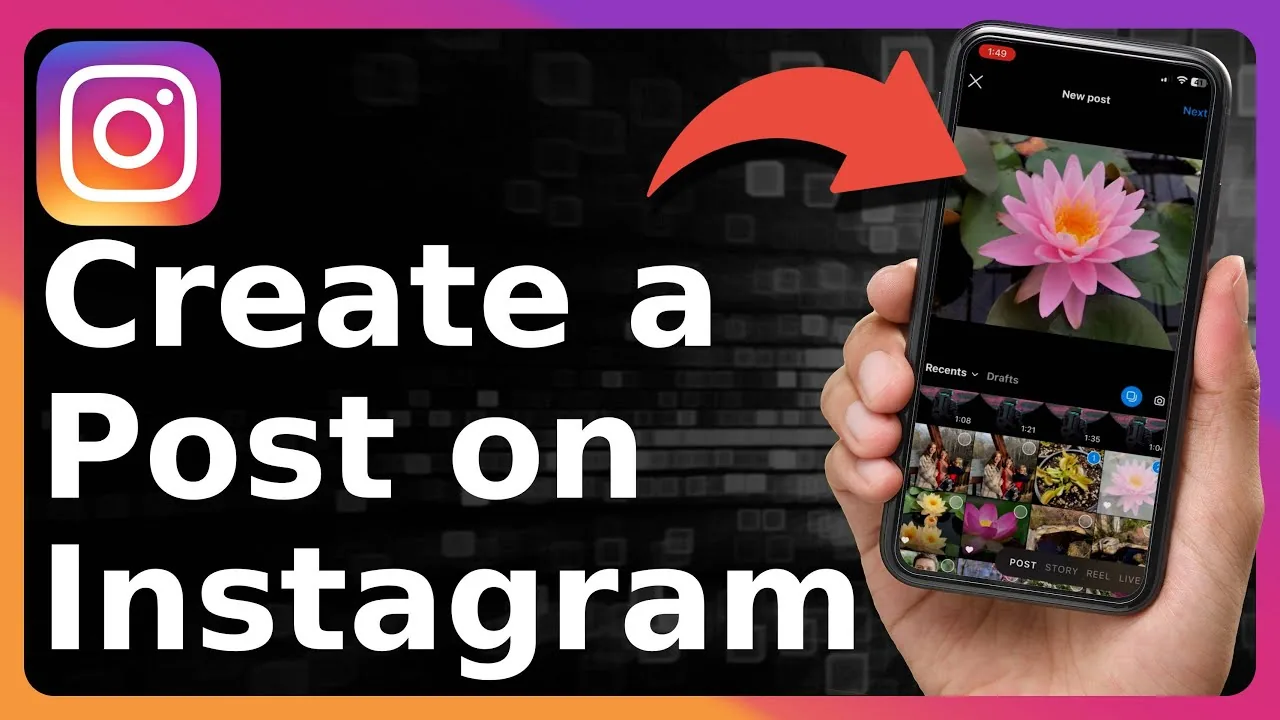
- Open Instagram and tap the + icon at the top of the Home feed, then choose Post
- Select the converted MP4 from your camera roll instead of the original .gif
- Trim, add a cover frame, apply filters or a caption as needed
- Tap Share to publish it as a normal video post, or choose Reel from the creation menu if you want it in the Reels tab too
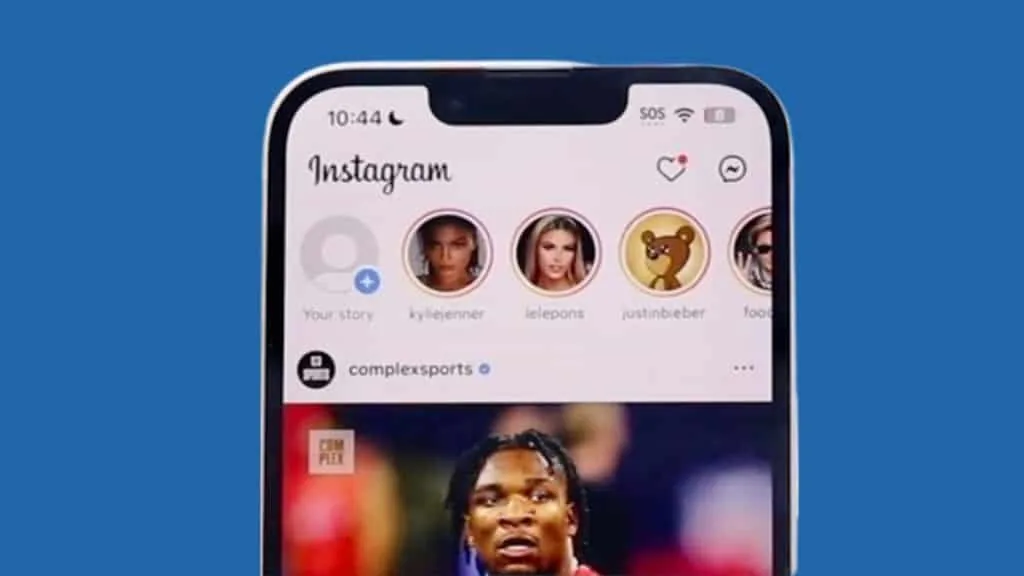
- If you only wanted the GIF effect in a Story: open the Stories camera, tap the sticker icon (square smiley) in the top toolbar, tap GIF, search Giphy, and drop it onto your Story before tapping Send to or Your story
Common mistakes to avoid
- Trying to upload a .gif directly to a feed post and being confused when it posts as a still image
- Skipping the conversion step and wondering why the "video" looks frozen after upload
- Forgetting that GIF stickers in Stories disappear after 24 hours unless added to Highlights
- Using low-resolution GIFs pulled from old meme pages — they look blurry once stretched to Instagram's video dimensions
- Ignoring aspect ratio: most GIFs are square or landscape, and Reels crop to a 9:16 vertical frame by default
Tips for success
- Look for GIFs at 1080p or higher before converting, since Instagram will upscale small files and the compression will make them blurrier
- If the GIF is short (under 2 seconds), consider looping it 3–4 times during conversion so it doesn't feel like it cuts off abruptly on a feed post
- For Stories, search specific and niche terms in the Giphy sticker search — broad terms like "funny" return generic results, while specific phrases return more relevant animated stickers
- Recreate the GIF with Instagram's own Boomerang camera mode if you want a native, non-converted looping clip
Conclusion
The honest answer is that Instagram's feed simply isn't built to host raw animated GIFs. Convert to video for the feed or Reels, or lean on the built-in Giphy sticker search for Stories and DMs — both routes get you GIF-style motion without fighting the platform.
Frequently asked questions
No. If you select a .gif when creating a feed post, Instagram will either reject it or import only the first static frame — it won't animate.
Sources
Keep reading
More guides to grow your account.